

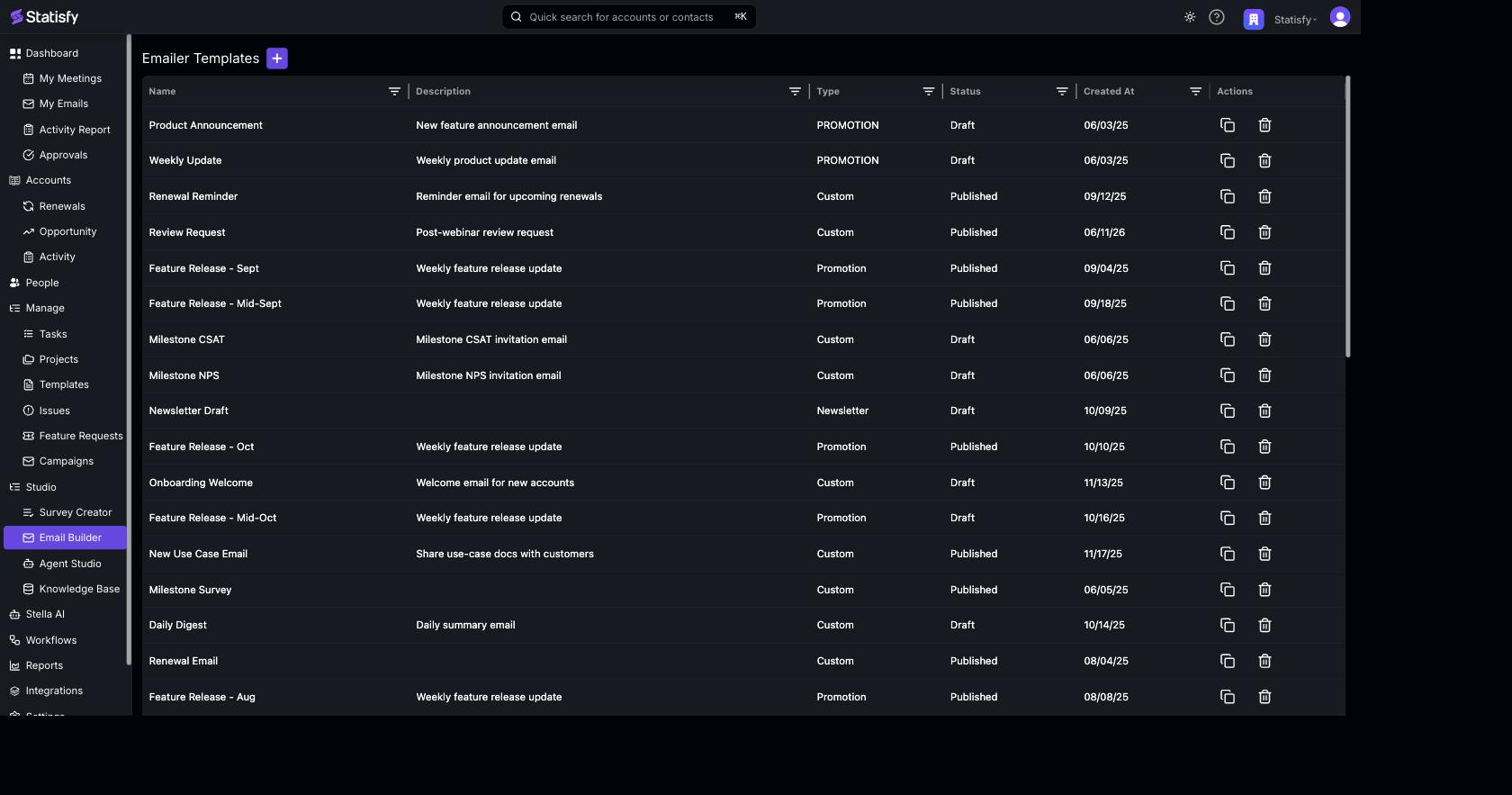
Template Types
When you create a template you choose a type. The type controls one important rule: whether an unsubscribe link is required.Only Updates emails are exempt from the unsubscribe requirement. For every other type, your template must include an unsubscribe link before it can be published.
Template States
Creating a Template
Creating a template is a two-step flow — Template Info, then Editor.Step 1 — Template Info
- Click the + (Add Emailer Template) button next to the page title.
-
Fill in the details:
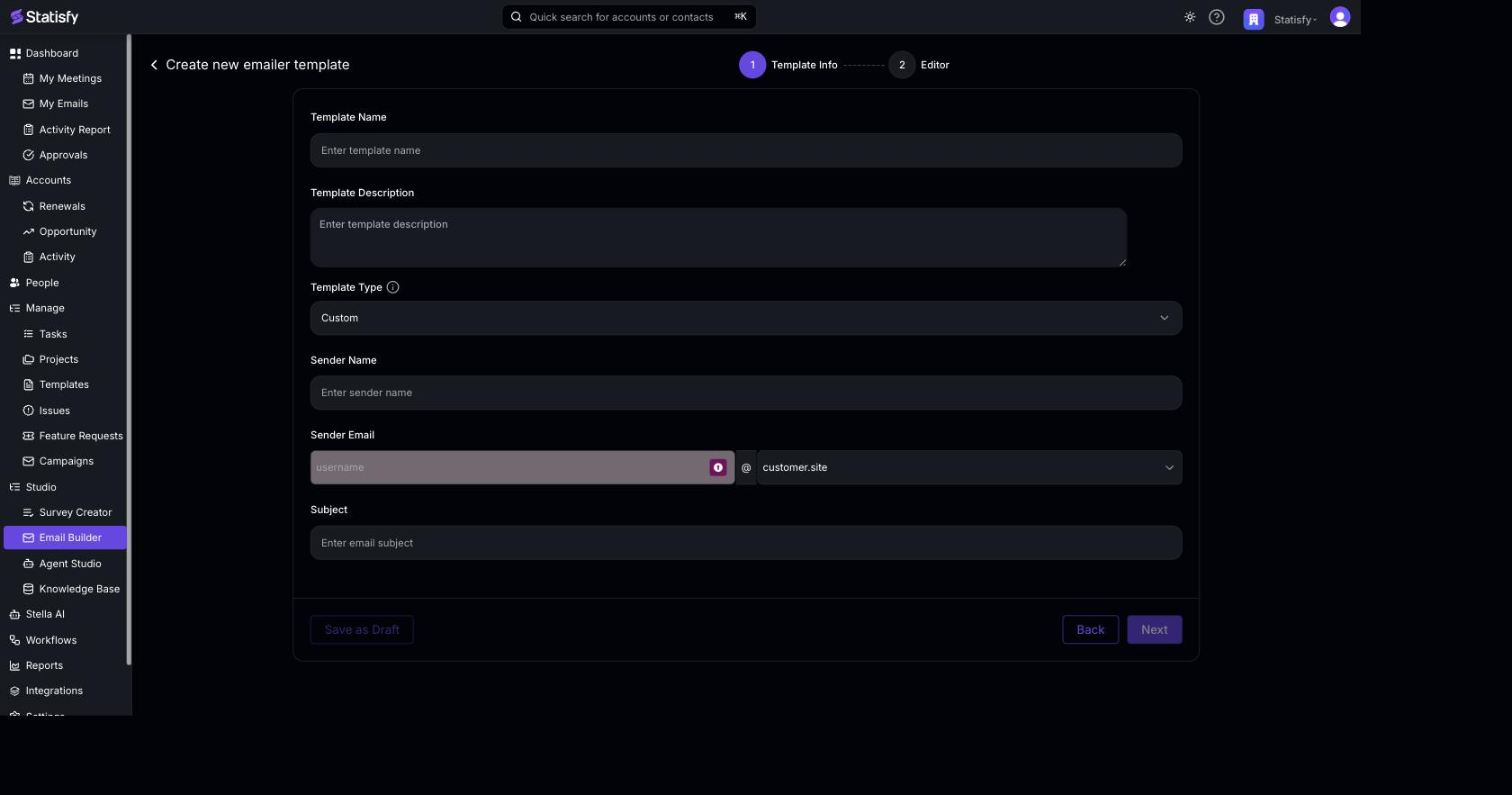
- Template Name — a descriptive name you’ll recognize later.
- Template Description — optional notes about the template’s purpose.
- Template Type — Promotion, Newsletter, Updates, or Custom (defaults to Custom).
- Sender Name — the “From” name recipients see.
- Sender Email — the “From” address. Must belong to a verified sender domain configured by your admin.
- Subject — the email subject. You can include merge tags here too.
- Click Next to continue, or Save as Draft to return later.
Step 2 — Editor
Statisfy provides a drag-and-drop visual editor for building the email body.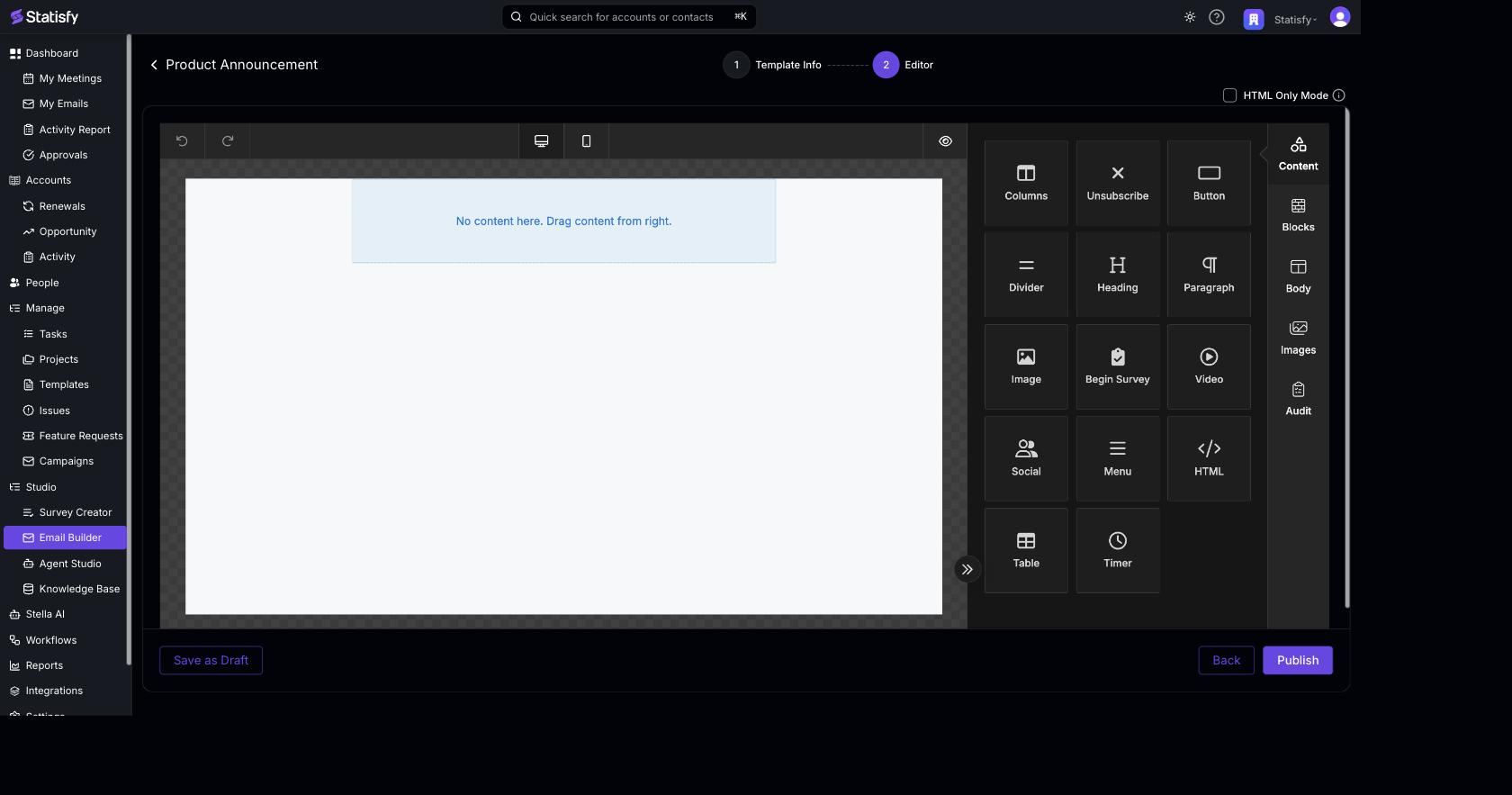
Visual editor (default)
Visual editor (default)
The default editor is a WYSIWYG, block-based builder. Drag content blocks (columns, buttons, headings, paragraphs, images, dividers, and more) onto the canvas and style them visually. Your design is saved as both a reusable layout and rendered HTML.The editor includes two Statisfy-specific blocks:
- Unsubscribe — inserts an unsubscribe link. Drag it in to satisfy the unsubscribe requirement for Promotion, Newsletter, and Custom templates. You can style the link text, font, color, and alignment.
- Begin Survey — inserts a survey call-to-action button that links to the recipient’s survey. Use this in templates that distribute surveys. You can style the button label, colors, padding, border, and alignment. Limit one per template.
HTML Only Mode
HTML Only Mode
If you’d rather hand-author the email, tick HTML Only Mode to paste or write your own HTML directly instead of using the visual builder. The HTML you provide is used as-is.
Attachments
Attach files that Statisfy sends with every email built from this template. Use them for one-pagers, PDF guides, price lists, or any file every recipient should receive alongside the message. The Attach files control sits in the editor toolbar. Click it to upload one or more files. Uploaded files appear as chips next to the button; each chip shows the filename and size and has an × to remove it.Save the template as a draft first — the picker is enabled only after the initial save.
- Up to 10 files per template and 20 MB total across all attachments on a single email.
- Supported types: PDF, Word (
.doc,.docx), Excel (.xls,.xlsx), PowerPoint (.ppt,.pptx), images (JPEG, PNG, WebP, GIF), plain text, CSV, JSON, and log files.
Personalization
Templates support Jinja merge tags so each recipient receives a personalized email — for example{{ contact.name }} or {{ account.name }}. Use the Insert Merge Tag picker in the editor to browse and insert the tags available for your workspace.
See the dedicated Personalization & Merge Tags reference for the full syntax, the special {{ unsubscribe_this }} and {{ survey_url }} tags, and the list of entity groups.
Publishing
Once your content, sender, and subject are set:- Make sure required elements are present (e.g. an unsubscribe link for non-Updates types).
- Click Publish.
Where Templates Are Used
Email Campaigns
Select a published template when building an email campaign.
Survey Invitations
Use a template (with the Begin Survey block) to invite recipients to a survey.
Agent Studio
The Email Template V2 and Consolidated Email actions send saved templates from automations.
Personalization
Learn the merge-tag syntax used across all of the above.