

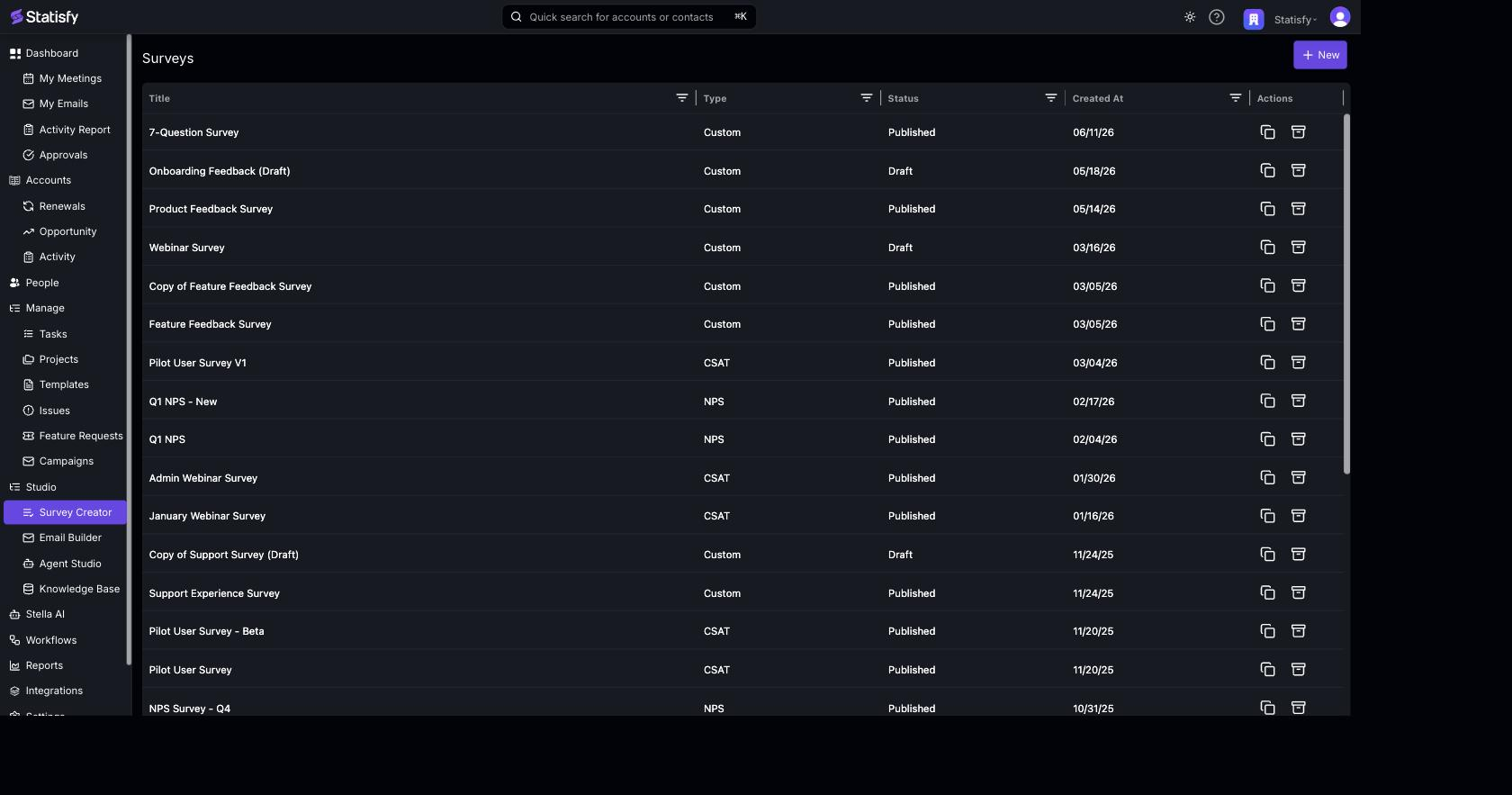
Survey Types
Choose a type when you create a survey. The type sets up the right question structure for the metric you want to measure.
For Custom surveys, the visual builder lets you add your own questions — text fields, ratings, single- and multi-select choices, dropdowns, and more — and arrange them across one or more pages, with logic and theming.
Survey States
Building a Survey
The survey builder has two tabs, Survey and Email.Survey tab
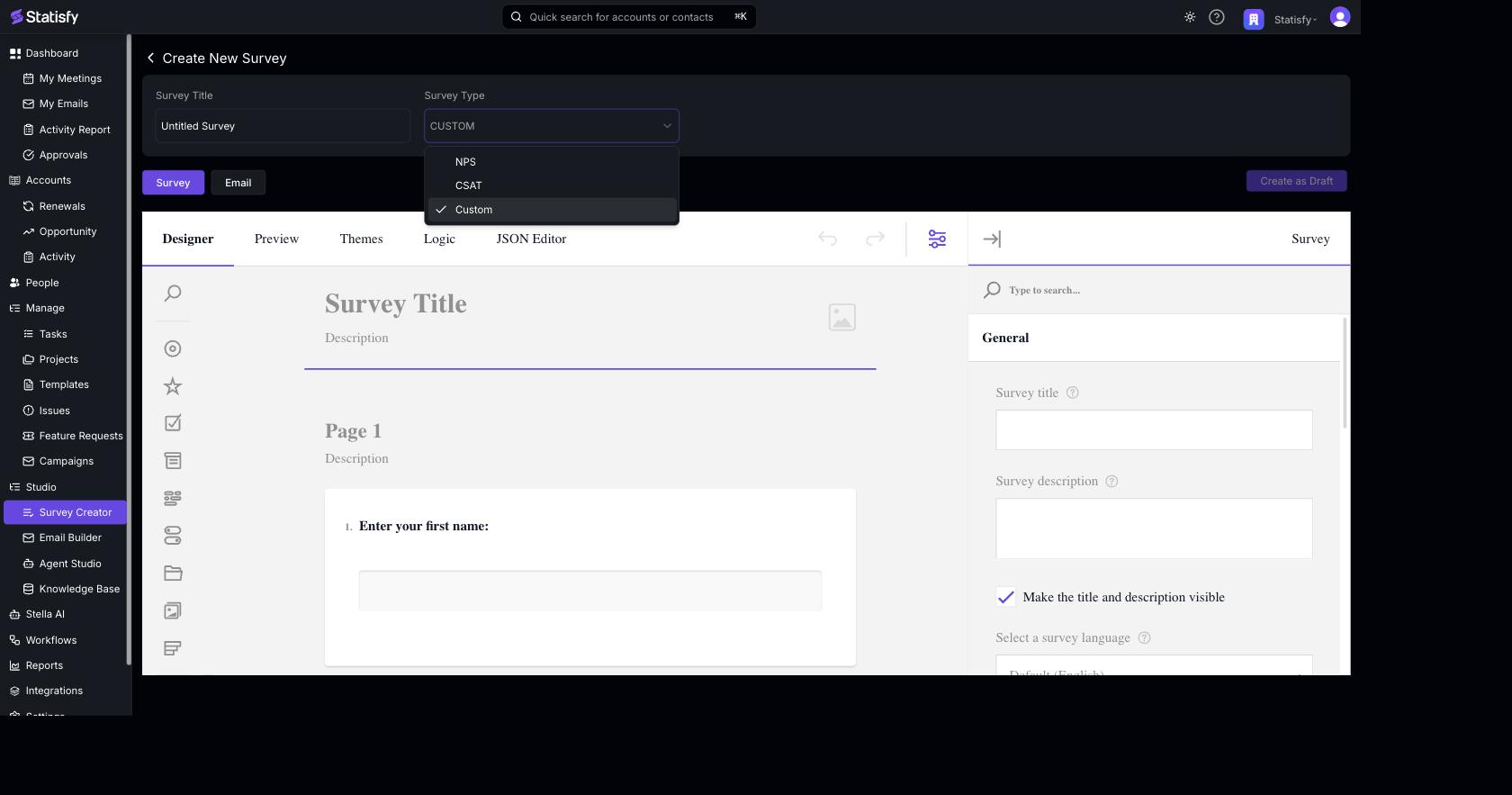
- Click New and give the survey a Survey Title (and optional description).
-
Pick a Survey Type — NPS, CSAT, or Custom.
-
Design your questions in the visual Designer:
- For NPS and CSAT, Statisfy sets up the standard scale for you.
- For Custom surveys, use the visual question designer to add and order questions, add page logic, and apply a theme.

Email tab
The Email tab controls the invitation recipients receive when the survey is distributed through a campaign. By default it uses a simple form; an Advanced Mode checkbox unlocks the full email editor. By default, fill in a few fields and Statisfy generates a clean, branded invitation for you, with a live preview alongside: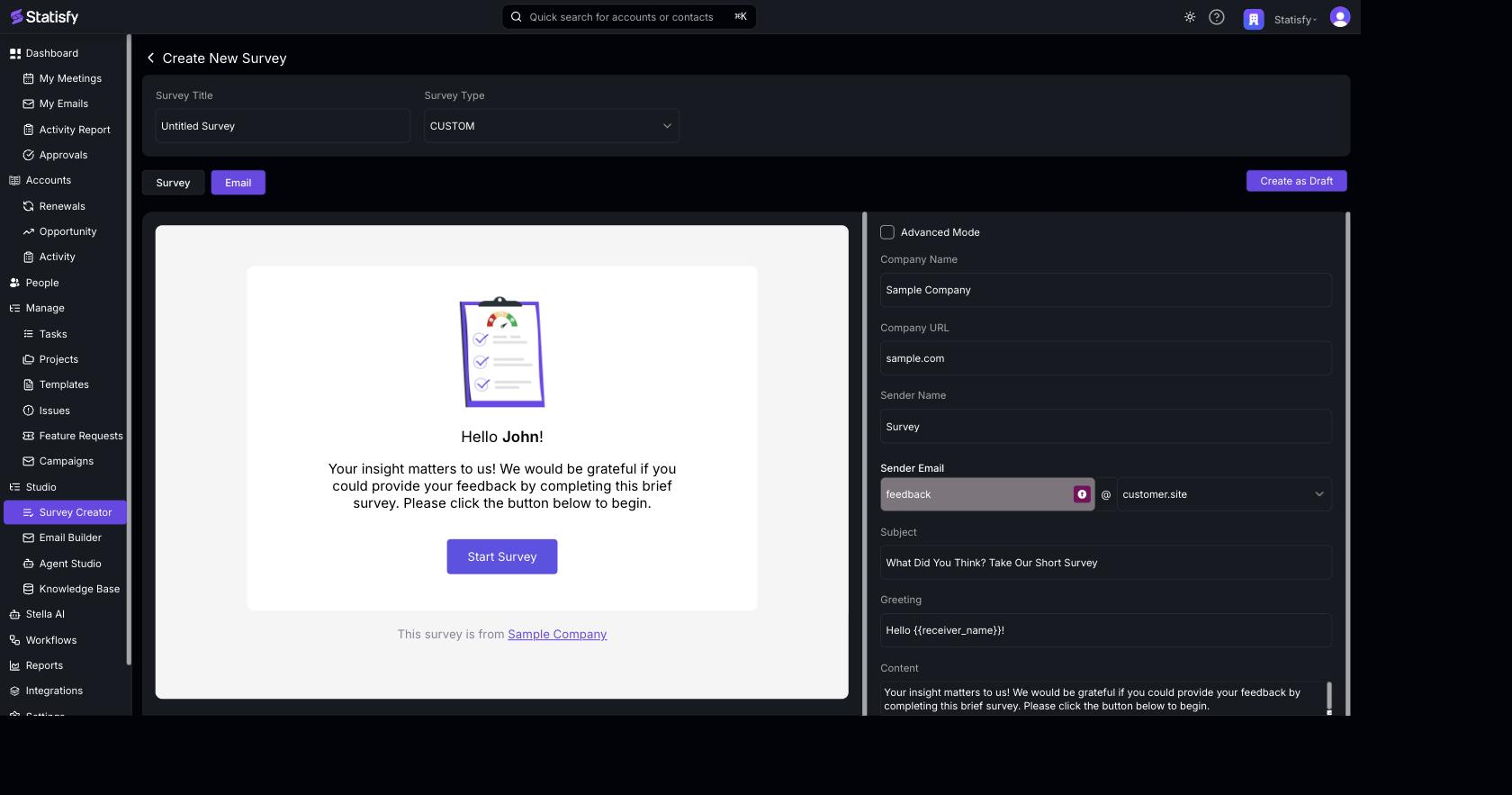
- Company Name and Company URL
- Sender Name and Sender Email
- Subject — e.g. “What Did You Think? Take Our Short Survey”
- Greeting — e.g. “Hello !”
- Content — your invitation message
{{ receiver_name }} token is replaced with each recipient’s name when the invitation is sent.
Advanced Mode
Advanced Mode
Tick Advanced Mode to build the invitation in the full drag-and-drop email editor instead of the simple form — the same editor used for email templates, including a HTML Only Mode option. Add a Begin Survey block so the call-to-action links to the survey. This gives you complete control over layout and personalization.
Saving and Publishing
- Create as Draft — saves the survey so you can keep editing.
- Publish — finalizes the survey. Once published it is locked and ready to attach to a campaign.
Distributing a Survey
Surveys are sent to customers through a survey campaign:- Create a survey campaign.
- Select the published survey.
- Choose the email template for the invitation (the survey link is inserted automatically via the
{{ survey_url }}tag / Begin Survey block). - Select your audience and publish.
Analyzing Responses
As responses arrive, view aggregated results in survey analytics for each survey. A response shows up in the campaign’s analytics once the recipient has submitted it and it has been processed — allow a little processing time before expecting metrics for a just-sent campaign. Analytics visualizes the distribution of answers per question so you can spot trends in NPS, CSAT, and custom questions. Responses collected through a campaign are tied back to the recipient and campaign for attribution. See Campaign Analytics for how per-recipient responses appear on a survey campaign.Next Steps
Email Templates
Build the invitation that distributes your survey.
Creating Campaigns
Distribute your survey to an audience.
Managing Audiences
Target the right customers.
Personalization
Personalize survey invitations with merge tags.