

Video Tutorial
This article will guide you through the Opportunities Overview feature, helping you understand its various views and their significance. Step 1: Start by exploring the Opportunities Overview. This view displays all open opportunities, their count, and their total current value.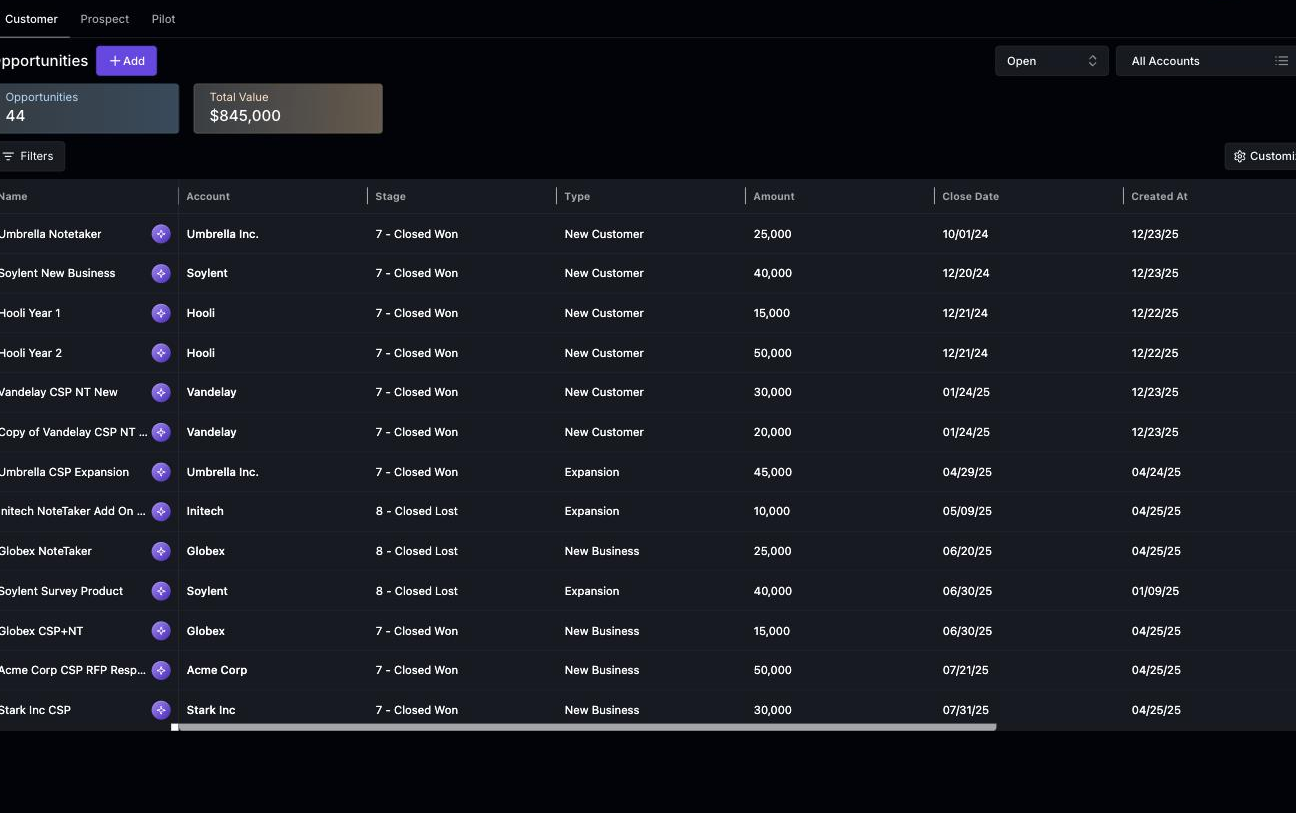 Step 2: Take note of the table columns. They provide the opportunity’s name, associated account, current stage, type, total value, expected closure date, creation date, owner, and source. If the opportunity was manually created, the source will be marked as ‘Statisfy’. If it’s integrated with a CRM tool, the source will be ‘CRM’.
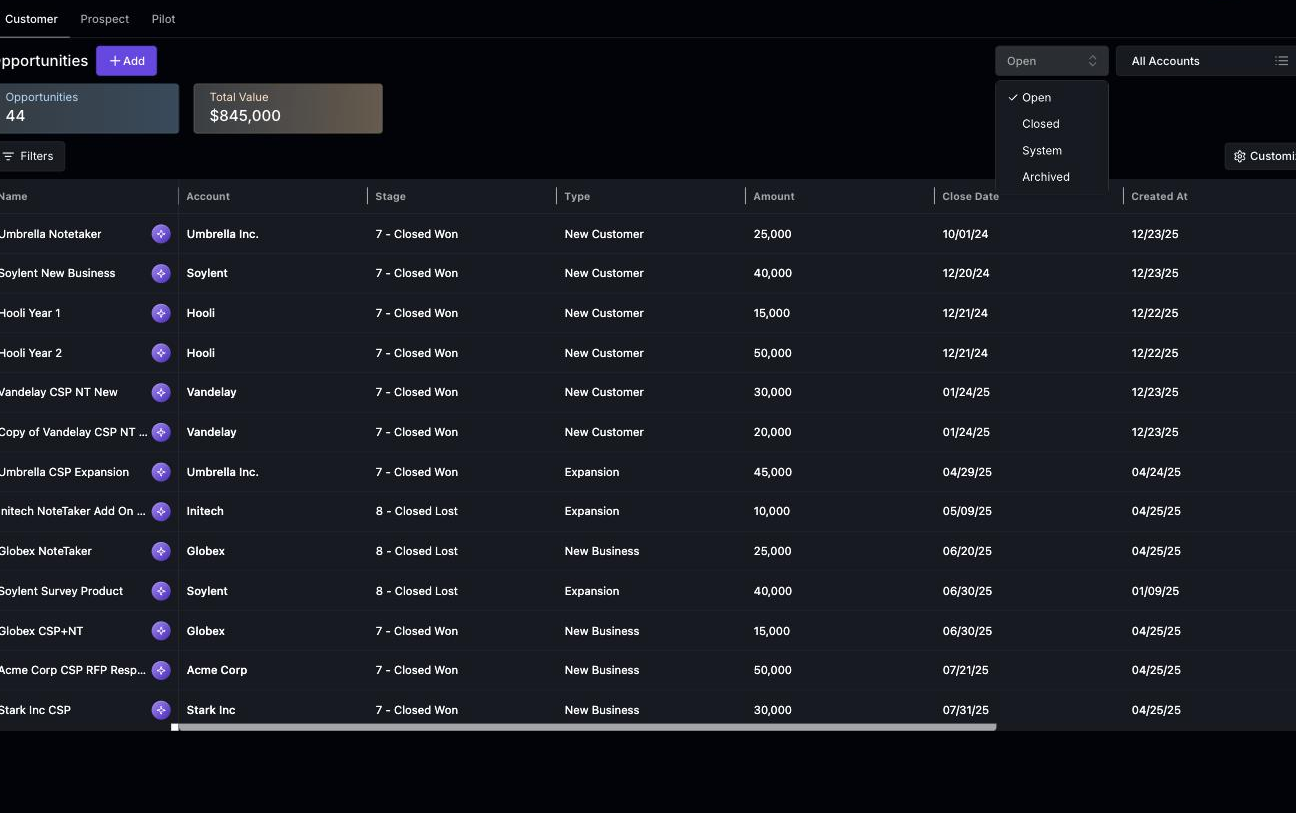
Step 3: Move to the next view, the ‘Open’ view.
Step 2: Take note of the table columns. They provide the opportunity’s name, associated account, current stage, type, total value, expected closure date, creation date, owner, and source. If the opportunity was manually created, the source will be marked as ‘Statisfy’. If it’s integrated with a CRM tool, the source will be ‘CRM’.
Step 3: Move to the next view, the ‘Open’ view.
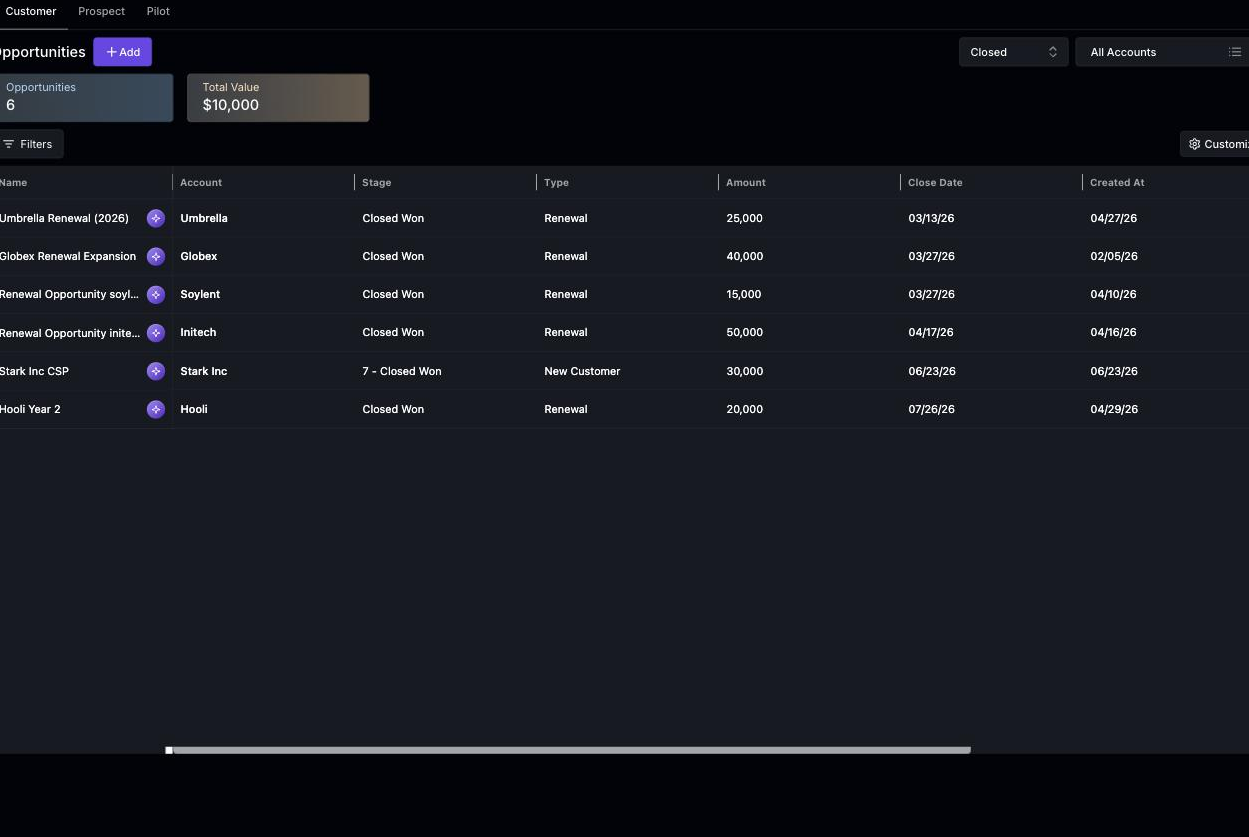
 Step 4: Switch to the ‘Closed’ view. This view displays two options: ‘Closed Won’ and ‘Closed Lost’. Currently, only ‘Closed Won’ data is available. As you gather more data, it will populate here. The top of the view shows the number of closed opportunities and their total value.
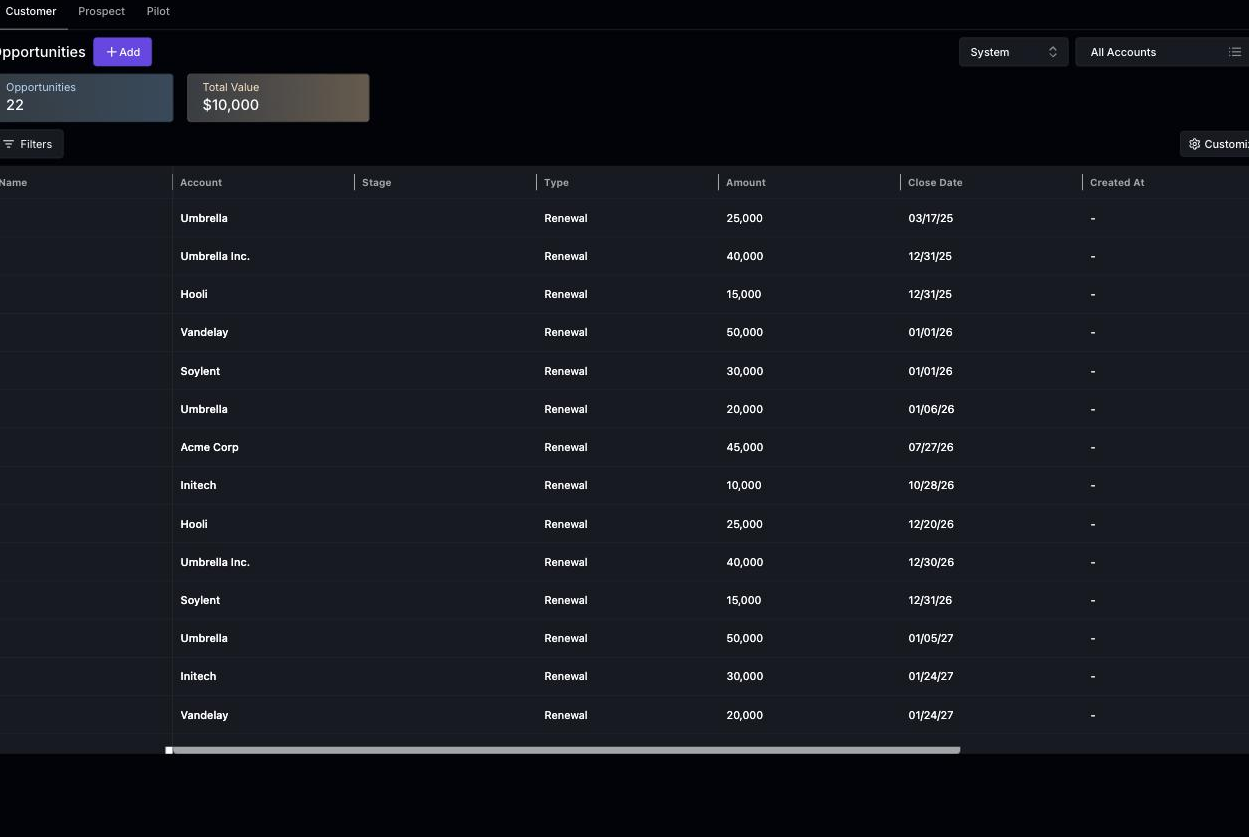
 Step 5: Finally, explore the ‘System Value’ view. This view shows renewal opportunities that Statisfy generated automatically in the past. Each record is linked to its account, and the type is marked as ‘Renewal’. The MRR value and Close date are provided, but the Created date is empty. The source is always ‘System’. If the renewal occurred, the closed checkbox and the ‘Won’ status are checked.
Statisfy no longer creates new system opportunities. CRM syncs and changes to an account’s ARR or renewal date update the account fields only and do not create, update, or close renewal opportunities. Track your renewals on the Renewals page. Existing system opportunities remain visible in this view as legacy records.
 Step 6: Understand that all CSMs have their own account books. Therefore, the ‘My Book’ view will be visible to the CSMs.
Step 7: If you’re an admin, you’ll see all the opportunities created in your book of accounts.
By following these steps, you’ll gain a comprehensive understanding of the Opportunities Overview feature.
Step 6: Understand that all CSMs have their own account books. Therefore, the ‘My Book’ view will be visible to the CSMs.
Step 7: If you’re an admin, you’ll see all the opportunities created in your book of accounts.
By following these steps, you’ll gain a comprehensive understanding of the Opportunities Overview feature.
Cloning and Archiving Opportunities
Every row in the Opportunities table has an Actions column. Click the ⋯ (ellipsis) button on a row to open a menu with two options:- Clone — Opens the opportunity form pre-filled with a copy of the record so you can adjust the details and save it as a new opportunity. The copy’s name starts with Copy of followed by the original name, and it always starts as an open opportunity — even if the original was closed or won.
- Archive — Removes the opportunity from your active views. A confirmation dialog titled Archive Opportunity asks “Are you sure you want to archive…?” before anything happens; click Archive to confirm or Cancel to back out. On success, you’ll see a confirmation message and the record moves to the Archived view.
Archived Opportunities
Use the type selector at the top of the Opportunities page to switch between Open, Closed, System, and Archived views. The Archived view shows opportunities that are no longer active — either because you archived them in Statisfy using the Archive action described above, or because the source record was removed from your CRM. Statisfy keeps them so you retain historical context for pipeline reporting, prior renewals, and win/loss analysis.What You Can Do with Archived Opportunities
For CRM-synced opportunities, restoring the record upstream (e.g., un-deleting it in Salesforce or HubSpot) automatically moves the Statisfy opportunity back into its original view (Open / Closed / System) on the next sync. Opportunities created in Statisfy and archived manually have no CRM record to restore from — if you need the record again, clone it before archiving or recreate it.
When your edits do not reach the CRM
If the CRM rejects a push for an opportunity you have edited, the opportunity sheet shows a coloured banner at the top explaining what happened. The colour tells you where the record is in the retry cycle:- Amber —
ERRORED. The CRM rejected the most recent push, but Statisfy will keep retrying hourly. The banner names the rejected fields when the CRM says which ones broke, and shows how many attempts have been made so far. - Red —
FAILED. The CRM has rejected the push five times in a row and Statisfy has stopped retrying automatically. Nothing on this record has reached the CRM, and your edits remain saved in Statisfy only until you unblock it.
- Retry sync — Immediately pushes this opportunity to the CRM. Use it after fixing the underlying cause (for example, reassigning an inactive owner). If the push succeeds, the banner disappears; if it fails again, the banner and the attempt counter update in place. Retry sync works on both amber and red opportunities and is how you clear a
FAILEDrecord so it re-enters the normal hourly sync. - Refresh — Re-reads the sync status without pushing anything, so you can check whether a scheduled retry has since succeeded.
Exporting Opportunities
Click Export Table above the opportunities list to download what you’re looking at as a CSV file.- The export matches the view you’re on. If the type selector is set to Open, you get open opportunities; switch to Closed, System, or Archived to export those instead.
- Your column choices carry over — the file contains the columns currently shown in the table.
- Stage names are readable. The Stage column exports the friendly stage labels you see on screen (e.g., Closed Won), not internal codes.