

Video Tutorial
In this article, you’ll learn how to create a new project using an existing template. Starting from a template pre-fills the project with a ready-made set of tasks, so you only need to set a start date and a few details. Step 1: Navigate to Manage → Projects. This is where all your projects live.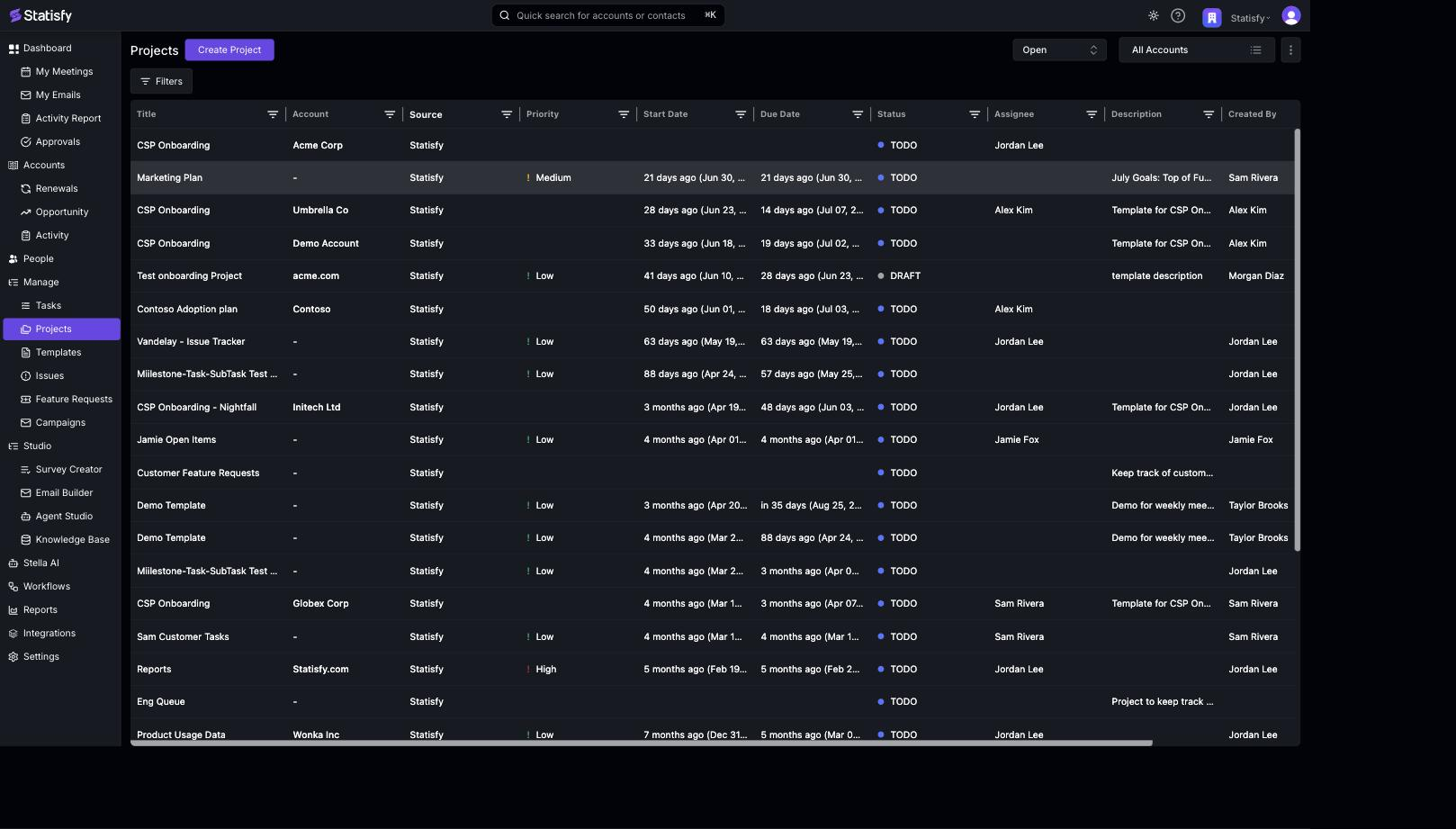 Step 2: Click the Create Project button in the top-left to start a new project.
Step 3: At the top of the form, open the template dropdown and select the template you want to start from.
Step 2: Click the Create Project button in the top-left to start a new project.
Step 3: At the top of the form, open the template dropdown and select the template you want to start from.
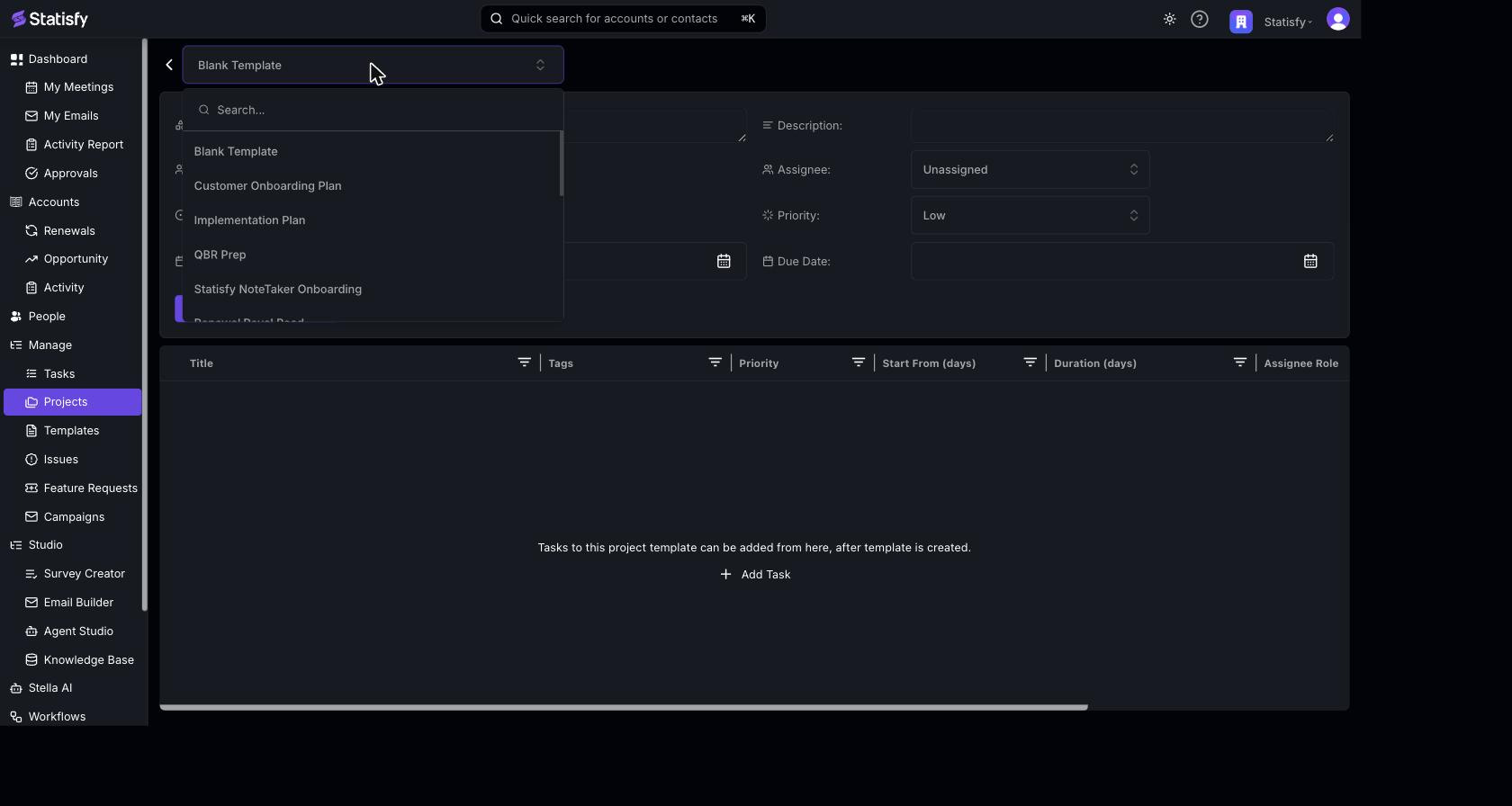 Step 4: Once you pick a template, the form loads with the template’s tasks in the grid below, and the title, description, and due date are pre-filled from the template.
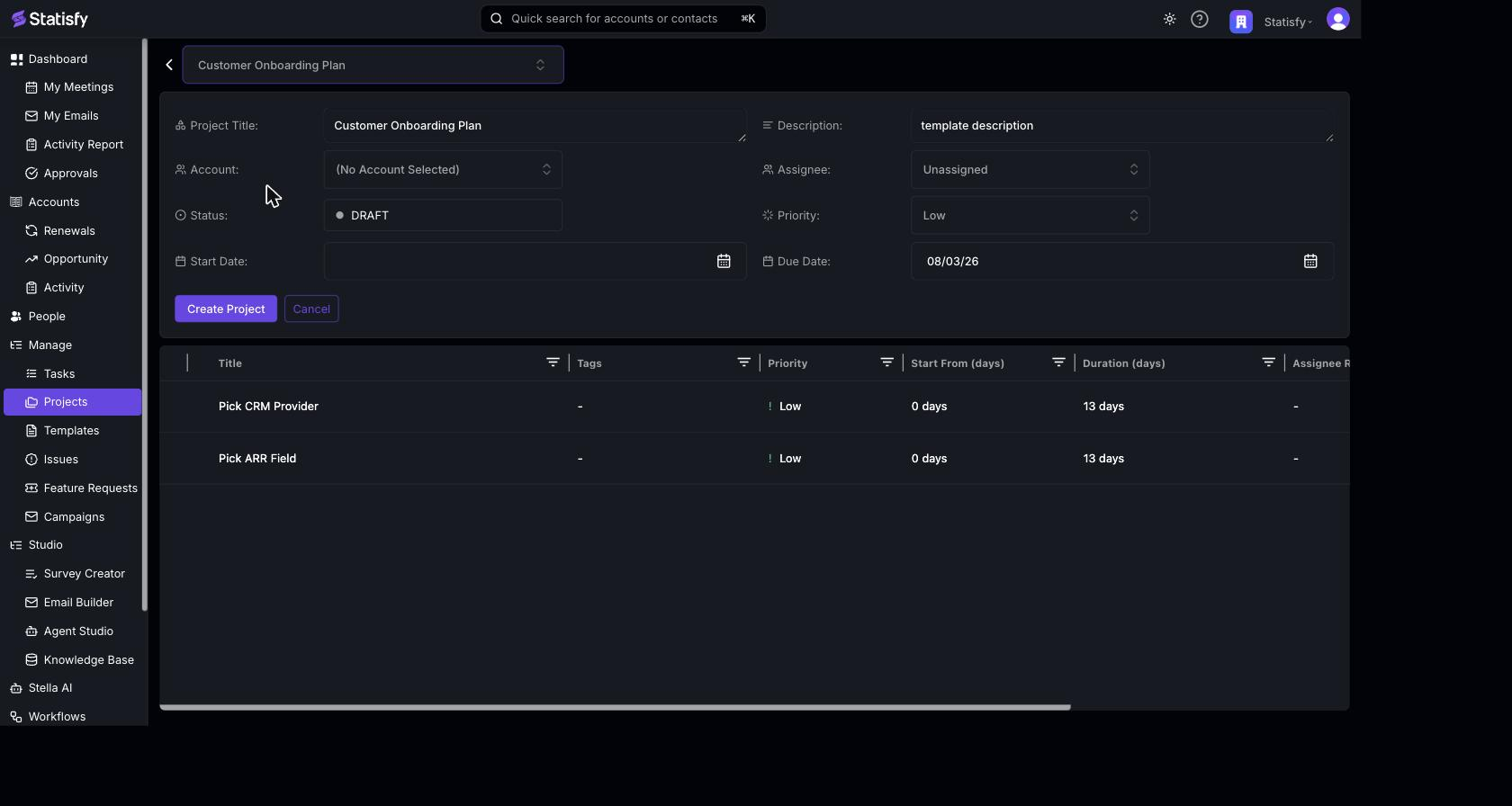 Step 5: Edit the Project Title if you’d like a name different from the template’s.
Step 6: Set the Account. If the template isn’t account-specific, select an account manually.
Step 7: If the template is account-specific, the account is filled in for you automatically — you don’t need to change it.
Step 8: Choose a Start Date. The start date determines all task dates — each template task’s dates are calculated from this start date using the template’s day offsets. Any dependencies defined in the template also carry over.
Step 5: Edit the Project Title if you’d like a name different from the template’s.
Step 6: Set the Account. If the template isn’t account-specific, select an account manually.
Step 7: If the template is account-specific, the account is filled in for you automatically — you don’t need to change it.
Step 8: Choose a Start Date. The start date determines all task dates — each template task’s dates are calculated from this start date using the template’s day offsets. Any dependencies defined in the template also carry over.
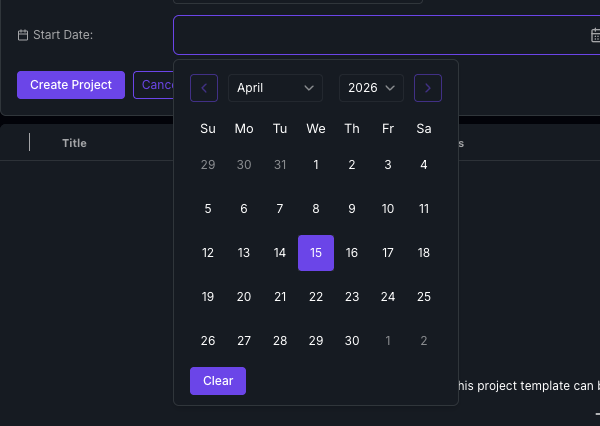
See Task Dependencies & Auto-Cascade Dates for how dependencies and date offsets work.