

Video Tutorial
This article will guide you on how to create and edit custom fields in Opportunities. By the end of this tutorial, you’ll be able to customize your Opportunities fields to better suit your needs. Step 1: Navigate to the Settings options. Step 2: From the Settings menu, select the Object Manager. Step 3: In the Object Manager, locate the Opportunities section. Step 4: In the Opportunities section, click the + Create Field button in the top-right corner.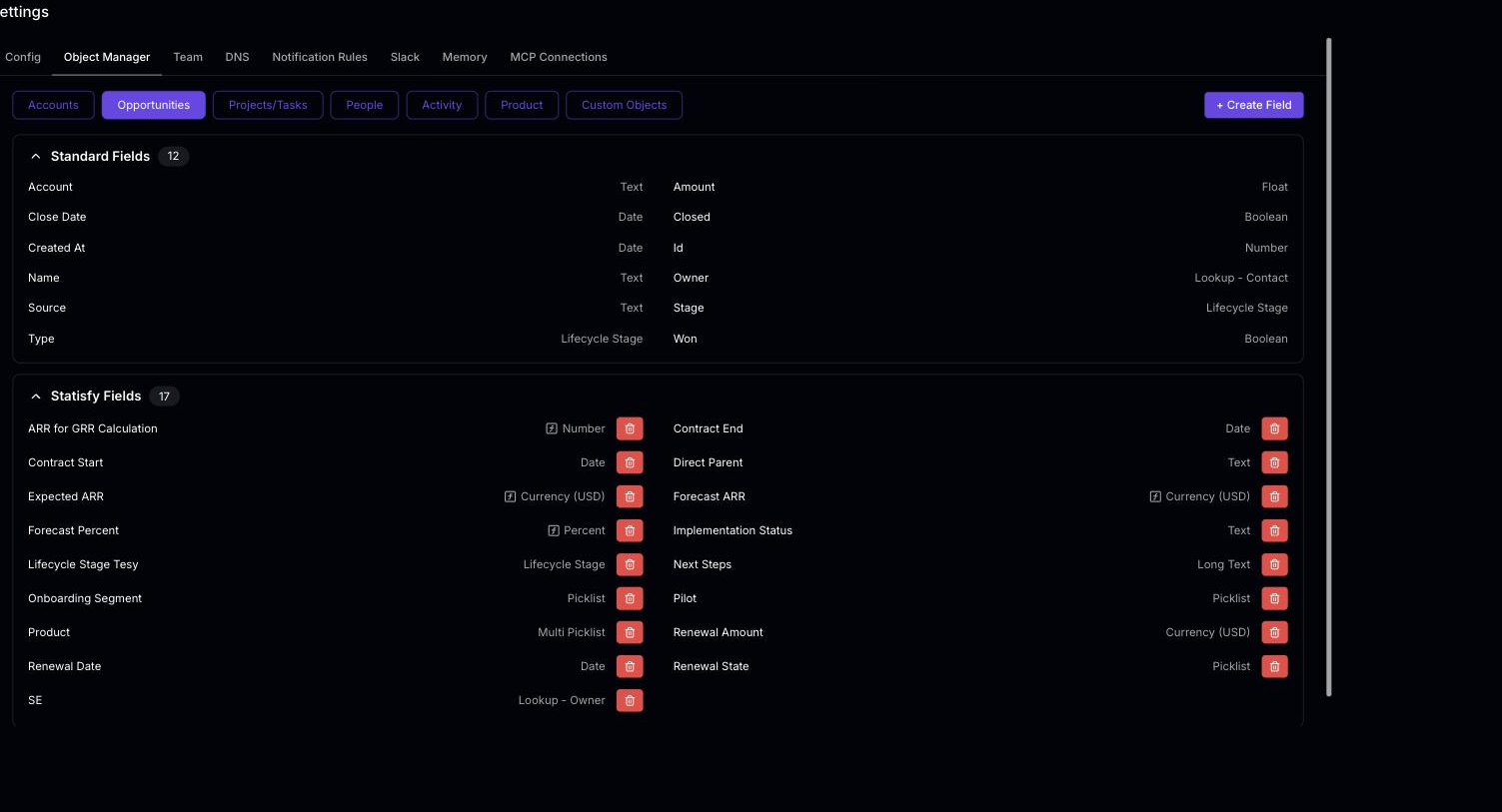 Step 5: Here, you’re able to assign a name to your field. You also have the option to specify the field type, such as currency.
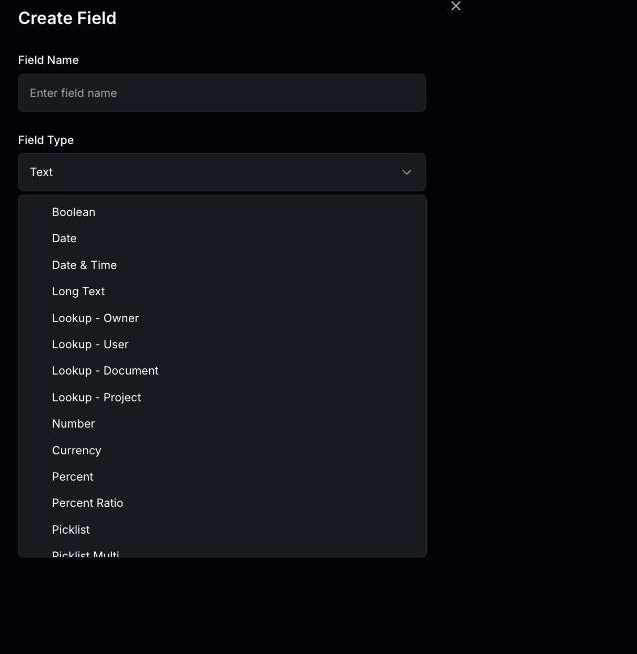 Step 6: We’ve introduced a new field type called Pill, which allows for color coding.
In the current interface, choose the Picklist type to get color-coded options — each option you add renders as a colored pill. There is no separate “Pill” entry in the field-type list.
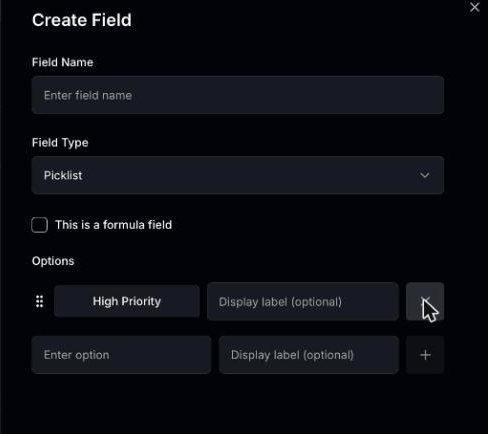 Step 8: Assign a color to this Picklist option, such as green.
Step 9: Add another Picklist option, perhaps named “the lost”, and assign it a different color, like red.
Step 10: Once you’ve assigned names and colors, save your changes.
Step 11: If you wish to rename a field, simply select it, change the name, and save your changes.
Step 12: If your system is integrated with a CRM, you’ll find all the CRM fields below the Statisfy fields. You’re also able to create and edit some of these CRM fields.
Step 13: If you want to sync data between your system and the CRM, select the field you want to sync, click Edit, and save your changes. This will sync the values in both systems.
And that’s it! You’ve successfully created and edited custom fields in Opportunities.
Step 8: Assign a color to this Picklist option, such as green.
Step 9: Add another Picklist option, perhaps named “the lost”, and assign it a different color, like red.
Step 10: Once you’ve assigned names and colors, save your changes.
Step 11: If you wish to rename a field, simply select it, change the name, and save your changes.
Step 12: If your system is integrated with a CRM, you’ll find all the CRM fields below the Statisfy fields. You’re also able to create and edit some of these CRM fields.
Step 13: If you want to sync data between your system and the CRM, select the field you want to sync, click Edit, and save your changes. This will sync the values in both systems.
And that’s it! You’ve successfully created and edited custom fields in Opportunities.