

Create a New Campaign
- Navigate to Campaigns.
- Click Add Campaign.
-
On the Create New Campaign screen, fill in the details. The form adapts to the campaign type you choose — email campaigns ask for an emailer template, survey campaigns ask for a survey.
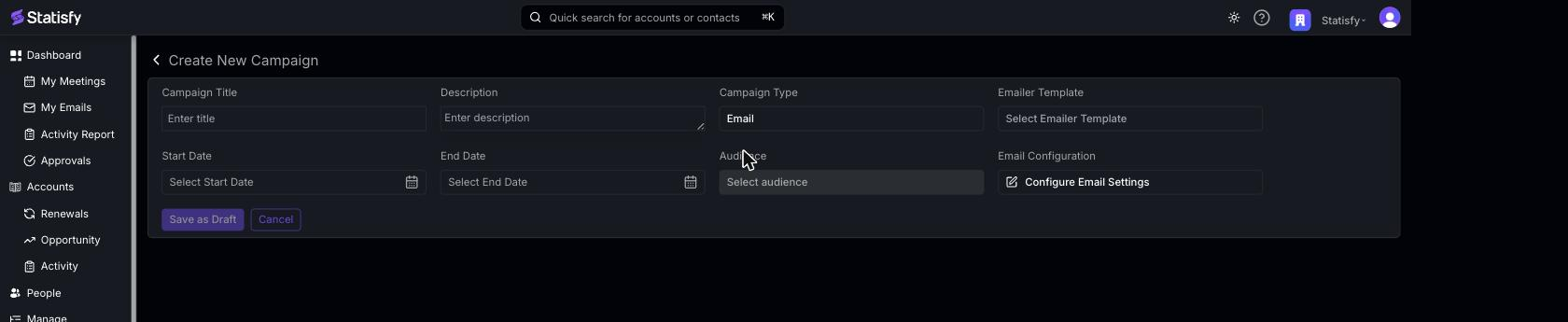
- Campaign Title — a descriptive name for your campaign.
- Description — optional notes about the campaign’s purpose.
- Campaign Type — choose Email or Survey.
- Start Date and End Date — when the campaign should begin and end.
- Audience — the recipients (see Managing Audiences).
Email Campaign Setup
For Email campaigns, complete these fields:- Emailer Template — select a published email template for the send.
- Audience — choose the audience that should receive the email.
- Email Configuration (optional) — click Configure Email Settings to set the sender and add CC/BCC recipients (see Advanced Settings below).
- Attachments (optional) — add files that go out with every email in this campaign (see Attachments below).
- Custom send time (optional) — choose the hour and timezone the campaign sends at (see below).
Survey Campaign Setup
For Survey campaigns, complete these fields:- Survey — select the published survey to distribute.
- Audience — choose which customers should receive the survey.
- Email Configuration — configure the invitation sender under Configure Email Settings.
- Auto Reminder (optional) — enable reminders to automatically re-send to recipients who haven’t responded (see below).
- Custom send time (optional) — choose the hour and timezone the campaign and its reminders send at (see below).
Advanced Settings
Sender and role-based sending
Sender and role-based sending
Click Configure Email Settings to open the sender configuration.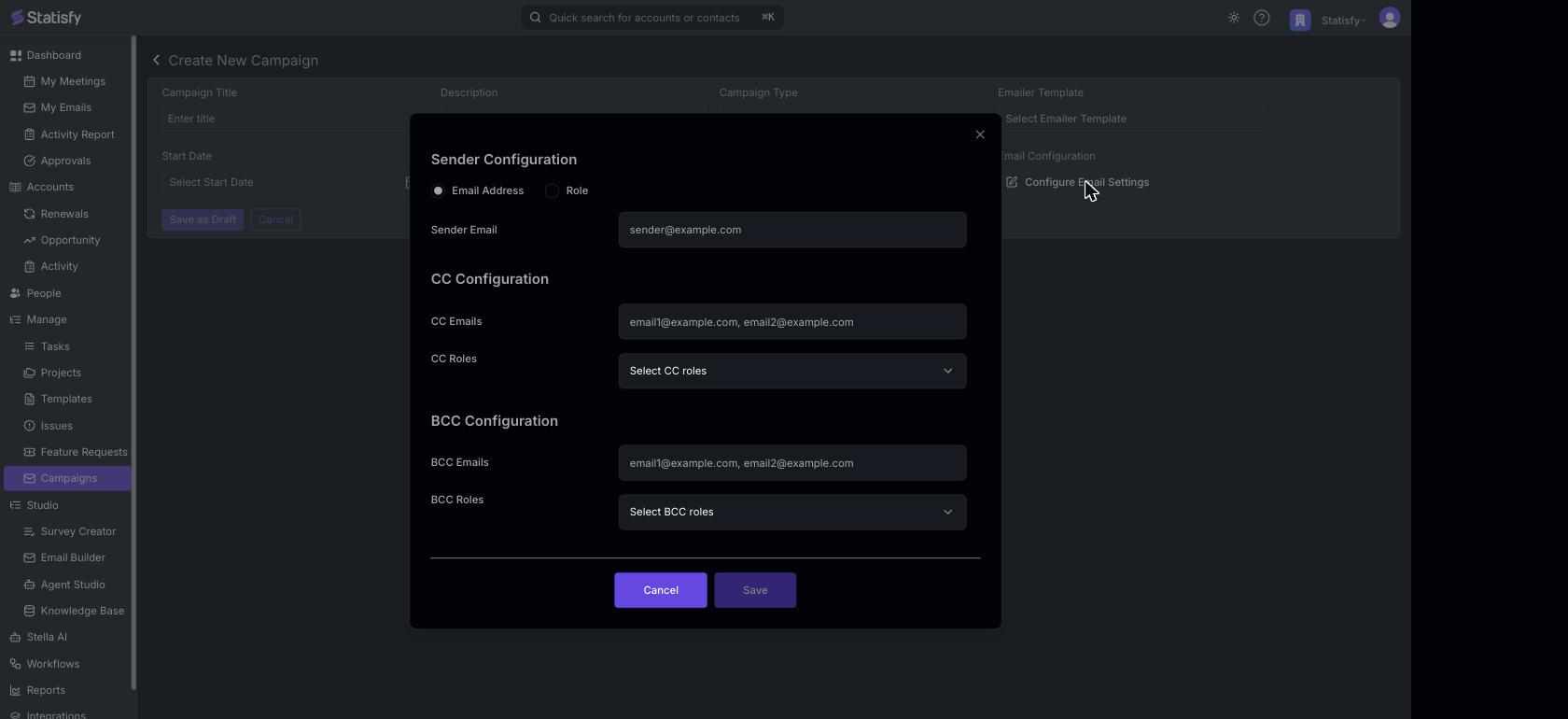
- Under Sender Configuration, choose Email Address to send from a fixed address, or Role to send from each recipient’s assigned team member (for example their CSM or Account Executive). Role-based sending makes emails feel personal and can lift open rates.
- Sender Email — the address the email comes from. It must belong to a verified sender domain configured by your admin.
CC and BCC
CC and BCC
In the same Configure Email Settings dialog, add additional recipients to every campaign email:
- CC Emails — visible to recipients.
- CC Roles — add team members by role.
- BCC Emails — hidden from recipients.
- BCC Roles — add managers or oversight by role.
Auto-Reminders (survey campaigns)
Auto-Reminders (survey campaigns)
For survey campaigns, turn on Auto Reminder to automatically re-send the invitation to recipients who haven’t responded. Once it’s on, click the settings icon to configure it: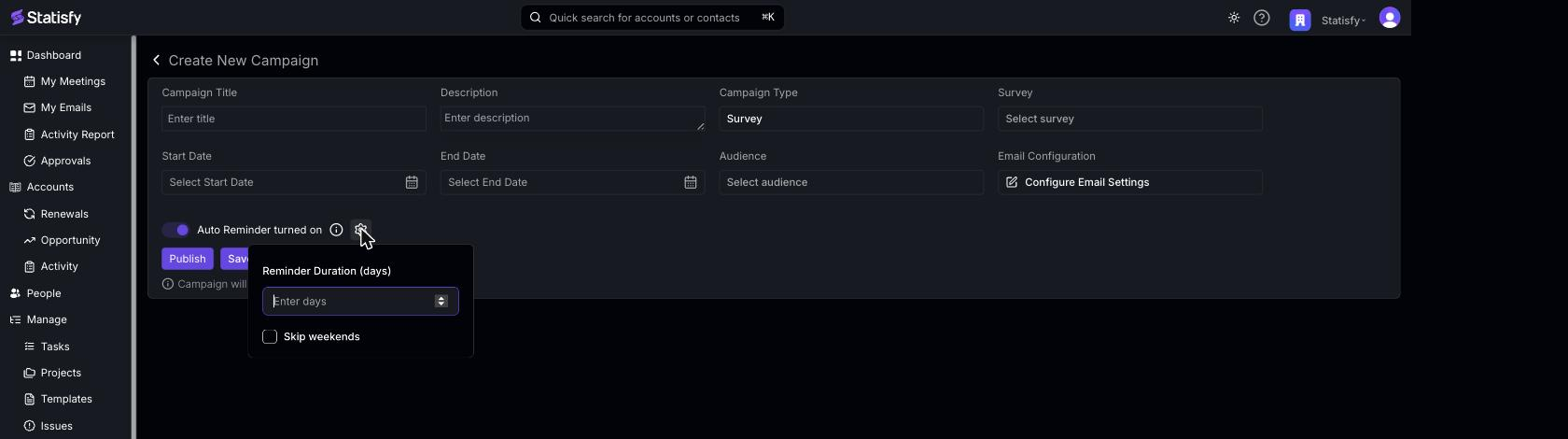
- Reminder Duration (days) — the number of days between reminders.
- Skip weekends — optionally avoid sending reminders on weekends.
Attachments
Attachments
Before publishing an email campaign, you can attach files that Statisfy sends with every email in the campaign. Use the Attach files control on the campaign to upload files, or keep the attachments already set on the template.
- Up to 10 files per campaign and 20 MB total across all attachments on a single email.
- Supported types: PDF, Word, Excel, PowerPoint, images (JPEG, PNG, WebP, GIF), plain text, CSV, JSON, and log files.
- Test emails from Preview include the attachments, so you can confirm the files land correctly before publishing.
- Campaigns send through Gmail or SendGrid depending on your sender configuration. Both include the attachments on the outgoing message.
Send time (hour and timezone)
Send time (hour and timezone)
By default, a campaign starts sending within the hour after it is published (or after its start date, if that is later). To send at a specific time of day instead — for example your customers’ morning — turn on Custom send time. It applies to both email and survey campaigns.When you turn it on, the campaign is set to 09:00 in your own timezone. Click the settings icon to change it:
- Send at — the hour of the day, on the hour (for example 14:00). Minutes can’t be set.
- Timezone — the timezone that hour is in. Pick from common timezones, or keep your own. Hover the info icon to confirm the resulting schedule, for example Sends at 09:00 Asia/Kolkata.
- Emails go out at the chosen hour. If a send can’t happen at exactly that hour, it goes out later the same day rather than waiting until the next day.
- Auto-reminders follow the same send time, and Skip weekends uses the chosen timezone to decide what counts as a weekend.
- Turn Custom send time off to return to sending within the hour.
Changing the send time on a campaign that is already published takes effect from the next send.
Test Before Publishing
Always test your campaign before publishing. On the campaign, click Preview to open the Preview Campaign Email dialog: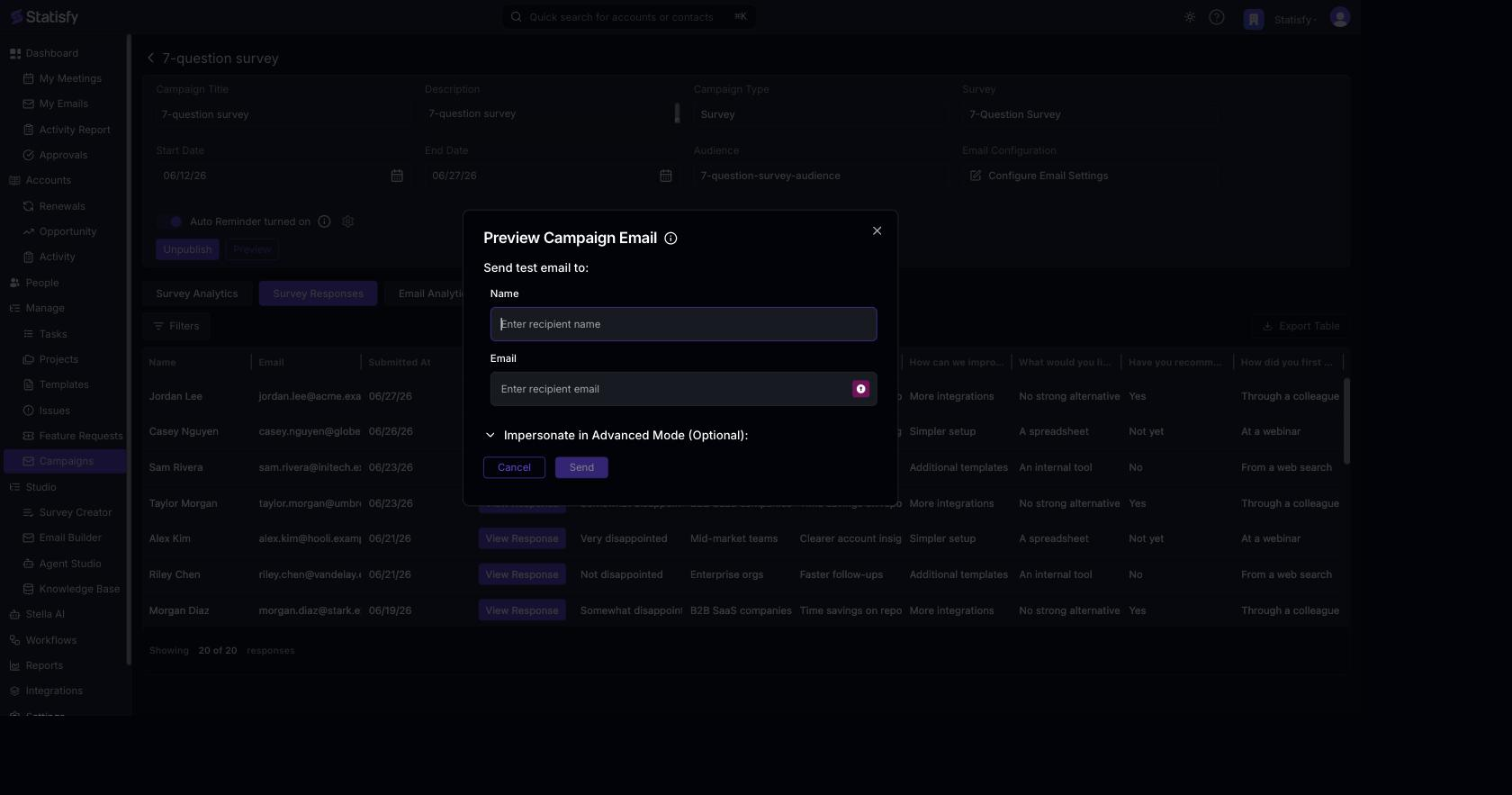
- Under Send test email to, enter a recipient Name and Email (use your own).
- Click Send.
-
Review the email:
- Check that personalization tokens resolved correctly.
- Verify links work.
- Confirm formatting looks right.
- For survey campaigns, complete the test survey.
Publish the Campaign
You can Save as Draft at any time to keep editing later. When you’re ready to send:- Review your campaign configuration.
- Click Publish.
- The system validates that the sender email domain is verified, all required fields are complete, and an audience is selected. If validation passes, the campaign launches; if it fails, fix the issue shown in the error message and try again.
After Publishing
Once published:- The campaign status changes to Published, and the button changes to Unpublish.
- Emails begin sending to your audience — within the hour, or at your Custom send time if you set one.
- Track progress in Campaign Analytics.
Tips for Effective Campaigns
- Test with a small audience first before large sends.
- Use role-based sending for a personal touch.
- Set appropriate reminder intervals (not too frequent).
- Monitor analytics and adjust future campaigns based on results.
- Keep subject lines clear and relevant.