

Activity Types
Meetings
Calls and meetings recorded via calendar integrations or conversation intelligence tools.
Emails
Email threads synced from your connected email account.
Support Tickets
Tickets from Zendesk, Freshdesk, Intercom, or other support integrations.
Surveys
Survey responses from NPS, CSAT, and custom surveys sent through Campaigns.
Slack Conversations
Messages from shared Slack channels connected through the Slack integration.
Campaign Emails
Emails sent through Statisfy Campaigns, showing campaign name, subject, and recipient count per account.
Chat
Chat conversations from integrated messaging platforms.
Manual Activities
Activities manually logged by your team. See Add Manual Activity.
Accessing Activities
You can view activities in several places:Activity Timeline
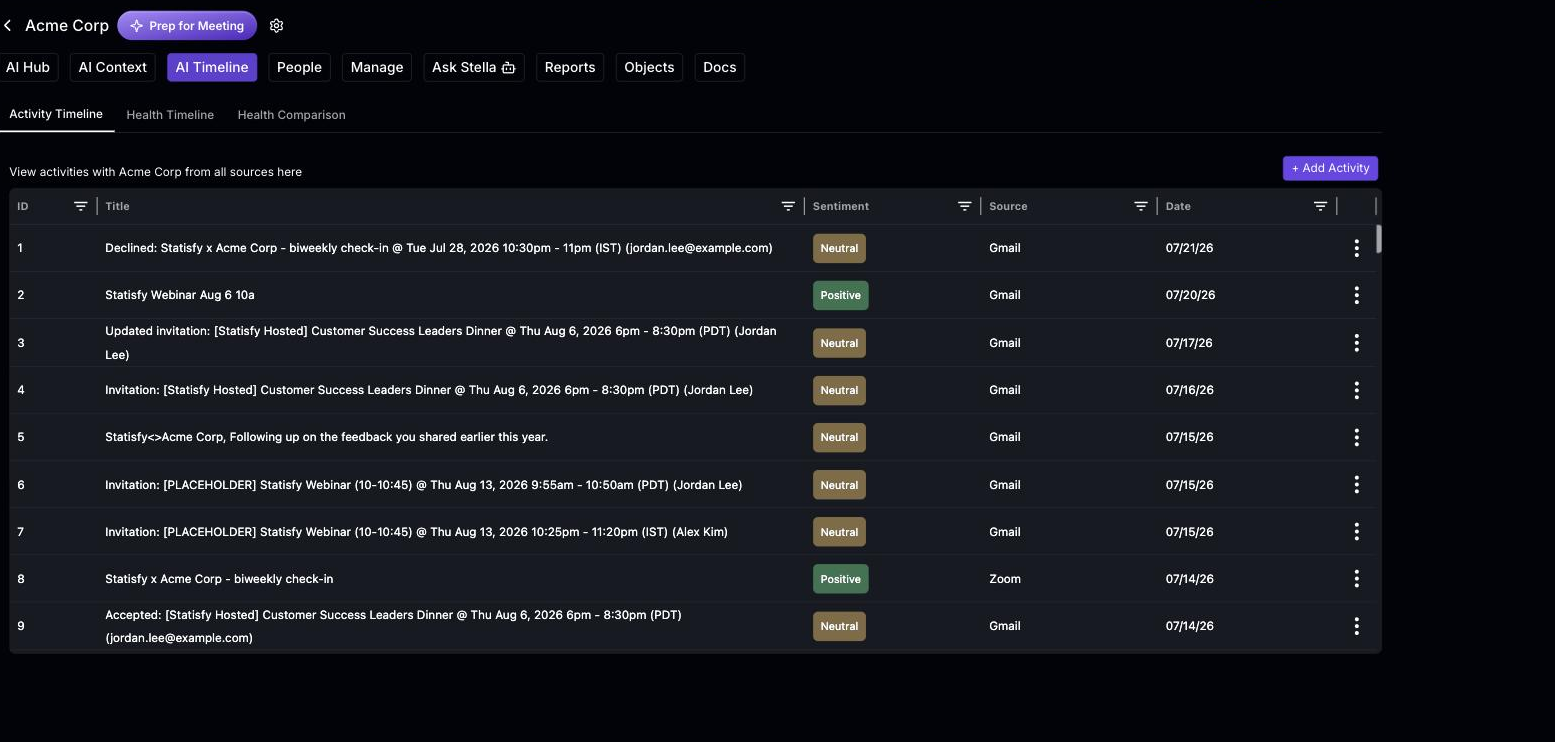
The timeline displays activities in reverse chronological order (most recent first). Each row shows:- Type icon — Visual indicator of the activity type
- Title — Meeting subject, email subject, or ticket title
- Date — When the activity occurred
- Participants — People involved in the interaction
- Sentiment — AI-analyzed sentiment (positive, neutral, negative)
- One-liner — AI-generated brief summary
Filtering Activities
Use the filters above the timeline to narrow your view: By Type: Filter to show only specific activity types (e.g., only meetings, only support tickets). By Date Range: Select a predefined period or set a custom date range. By Sentiment: Filter activities by their AI-analyzed sentiment to quickly find negative interactions. By Tag: Filter by tags applied to activities.Activity Detail View
Click on any activity to open its full detail view, which includes:- Complete content (meeting transcript, email thread, ticket details)
- AI-generated fields (sentiment, key takeaways, one-liner)
- Attendees and participants
- Associated account and contacts
- Tags and comments
Email Follow-up
After a call or meeting is processed, Statisfy automatically drafts a follow-up email for you — summarizing what was discussed, the key takeaways, and the agreed next steps — so you can reply to attendees in seconds instead of writing from scratch. To use it:- Open a meeting or call activity from a timeline, person page, or Dashboard > My Meetings.
- In the activity detail view, open the Email Follow Up section.
- Review the AI-generated draft, then choose one of two options:
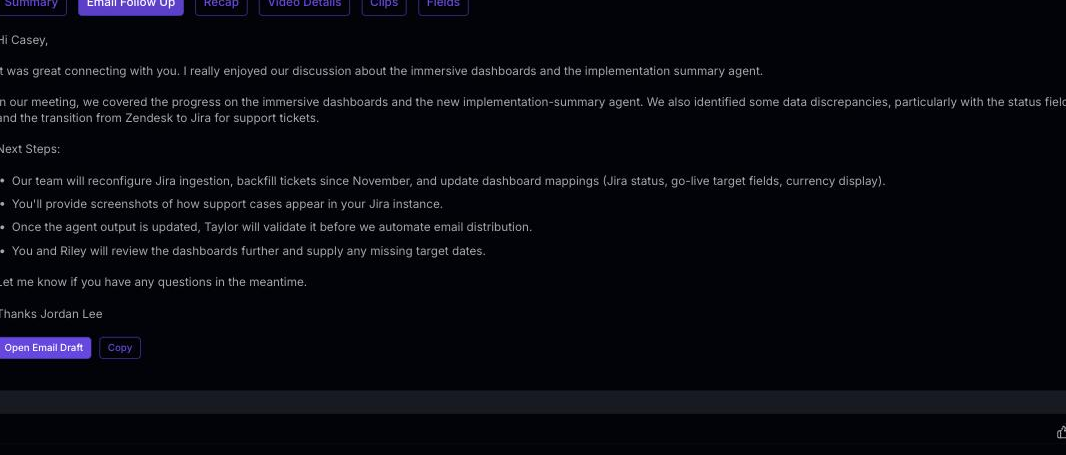
The Email Follow Up section appears only for meeting- and call-type activities that have a recording or transcript. It won’t show on emails, tickets, or Slack activities.
Troubleshooting the follow-up email
Most issues come from how your browser and computer hand the draft off to your mail app. Here are the ones we hear about most.I click Open Email Draft and nothing happens / no email opens
I click Open Email Draft and nothing happens / no email opens
Your browser doesn’t know which application to open email links (
mailto: links) with.- Set a default mail handler. In Chrome, use the handler icon in the address bar, or go to Settings → Privacy and security → Site settings → Additional permissions → Protocol handlers and allow your webmail (e.g., Gmail) to open email links. For Outlook or Apple Mail, set it as your system default mail app (Mail → Settings → Default email reader on Mac, or Settings → Apps → Default apps on Windows).
- Use Copy instead. Click Copy, then paste the draft into a new email. This works regardless of your browser setup.
A new tab opens but the screen is blank
A new tab opens but the screen is blank
The draft opens in a new tab to hand off to your mail app. If the tab stays blank, the handoff didn’t complete — usually because no email app is registered, or the draft is very long.
- Confirm a default mail app or webmail handler is set (see above), close the blank tab, and try again.
- For long emails, the handoff can be truncated by your browser. Use Copy to grab the full draft and paste it into a fresh email.
I use multiple Chrome profiles or Google accounts
I use multiple Chrome profiles or Google accounts
Chrome registers the email-link (
mailto:) handler per profile. If Gmail is set as the handler in one profile but the link opens in another, the draft can open a blank compose window, land in the wrong Google account, or not open at all.- Open Statisfy in the same Chrome profile where Gmail is set as your mail handler, then click Open Email Draft.
- Set the Gmail handler in each profile you use: in that profile, go to Settings → Privacy and security → Site settings → Additional permissions → Protocol handlers and allow Gmail to open email links.
- If a blank Gmail tab appears, check the account avatar in the top-right — if it’s the wrong account, switch profiles (or use Copy and paste into the right account).
The draft opens with no recipients in the To field
The draft opens with no recipients in the To field
This is expected. Open Email Draft pre-fills the subject and body only — it does not add recipients automatically.
- Type the recipients into the To field in your mail app before sending.
- Always review the subject and body too — you can edit them freely before sending.
The draft shows symbols like ** or - instead of formatting
The draft shows symbols like ** or - instead of formatting
Open Email Draft carries the message as plain text, so formatting marks (
**bold**, - bullets, # headings) can appear as literal symbols in some mail apps.- Use the Copy button instead — it copies the email with formatting preserved, ready to paste into Gmail, Outlook, or any rich-text editor.
Copy shows 'Failed to copy email follow up text'
Copy shows 'Failed to copy email follow up text'
Copying uses your browser’s clipboard, which can be blocked by browser permissions or unsupported in older browsers.
- Use a current Chromium-based browser (Chrome or Edge) and allow clipboard access for app.statisfy.com.
- Make sure you are on the Email Follow Up section when you click Copy.
Activity Count and Engagement
The activity timeline shows the total count of activities matching your current filters. Use this to gauge engagement levels — accounts with declining activity counts may need proactive outreach.Activities are synced automatically from your connected integrations. New activities typically appear within a few minutes of occurring.