

Video Tutorial
In this article, you’ll learn how to create a project template that can be reused for multiple projects.Create the template
Step 1: From Manage → Templates, click the Create Template button. This page also lists all your existing templates.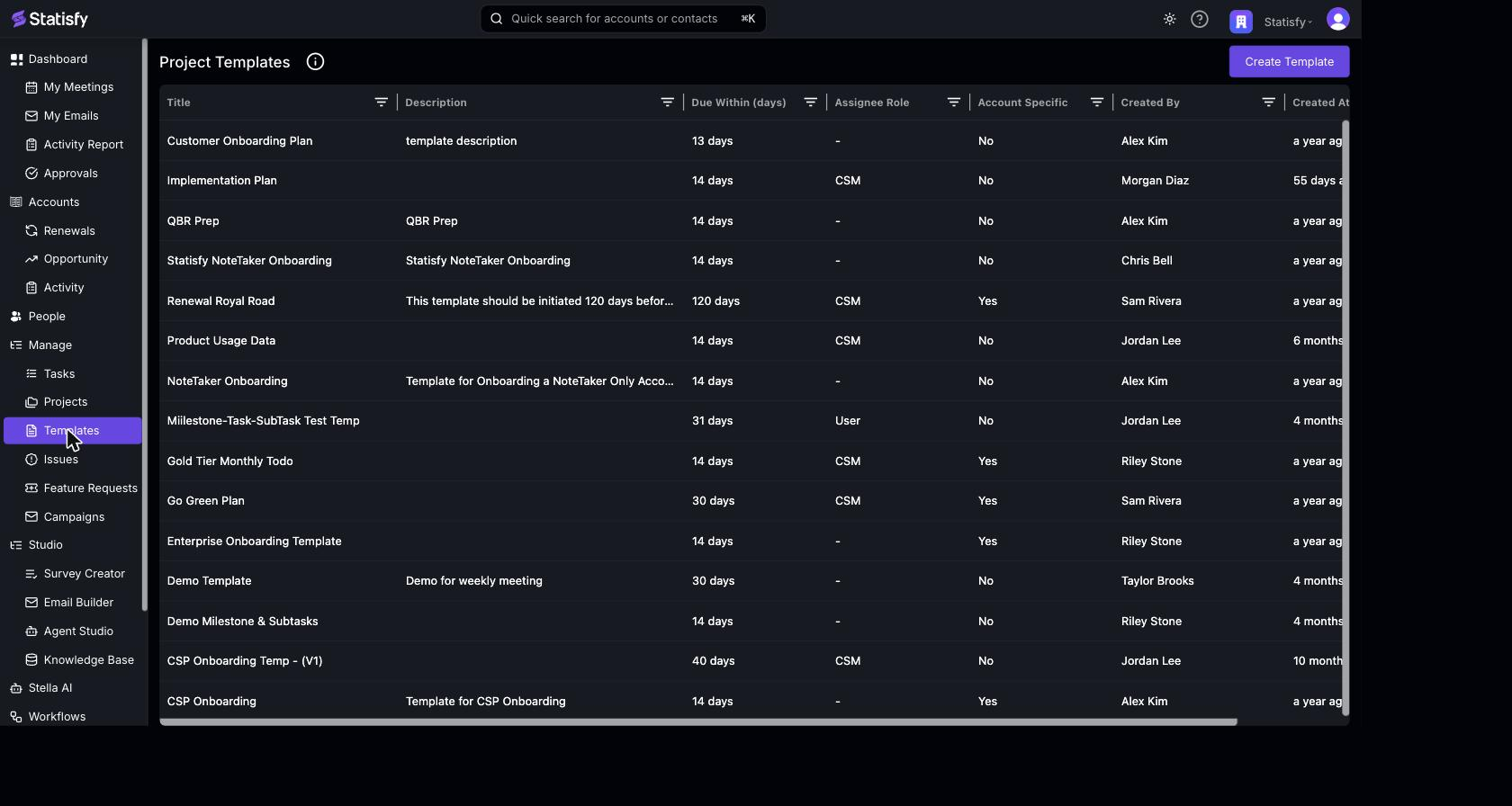 Step 2: Enter a Template Title.
Step 3: Add a Description for the template.
Step 4: Set the template’s Due Within (days) — the overall number of days the template spans.
Step 5: Choose an Assignee Role — the default role that tasks in this template are assigned to.
Step 6: Set Account Specific to True if the template should be tied to a specific account when it’s used, or leave it False otherwise.
Step 2: Enter a Template Title.
Step 3: Add a Description for the template.
Step 4: Set the template’s Due Within (days) — the overall number of days the template spans.
Step 5: Choose an Assignee Role — the default role that tasks in this template are assigned to.
Step 6: Set Account Specific to True if the template should be tied to a specific account when it’s used, or leave it False otherwise.
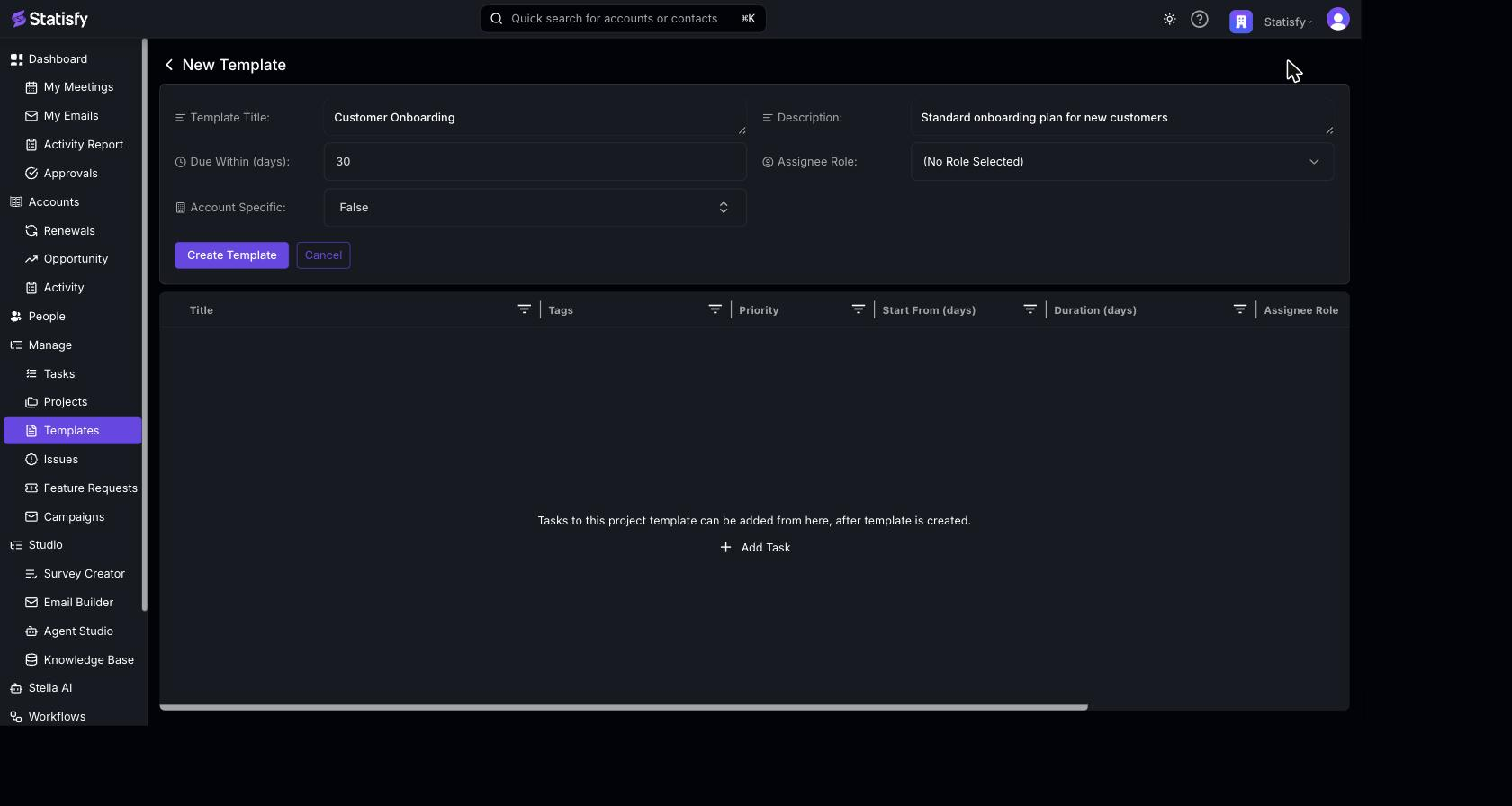 Step 7: Click Create Template.
Add tasks to the template
Step 8: With the template open, click Add Task/Milestone and give the task a title. Step 9: Set the Start From and Duration for the task. Template tasks use day offsets instead of fixed dates:- Start From (days) — how many days after the project start date this task begins (e.g., 0 = project start, 4 = four days later)
- Duration (days) — how many days the task lasts from its start date
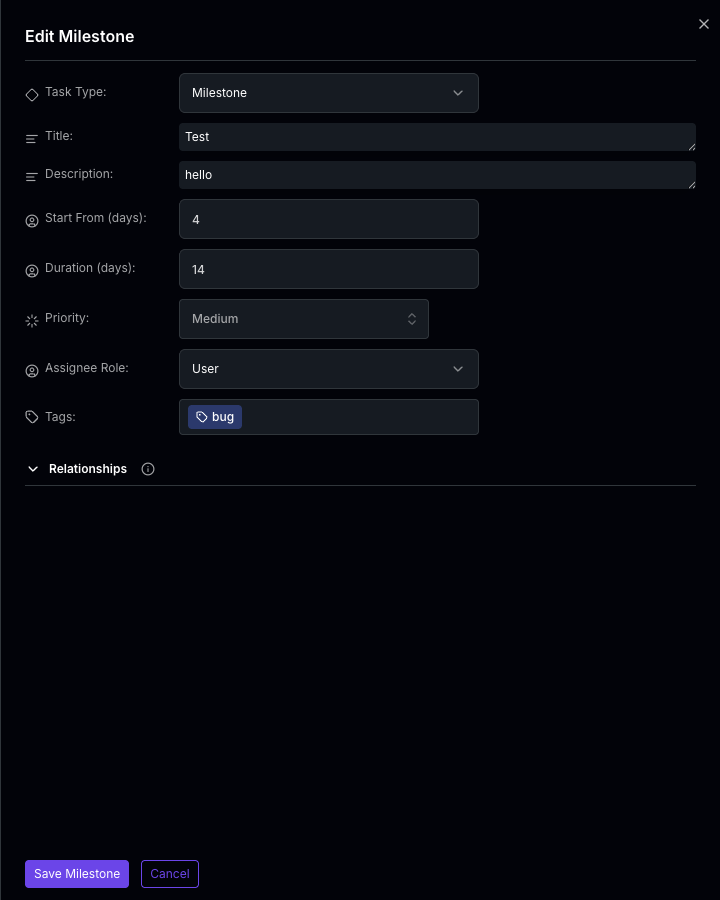 Step 10: Assign a Priority to the task.
Step 11: Choose an Assignee for the task, or leave it unassigned by selecting the hyphen.
Step 12: Add any Tags to the task.
Step 13: Click Add Task to add it to the template. Repeat for each task the template should include.
And that’s it! You’ve successfully created a project template that can be used to create multiple projects.
Step 10: Assign a Priority to the task.
Step 11: Choose an Assignee for the task, or leave it unassigned by selecting the hyphen.
Step 12: Add any Tags to the task.
Step 13: Click Add Task to add it to the template. Repeat for each task the template should include.
And that’s it! You’ve successfully created a project template that can be used to create multiple projects.
Want projects from this template to be created automatically for matching accounts? See Project Template Automations.