

Video Tutorial
This article will guide you through the process of navigating the task management interface under the “Manage” section. Step 1: Start by clicking on the “Task” option. This will display a list of tasks, which could be manually created or automatically generated from a note-taking meeting.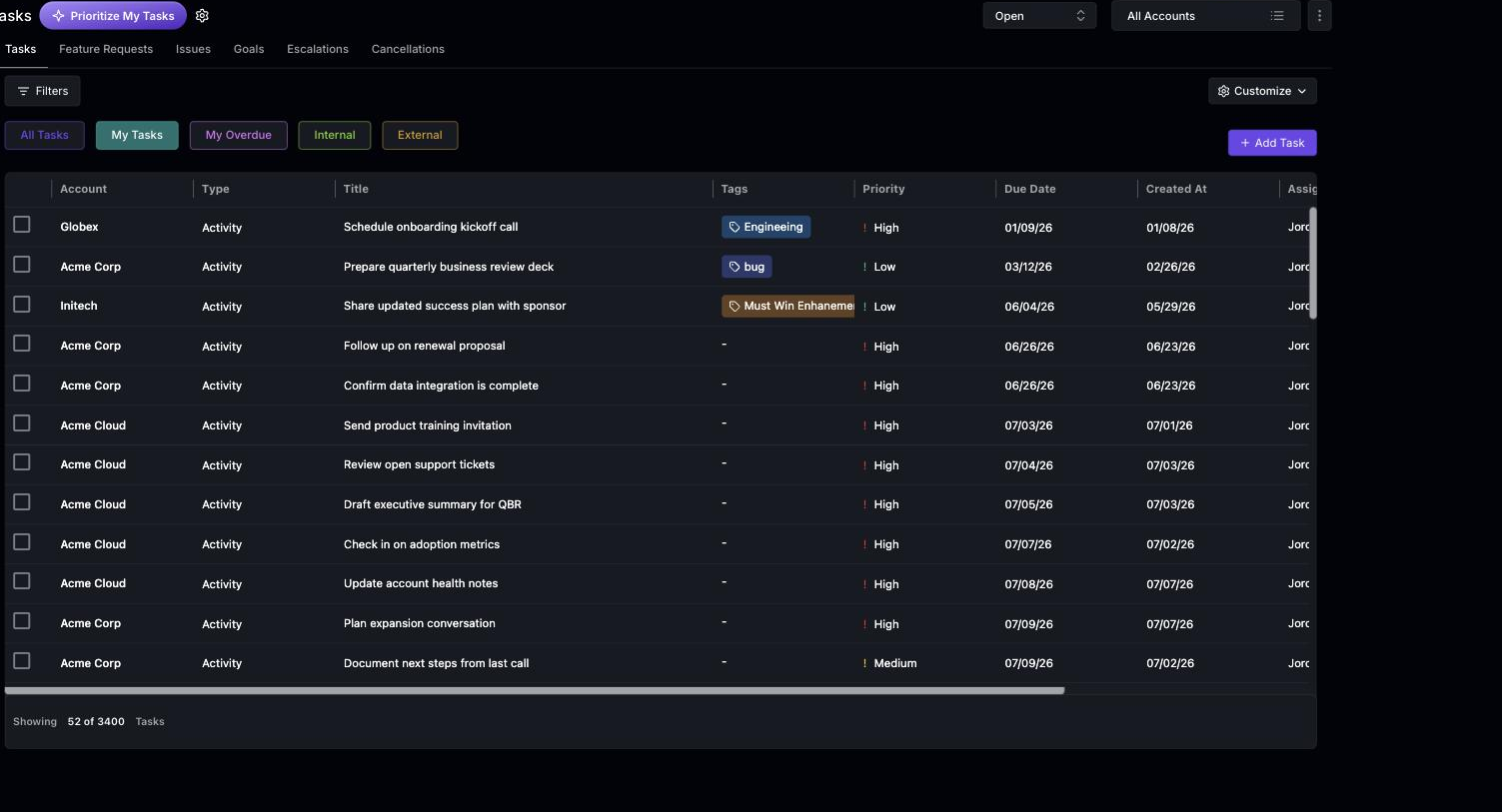 Step 2:
Look for the gear icon next to Tasks. This icon is used to manage status templates.
Step 2:
Look for the gear icon next to Tasks. This icon is used to manage status templates.
 Step 3:
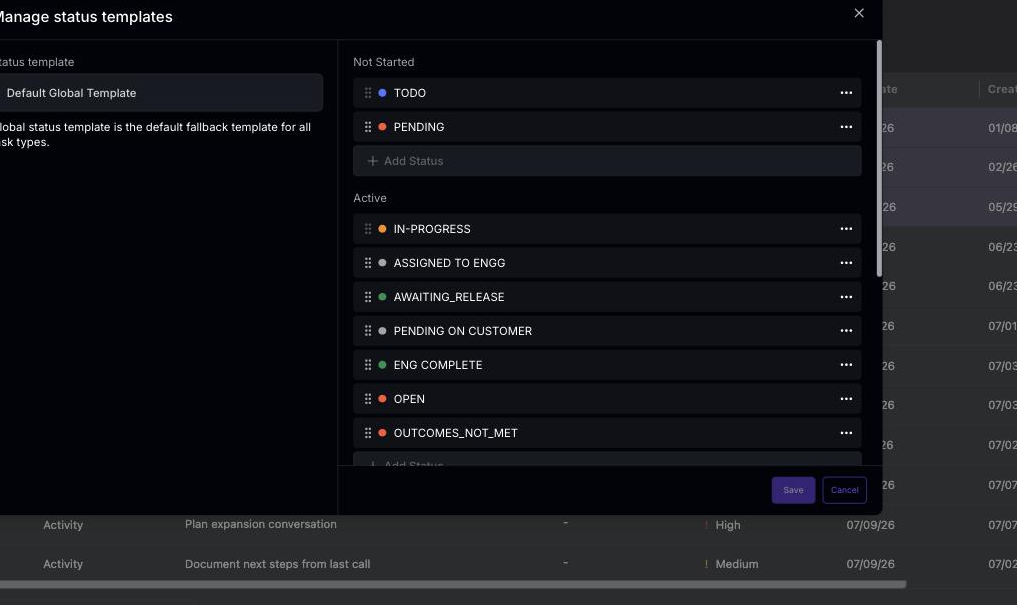
Here, you’re able to manage all the statuses. You’re free to change the color of the status, delete it, or rename it.
Step 4:
After making changes, remember to hit the save button.
Step 5:
Click on All Tasks to view all tasks, regardless of their assignment.
Step 6:
To view tasks assigned to you, click on My Tasks.
Step 7:
Tasks that have passed their due date will be found under My Overdue.
Step 8:
Tasks within the organization are located under Internal, while tasks outside the organization are under External.
Step 9:
Tasks can also be displayed based on their status: open, done, or archived. They can also be displayed based on all accounts or just your book.
Step 10:
To manually add a new task, use the Add Task icon.
Step 11:
Use the filters to sort through the account type, title tags, etc.
Step 3:
Here, you’re able to manage all the statuses. You’re free to change the color of the status, delete it, or rename it.
Step 4:
After making changes, remember to hit the save button.
Step 5:
Click on All Tasks to view all tasks, regardless of their assignment.
Step 6:
To view tasks assigned to you, click on My Tasks.
Step 7:
Tasks that have passed their due date will be found under My Overdue.
Step 8:
Tasks within the organization are located under Internal, while tasks outside the organization are under External.
Step 9:
Tasks can also be displayed based on their status: open, done, or archived. They can also be displayed based on all accounts or just your book.
Step 10:
To manually add a new task, use the Add Task icon.
Step 11:
Use the filters to sort through the account type, title tags, etc.
Bulk Updating Tasks
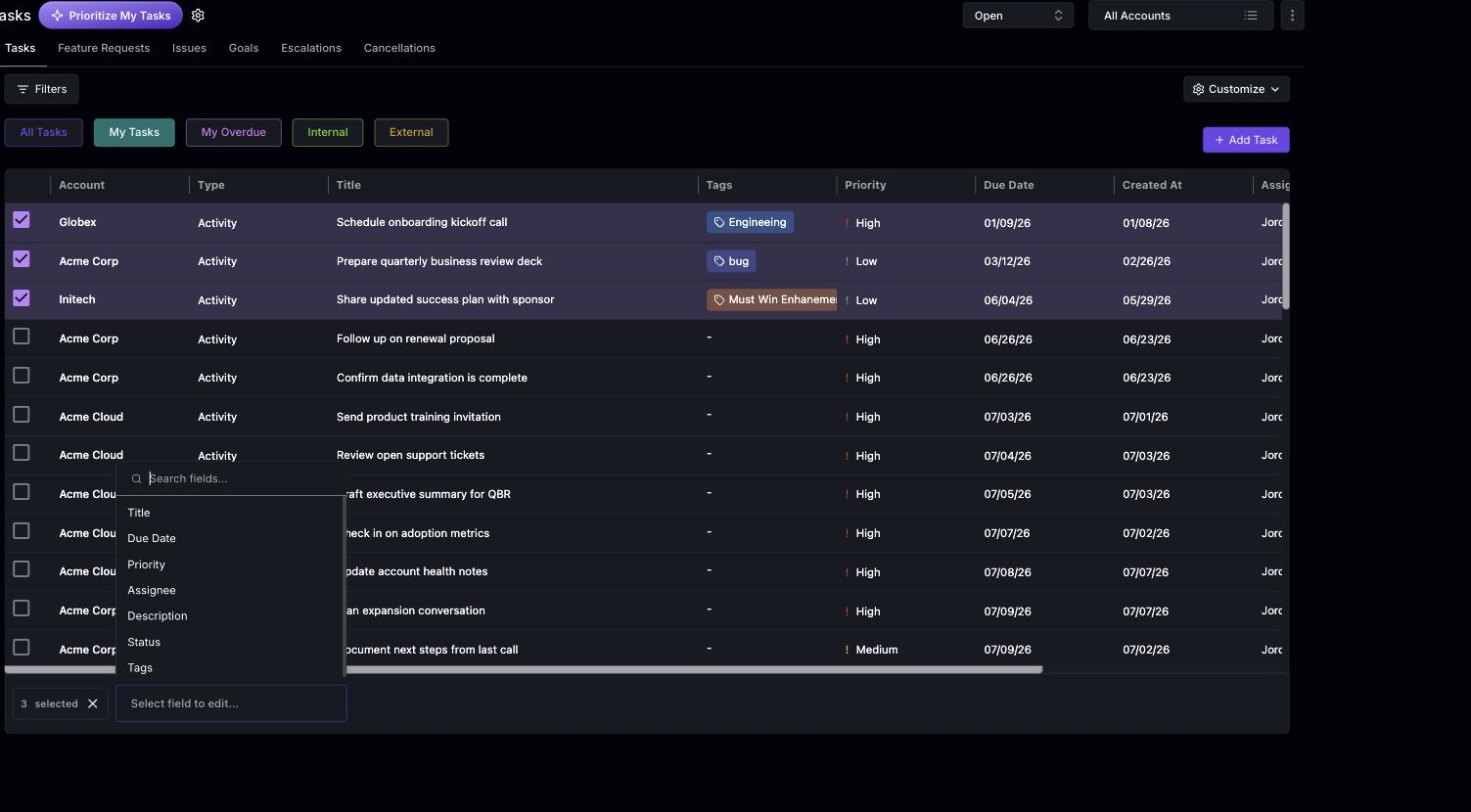 To edit multiple tasks at once, select rows and use the editor in the footer of the task list. The flow mirrors bulk updating accounts.
Selecting tasks
You have two ways to select rows:- Tick individual checkboxes — the update applies to exactly the rows you ticked.
- Tick the checkbox in the column header — this selects every task matching the current tab and filter, not just the rows loaded on screen. The footer shows All N matching selected.
Applying the update
- In the footer, open the Select field to edit… dropdown. You can type in the search box to quickly find the field you need.
- Choose the field and enter the new value. You can bulk edit Due Date, Start Date, Priority, Assignee, Description, Status, and Tags, as well as most task custom fields. Title can’t be bulk edited; rename tasks individually.
- Click Apply to Selected. A confirmation dialog opens with a preview of how many tasks the update will change. Click Start bulk update to begin.
- Unassigning: clear the assignee editor and apply to remove the current assignees. Removed assignees stay on the task as followers.
- Date order: a task’s start date must not be after its due date. If a new start or due date would break that order for a task, that task is skipped and the reason appears in the downloadable results.
- Description: must contain text; a bulk update can’t clear it.
A few custom fields are view-only in bulk edit — for example, fields that link a task to an account or an external contact. Edit those on the individual task instead.