

Video Tutorial
In this article, you’ll learn how to create a new project from scratch using a blank template, then add tasks to it.Create the project
Step 1: From Manage → Projects, click Create Project in the top-left.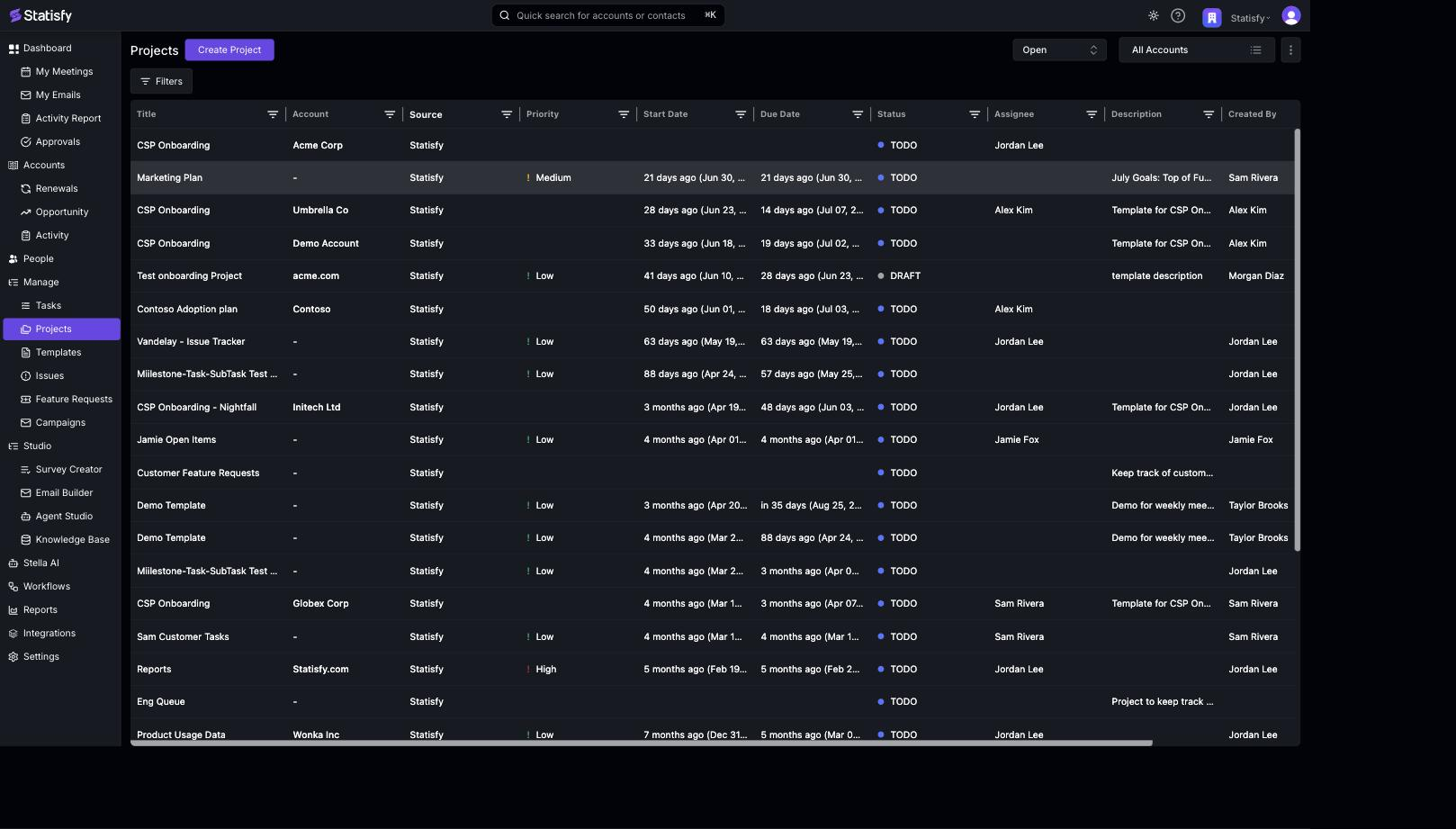 Step 2: At the top of the form, leave the template dropdown on Blank Template so you start with an empty project.
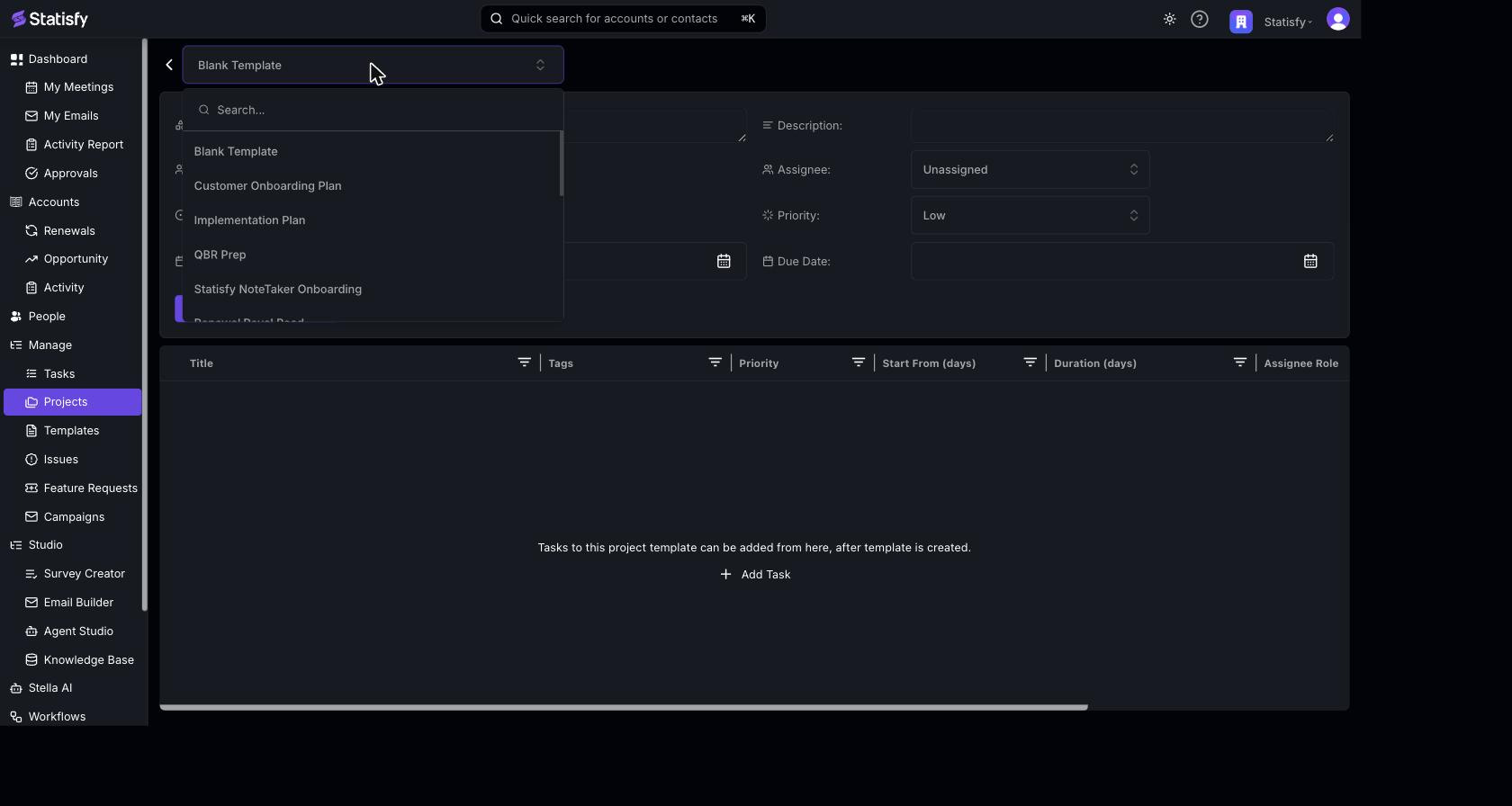 Step 3: Give your project a Project Title.
Step 4: Add a Description.
Step 5: Select an Account from the dropdown.
Step 6: Choose an Assignee for the project.
Step 7: Set the project Status.
Step 8: Pick a Start Date.
Step 9: Set the Priority.
Step 10: Choose a Due Date.
Step 3: Give your project a Project Title.
Step 4: Add a Description.
Step 5: Select an Account from the dropdown.
Step 6: Choose an Assignee for the project.
Step 7: Set the project Status.
Step 8: Pick a Start Date.
Step 9: Set the Priority.
Step 10: Choose a Due Date.
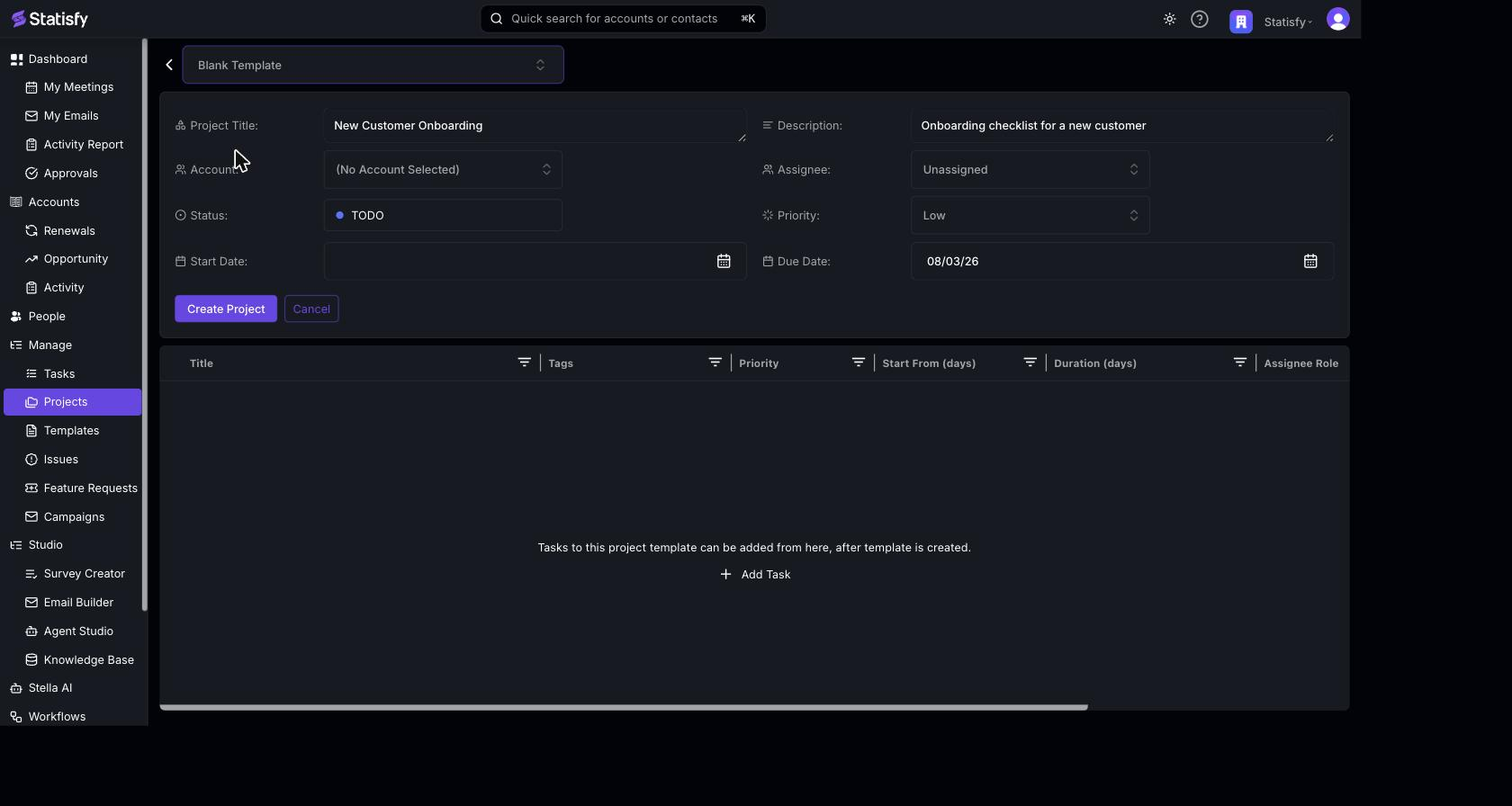 Step 11: Click Create Project to finalize the project.
Add tasks
Once the project is created, you can add tasks to it. Step 12: On the project, click Add Task/Milestone.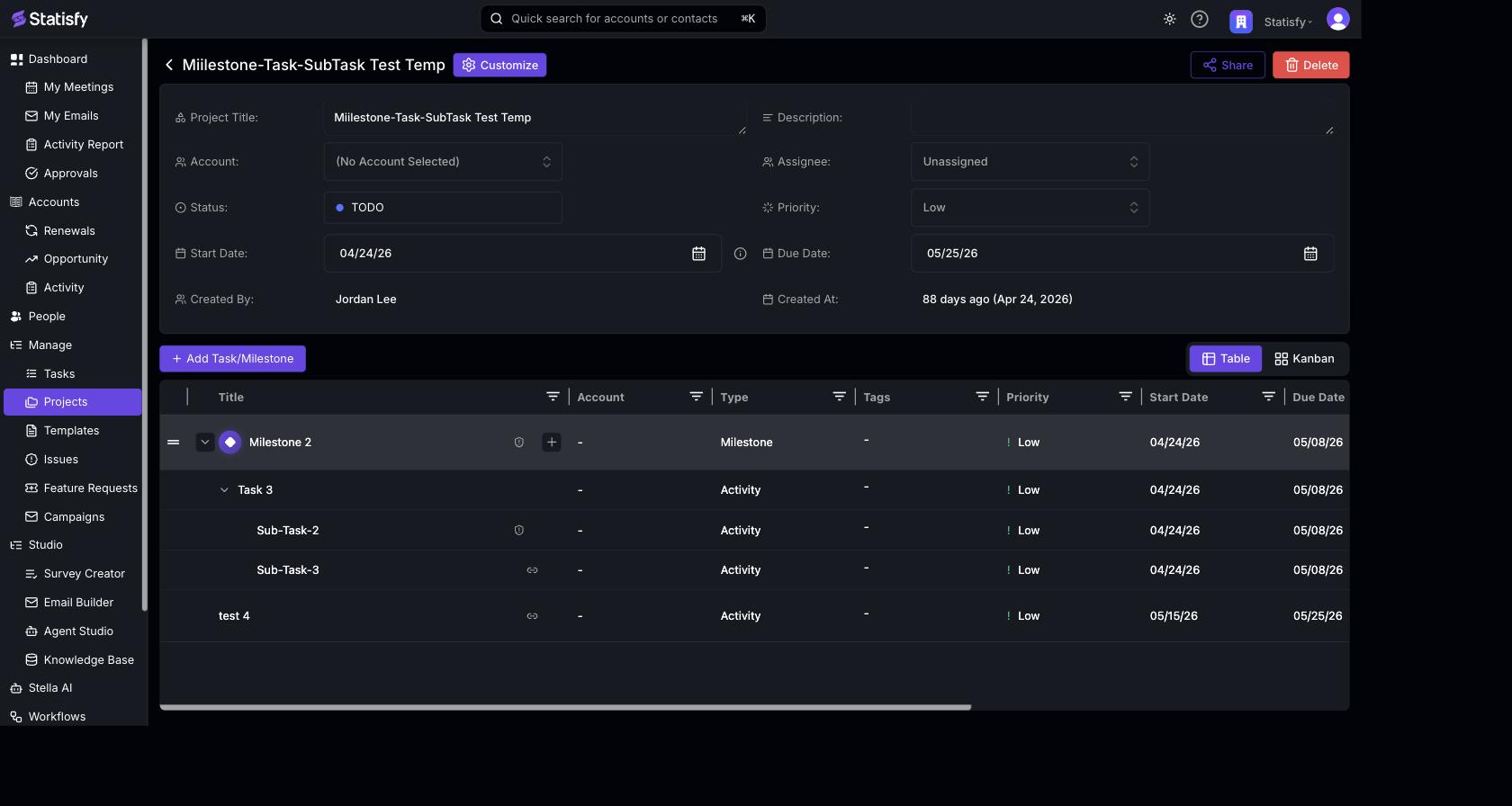 Step 13: Give your task a Title (and an optional Description).
Step 14: Set the task Priority and Due Date.
Step 15: Choose an Assignee and set the task Status.
Step 16: Add any Tags to your task.
Step 13: Give your task a Title (and an optional Description).
Step 14: Set the task Priority and Due Date.
Step 15: Choose an Assignee and set the task Status.
Step 16: Add any Tags to your task.
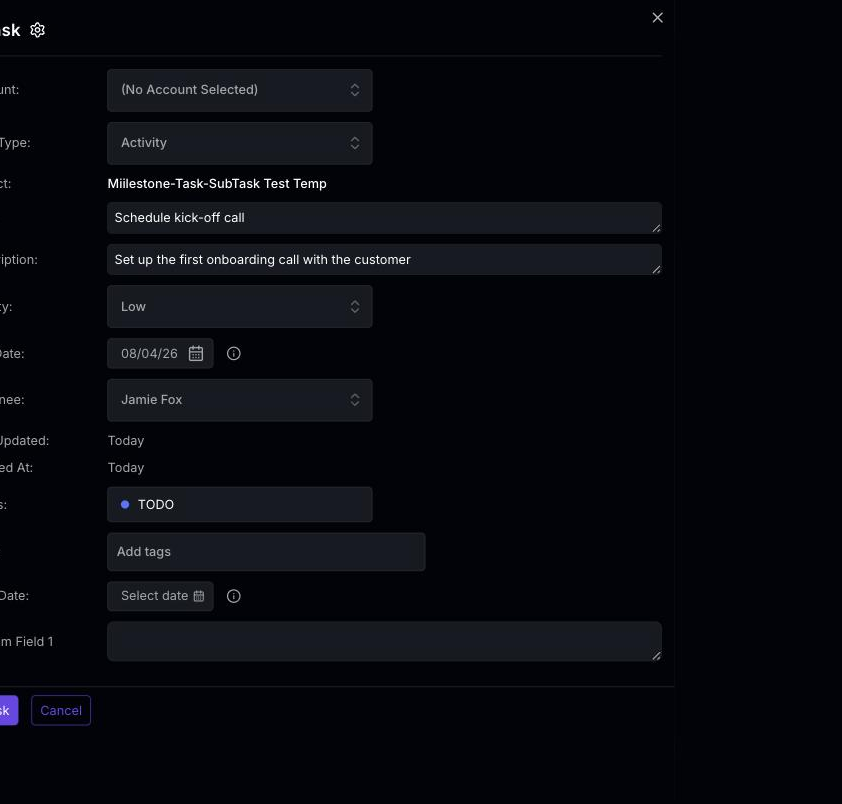 Step 17: Click Add Task to add it to your project.
And that’s it! You’ve successfully created a new project and added a task to it.
Step 17: Click Add Task to add it to your project.
And that’s it! You’ve successfully created a new project and added a task to it.