

Accessing Analytics
- Navigate to Campaigns.
- Click on a campaign to open it.
- Use the view toggles below the campaign details — Email Analytics, and (for survey campaigns) Survey Analytics and Survey Responses.
Email Metrics
The Email Analytics view shows Campaign Totals at the top, followed by per-recipient Campaign Distribution Stats: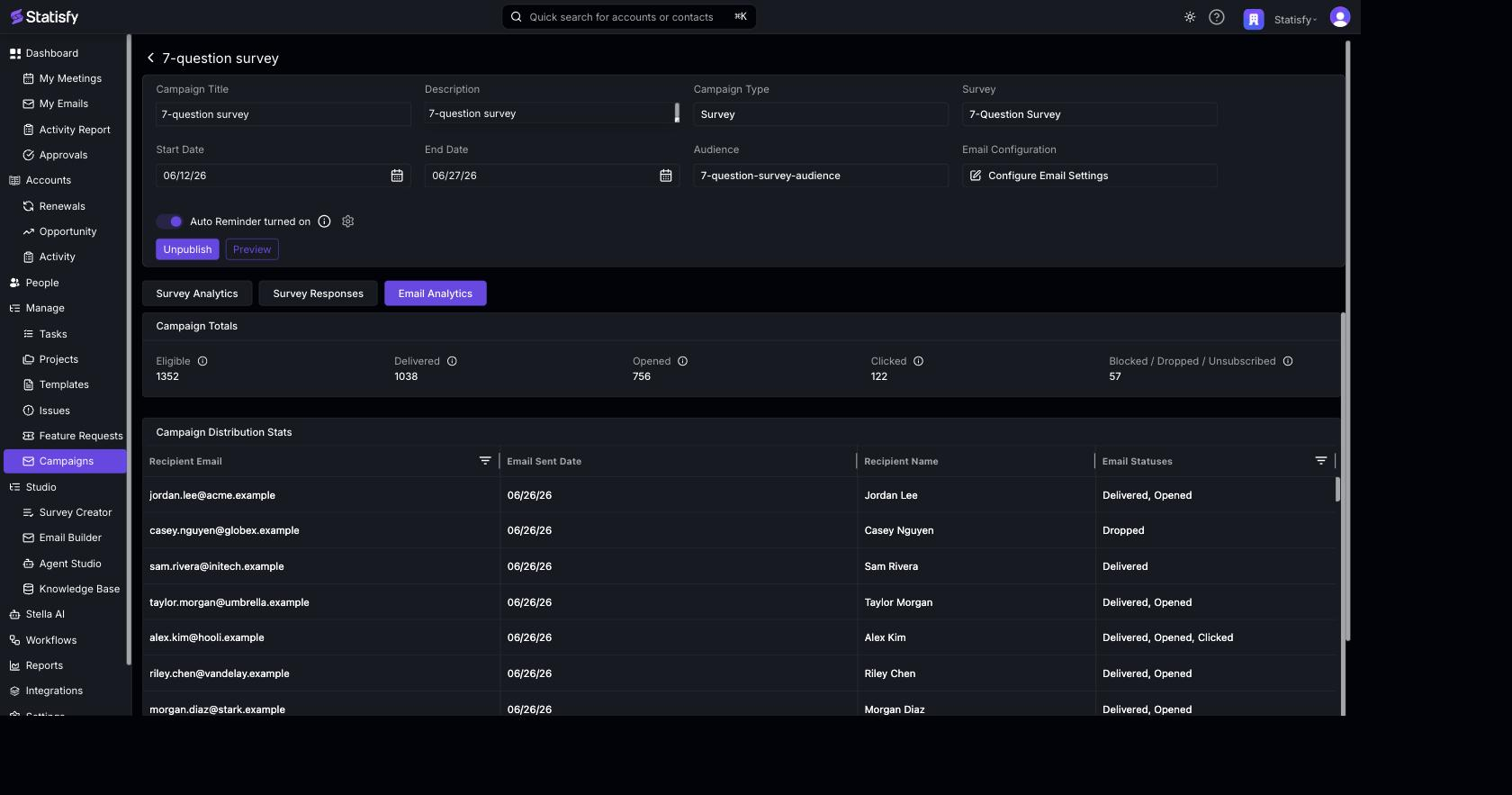
Understanding Delivery Status
The Email Statuses column shows one or more of these per recipient (for example Delivered, Opened, Clicked):Survey Response Metrics
For survey campaigns, the Survey Analytics view visualizes the distribution of answers for each question — bar charts, word clouds, and more — so you can spot trends across all responses: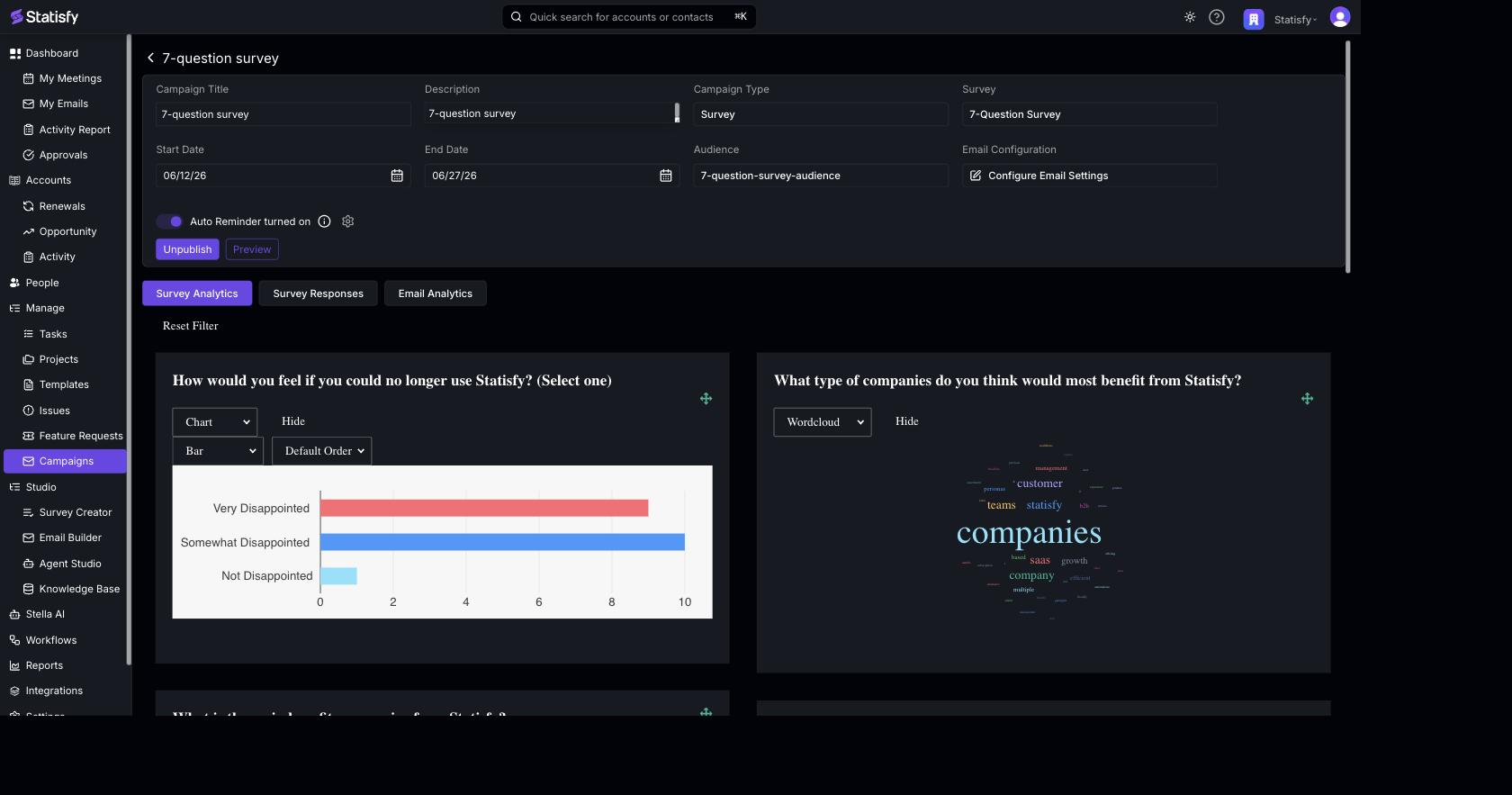
Viewing Individual Recipients
In the Email Analytics view, the Campaign Distribution Stats table shows detailed status for each recipient:- Recipient email and name
- Email sent date
- Email statuses (Delivered, Opened, Clicked, Dropped)
Engagement Trends
Track engagement over time:- See when emails were opened
- Identify peak engagement times
- Monitor click activity patterns
Survey Responses
For survey campaigns, open the Survey Responses view to see each individual response: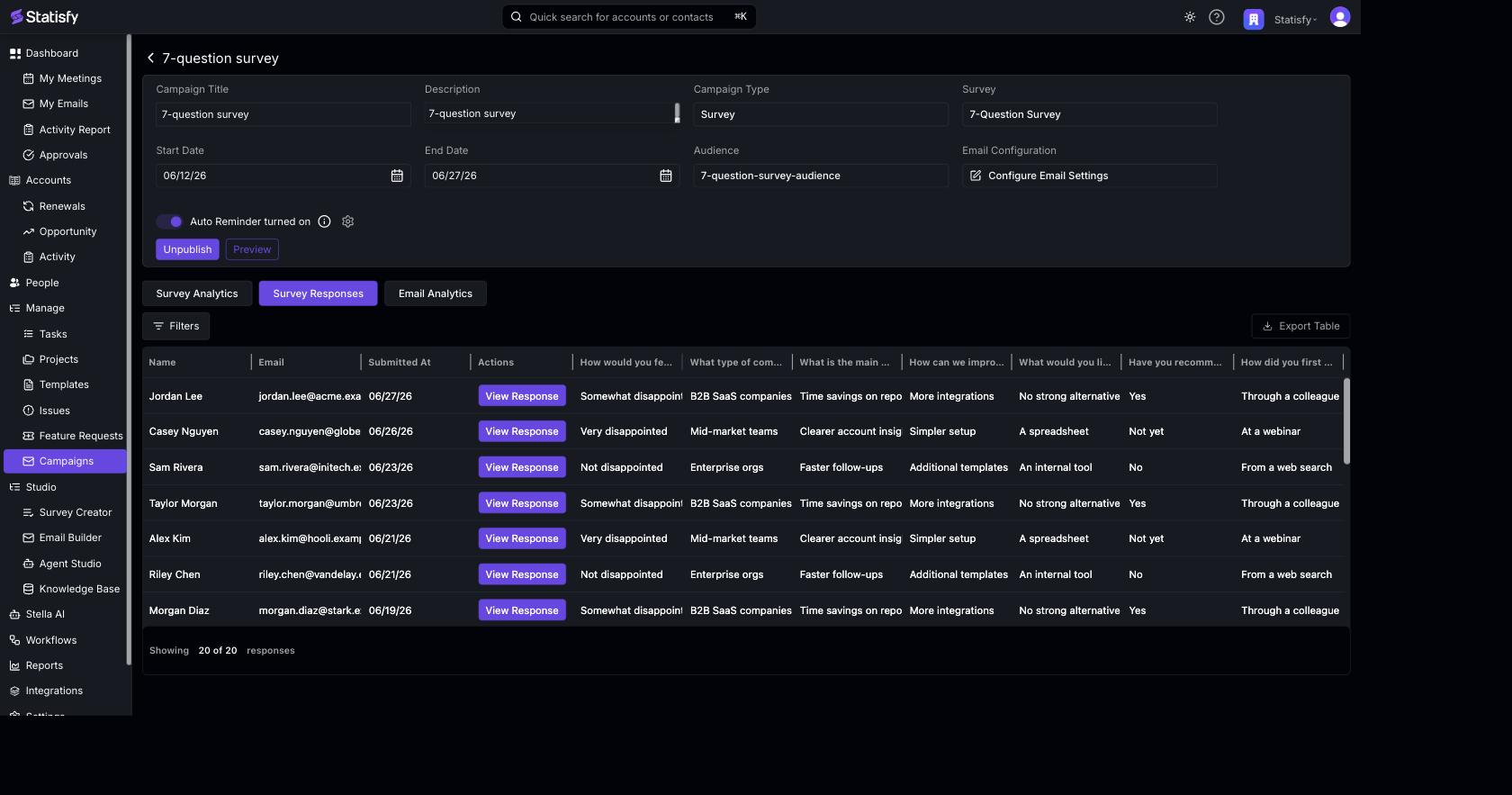
- Each row shows a recipient and their answer to every question. Click View Response on a row to see that recipient’s full submission.
- Use Filters to narrow the list.
- Click Export Table to download the responses as a CSV.
Metrics Definitions
Open Rate
Open Rate
Calculation: (Opened / Delivered) × 100What it tells you: How compelling your subject line and sender are.Benchmark: 20-30% is typical for B2B campaigns.
Click Rate
Click Rate
Calculation: (Clicked / Delivered) × 100What it tells you: How engaging your email content is.Benchmark: 2-5% is typical for B2B campaigns.
Response Rate
Response Rate
Calculation: (Completed Surveys / Delivered) × 100What it tells you: How willing customers are to provide feedback.Benchmark: 10-30% depending on survey length and relationship.
Exporting Data
For survey campaigns, open the Survey Responses view and click Export Table to download all responses as a CSV for reporting or further analysis.Improving Campaign Performance
Low open rates
Low open rates
- Test different subject lines
- Try role-based sending (from their CSM)
- Send at different times/days — set the hour and timezone with Custom send time (see Creating Campaigns)
- Segment to more relevant audiences
Low click rates
Low click rates
- Make CTAs more prominent
- Reduce email length
- Improve personalization
- Test different content approaches
Low survey responses
Low survey responses
- Keep surveys short (5 questions or fewer)
- Explain why feedback matters
- Use reminders appropriately
- Consider incentives
Tracking Webhooks
Statisfy receives real-time updates from the email provider:- Delivery confirmations
- Open tracking (when images load)
- Click tracking (when links are clicked)
- Bounce notifications