

Why Follow Tasks?
- Stay informed about tasks relevant to your accounts
- Get notified when important tasks are updated
- Track progress on tasks assigned to your team members
Following a Task
- Open the task detail page
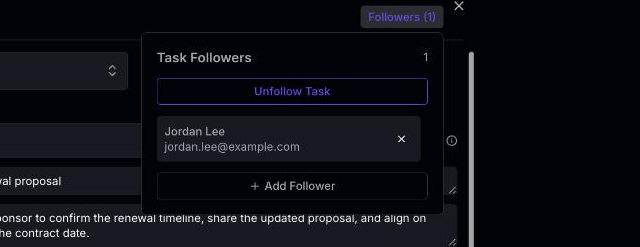
- Click the Followers control in the task header (it shows the current follower count, e.g. Followers (1))
- In the popover, click Follow Task
- You are now subscribed to updates for this task
 Once you follow a task, you receive notifications when:
- The task status changes (e.g., moved to In Progress or Completed)
- A comment is added to the task
- The task is reassigned
- The due date is changed
Unfollowing a Task
To stop receiving updates for a task:- Open the task detail page
- Open the Followers control and click Unfollow Task
- You will no longer receive notifications for this task
Viewing Followed Tasks
You can see all tasks you’re following from the Tasks section:- Navigate to Tasks from the main menu
- Use the filter to show tasks you’re following
Automatic Following
In some cases, you are automatically added as a follower:- When you are mentioned in a task comment
- When you create a task (you follow your own tasks by default)
Following a task does not change your permissions. You can only view and comment on tasks you have access to based on the account and your role.