

Don’t see Digital Workers in your navigation? It isn’t enabled for your workspace yet — contact your administrator or Statisfy support to get it turned on.
The two modes
Which should you use?
- Connect an email account when the worker should work a specific, real mailbox and reply from that exact address — a named or shared mailbox you can authorize over OAuth (read + send). No DNS setup is required; replies come from the connected mailbox itself.
- Use forwarding when you have a shared support inbox (like
support@acme.com) that you’d rather forward than connect directly, and you want replies to go out from your own verified domain. This needs a verified sending domain (DNS) and a forwarding rule in your mail system. - If your support address is a group or distribution list (for example, a Google Group), use forwarding — a group has no mailbox to connect over OAuth.
- You can run both — for example, connect one mailbox directly and forward another.
How the email options appear on the worker
Open Digital Workers, select your worker, and go to the Email tab. Turn on the master Email toggle to reveal three sections: Scan connected mailboxes, Receive forwarded email, and Auto-reply on hold (an optional acknowledgement sent in-thread when a reply is held for a human).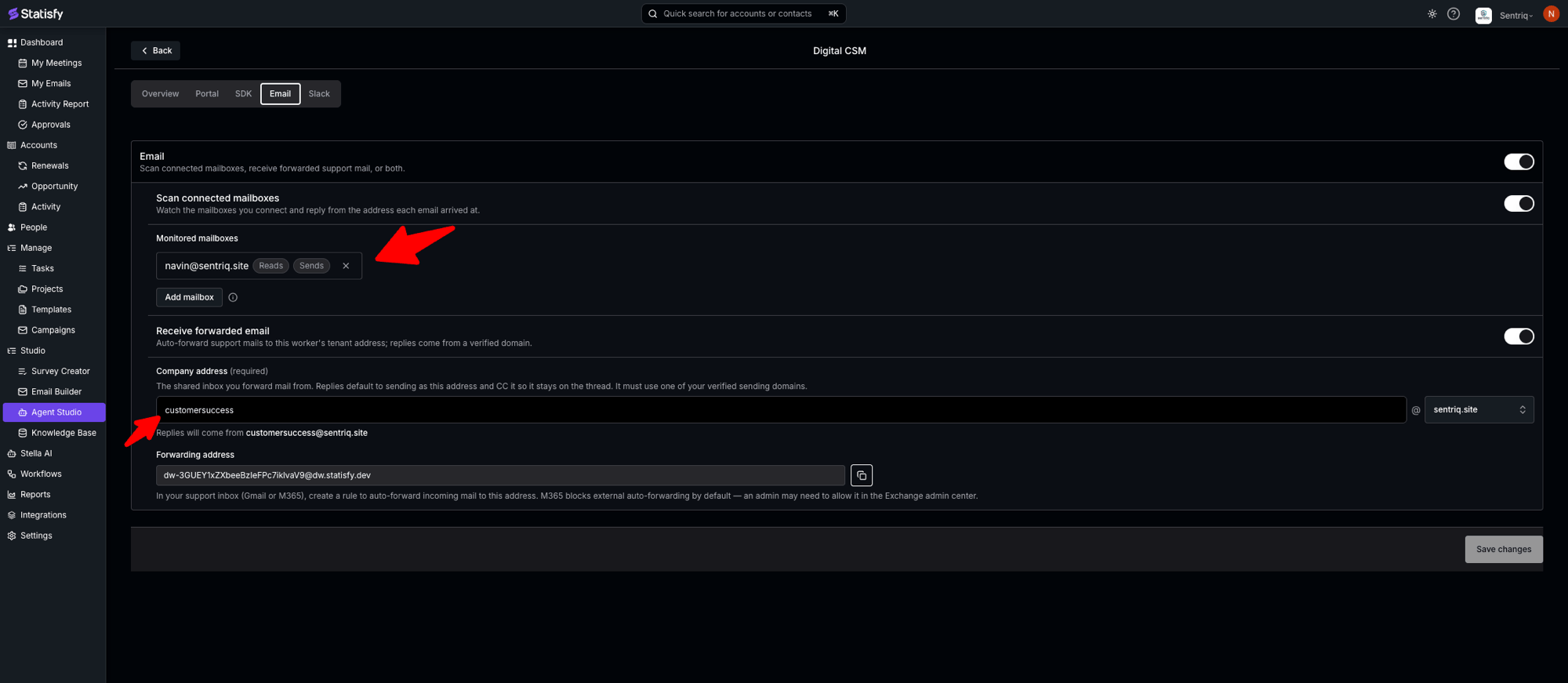
Prerequisites
Option 1 — Connect an email account
The worker watches a mailbox you connect and replies from the address each email arrived at.- On the Email tab, turn on Email, then turn on Scan connected mailboxes.
- Under Monitored mailboxes, click Add mailbox.
- In the picker, choose an already-connected mailbox, or use Connect a new Gmail mailbox / Connect a new Microsoft 365 mailbox to authorize one (a Google or Microsoft sign-in opens; this OAuth step happens in Statisfy). Only mailboxes connected with both read and send permission appear here — each is shown with Reads / Sends tags (see the Email tab above).
- If a mailbox shows “Missing read and/or send permission — reconnect to update,” reconnect it with both permissions.
Shared mailboxes (Microsoft 365)
An Outlook shared mailbox — for example,support@yourcompany.com — has no password of its own, so it can’t be connected over OAuth directly. Instead, Statisfy reads it through a connected teammate whose Microsoft 365 account has been delegated access to it in Exchange.
Add shared mailboxes under Shared mailboxes, right below Monitored mailboxes:
- Under Shared mailboxes, type the mailbox address (for example,
support@yourcompany.com) and click Add shared mailbox. Repeat for each one. - To remove a shared mailbox, click the ✕ next to its entry.
- At least one connected Microsoft 365 mailbox that granted shared-mailbox access. A mailbox you connect from this tab with Connect a new Microsoft 365 mailbox requests it automatically — accept Read mail you can access on Microsoft’s consent screen. A connection made from the Integrations page needs Read shared mailboxes you have access to ticked — see Microsoft 365 Integration. If no connected mailbox has this access, the section shows a warning that the shared mailboxes won’t sync.
- At least one of those connected teammates must have Full Access (or the appropriate folder permissions) on the shared mailbox in Exchange, granted by your Microsoft 365 admin. Statisfy can’t check this from the app — if access is missing, mail from that mailbox doesn’t arrive.
The worker doesn’t reply to mail that arrives only at a shared mailbox. It replies to mail that reaches a mailbox under Monitored mailboxes, or that you forward to it. To have the worker answer a shared support address, set up forwarding for it (Option 2 below).A teammate can still reply as a shared mailbox by hand, picking it in the From dropdown in Workbench. That needs Send As on the mailbox in Exchange — see Replying from a shared mailbox.
Option 2 — Forwarding
You forward your shared support inbox (for example,support@acme.com) to a unique Statisfy address, and the worker replies from your own domain.
You do not add any MX or other DNS record for the receiving/forwarding address — Statisfy hosts
dw.statisfy.dev. The only DNS you configure is your sending (reply) domain, in the first step below.Step 1 — Verify your sending domain (DNS)
Replies go out from your own domain, so Statisfy only sends from a verified domain. Until you have at least one, the Receive forwarded email toggle stays locked.- Go to Settings → DNS.
- Add your domain (for example,
acme.com) and copy the generated Type / Host / Value records into your DNS provider. - Click Verify. Verification can take up to ~24 hours; the domain shows Verified when it completes.
Step 2 — Set the company address
On the Email tab, turn on Receive forwarded email, then set the company address — your shared support inbox, the address you forward mail from.- In Company address (required), type the local part (for example,
support). - Pick one of your verified domains from the dropdown.
- Confirm the summary line — for example, “Replies will come from
customersuccess@sentriq.site.”
Step 3 — Copy your forwarding address
In the Forwarding address box, click copy. The address is unique to your workspace and looks likedw-<your-workspace-id>@dw.statisfy.dev.
Step 4 — Set up the forwarding route
Create a forwarding rule so mail that arrives at your support inbox is also delivered to the forwarding address, keeping delivery to the original inbox so your team still sees it.Google Workspace (Gmail)
Google Workspace (Gmail)
Set the route up in the Google Admin console: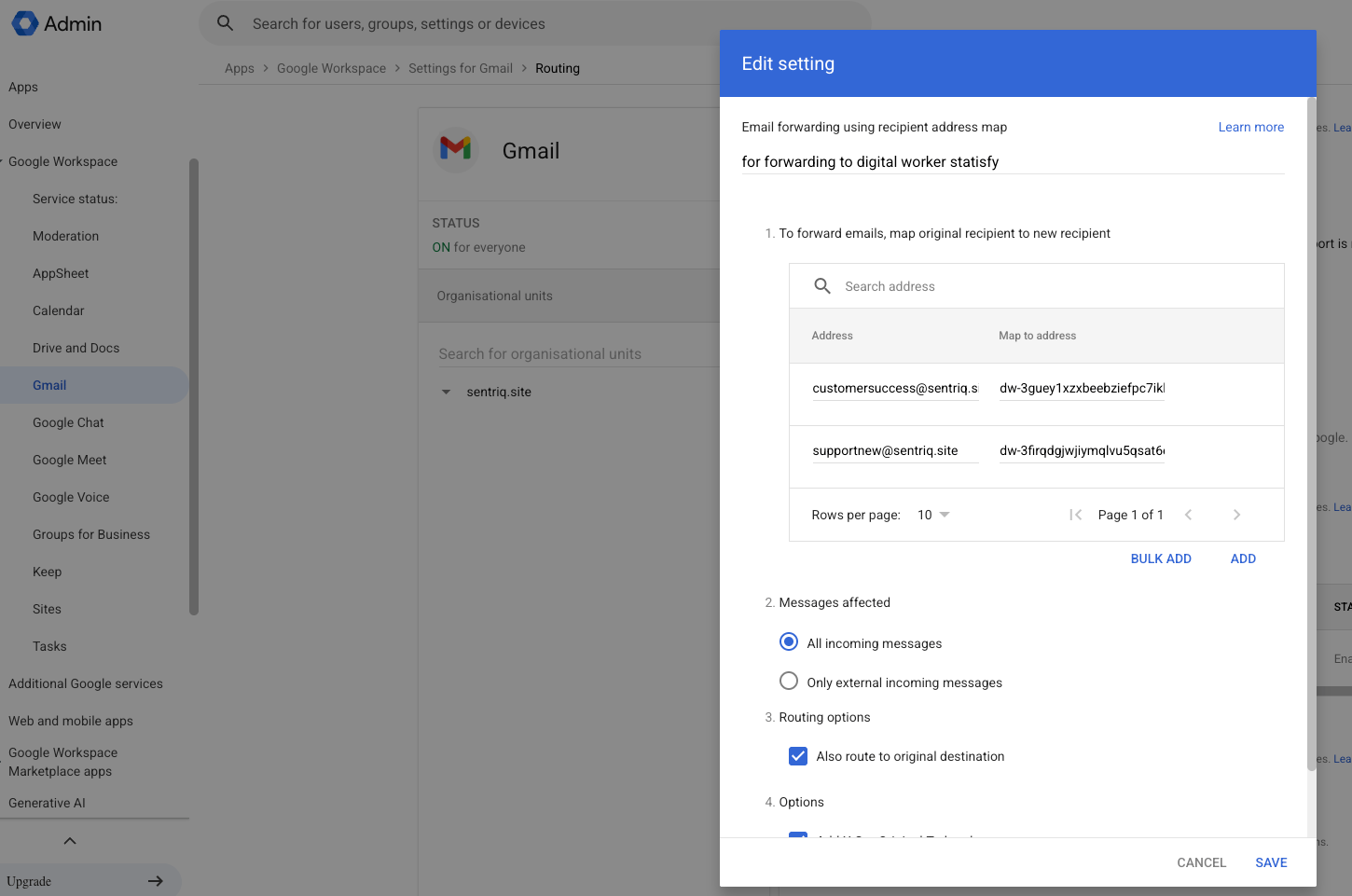
- Go to Apps → Google Workspace → Gmail → Routing (
admin.google.com/ac/apps/gmail/routing). - Under Email forwarding using recipient address map, click Add and map your support address (
customersuccess@sentriq.site) → the Statisfy forwarding address (dw-…@dw.statisfy.dev). - Set Messages affected to All incoming messages, and keep Also route to original destination checked.
- Click Save.
Microsoft 365 / Outlook
Microsoft 365 / Outlook
Set up a mail flow rule in the Exchange admin center:
- Go to the Exchange admin center → Mail flow → Rules.
- Add a new rule (Create a new rule).
- Condition — The recipient is your support address.
- Action — Bcc the message to (or add a copy to) the Statisfy forwarding address. Using Bcc/copy rather than a plain redirect keeps the mail flowing to your team as well.
- Save and enable the rule.
Support address is a group or distribution list? A group (for example, a Google Group) has no mailbox to connect over OAuth, so use forwarding. The routing methods above work for a group address the same way as for a single mailbox — point the route at your forwarding address and keep delivery to the group so your team still receives the mail.
Replying from a different address
Autonomous replies always use the mode’s default sender (the arrival mailbox for a connected account; the company address for forwarding). A reply a teammate sends from the worker pool starts from the same default, whether it is the worker’s held draft or one the teammate writes. To send from a different address, the teammate opens the conversation, where a From picker appears: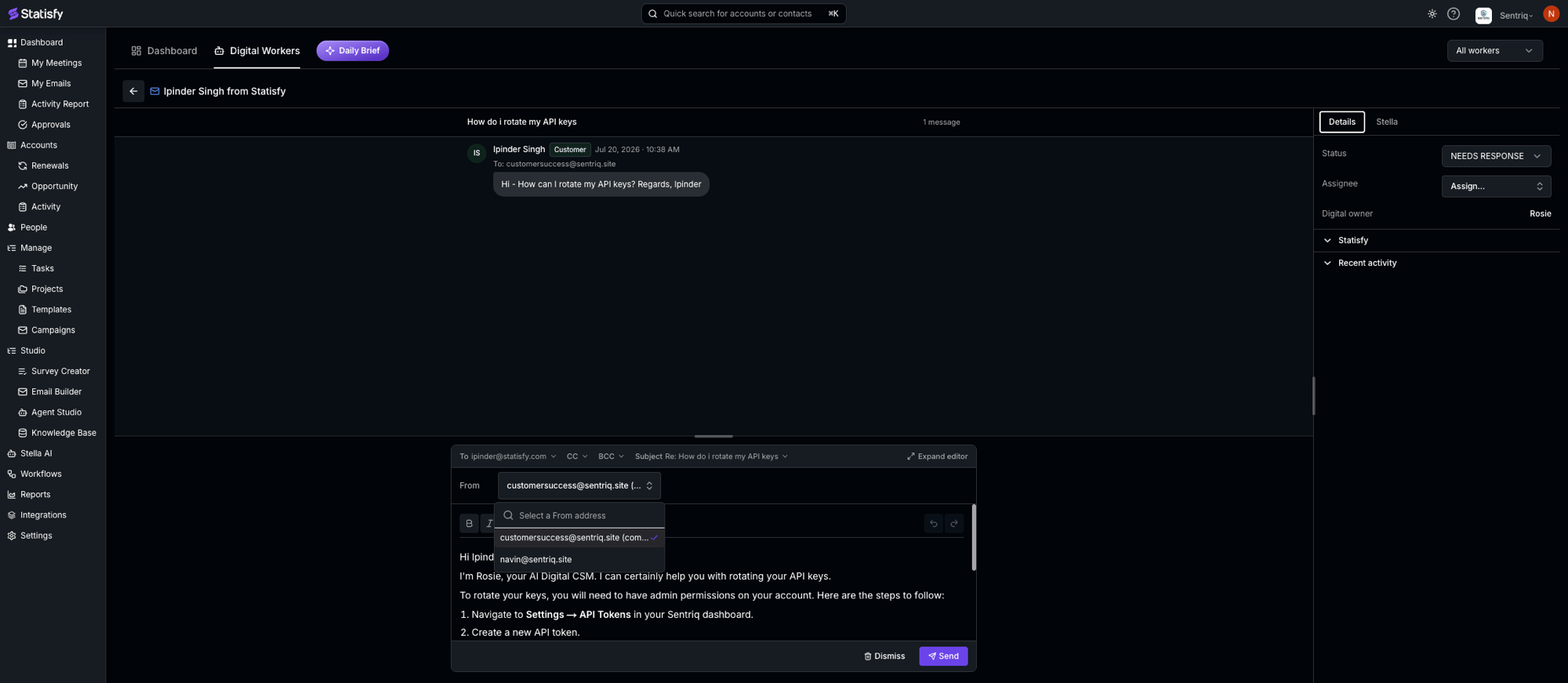
- The From dropdown (“Select a From address”) chooses the sending address.
- For forwarded mail, the default is your company address (labeled “(company address)”).
- You can switch to any connected send-capable mailbox — a Gmail address, or an Outlook one (labeled “(Outlook)”).
- The Send button reflects the choice: Send via Gmail, Send via Outlook, or Send. Pick a From address first, or you’ll see “Choose a From address before sending.”
- For forwarded mail, if you send from a mailbox other than the company address, the company address is added to CC so the thread stays on your shared inbox.
Watch conversations in the worker pool
To see every conversation your Digital Workers are managing, open the Digital Workers tab in the top navigation (next to Dashboard) — this is your worker pool.“Digital Workers” names two places: the builder where you configure a worker, and the Digital Workers tab in the top navigation — the worker pool described here.
How the worker replies
Who a reply reaches
A reply always goes back on the thread to the original sender, with everyone on the Cc kept on (reply-all). The worker can’t re-address a reply. Naming or greeting someone else in the text doesn’t send it to them. If an email also goes to someone outside the customer and your company, the worker doesn’t answer it, because a reply-all would reach that person too. The email is held for a person on your team to review and answer instead. Reply-all on a thread between the customer’s own people and your team is unaffected. To reach someone who isn’t on the thread, such as a successor the customer hands the worker to, the worker can schedule a follow-up for that person instead. The follow-up only runs when the Enabled switch on the worker’s Proactive tab is on and the person is a contact on the account. Its email follows the worker’s usual outreach rules, so it may be held for approval.Conversation status after a reply is sent
When the worker sends a reply, it also judges where the conversation stands. Statisfy sets the conversation’s status from that judgment:
The conversation goes to IN PROGRESS if those statuses aren’t set up.
The conversation stays open as WAITING ON US (or IN PROGRESS), whatever the worker judged, when:
- The reply promises follow-up work, such as “I’ll send that over tomorrow.”
- A teammate still has an open action on the conversation, such as a held draft or an escalation.
When the worker doesn’t reply
Some messages need no answer, like a bare “thanks” or an automatic acknowledgement. The worker can decline to reply to these. What happens depends on the worker’s autonomy for email:- Smart — Statisfy sends nothing and holds nothing, and moves the conversation to CLOSED. The worker’s reason isn’t shown in the app. If a held draft or tool approval is still open on the conversation, the status stays where that item put it.
- Human-in-the-loop (HIL) — The decision is held for review like any other reply. The held item says the worker suggests not replying and gives its reason. Dismiss it to leave the message unanswered, or write a reply.
When a teammate is in the conversation
The worker replies only to your customers’ email. Email from someone on your team never starts a reply, including a note to colleagues with a monitored address on Cc. If a teammate answered the customer after the worker’s last reply, the worker still drafts an answer to the customer’s next email, but holds it in the worker pool for review, whatever its autonomy, and sends no automatic acknowledgement. If the worker judges that no reply is needed, the conversation stays in NEEDS RESPONSE for your team to close. Once one of its replies goes out from the worker’s own address, including a held draft a teammate approves as it was, it replies as usual again. A held draft a teammate sends from their own mailbox (picked in From) counts as their answer, and so does an email a teammate writes from the worker’s company address themselves. If a teammate answers while the worker is still drafting, its reply is held too, though a follow-up it booked during that draft stays booked. While a teammate holds a conversation the worker doesn’t book follow-ups. An email that went only to people on your team, with nobody outside your company on To, Cc or Bcc, isn’t counted as an answer to the customer. It doesn’t move the conversation out of NEEDS RESPONSE, and the worker reads it as an internal note.Mail from unknown senders
Mail from someone who isn’t on an account the worker covers (no account at all, or an account outside the worker’s accounts that no other worker covers) isn’t the worker’s to answer. To have a person answer it instead, turn on Unknown senders on the Email tab. It appears once Scan connected mailboxes or Receive forwarded email is on.- Such mail lands in the worker pool in NEEDS RESPONSE, assigned by the worker’s assignment setting. If the worker assigns each conversation to the account’s owner, there’s no account to read an owner from, so the conversation is unassigned.
- The worker never replies to it, even when a later message comes from an account it covers.
- It counts mail sent to or from one of the worker’s monitored or shared mailboxes, or, on forwarded mail, to its company address. Mail to the company address of a worker with Unknown senders off stays out. Once a conversation is in, every later message on it is kept, including a teammate’s answer from their own mailbox. A conversation someone on your team starts comes in once the other person writes back.
- When a mailbox is first connected, only conversations with mail from the last 7 days come in.
- Bounces, mail only between people on your team, and most automatic replies stay out. From an Outlook mailbox, automated mail is recognized only by its sender (such as
noreply@) or an “Automatic reply” subject, so a newsletter from an ordinary-looking address can come in. Close it like any conversation, or contact Statisfy support to keep a sender out.
Bounces, out-of-office replies, and duplicates
-
Bounces and auto-replies — On forwarded email, the worker recognizes delivery failure notices and automatic replies (like out-of-office messages) as automated mail and doesn’t answer them as if a person wrote them. Statisfy never sends or holds a reply to a mail system:
- If the worker escalated the message, that escalation is the hand-off.
- Otherwise, Statisfy opens an escalation for a person on the account, with any note from the worker. Bounces are filed at normal urgency and auto-replies at low urgency.
- If the escalation can’t be filed, the reply is held for review in the worker pool. It’s never sent automatically.
- Duplicate messages — If the same customer message arrives twice and a reply to it is already drafted and waiting for approval, the worker is told so and doesn’t write the same answer again. If the worker stays silent on a duplicate or an auto-reply, Statisfy doesn’t put a blank draft in the queue.
Who the worker treats a sender as
- Display names — A sender’s display name isn’t verified. If a message’s display name names your company but the address is outside your domain, the worker treats the sender as whoever the address belongs to.
- Other customers — The worker won’t confirm or deny that another named organization is your customer, even if the customer’s question names them. It declines without saying anything about them, for example “I can only discuss your own account.”
See it end to end
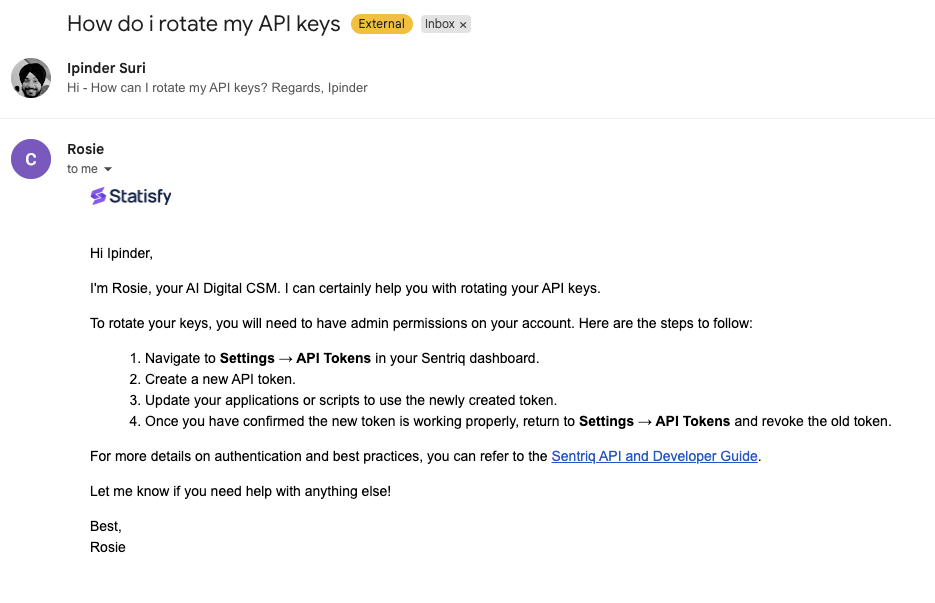
Here’s what each mode looks like in practice, using a worker named Rosie. This is also how you test the setup — send a message from an external address (ideally a synced customer domain) and follow it through.Forwarding
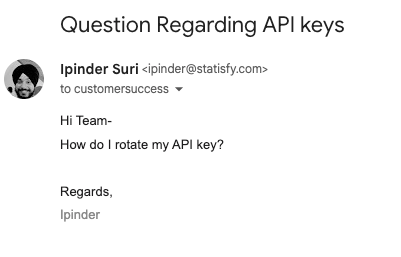
A customer emails your shared support inbox (customersuccess@sentriq.site):
Connected mailbox
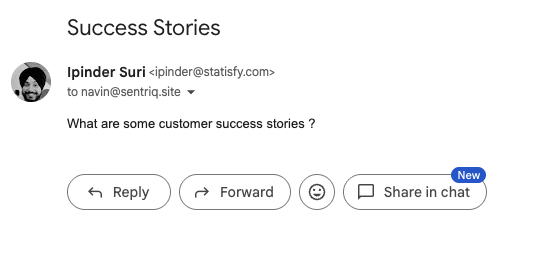
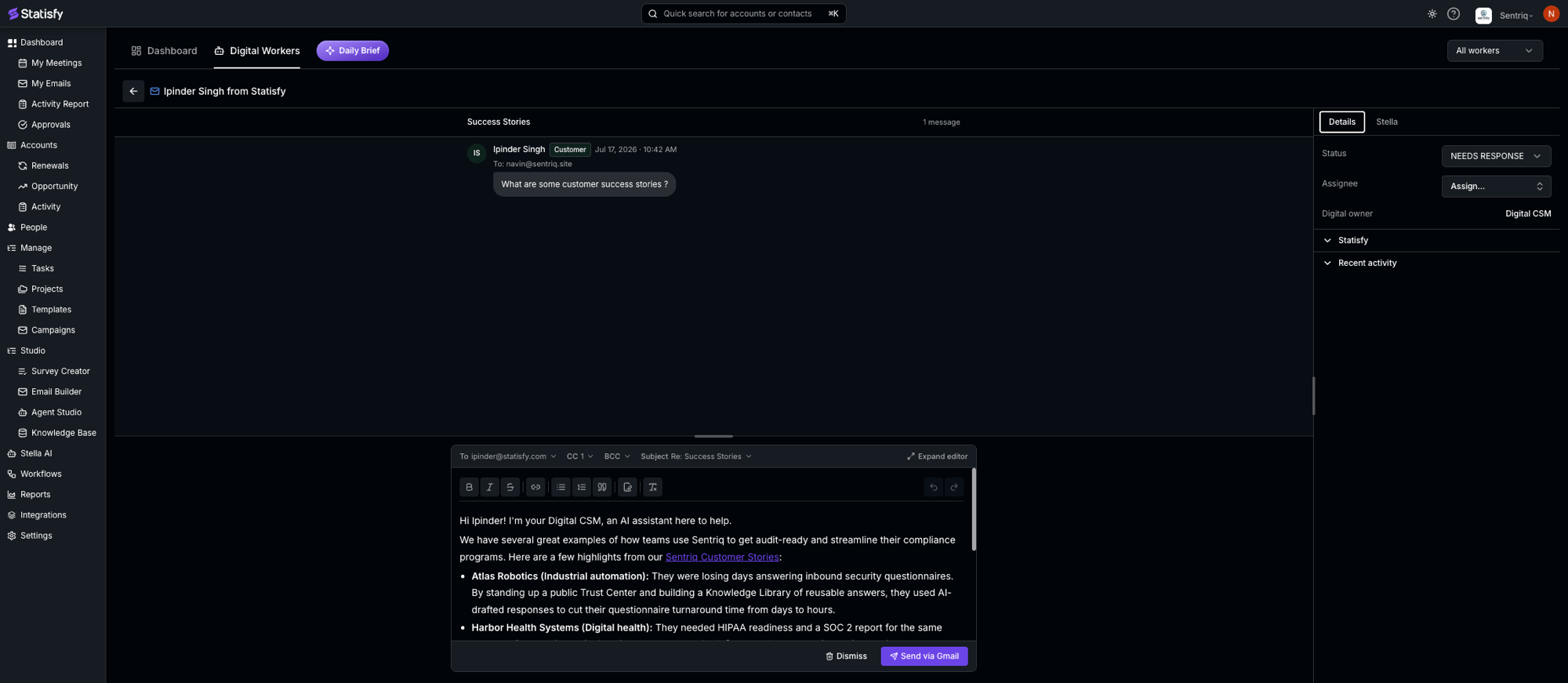
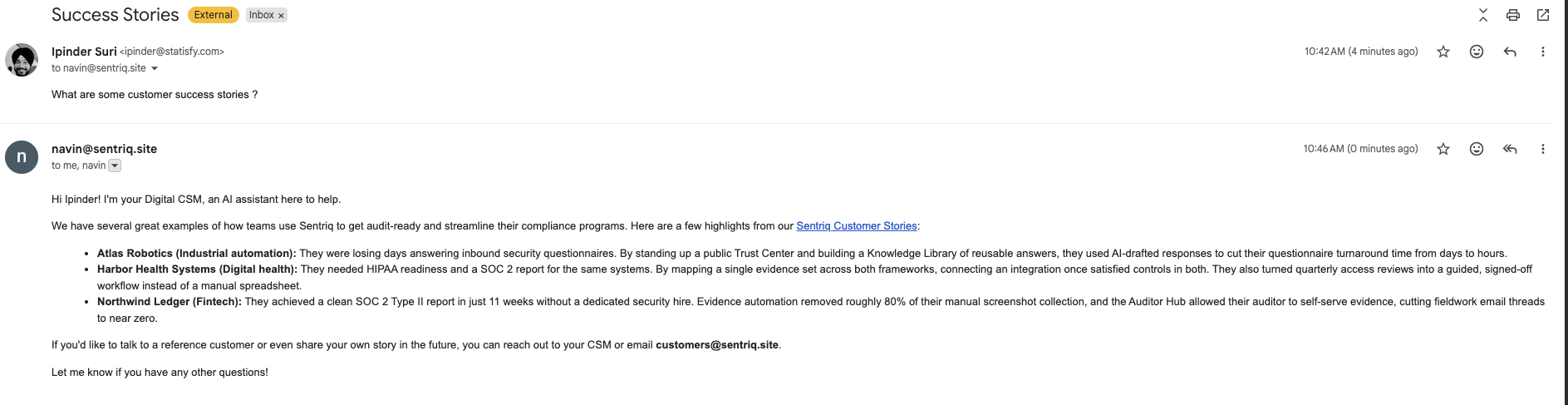
A customer emails a monitored mailbox (navin@sentriq.site):
Troubleshooting
The 'Receive forwarded email' toggle is greyed out
The 'Receive forwarded email' toggle is greyed out
You don’t have a verified sending domain yet. Go to Settings → DNS, add and verify your domain (DNS Setup), then return to the Email tab.
A mailbox shows 'Missing read and/or send permission'
A mailbox shows 'Missing read and/or send permission'
The worker needs both read and send access to work a connected account. Reconnect that mailbox (Gmail or Microsoft 365) with both permissions, then re-add it under Monitored mailboxes.
Forwarded email isn't showing up
Forwarded email isn't showing up
- Send a test message and confirm your forwarding rule actually fires.
- Check that you forwarded to the exact
dw-…@dw.statisfy.devaddress (copy it again from the Forwarding address box). - Confirm the sender resolves to a synced customer account — mail from a domain that isn’t a known customer may not attach to an account.
The worker isn't replying
The worker isn't replying
- Is the worker active and assigned to that customer’s accounts?
- Is its autonomy set to send? Otherwise the reply is held for review in the worker pool.
- Forwarding: is the company-address domain still verified? Statisfy holds a reply rather than sending it from an unverified domain.
- Connected account: can the monitored mailbox still send? A mailbox missing send permission causes replies to be held.
- Is the conversation CLOSED? With Smart autonomy, the worker may have decided the message needed no answer. See When the worker doesn’t reply.
Could the worker's replies cause a forwarding loop?
Could the worker's replies cause a forwarding loop?
No. Statisfy stamps its own outbound mail and drops it if your forwarding rule sends it back in, so a worker’s reply won’t loop back through the pipeline.
Related
Email & Calendar Integration
Connect the Gmail or Outlook mailboxes a worker works and sends from.
DNS Setup
Add and verify the sending domain forwarded-mail replies go out from.
Digital Worker Slack
Let a worker reply to customers in shared Slack channels.