

- Reassign the activity to a different customer account
- Edit fields (standard, Statisfy, and CRM-synced)
- Share a public link to the activity
- Create a clip (trim a portion of the meeting recording)
Opening the Activity Detail Page
Click any activity card in a timeline to open its detail page. The detail page lives at:show= parameter, so you can deep-link or bookmark a specific view (e.g., ?show=fields lands directly on the field editor).

For meeting and call activities that have a recording or transcript, the detail page also includes an Email Follow Up section with an AI-drafted follow-up email you can open or copy. See Email Follow-up. Which sections appear depends on the activity: Clips shows only for meetings with a video recording.

Reassign an Activity to a Different Customer
Who Can Reassign
- Admins in your Statisfy organization, or
- Participants on the activity (e.g., on the meeting invite, copied on the email)
From the Activity Detail Page or Timeline
- Open the meeting activity (or hover over its title in a timeline)
- Click the Reassign (pencil) icon next to the activity title
- In the Reassign customer dialog, remove the current mapping if needed, then use Search your customers to add the right account. Your book of business is listed first; type to search the rest of the org
- Click Save
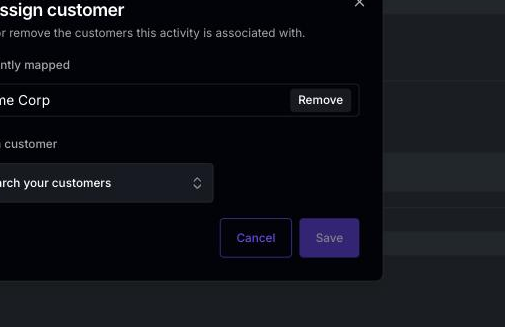 The change is immediate — the activity moves to the new customer’s timeline. Other team members see the updated customer on their next page refresh.
Reassigning only moves that one activity. Domain-based attribution rules going forward are unchanged — if the same kind of meeting keeps landing on the wrong customer, ask an admin to review the domain configuration in the Object Manager.
Applying a Person’s Customer Change to Past Meetings
When you edit a person on the People page and change their customer association, Statisfy shows an Apply changes to past meetings? prompt with these options:- Last 15 days — recent re-attribution (a good default for most cases)
- Last 90 days — broader cleanup
- Custom — enter your own number of days to look back (up to 365)
- Skip — apply nothing to past meetings; only the person’s record changes
Admin: The Meetings Sub-Tab
Admins have an additional view on the Activity page (Activity → Meetings in the left navigation) that lists every meeting in the organization, including ones with no customer attached (e.g., new attendee domains). The Meetings tab is split into three sub-tabs: In any sub-tab you can:
- Use Filters to narrow by date range, owner, or attendance
- Reassign individual meetings to the correct customer account using the pencil icon on each row
Edit Activity Fields
The Fields section of the activity detail page lets you edit metadata directly on the activity, grouped by source. To open it, either click Fields in the section bar at the top of the activity, or load the page with?show=fields in the URL.
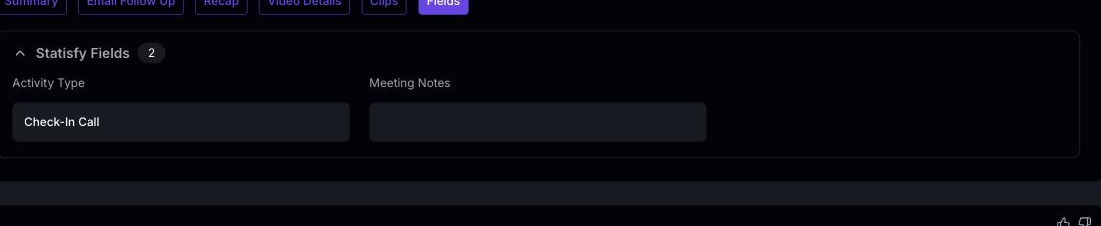 Fields are organized into collapsible groups by source:
Click into a field to change its value. Saves are immediate; there is no separate Save button.
Read-only fields appear with a lock indicator. Statisfy fields that the admin has marked non-editable in Object Manager fall into this category, as do all fields synced from a CRM.
Share an Activity Publicly
For meetings, the activity detail page header shows a Copy Link icon next to the title. Clicking it generates a secure public link and copies it to your clipboard. Recipients do not need a Statisfy account. Shared links include the meeting title, date, summary, key takeaways, and sentiment. They do not include internal comments, tags, or account health. Links expire after a period set by your admin. See Activity Sharing for the full sharing flow, including link expiry, extension, and what recipients see.Create a Clip (Trim a Meeting Recording)
For meetings with a video recording, the activity detail page header shows a scissors icon next to the Share button. This lets you create a clip — a trimmed portion of the recording you can save and share separately from the full meeting.Creating a Clip
- Open the meeting’s activity detail page
- Click the scissors icon (tooltip: “Create Clip”) next to the title
- You’ll be taken to the clip editor at
/clip/{activity_id} - Drag the start and end markers on the video timeline to select the portion you want
- Add a title and an optional description
- Save the clip
?show=clips on the activity URL).
Clip Length Limit
A clip can be up to 15 minutes long. The editor shows the length of your current selection next to the In and Out markers; if it goes over 15 minutes the length turns red, Create Clip is disabled, and hovering it explains why. To shorten a selection, move the In or Out point rather than starting over.The limit exists because each clip is re-encoded from the source recording, and that work has a fixed time budget. A longer selection could not finish, so it is refused up front instead of failing silently after several minutes.
Viewing and Sharing Clips
Open Clips on the meeting’s detail page to see every clip created from that recording. Click a clip to play it in the in-app player. Each clip has its own public share link, so you can send a specific moment from a meeting without sharing the full recording.What Gets Updated When You Reassign
When an activity is reassigned to a different customer:- The activity moves to the new customer’s timeline and is removed from the previous one
- Reports, dashboards, and health calculations pick up the change on their next refresh
- Sentiment, summary, and AI fields on the activity itself are not recomputed — only the customer attribution changes
Troubleshooting
I don't see a pencil icon next to the customer on an activity
I don't see a pencil icon next to the customer on an activity
Either (1) you are not an admin and not a participant on this activity, or (2) the activity type does not support reassignment (for example, system-generated activities).
I reassigned the meeting but it still shows up on the old customer's timeline
I reassigned the meeting but it still shows up on the old customer's timeline
Refresh the page. The change is immediate on the backend, but timeline views cache the previous result for a few seconds.
The customer I want doesn't show up in the search
The customer I want doesn't show up in the search
Customers in your book of business appear first. Type more of the name to trigger the full-organization search. If the customer truly doesn’t exist yet, an admin will need to create it via the Accounts page or your CRM integration.
I don't see a Copy Link or scissors icon on this activity
I don't see a Copy Link or scissors icon on this activity
Both controls are scoped to meetings. Copy Link appears on every meeting; the scissors (Create Clip) only appears on meetings that have an attached video recording. Emails, tickets, surveys, and manual activities do not have either control.
A field on the activity is read-only and I need to change it
A field on the activity is read-only and I need to change it
CRM-synced fields can only be changed in the source system (e.g., Salesforce, HubSpot) — they sync back to Statisfy on the next pull. For Statisfy fields, ask your admin to update the field’s editability in Object Manager → Activity.