

AI-Generated Fields
Each activity can have the following AI-generated fields:How AI Fields Are Generated
AI fields are generated automatically when:- A meeting is recorded and transcribed (via NoteTaker or conversation intelligence tools)
- An email thread is synced
- A support ticket is captured
- A manual activity is created with notes
Sentiment Analysis
Sentiment is displayed as a color-coded badge on each activity:
Sentiment factors into the overall account health score, so consistently negative interactions will lower an account’s health.
Viewing AI Fields
Open any activity (see Viewing Activities) to see its AI fields displayed prominently:- Sentiment appears as a color-coded badge at the top of the activity, with an edit (pencil) control next to it
- One-Liner / Exec Brief is shown in the Summary section
- Key Takeaways are listed as bullet points in a dedicated section

Overriding AI Fields
If the AI-generated values are inaccurate, you can override them:- Open the activity detail page
- Click the edit (pencil) control next to the Sentiment badge
- In the Override Sentiment dialog, pick a New Sentiment and, if needed, edit the Sentiment Reason
- Add an optional Reason for Override explaining why you’re overriding the AI assessment
- Click Confirm Override to save your change
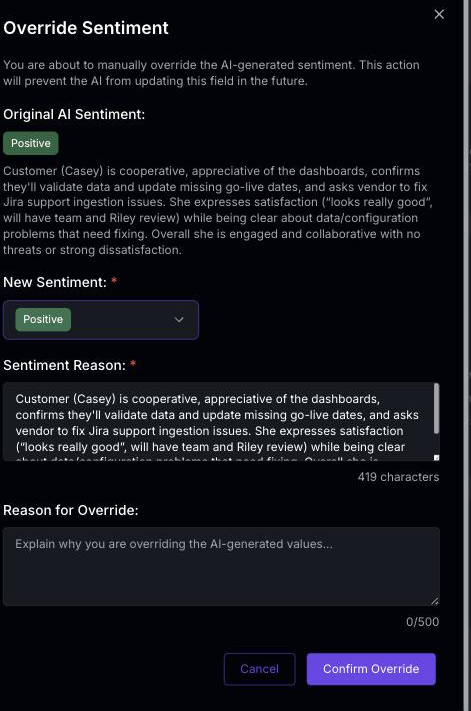
Overriding a value prevents the AI from updating that field in the future, so your manual assessment is preserved and won’t be replaced by future AI recalculations.
Impact on Account Health
AI fields — particularly sentiment — contribute to the account health score:- Consistent negative sentiment across activities lowers health
- Positive sentiment trends support a healthy score
- Overridden sentiment values are used in health calculations instead of the original AI values