

Accessing Audiences
- Navigate to Campaigns.
-
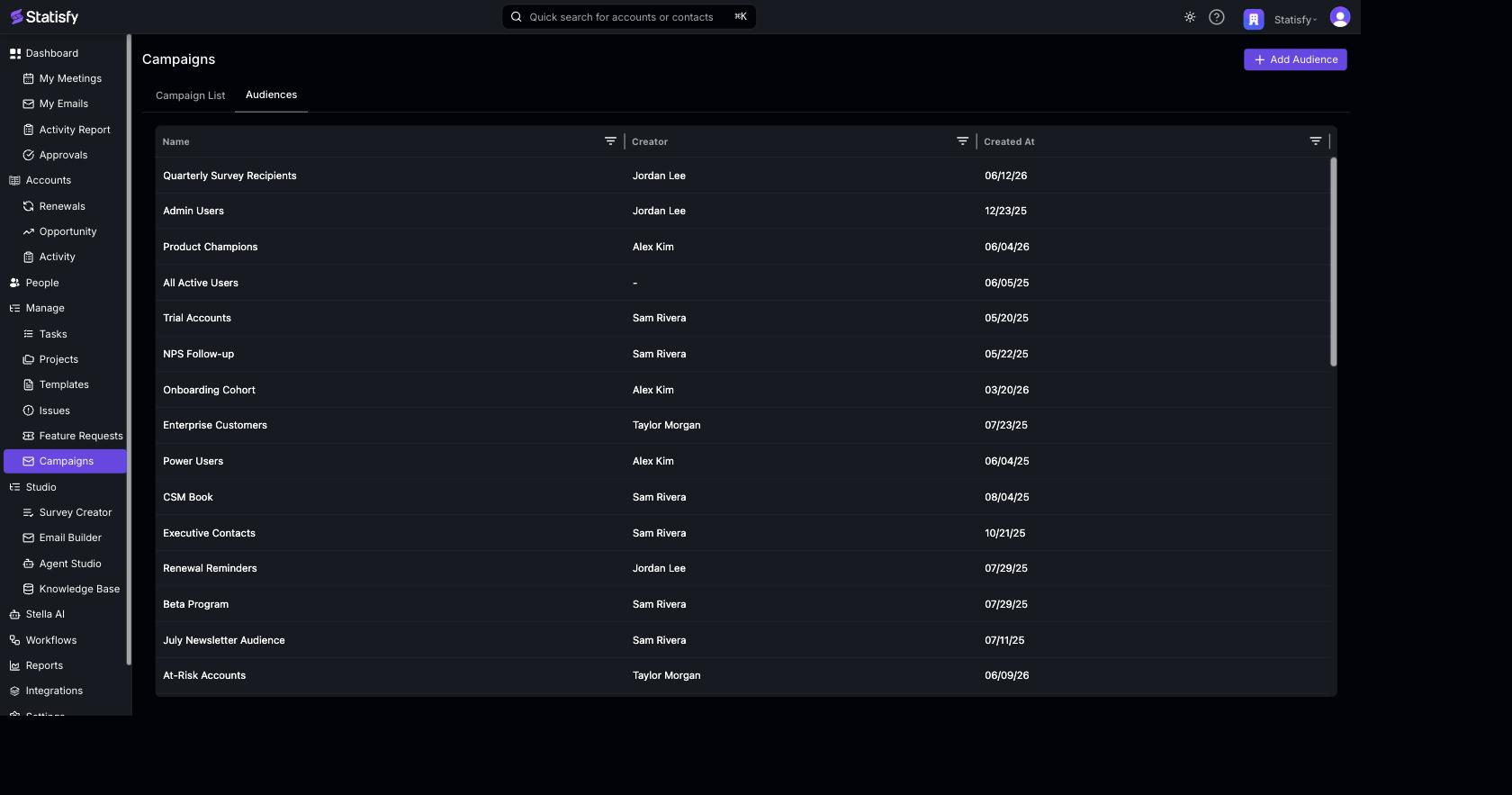
Click the Audiences tab to see all existing audiences, with their creator and creation date.
Create an Audience
-
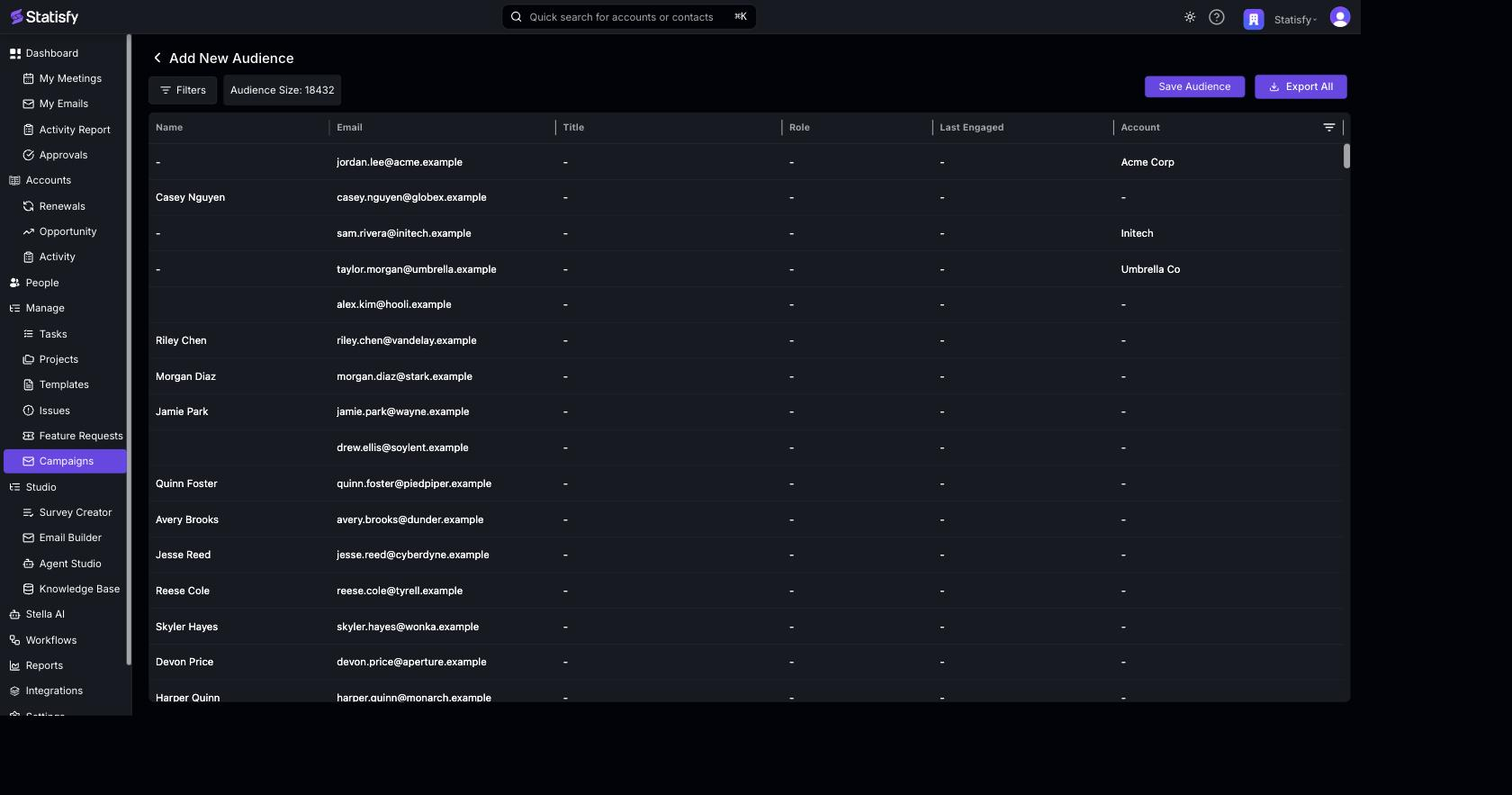
Click Add Audience to open the Add New Audience builder. It shows the people who currently match, a running Audience Size count, and buttons to Save Audience and Export All.
-
Click Filters to open the filter builder. Choose an object (People or Account), pick a field, and set the condition:
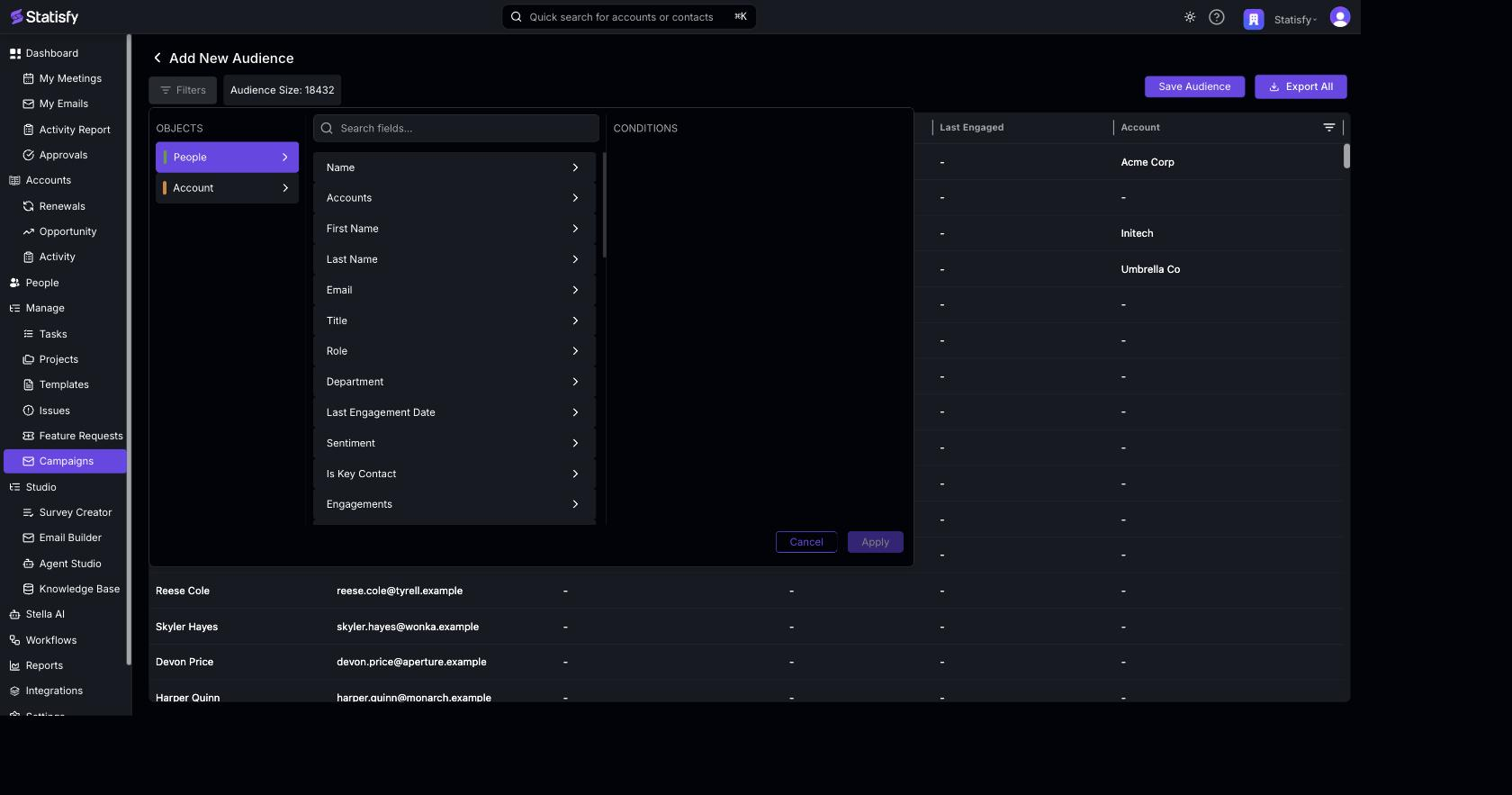
- Multiple conditions are combined with AND logic (all must match).
- Within a single field you can use OR logic (e.g., Title contains “VP” OR “Director” OR “C-Level”).
- Click Apply — the Audience Size count updates so you can verify your filters.
- Click Save Audience and give the audience a name.
Filter Options
Build audiences using contact and account attributes: Account Attributes:- Account Type (Customer, Prospect, etc.)
- Health Score
- Account Owner
- Industry
- ARR Range
- Custom Fields
- Role/Title
- Engagement Level
- Last Contact Date
- Custom Fields
Example Audiences
Enterprise Customers
Enterprise Customers
Target large accounts:
- Account Type equals “Customer”
- ARR greater than $100,000
At-Risk Accounts
At-Risk Accounts
Target accounts needing attention:
- Health Score less than 50
- Account Type equals “Customer”
Renewal Coming Up
Renewal Coming Up
Target accounts with upcoming renewals:
- Renewal Date within next 90 days
- Account Type equals “Customer”
Executive Contacts
Executive Contacts
Target decision makers:
- Title contains “VP” OR “Director” OR “C-Level”
- Account Type equals “Customer”
Edit an Audience
- Find the audience in the list
- Click to open it
- Modify filters or details
- Click Save
Editing an audience doesn’t affect campaigns that have already sent. Future sends will use the updated audience.
Delete an Audience
- Find the audience in the list
- Click the delete option
- Confirm deletion
Audience Size
When creating or editing an audience:- The Audience Size count shows how many people currently match your filters.
- Use it to verify your filters work as expected.
- Adjust filters if the count is too high or low.
Reusing Audiences
One audience can be used by multiple campaigns:- Create audiences for common segments
- Select the same audience when creating different campaigns
- Changes to the audience apply to future campaign sends
Best Practices
- Name audiences descriptively so they’re easy to find
- Document filter criteria in the description
- Review audience counts before launching campaigns
- Create role-based audiences (CSM book, Team book) for targeted outreach
- Test campaigns with small audiences before large sends