

Salesforce sync modes
Statisfy brings Salesforce accounts, contacts and opportunities in three ways. You set all of them in Integrations > Salesforce > Settings, in the Sync frequency section.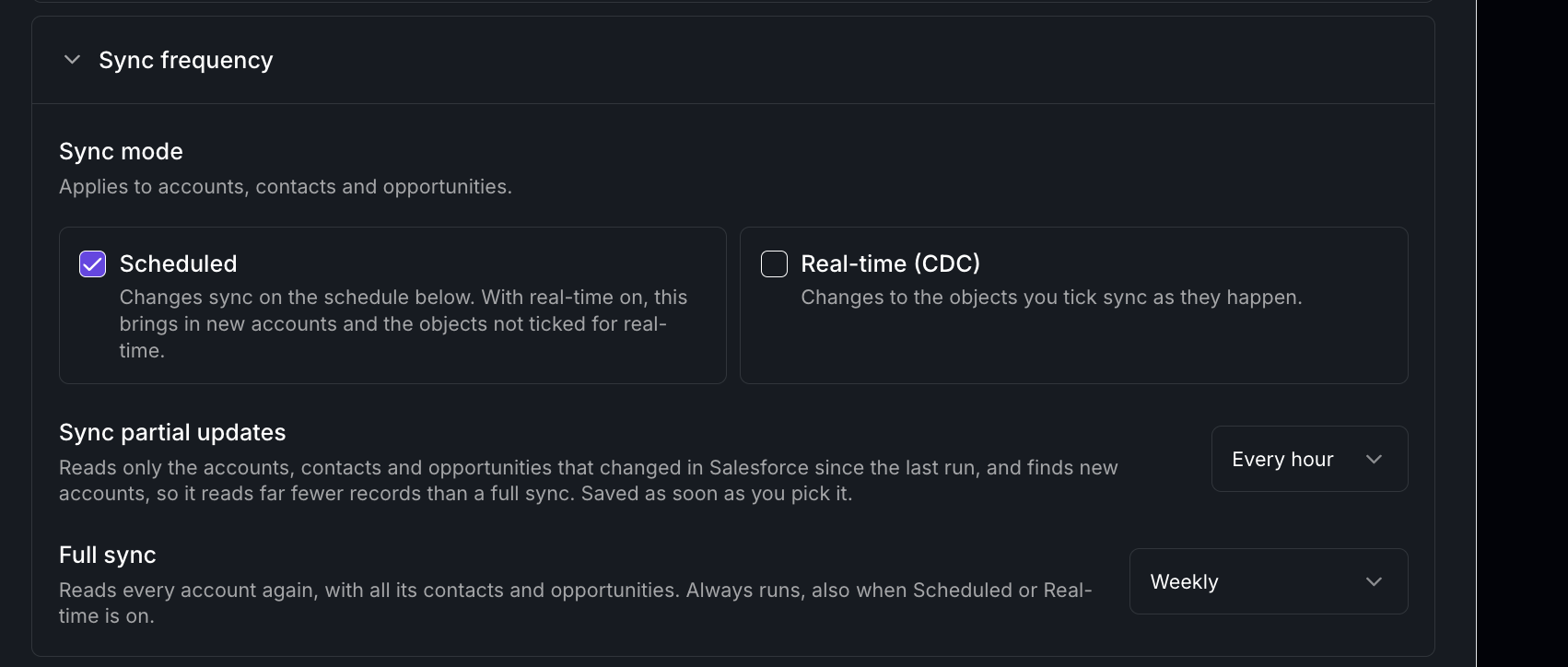 Scheduled and Real-time are independent. Tick either one, both, or
neither:
The full sync always runs. It is the backup that picks up anything the other
two missed.
To read one record from Salesforce now, without waiting for a sync, use
Refresh from CRM.
Support cases and Chatter are not part of these syncs. Each one syncs on its
own schedule, which you also set in Sync frequency.
Supported objects for real-time sync
Turning on real-time sync selects all three objects. Account is required; you can opt out of Contact and Opportunity afterwards.
Real-time sync does not bring in new accounts. The scheduled sync and the full
sync do, because they apply your account type filters. These filters decide
whether a new account is a customer, a prospect, or churned.
Fewer Salesforce API calls
With Scheduled and Real-time both on, the scheduled sync stops reading changed records for the objects you tick. Real-time sync already delivers those changes, so Statisfy uses fewer of your org’s Salesforce API calls.
Custom objects and the full sync are not affected.
If Statisfy hears nothing from Salesforce’s real-time stream for over an hour,
the scheduled sync reads every object again, as it does without real-time
sync. It goes back to skipping them once the stream is live again.
Before you turn on real-time sync
-
Connect Salesforce through the native connection. Real-time sync runs only
on it: on the older connection, Sync frequency has no Real-time (CDC)
option.
- Already on the native connection: reauthenticate Salesforce in Integrations → Admin Apps.
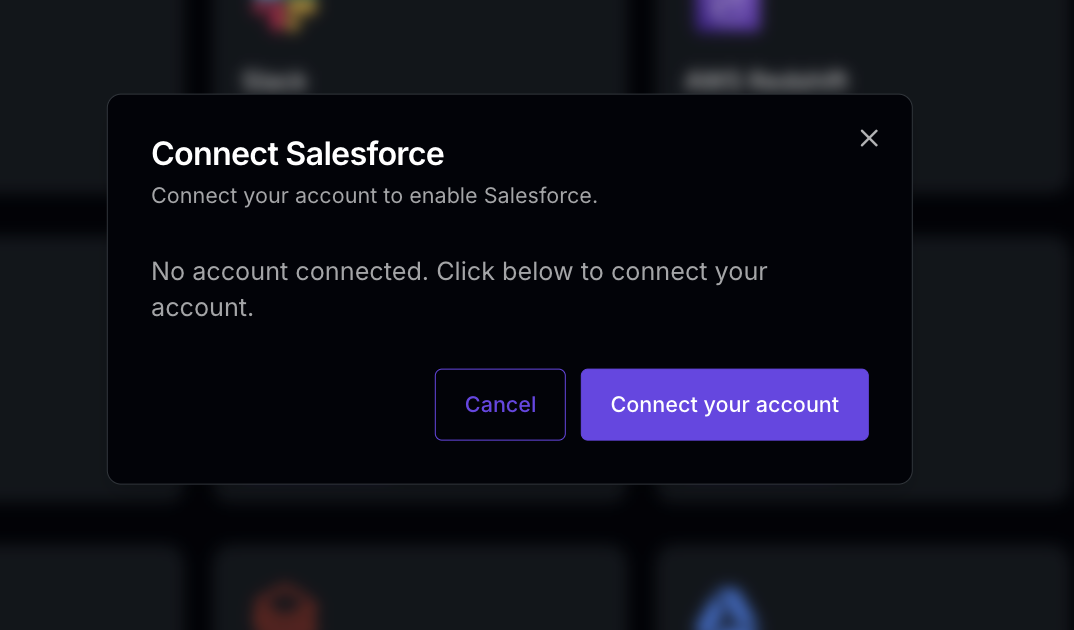
- On the older connection: in Integrations → Admin Apps, disconnect Salesforce. Open the Salesforce card again and click Connect your account. Your Salesforce settings stay as they are: both connections use the same settings.
- In Account Filtering on the Salesforce settings page, configure one Churned filter and one other filter, such as Customer.
- Turn on real-time sync, as the next section shows.
Turn on real-time sync
- Go to Integrations, open Salesforce, then Settings.
- Expand Sync frequency.
- Tick Real-time (CDC). Statisfy selects Account, Contact and Opportunity for Change Data Capture in your Salesforce org for you. If they are already selected, nothing changes.
- Save your settings.
- If Salesforce doesn’t accept Contact or Opportunity, usually because no slots are left, real-time sync still turns on without them. A message names them, and they keep syncing on the schedule.
- If Salesforce doesn’t accept Account, Real-time (CDC) stays unticked and this page opens. Follow the manual steps below, then tick Real-time (CDC) again.
Change which objects sync in real time
You can change the ticked objects while real-time sync is on. Save your settings afterwards.- Tick an object and Statisfy selects it in Salesforce first. The box only stays ticked once Salesforce accepts it; if it can’t, this page opens.
- Untick an object and Statisfy stops syncing it in real time. It stays selected in Salesforce. If Scheduled is ticked, the partial sync covers it; the full sync covers it in any case.
Set the schedules
Schedules are saved as soon as you pick them. You don’t need to save the settings page.- Scheduled and Sync partial updates: tick Scheduled, then pick how often, from every 2 hours to daily. Pick Off (daily full sync) to stop partial updates: the full sync then runs daily and brings in all changes.
- Full sync: pick Daily or Weekly. Until you pick one, the full sync runs weekly while Scheduled is ticked, and daily while it is not.
- Support cases: pick a schedule under Support cases in Sync frequency, or under Sync schedule in Support Cases. Both change the same schedule. Cases sync daily until you pick one.
- Chatter: pick a schedule under Chatter in Sync frequency, or in the Chatter section. Until you pick one, Chatter does not sync.
Select the objects manually
A Salesforce admin can do this in a minute:- In Salesforce, open Setup.
- In Quick Find, type Change Data Capture and open it.
- Move Account, plus Contact and Opportunity if you want them, from Available Entities to Selected Entities. Each selected object uses one of your org’s Change Data Capture slots.
- Click Save.
- Back in Statisfy, tick Real-time (CDC) again. Statisfy sees the objects are already selected and turns real-time sync on.
Your org’s other Change Data Capture selections are left as they are.
Statisfy only adds the objects you tick.
Why automatic setup can fail
Your org has reached its Change Data Capture object limit
Your org has reached its Change Data Capture object limit
Salesforce limits how many objects an org can select for Change Data
Capture, and the limit is shared with anything else in your org that uses
it. By default the limit is five objects, standard and custom combined.
You have three ways to make room:
- Turn on with fewer objects: real-time sync needs one free slot, for Account. With only one or two free, tick Real-time (CDC) anyway: Statisfy turns on what fits and names the objects it left out. Unticking an object later doesn’t free its slot, because it stays selected in Salesforce.
- Free up a slot: remove an object you no longer need from Selected Entities.
- Raise the limit: buy the Change Data Capture add-on from your Salesforce account representative. It removes the limit on how many objects you can select and raises your daily event delivery allocation.
The connected Salesforce user can't change Change Data Capture settings
The connected Salesforce user can't change Change Data Capture settings
Selecting objects needs a Salesforce user who can customize the
application, usually a Salesforce admin. Ask your admin to follow the
manual steps above, or reconnect Salesforce with an admin user.
Which value Statisfy keeps
A field can change in Salesforce and in Statisfy, and reach Statisfy through both real-time sync and the scheduled or full sync. This is what Statisfy keeps:
“The value that arrived last” can briefly be the older one: if the scheduled
sync read a record just before you changed it, it can put back the earlier
value after real-time sync delivered the new one. The next scheduled or full sync
corrects it. Custom fields are never affected, because Statisfy compares when
each change was made.
To keep a change to an account’s name, ARR or renewal date, make it in
Salesforce.