

Connect Pendo with Statisfy
The Pendo integration connects your Pendo subscription to Statisfy. To connect, you give Statisfy two items: a Pendo integration key and your Pendo region.Self-serve configuration is coming soon. When it launches, you can configure which Pendo data Statisfy imports, such as product usage, account fields and custom objects. You can connect Pendo now, so your key is ready on launch day.
- Admin access to Statisfy
- Admin permissions in your Pendo subscription, with access to integration keys
Step 1: Find your Pendo region
Pendo keeps the data of each region in a separate data center. Statisfy must call the same region as your Pendo subscription.- Sign in to Pendo.
- Look at the address bar of your browser.
- Find your region in this table:
Step 2: Create a Pendo integration key
- In Pendo, go to Settings → Integrations → Integration Keys.
- Click + Add Integration Key.
- Enter a description, for example
Statisfy. - Click Create.
- Copy the key.
Step 3: Connect Pendo in Statisfy
- Log in to Statisfy.
- Open the Integrations page.
- Select the Admin Apps tab.
- Find the Pendo card and click Connect.
- In API Key, paste the integration key from Step 2.
- In Region, select the region from Step 1.
- Click Connect.
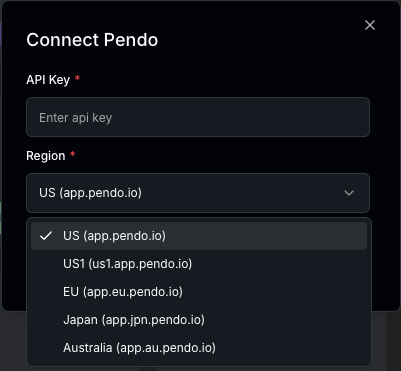 After you connect, the Pendo card shows as connected.
Statisfy does not test the key when you click Connect. Make sure the key and the region are correct. A wrong key or region shows as an error only when data sync starts.
Change or remove the key
- Change the key or region: Open the Pendo card, enter the new values, and click Update.
- Disconnect Pendo: Open the Pendo card and click Disconnect.
Security
- Statisfy only reads data from Pendo. It does not change data in your Pendo subscription.
- All connections to Pendo use HTTPS.