

Use Zendesk (Direct) when you want new tickets and replies to show up in Statisfy as they happen.
Connect Zendesk (Direct) with Statisfy
Prerequisites:- Admin access to both Zendesk and Statisfy.
- Your Zendesk account subdomain. This is the first part of your Zendesk address. For example, if your Zendesk address is
acme.zendesk.com, your subdomain isacme.
Steps to connect
- Log in to Statisfy.
- Go to Integrations and find the Zendesk (Direct) card.
- Click Connect. A dialog opens.
-
In the Zendesk (Direct) subdomain field, enter your subdomain (for example,
acme). Connect your account stays disabled until you enter a subdomain. - Click Connect your account. Statisfy redirects you to your Zendesk sign-in page.
-
Sign in to Zendesk and approve the requested access. Statisfy requests
readandwriteaccess. - Zendesk redirects you back to Statisfy, and the card shows as Connected.
What happens when you connect
- Statisfy creates a webhook in your Zendesk account, and a trigger that notifies it. Both names start with Statisfy. The trigger fires when a ticket is created or when a ticket gets a public comment, such as a customer reply or an agent’s public answer.
- New tickets and public comments arrive in Statisfy in near real time. They appear under each account in the Support section and in the AI Timeline, with Zendesk as the activity source.
- Statisfy also runs a periodic Zendesk sync. If the webhook or trigger fails to register or is deleted in Zendesk, the next sync recreates it. Tickets still arrive through the sync in the meantime, only later.
Token handling
Statisfy manages your Zendesk access token automatically. You don’t need to reconnect to keep the connection active. The connection stays active until you disconnect it in Statisfy or revoke Statisfy’s access in Zendesk.Disconnect Zendesk (Direct)
When you disconnect the Zendesk (Direct) card, Statisfy:- Removes the Statisfy trigger and webhook from your Zendesk account.
- Revokes the access token in Zendesk.
Connect Zendesk with Statisfy (credential pop-up)
Prerequisites:Ensure you have Admin access to both Zendesk and Statisfy.
Steps to connect with the credential pop-up
- Log in to Statisfy.
-
Navigate to:
Integrations → Admin Apps → Zendesk → Connect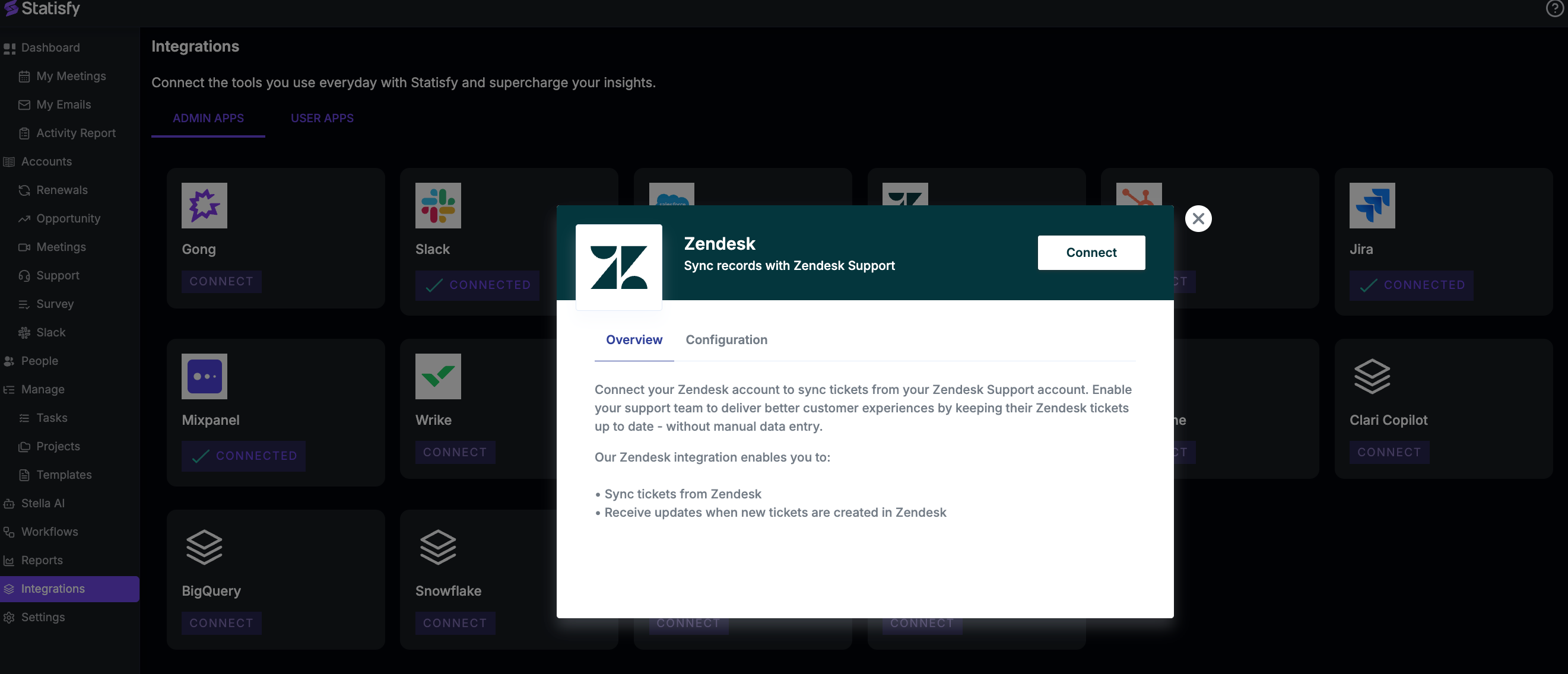
- A pop-up window will appear, prompting you to enter your Zendesk credentials.
- After successful authentication, the Zendesk app will appear as Connected in Statisfy
What happens next
- Data will start flowing automatically.
-
Within approximately 24 hours, you’ll begin to see support ticket details under each account in:
- The Support section
- Under the AI Timeline of each account, the Activity source will be marked with Zendesk.
- The data sync is one-way — Statisfy reads ticket information from Zendesk, but does not send any data back.