

Video Tutorial
In this article, you’ll learn how to set up new notification rules for email and Slack channels. Step 1: Navigate to the settings as shown below.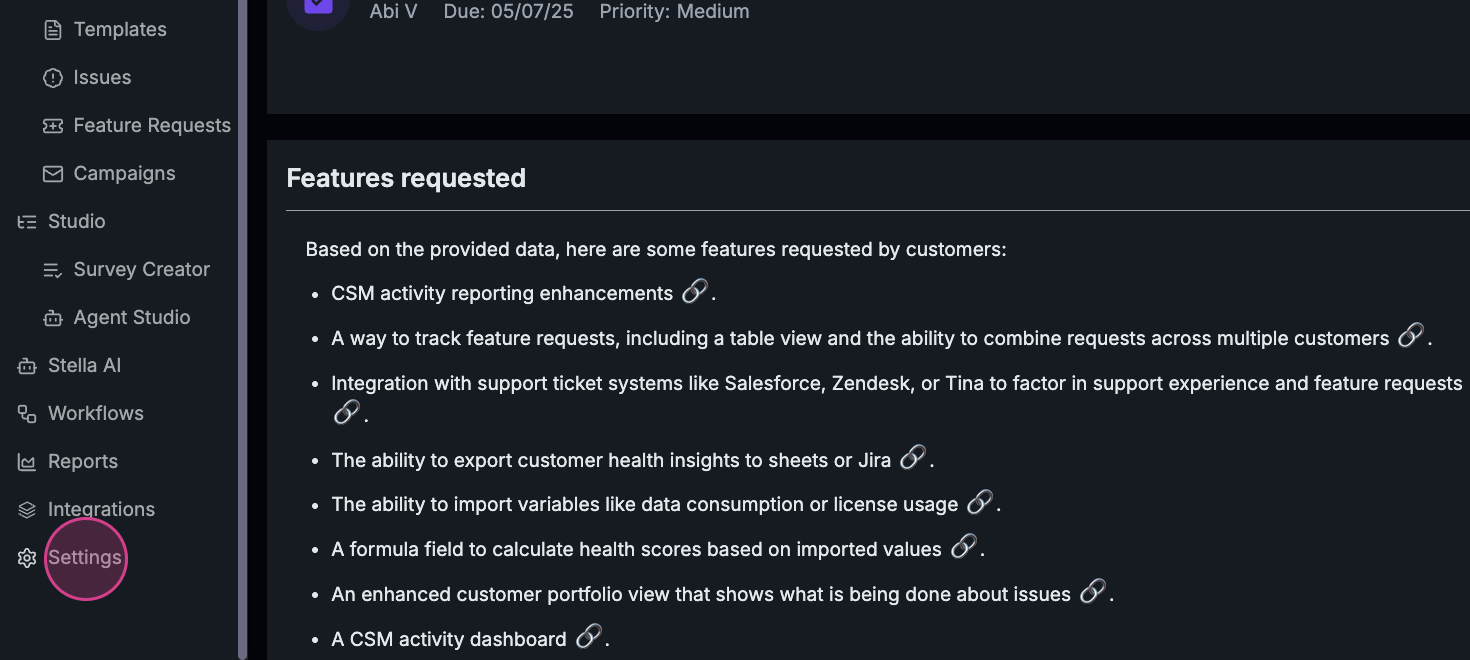 Step 2: Notice the notification rule at the top of the settings.
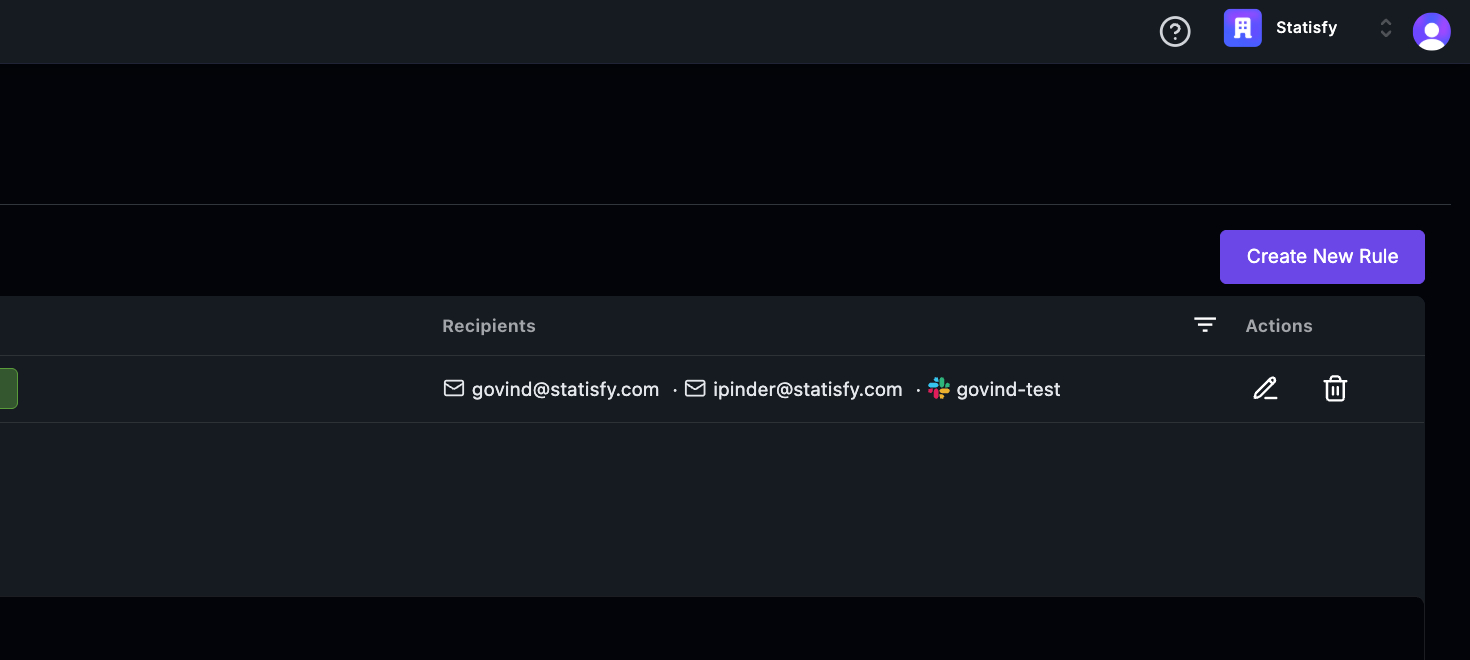
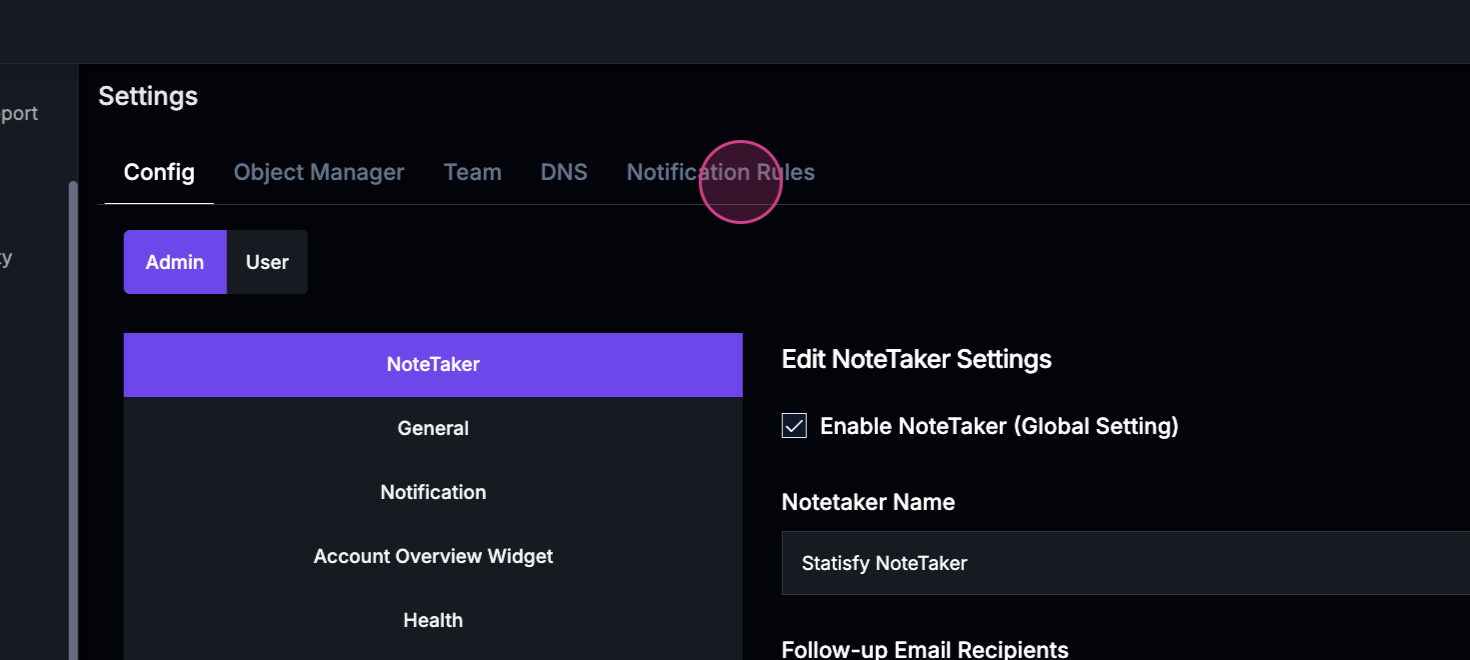 Step 3: Click on the Create new rule.
 Step 4: Start by setting up the filters.
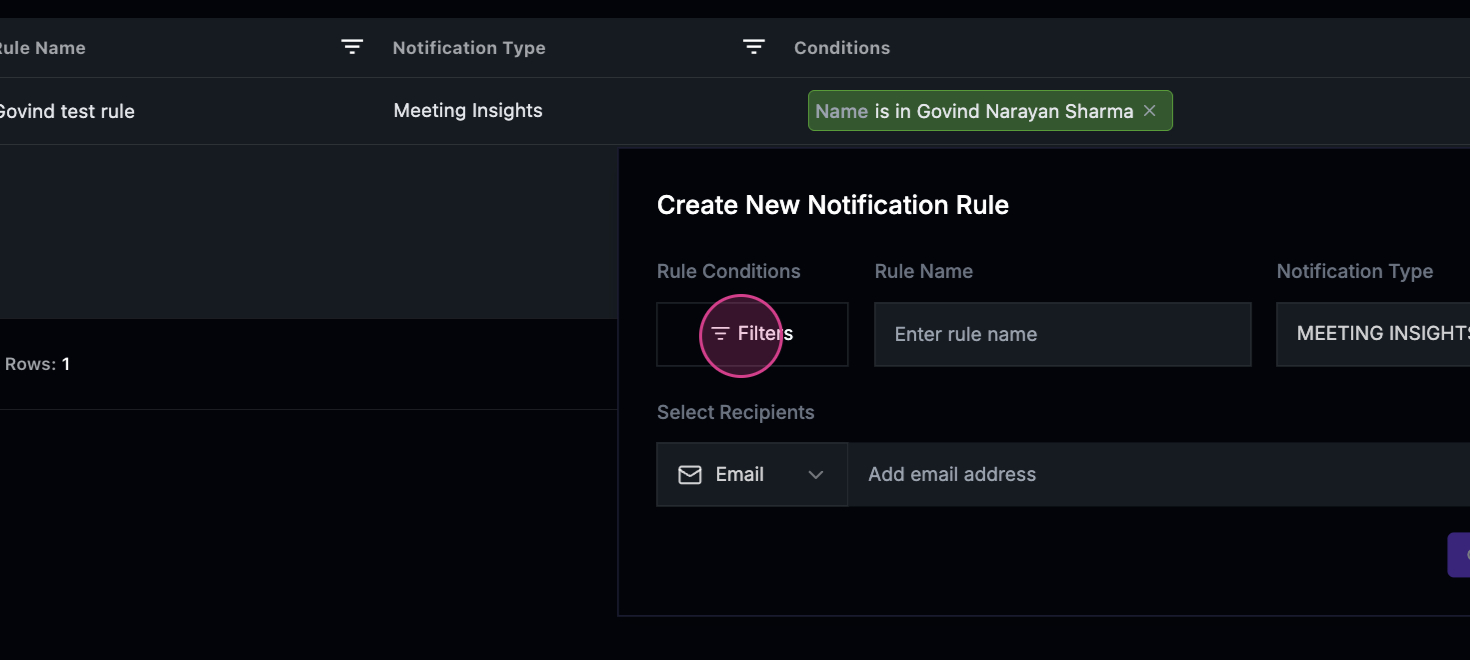 Step 5: Choose the use cases for which you want to receive notifications.
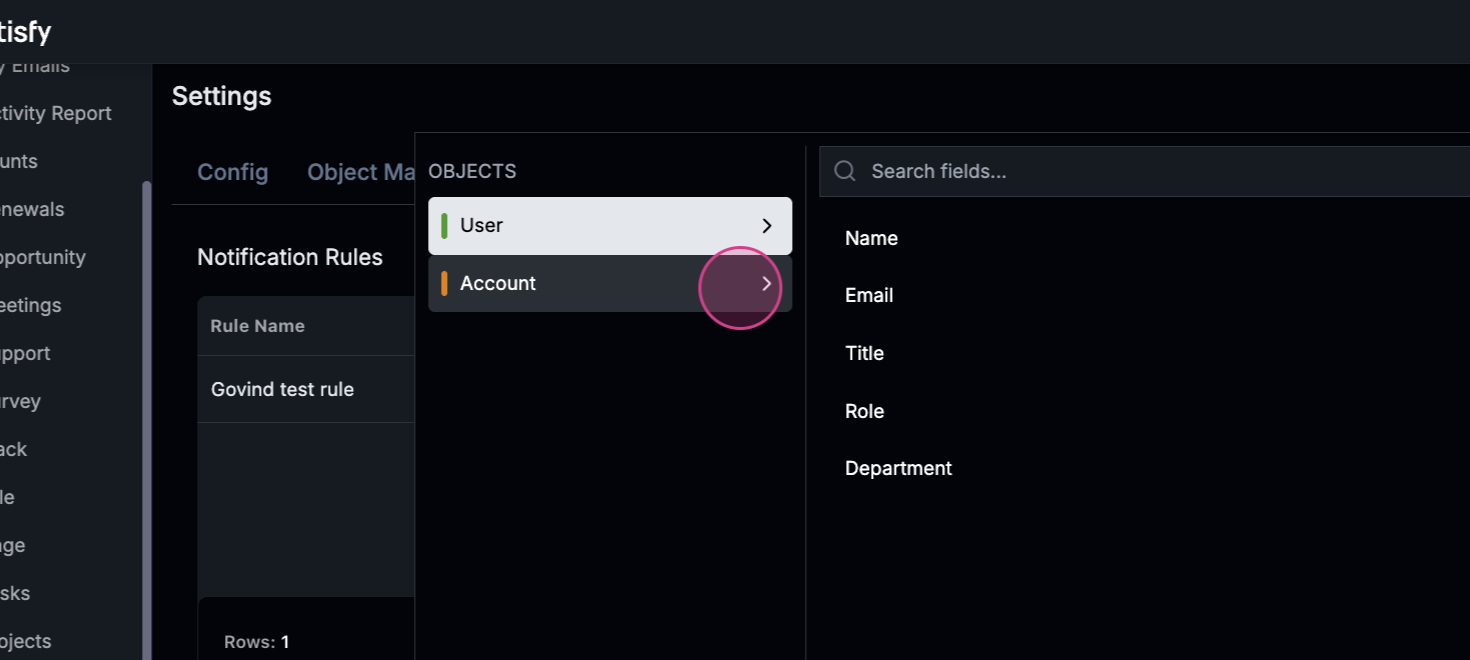 Step 6: Decide on the account for which you want notifications.
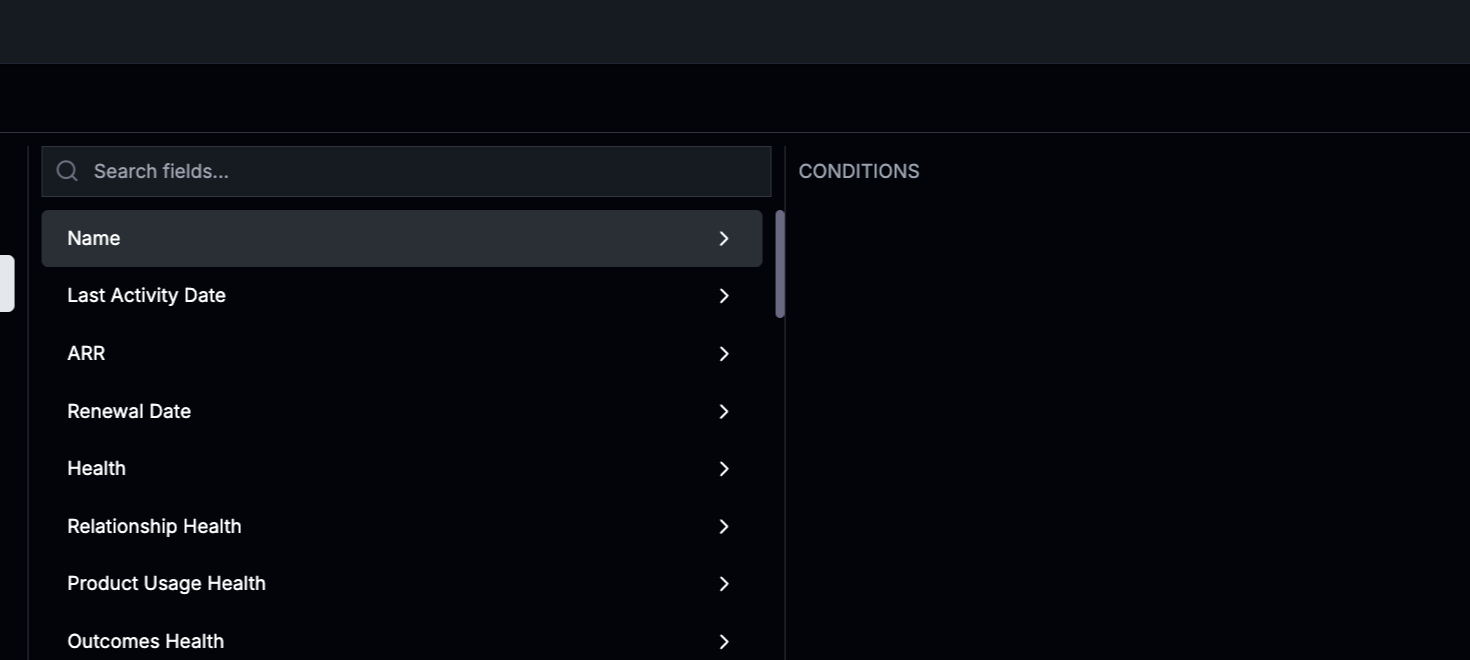 Step 7: Choose the milestone for the account.
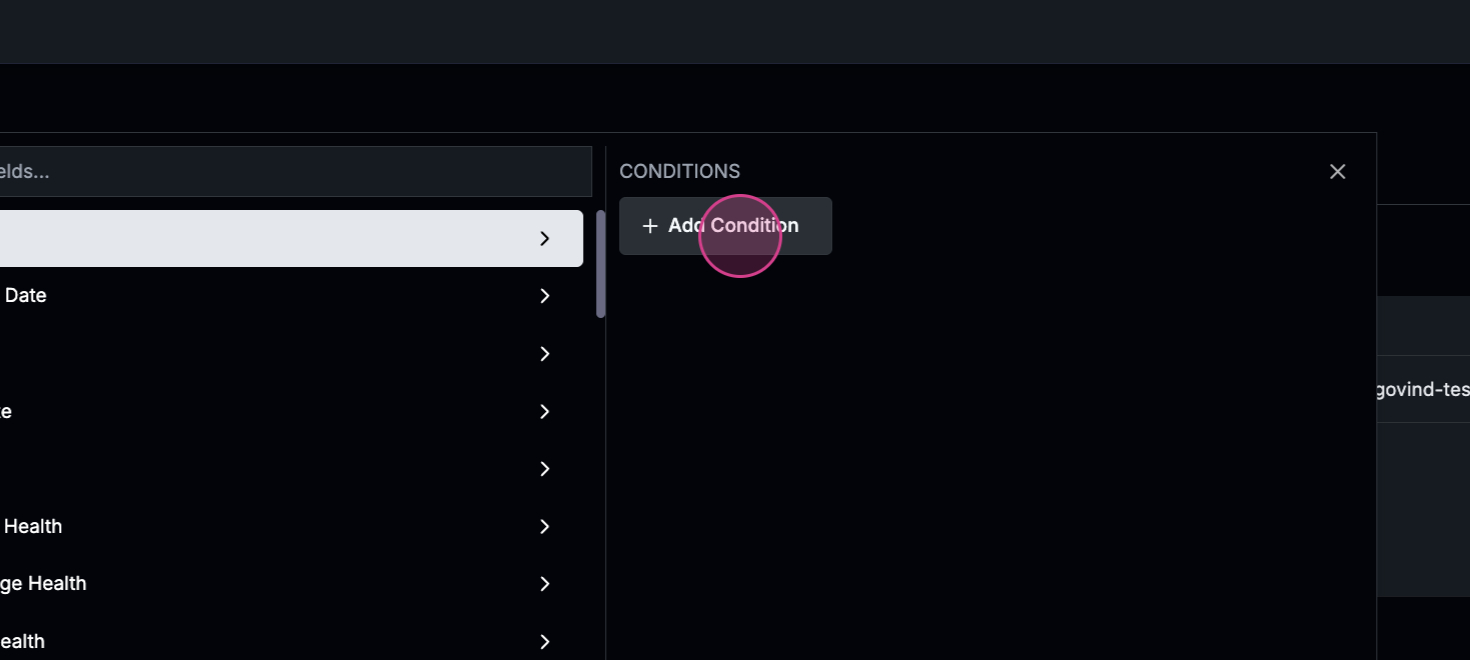 Step 8: If you want notifications for calls you’re part of, set up the following steps.
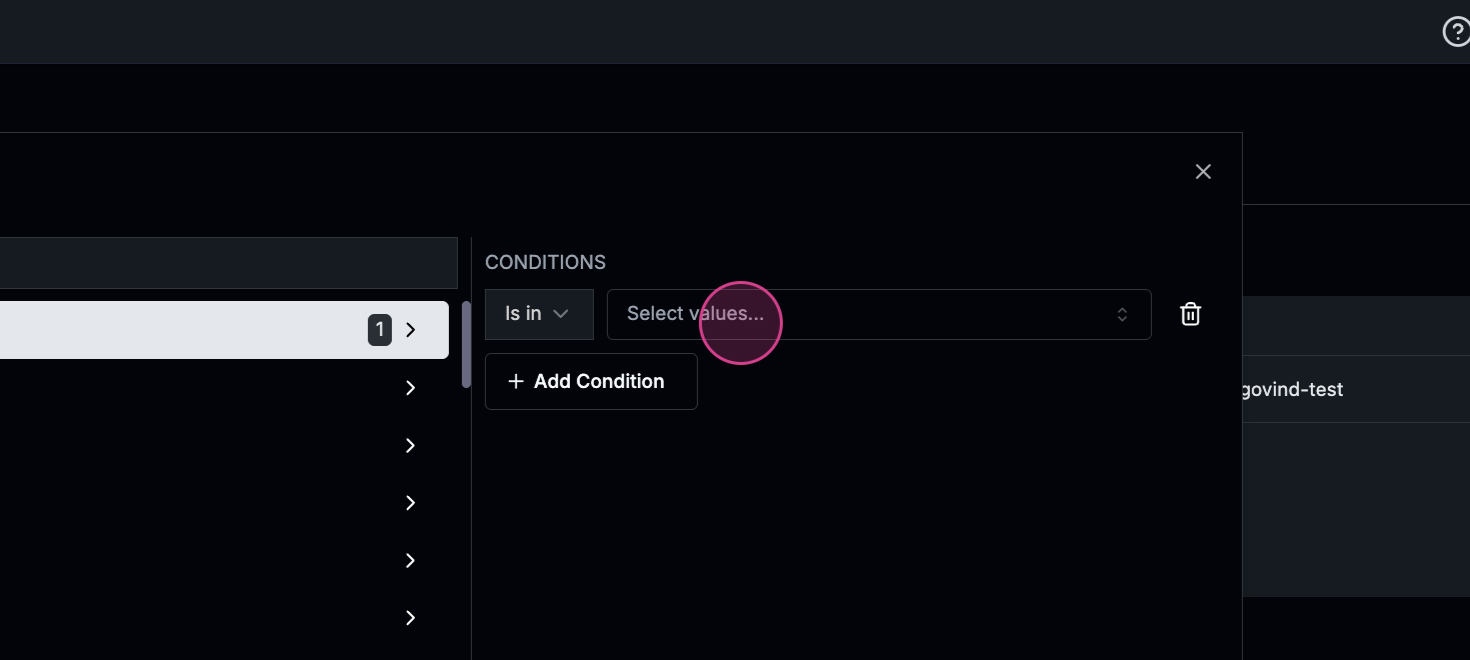 Step 9: Choose the account name as the milestone.
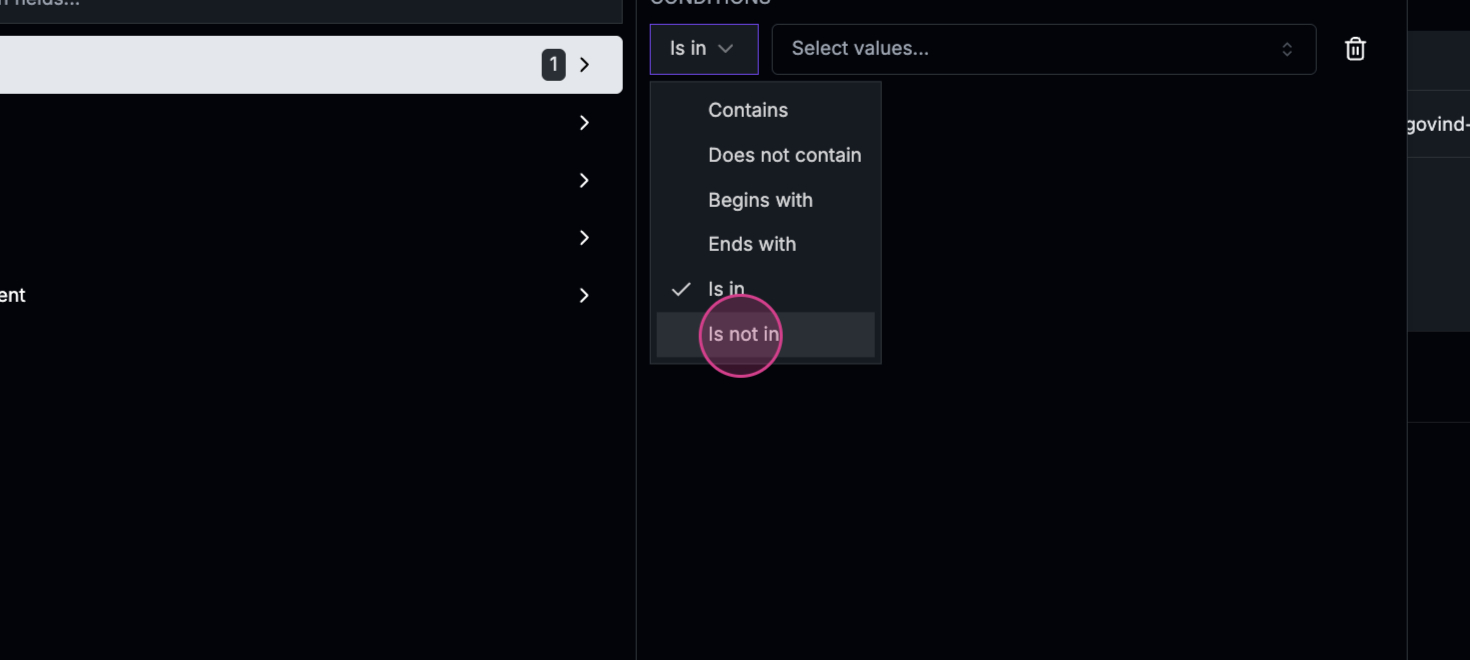
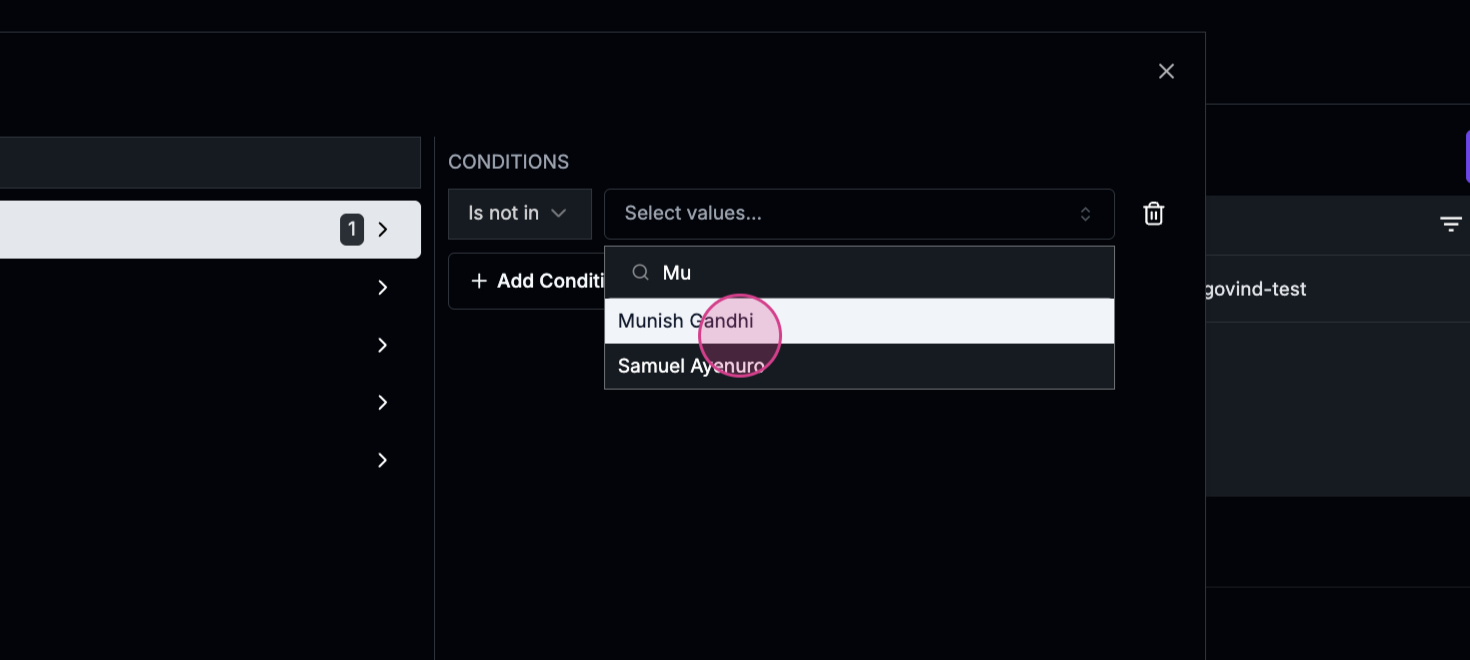
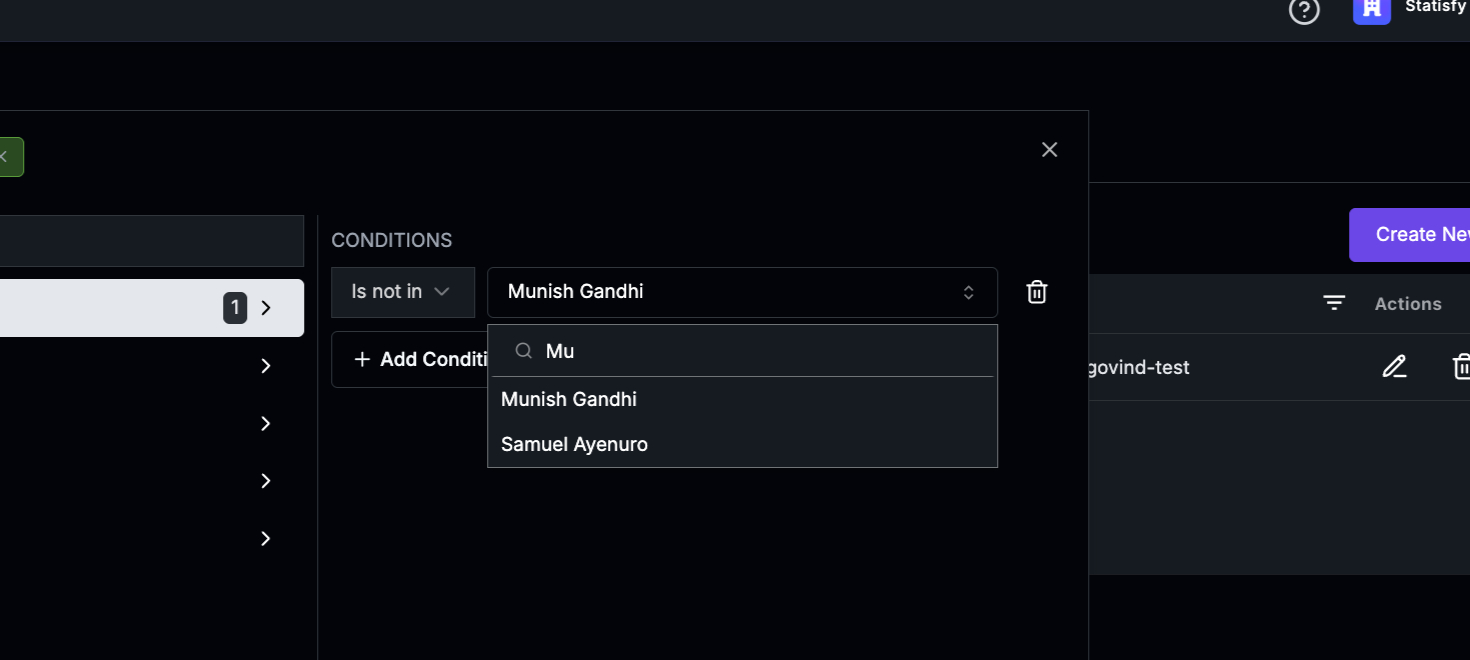
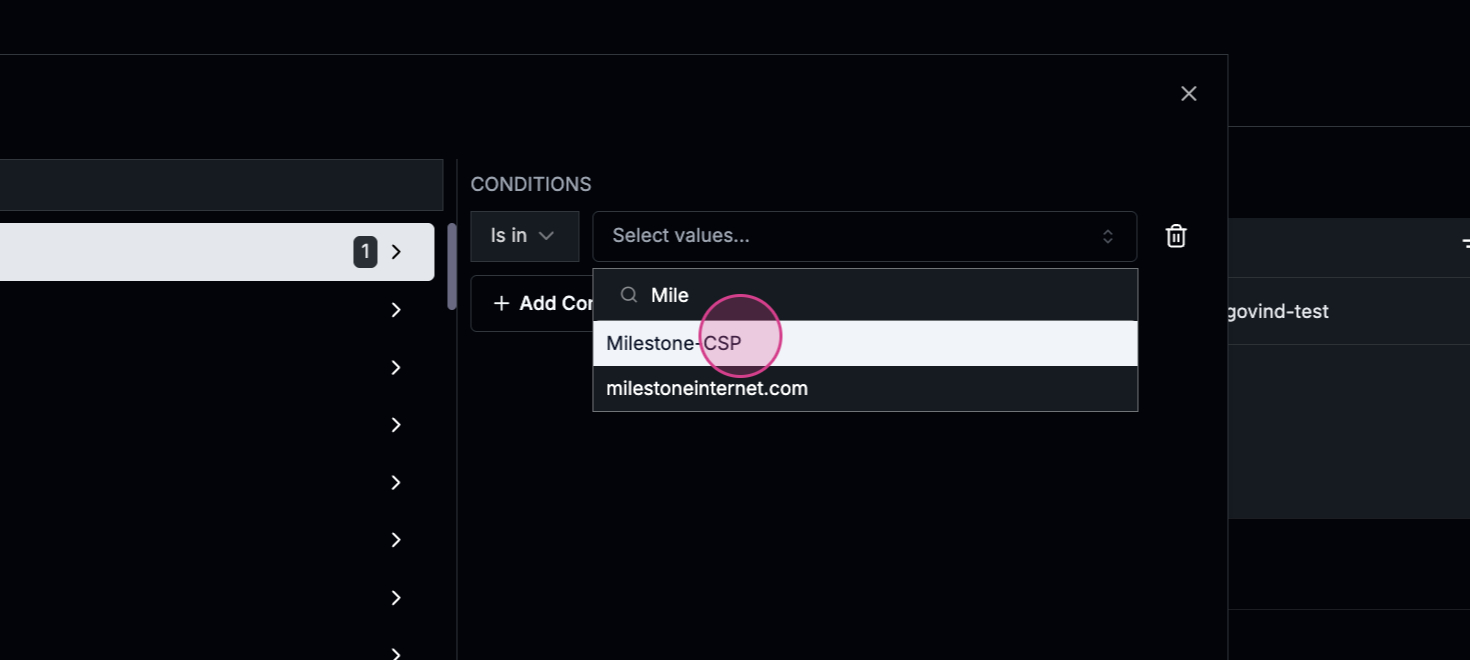 Step 10: Proceed with the user and click on Name add conditions.
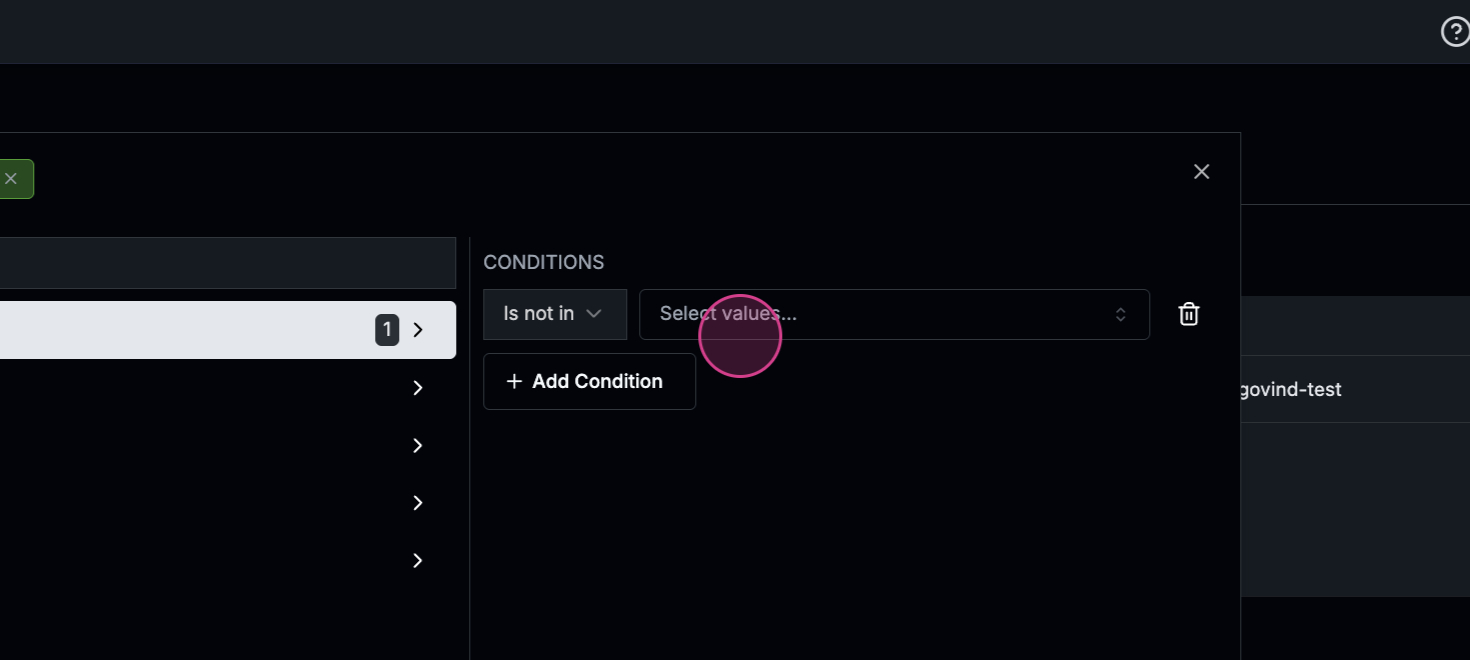
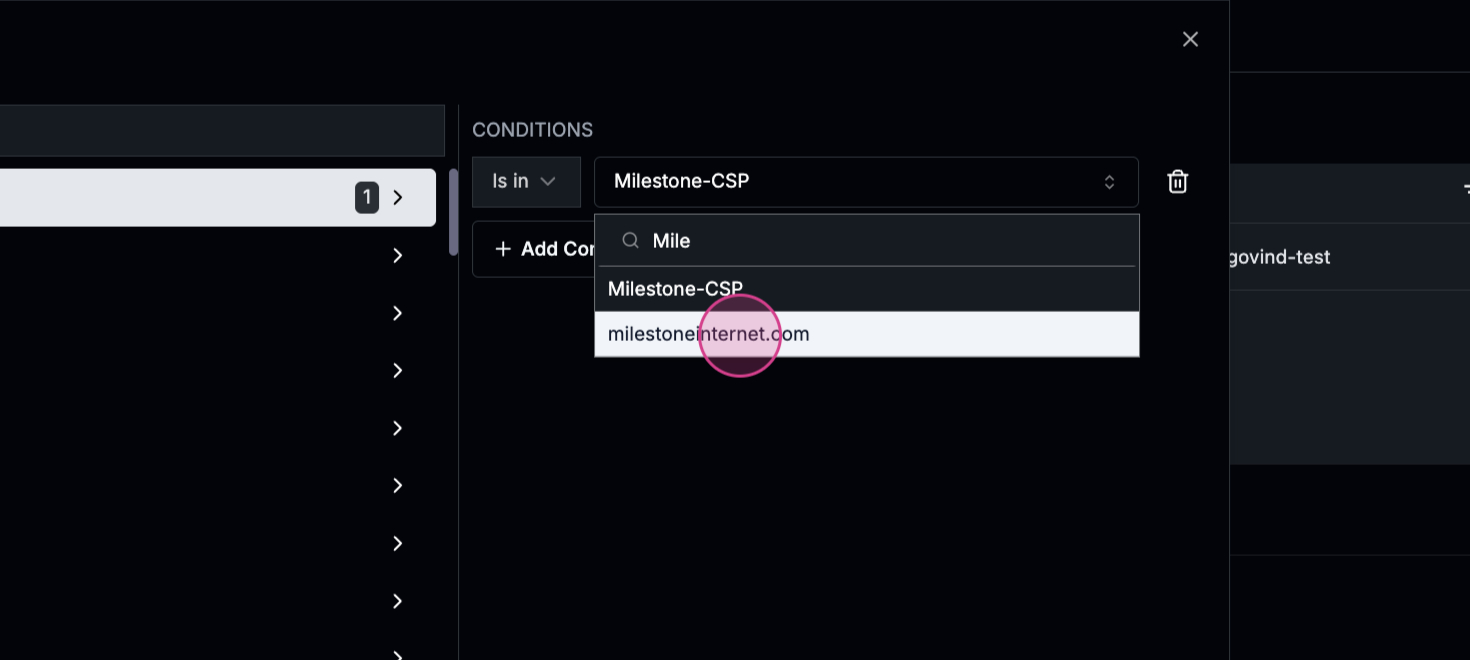 Step 11: Set the condition to is not in.
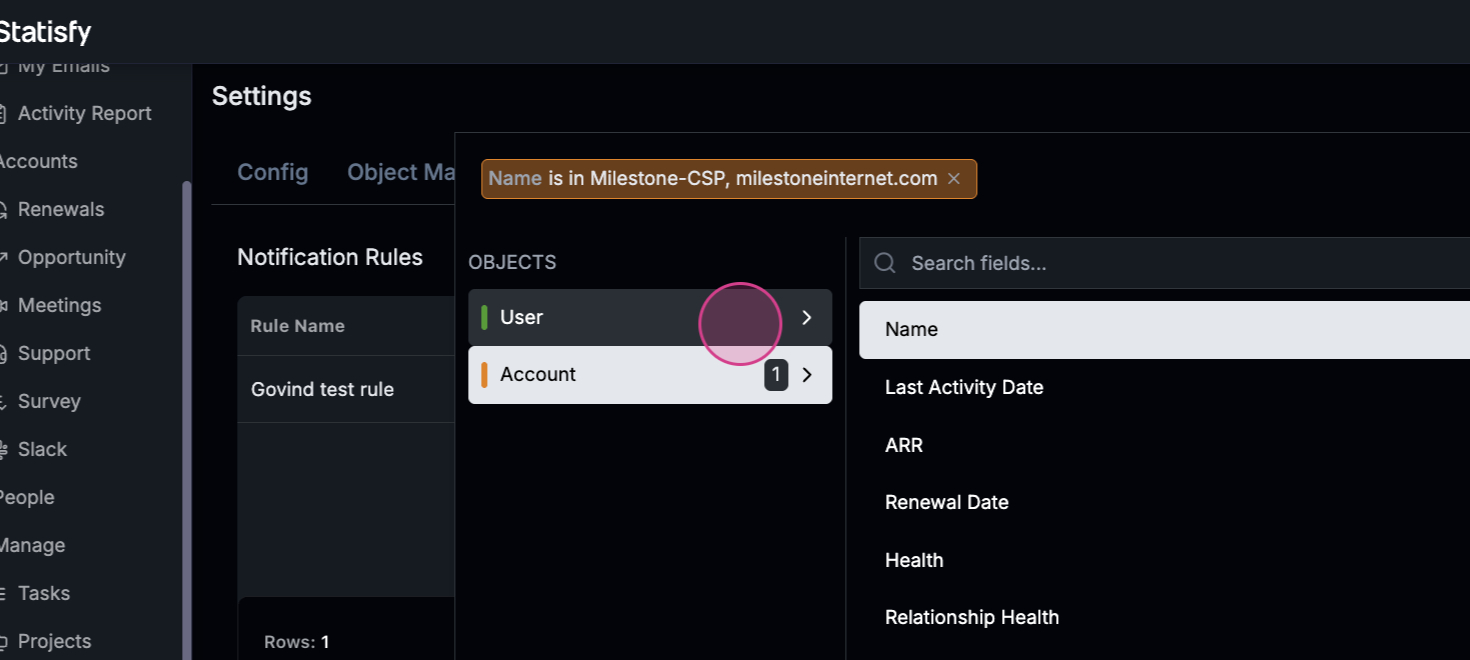 Step 12: If the specified team members were not part of the call, set up notifications.
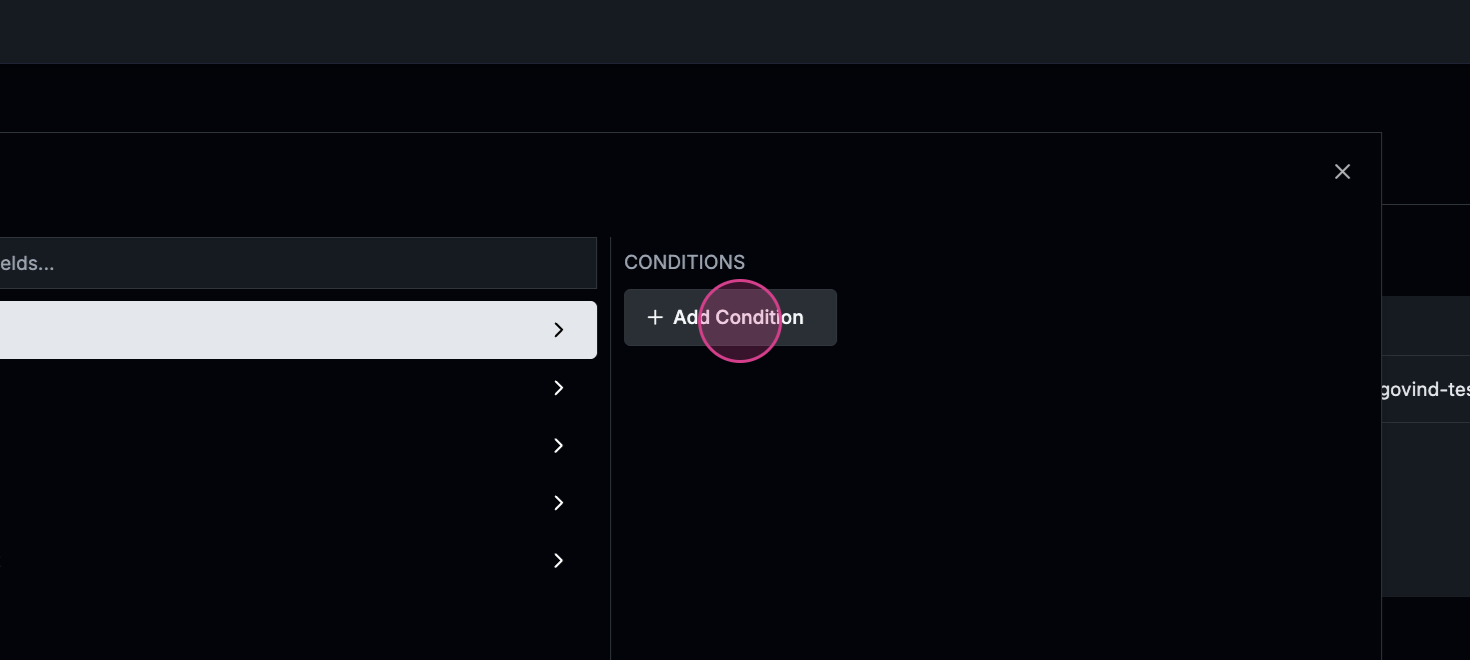 Step 13: Click on Apply for this filter.
 Step 14: Give the rule a name, for example, “Meeting Alert”. Set the notification type as Meeting Insights.
 Step 15: Notify yourself by clicking on Add email.
 Step 16: If you want to notify yourself over a Slack channel, ensure you’ve created the Slack channel first.
 Step 17: Choose the Slack channel name.
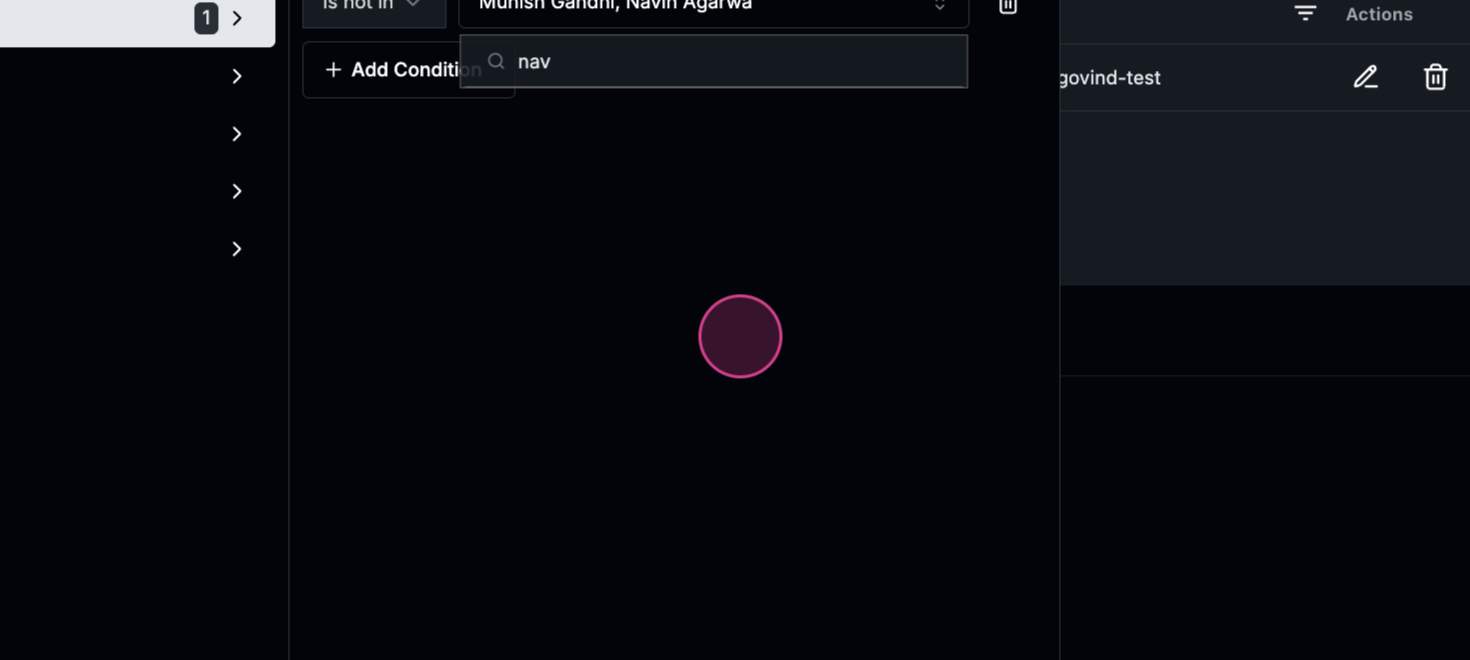 Step 18: Test the Slack channel name. In this case, it’s milestone test.
 Step 19: Once all the conditions and filters are met, you’ll receive a mail notification and a notification in the Slack channel.
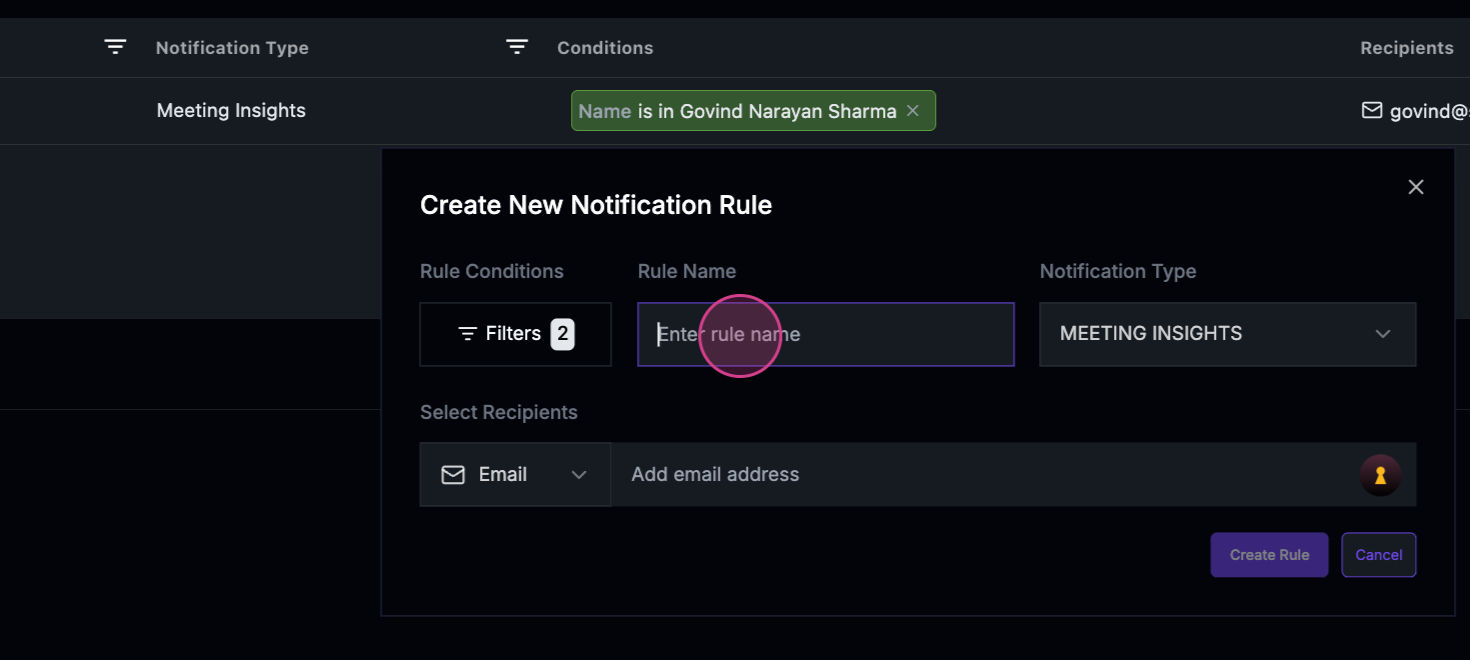 Step 20: Click on Create Room to finish the setup.
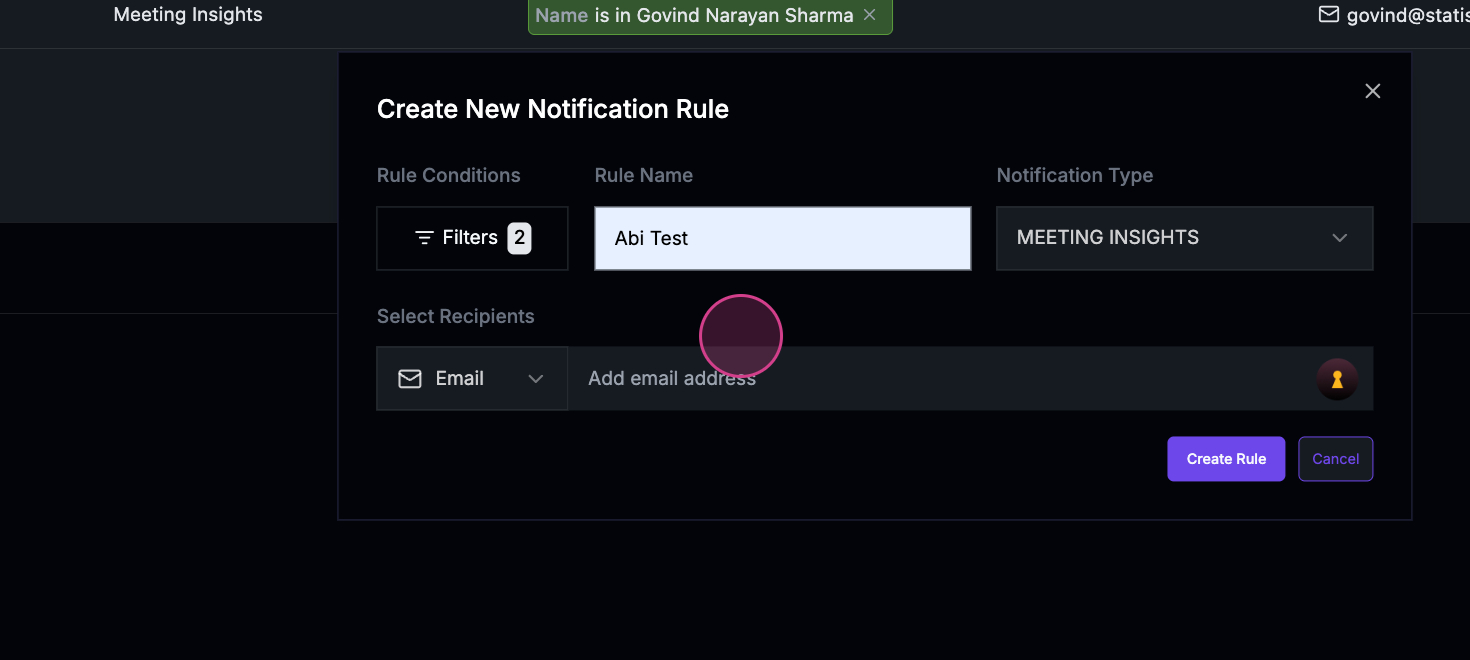 That’s it! You’ve successfully set up new notification rules.