

- Calculate days until renewal from a date field
- Sum ARR across all child accounts or related opportunities
- Pull the account owner’s email from a related entity
- Compute a weighted health score from multiple factors
- Concatenate opportunity stages into a single label
- Find the median deal size across open opportunities
Creating a Formula Field
You need admin access to create formula fields. The Object Manager is only available to users with the admin role.- Navigate to Settings > Object Manager
- Select the entity tab (Accounts, People, Opportunities, etc.)
- Click + Create Field
- Enter a field name and select a field type that supports formulas (see Return Types for the full list)
- Check This is a formula field
- Click Save — the formula editor opens automatically
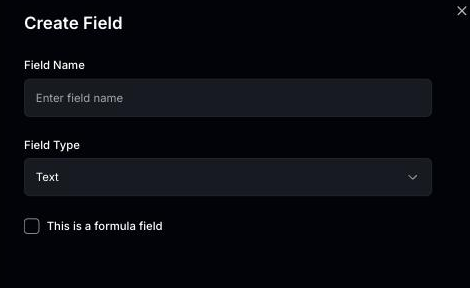
Formulas are not supported on Object, Pill, Lookup, Lookup List, JSON, or URL field types. The This is a formula field checkbox is hidden when one of these types is selected.
Formula Types
The formula editor supports four formula types. Select the one that fits your use case.Equation
Write a custom expression combining fields, functions, and operators. This is the most flexible formula type.When to use
When to use
Use Equation when you need custom logic — conditional calculations, arithmetic across fields, or text formatting. Examples: weighted scores, tier classifications, concatenated labels.
- Select Equation as the formula type
- Write your expression in the formula editor (see Using the Formula Editor)
- Choose a null handling option (see Null Handling)
- Validate and preview your formula
- Click Save
Rollup
Aggregate values from related entities. Rollups traverse a relationship and apply an aggregation function to a field on the related records.When to use
When to use
Use Rollup to summarize data across related records — total revenue from opportunities, count of open tickets, average deal size, median ARR across child accounts, list of unique stages, etc.
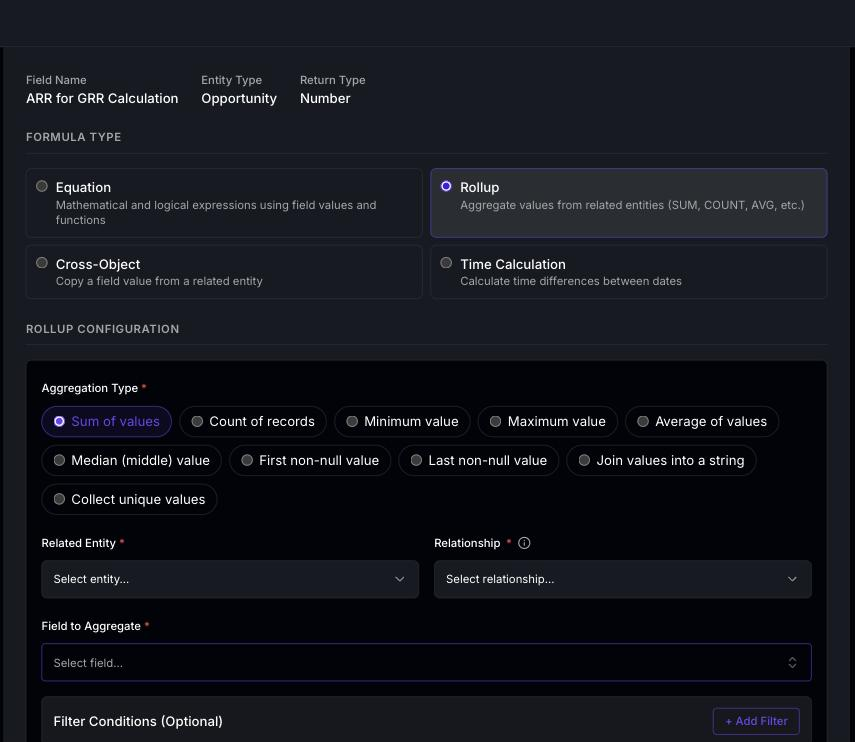
- Select Rollup as the formula type
- Choose an aggregation type (see table below)
- Select the related entity and the relationship to follow
- Select the field to aggregate from the related entity
- Optionally add filter conditions to narrow which related records are included
- For CONCAT, optionally set a custom separator (defaults to
,)
Aggregation Types
SUM, MIN, MAX, AVG, and MEDIAN only operate on numeric values. Non-numeric values are silently skipped. If all values are null or non-numeric, the result is null.COUNT counts entities regardless of the source field value — including records with null values.FIRST and LAST skip null values and return the first/last non-null value in the collection. If all values are null, the result is null.
Rollup Filter Conditions
Filters let you narrow which related records are included in the aggregation. For example, you can sum only open opportunities or count only high-priority tasks. Available filter operators:
Filtering on a date field: when the field you filter on is a date, the operator dropdown offers relative-date presets instead of the operators above. These compare the record’s date against today, so the filter stays correct as time passes.
The “X days” presets take a number of days you enter; Before today and After today need no value.
Multiple filter conditions are combined with AND logic — all conditions must match for a record to be included.
Rollup Relationships
The relationships available depend on the entity type you’re creating the formula on:Children vs. Descendants
Children vs. Descendants
Children includes only direct child accounts — accounts whose parent is the current account.Descendants includes the entire hierarchy tree below the current account — children, grandchildren, and so on. Use descendants when you need to roll up values across the full account hierarchy (e.g., total ARR across all sub-accounts).
Rollup Examples
Sum ARR from child accounts
Sum ARR from child accounts
- Aggregation: SUM
- Related entity: Account
- Relationship: descendants
- Source field: arr
Count open opportunities
Count open opportunities
- Aggregation: COUNT
- Related entity: Opportunity
- Relationship: opportunities
- Source field: name (any field works for COUNT)
- Filter:
is_closed equals false
Median deal size
Median deal size
- Aggregation: MEDIAN
- Related entity: Opportunity
- Relationship: opportunities
- Source field: amount
Concatenate opportunity stages
Concatenate opportunity stages
- Aggregation: CONCAT
- Related entity: Opportunity
- Relationship: opportunities
- Source field: stage
- Separator:
|
"Open | Negotiation | Closed Won".Cross-Object
Reference a field value from a related entity. Cross-object formulas follow a relationship and pull a single field value.When to use
When to use
Use Cross-Object to surface a value from a related record without duplicating data — for example, displaying the account owner’s email on a contact record.
- Select Cross-Object as the formula type
- Select the source entity and the relationship to follow
- Select the source field to reference
- Optionally apply a transform:
Time Calculation
Calculate time differences between dates. Time calculations work with date fields and return a numeric value in your chosen unit.When to use
When to use
Use Time Calculation for date-based metrics — days until renewal, time since last activity, duration between two milestones, etc.
- Select Time Calculation as the formula type
- Choose a calculation type:
- Select the required date field(s)
- Choose the time unit:
Time Since and Time Until use the current date/time as one endpoint, so they produce different results each day. These formulas are recalculated during each batch evaluation cycle.
Using the Formula Editor
The formula editor is available when creating Equation-type formulas. It provides a rich editing experience with autocomplete, syntax highlighting, and validation.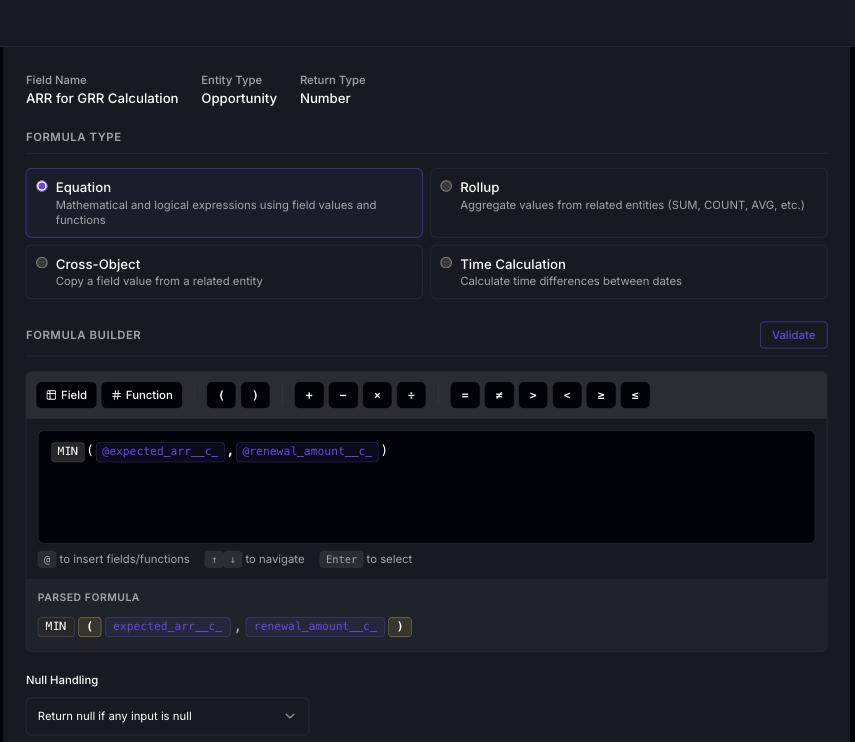
Inserting Fields
There are two ways to insert a field reference into your formula:- Type
@in the editor to open the autocomplete dropdown. Start typing to filter by field name. Use arrow keys to navigate and press Enter or Tab to insert. - Click the Field button in the toolbar to open the field picker drawer. Browse or search for fields, including related fields from other entities.
{field_name}.
Related fields follow the format {relationship_name.field_name} and appear in a separate section in the field picker. For example, {parent.name} references the parent account’s name.
Inserting Functions
Functions are also available through two methods:- Type
@and start typing a function name. Functions appear alongside fields in the autocomplete dropdown. - Click the Function button in the toolbar to open the function picker drawer. Browse by category, view syntax and examples, and click to insert.
Toolbar
The toolbar provides quick-insert buttons for common elements:- Field and Function buttons open their respective picker drawers
- Parentheses
()for grouping expressions - Arithmetic operators
+-*/ - Comparison operators
=!=><>=<=
Parsed Preview
As you type, a real-time parsed preview appears below the editor. It shows your formula with color-coded syntax highlighting:- Fields — highlighted as primary-colored pills
- Functions — highlighted as accent-colored pills
- Operators — displayed in muted text
- Values (strings and numbers) — displayed in green
- Parentheses — displayed in amber
Operators
Arithmetic
Comparison
Logical
Operator precedence (highest to lowest):
^(power)-(unary negation)*/%+-&=!=><>=<=ANDOR
Functions Reference
Math
Text
REGEXP_SUBSTITUTE
UseREGEXP_SUBSTITUTE for pattern-based text replacement that SUBSTITUTE cannot handle — for example, stripping digits, extracting domain parts, or normalizing whitespace.
@ onward).
Date
Logical
IF Examples
CASE Examples
1 for Open, 2 for Negotiation, 3 for Closed Won, and 0 for anything else.
Null Handling
For Equation formulas, you can choose how the formula handles null (empty) field values:Validation
Click the Validate button to check your formula before saving. Validation checks for:- Syntax errors — Malformed expressions, unmatched parentheses, invalid function usage
- Field existence — All referenced fields exist on the entity type
- Relationship validity — Cross-object relationships are valid for the entity type
- Type compatibility — The formula’s return type matches the expected field type
- Function arguments — Functions receive the correct number and type of arguments
- Circular dependencies — Formulas cannot reference themselves
- Complexity — Rates your formula’s complexity (Low, Medium, or High)
- Empty circle — Not yet validated
- Spinner — Validation in progress
- Green checkmark — Validation passed
- Red alert — Validation errors found
- Orange alert — Validation warnings (e.g., use of
TODAY())
Save-time validation
Statisfy also runs the same validation automatically when you click Save, whether you are creating a new formula field or editing an existing one. If the formula definition is invalid, the save is rejected and the underlying errors are shown, so invalid formulas can no longer be saved and left silently returning empty values. The Validate button remains the recommended pre-check because it surfaces issues (and warnings) before you attempt to save. The Validate button and save-time validation apply the same checks against the same field and relationship data, so a formula that passes Validate will not be rejected on save for a reason Validate missed. If you renamed or deleted a related custom object after last validating, re-run Validate to pick up the change before saving.If you have an older cross-object formula that has been silently producing null values, re-opening and saving it will now surface the underlying validation error. Fix the error and save again to restore the formula.
Preview
After writing your formula, use the Preview section to test it against real records.- Expand the Preview section at the bottom of the editor
- Select which entities to test against (up to 50 records)
- View the results table showing each entity name and its computed value
null for empty results, or an error message if the formula fails for a specific record.
Preview evaluates the formula against live data. For rollup formulas, this includes loading related entity collections, so previews accurately reflect what the saved formula will produce.
Supported Entity Types
Formula fields can be created on these entity types:Return Types
The return type is derived from the field type you chose when creating the field. It determines how the computed value is stored and displayed:Managing Formula Fields
To edit a formula field:- Navigate to Settings > Object Manager
- Find the formula field in the field list
- Click to edit and modify the formula configuration
- Validate, preview, and save
Formula fields are read-only — their values are computed automatically and cannot be manually edited. If you need to override a calculated value, create a separate custom field instead.
Running Computation
Formula fields are recalculated automatically during scheduled batch evaluation cycles. You can also trigger a recompute on demand.Manual Recompute
When editing a saved formula field, a Run button appears in the editor header. Click it to immediately recompute values for that formula field across all records of the entity type.- Open the formula field in the editor
- Click the Run button (play icon) in the top-right corner
- A confirmation toast appears and computation starts in the background
- Values update shortly — there is no need to stay on the page
If you have unsaved changes to the formula, Statisfy prompts you to save first. This ensures the computation uses the latest formula expression.
Batch Evaluation
Formulas are also recalculated automatically in scheduled batch cycles. During each cycle, Statisfy evaluates all active formula fields in dependency order — formulas without dependencies first, then formulas that depend on other formulas. Time-based formulas (usingTODAY(), NOW(), or Time Calculation formulas with Time Since / Time Until) produce different results each day and are refreshed during every batch cycle.
Cascading Formulas
Formula fields can reference other formula fields, creating a chain where one formula’s output feeds into another. Statisfy automatically resolves the correct evaluation order using a dependency graph, so you don’t need to worry about which formula runs first.How It Works
When you reference a formula field inside another formula, Statisfy:- Builds a dependency graph — maps which formulas depend on which fields
- Topologically sorts the graph so dependencies are evaluated first
- Detects circular references — a formula cannot directly or indirectly depend on itself
- Identifies parallel groups — independent formulas at the same level can evaluate simultaneously
You do not need to manually set execution order. Statisfy computes the correct order automatically from your field references. The
execution_order field exists for advanced overrides but is rarely needed.Example: Account Health Scoring Pipeline
This example shows four formula fields on an Account, where each builds on the previous ones. Step 1 — Total ARR (Rollup)
Creates a
total_arr field that sums ARR across all child accounts.
Step 2 — Account Tier (Equation)
account_tier field that classifies the account based on total_arr from Step 1.
Step 3 — Days Until Renewal (Time Calculation)
Creates a
days_until_renewal field.
Step 4 — Health Score (Equation)
health_score field that combines NPS, usage, and support scores with adjustments based on days_until_renewal (Step 3) and account_tier (Step 2).
Evaluation order: Statisfy automatically evaluates these as:
total_arr and days_until_renewal have no formula dependencies, so they evaluate in parallel at level 1. account_tier depends on total_arr, so it evaluates at level 2. health_score depends on both account_tier and days_until_renewal, so it evaluates last.
Example: Opportunity Scoring with Cross-Object
Step 1 — Account Tier (on Account)
Pulls the account’s tier onto each opportunity.
Step 3 — Opportunity Priority Score (Equation, on Opportunity)
Example: Cascading Rollups Across Hierarchy
Step 1 — Opportunity Pipeline Value (Rollup, on Account)
Sums open opportunity amounts for each account.
Step 2 — Total Hierarchy Pipeline (Rollup, on Account)
Sums
opp_pipeline_value (from Step 1) across all child accounts. This gives the parent account visibility into the total open pipeline across its entire hierarchy.
Step 3 — Pipeline Coverage Ratio (Equation, on Account)
Circular Dependency Detection
Statisfy prevents circular references at validation time. If formula A depends on formula B and formula B depends on formula A, the validator will reject the formula with a clear error message showing the cycle.Invalidation
When a source field value changes on a record, Statisfy automatically identifies all formula fields affected by that change — including formulas that depend on other formulas that depend on the changed field. Only affected formulas are recalculated, in the correct order.Common Patterns
Weighted health score
Weighted health score
Tier classification
Tier classification
Days until renewal
Days until renewal
Use a Time Calculation formula with:
- Calculation type: Time Until
- Date field: renewal_date
- Unit: Days
Total child account ARR
Total child account ARR
Use a Rollup formula with:
- Aggregation: SUM
- Related entity: Account
- Relationship: descendants
- Source field: arr
Full name from first and last
Full name from first and last
& operator.Account owner's first name
Account owner's first name
Use a Cross-Object formula with:
- Relationship: owner
- Source field: name
- Transform: SPLIT_FIRST
Percentage of closed deals
Percentage of closed deals