

Accessing Groups
Navigate to Settings and open the Team tab, then select Groups. Admin permissions are required.
Creating a Group
- Click Create New Group
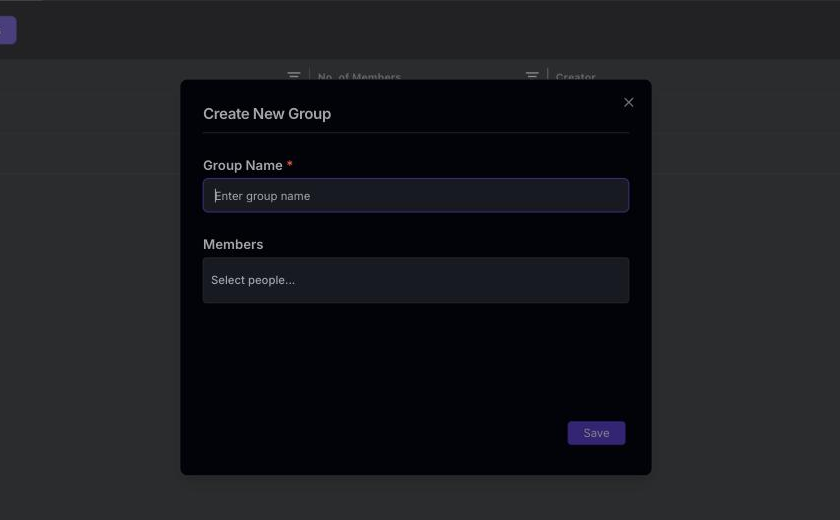
- In the Create New Group dialog, enter the group details:
- Group Name — A descriptive name (e.g., “Enterprise CSMs”, “APAC Team”). This field is required.
- Members — Optionally add members now by searching for people in the Select people… picker. You can also add members later.
- Click Save
Adding Members to a Group
- Open the group by clicking its name in the group list
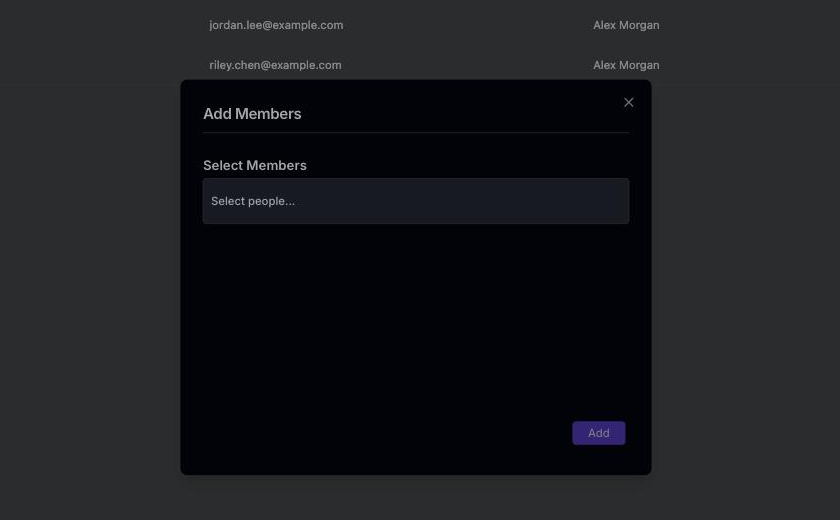
- Click Add Members
- In the Add Members dialog, search for users by name or email under Select Members
- Select the users you want to add
- Click Add

Removing Members
- Open the group
- Find the member you want to remove
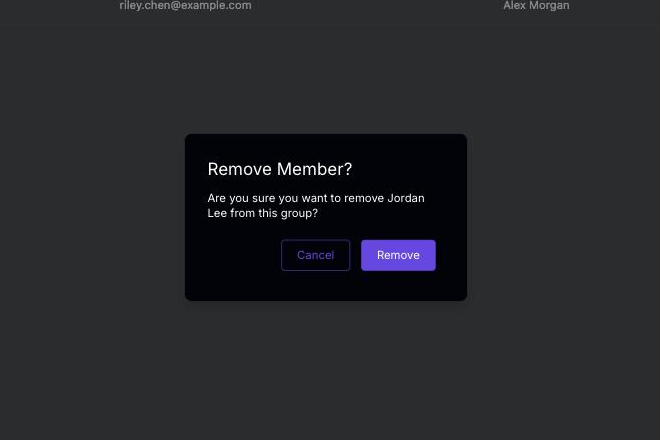
- Click the trash icon at the end of their row
- In the Remove Member? dialog, click Remove to confirm (or Cancel to keep them)
Renaming a Group
On the group’s detail page, click the pencil icon next to the group name, edit the name inline, and press Enter to save.Group List
The group list page shows all groups with:- Group Name
- No. of Members
- Creator
- Created On
Using Groups
Groups can be used across Statisfy for:Groups are for organizing Statisfy users (your team members), not customer contacts. To segment customers, use Segments.