

Video Tutorial
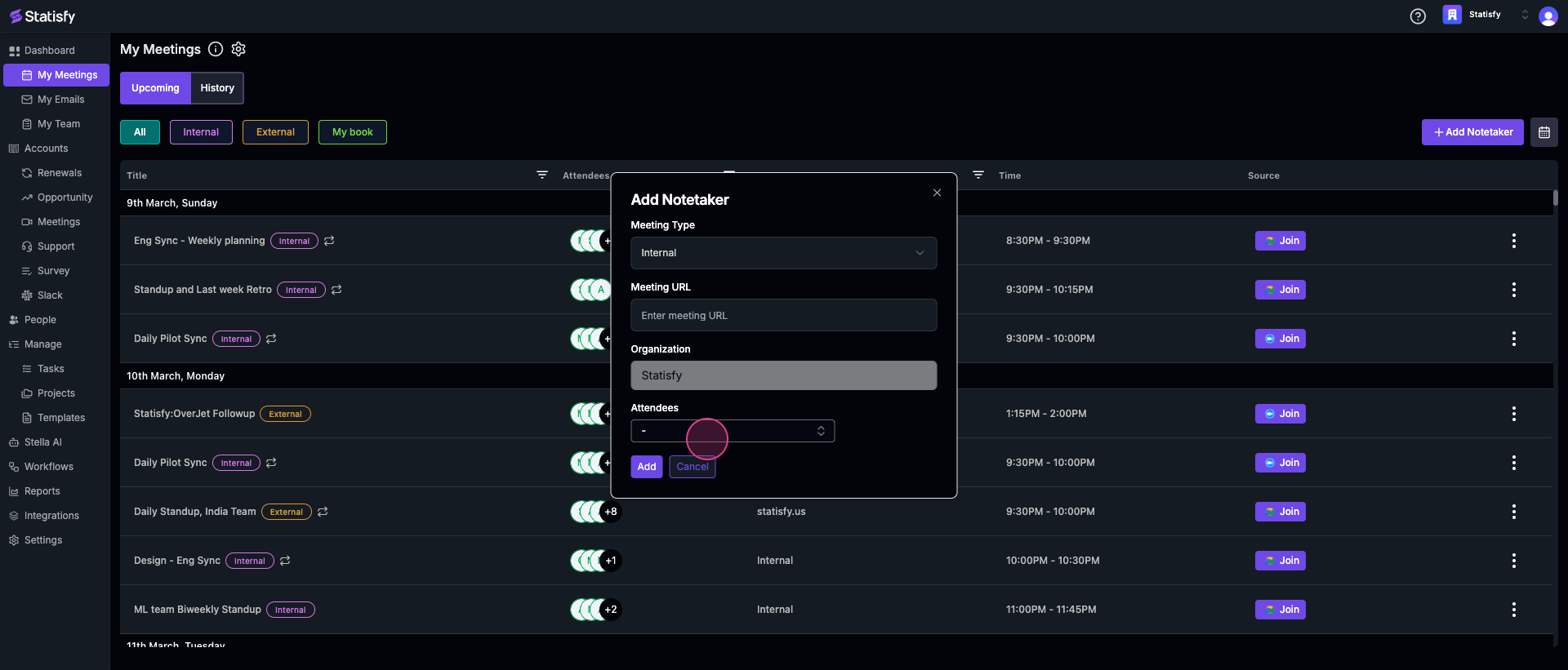
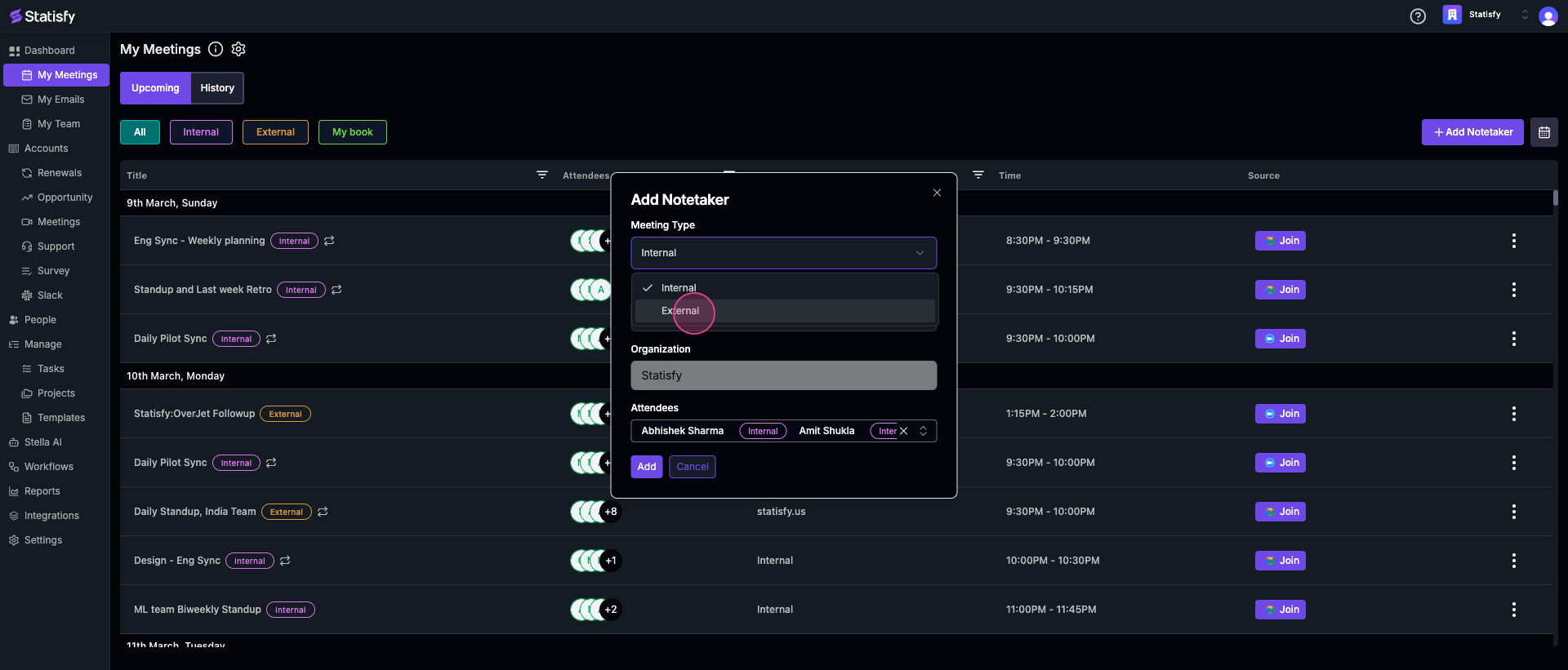
In this article, you’ll learn how to manually add a note taker to a meeting. This can be useful in situations such as when a note taker fails to attend a scheduled meeting or when you need to record an impromptu meeting. Step 1: Start by clicking the Add Notetaker button located at the top right of your screen.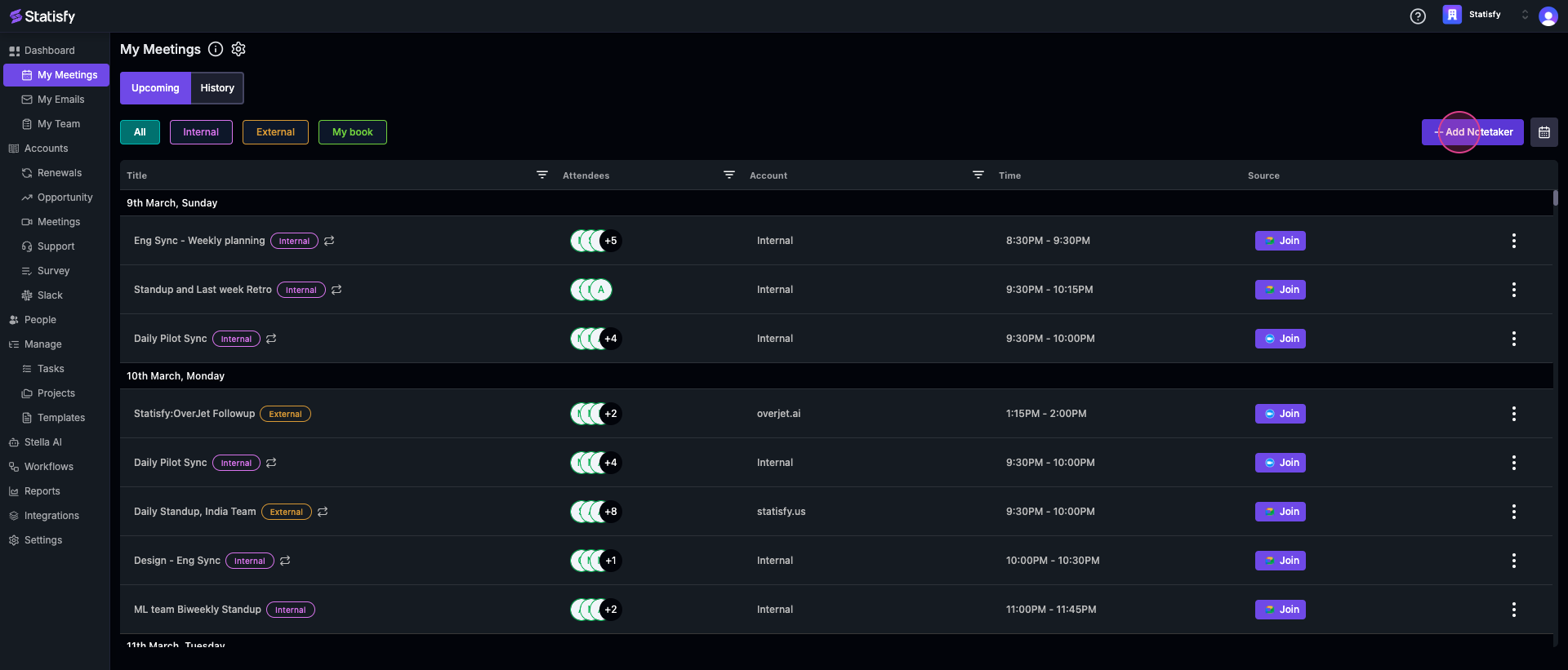 Step 2: After clicking Add Notetaker, a form will appear. Here, you’ll need to specify whether the meeting is internal or external.
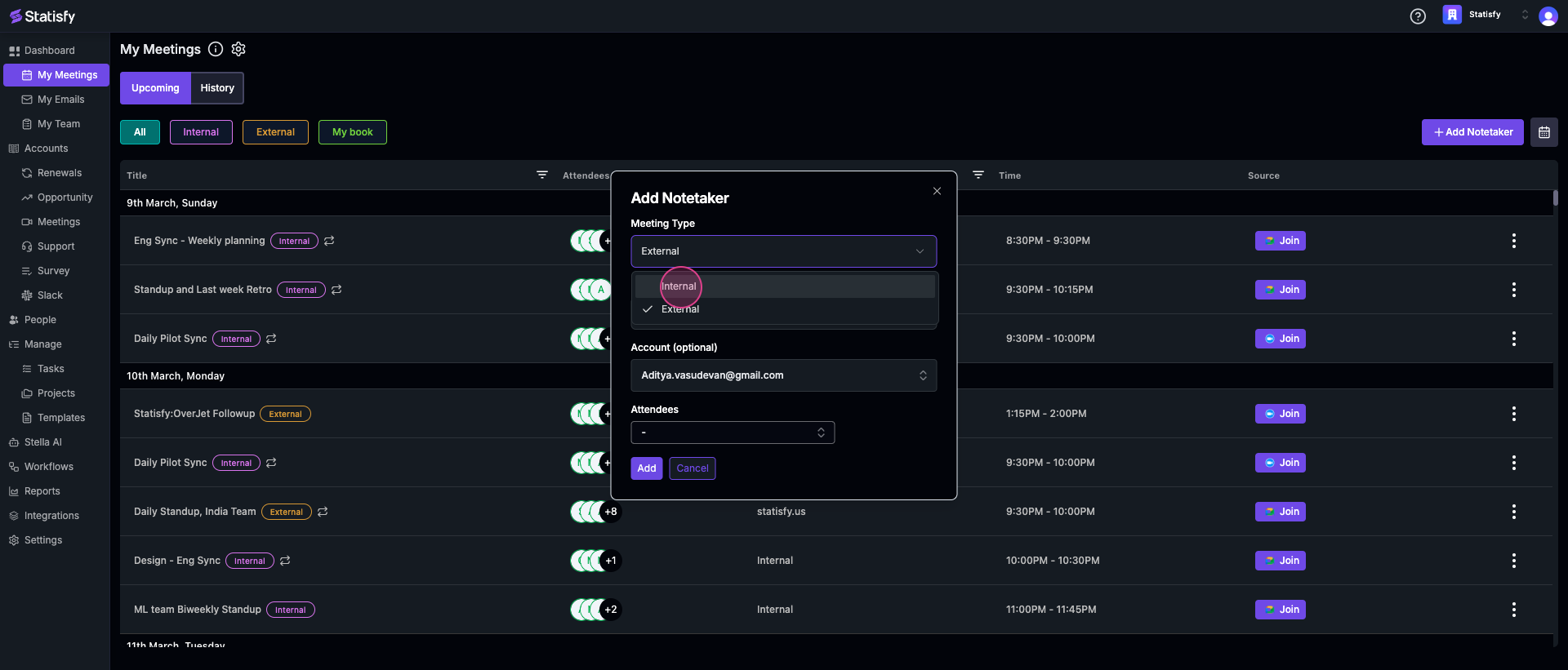 Step 3: If it’s an internal meeting, input the Zoom URL.
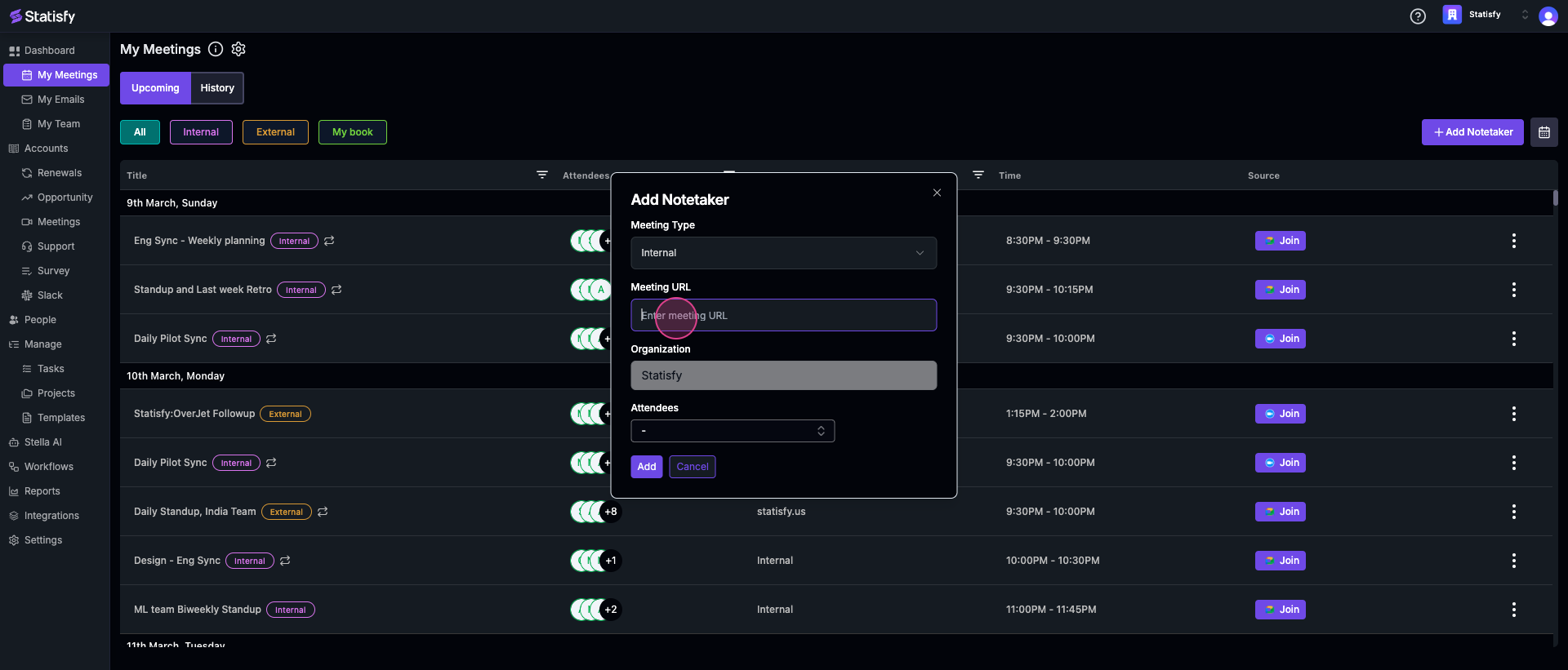 Step 4: The organization will automatically be set to your own.
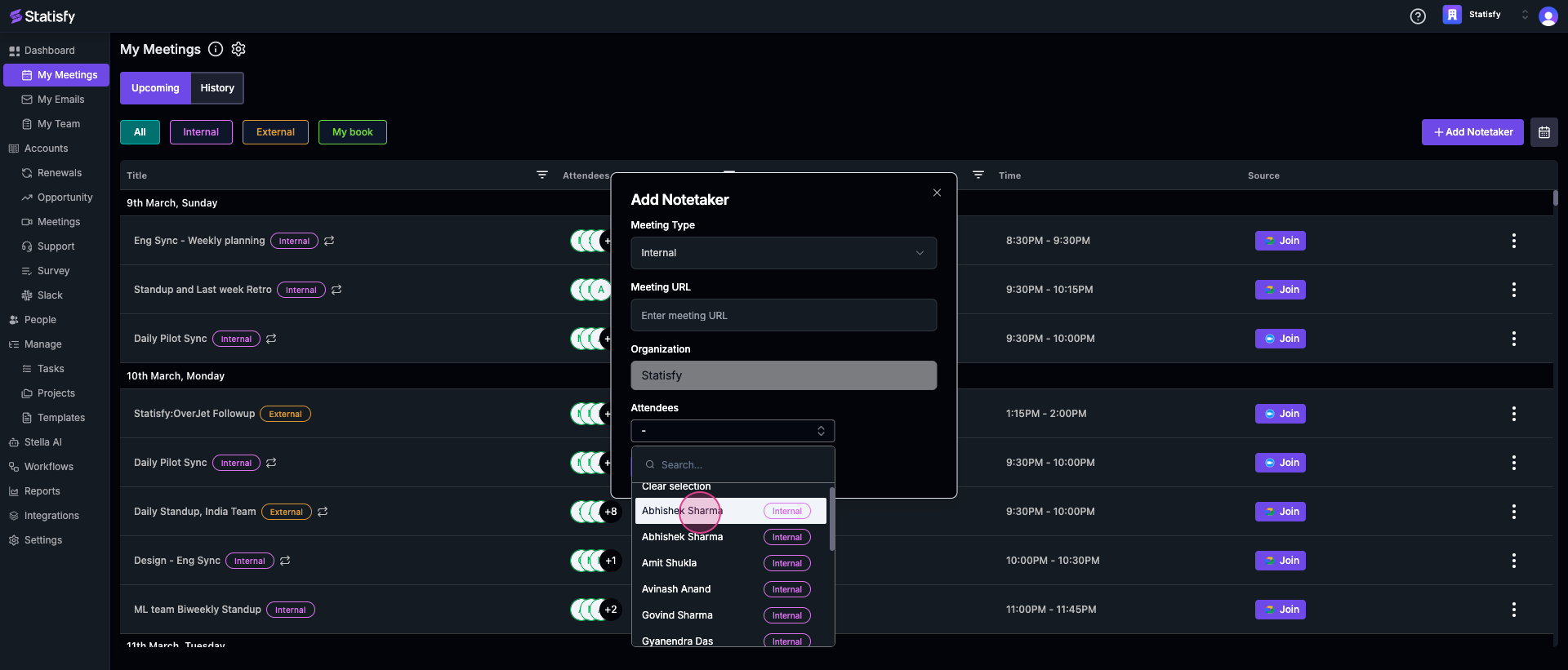
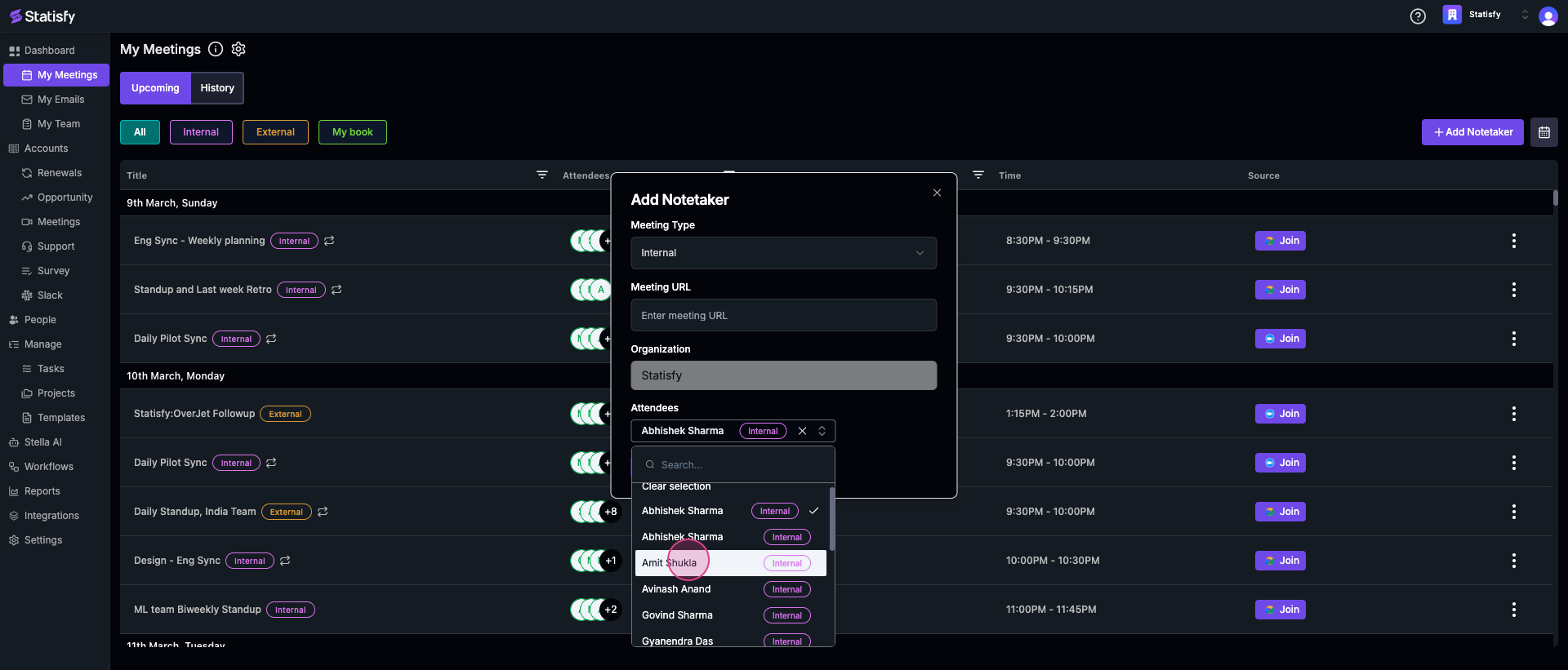
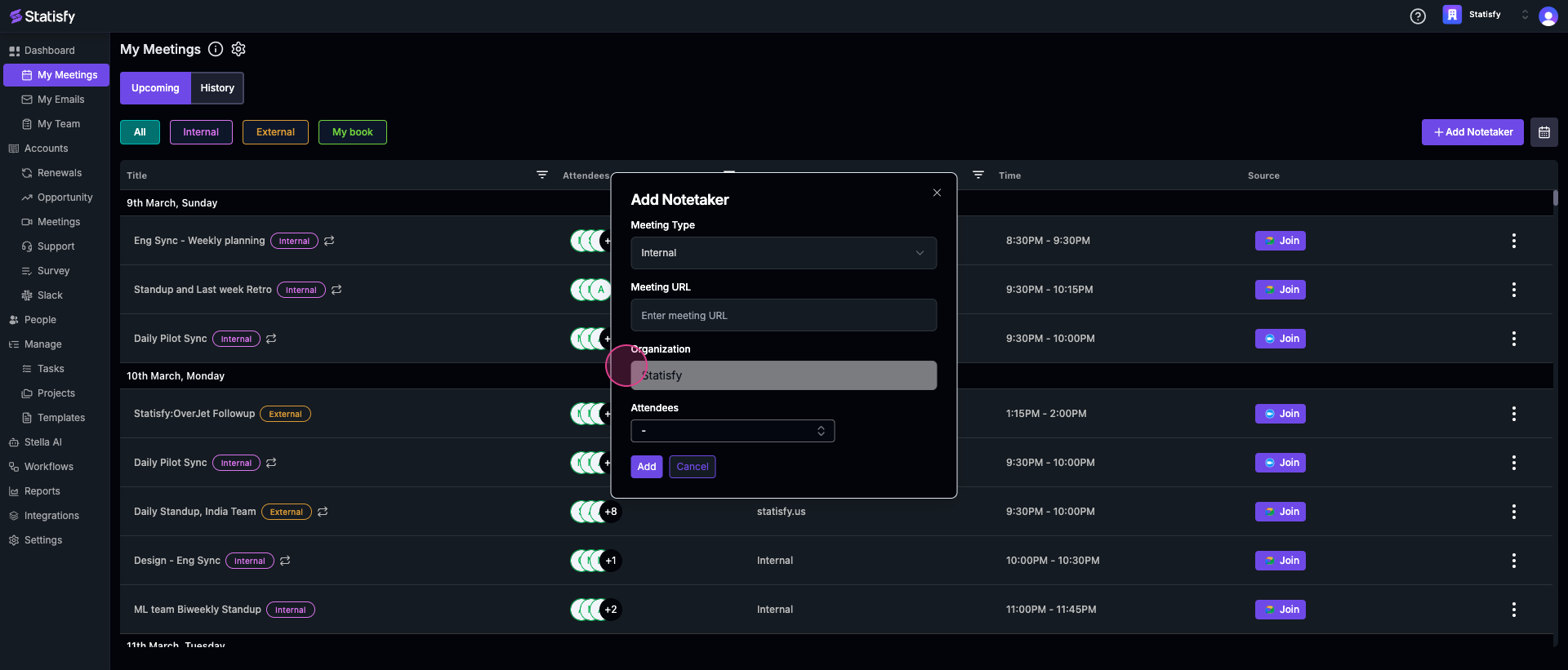 Step 5: Next, select the attendees who will be part of the meeting.
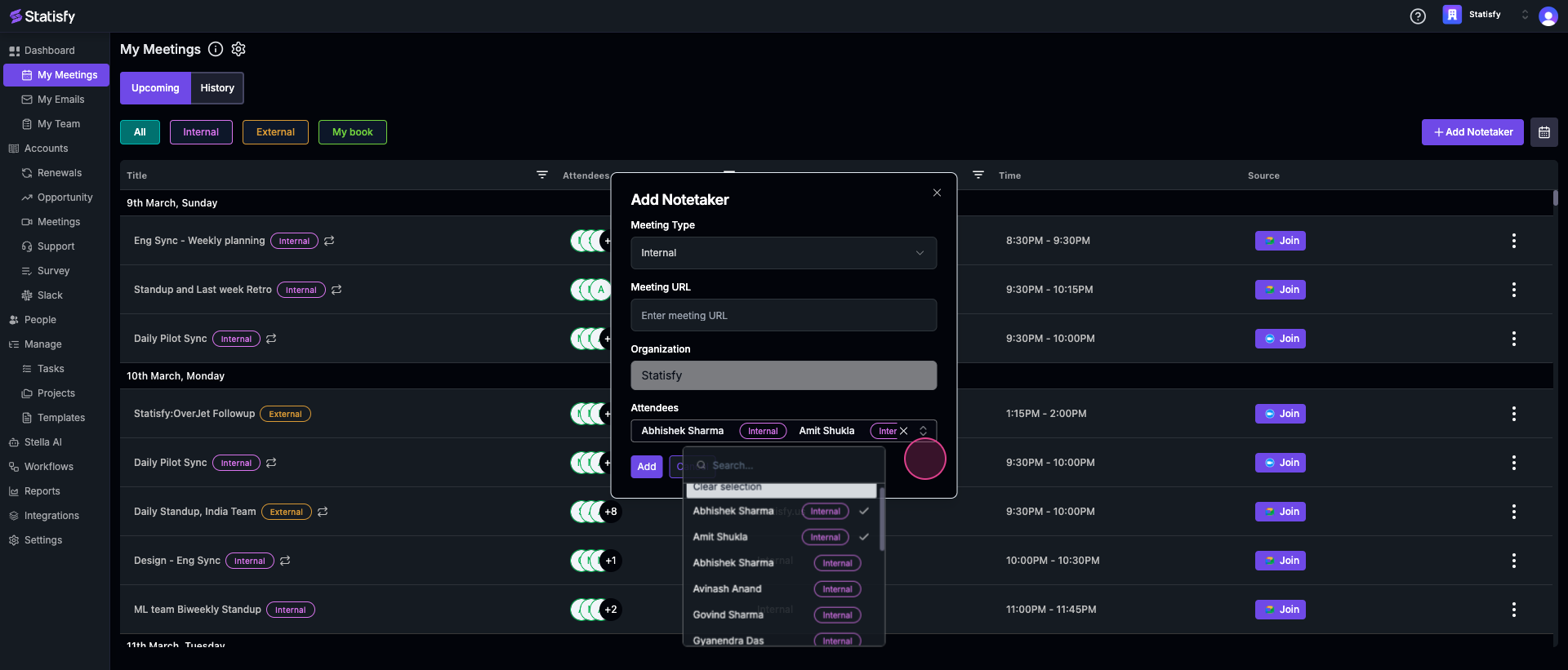 Step 6: Click the Add button to send the note taker to the meeting. Please note that it may take up to 30 seconds for the note taker to appear.
If you’re scheduling an external meeting:
Step 7: Select External and input the meeting URL. This could be a Zoom, Google Meet, Microsoft Teams, or Webex URL.
Step 6: Click the Add button to send the note taker to the meeting. Please note that it may take up to 30 seconds for the note taker to appear.
If you’re scheduling an external meeting:
Step 7: Select External and input the meeting URL. This could be a Zoom, Google Meet, Microsoft Teams, or Webex URL.
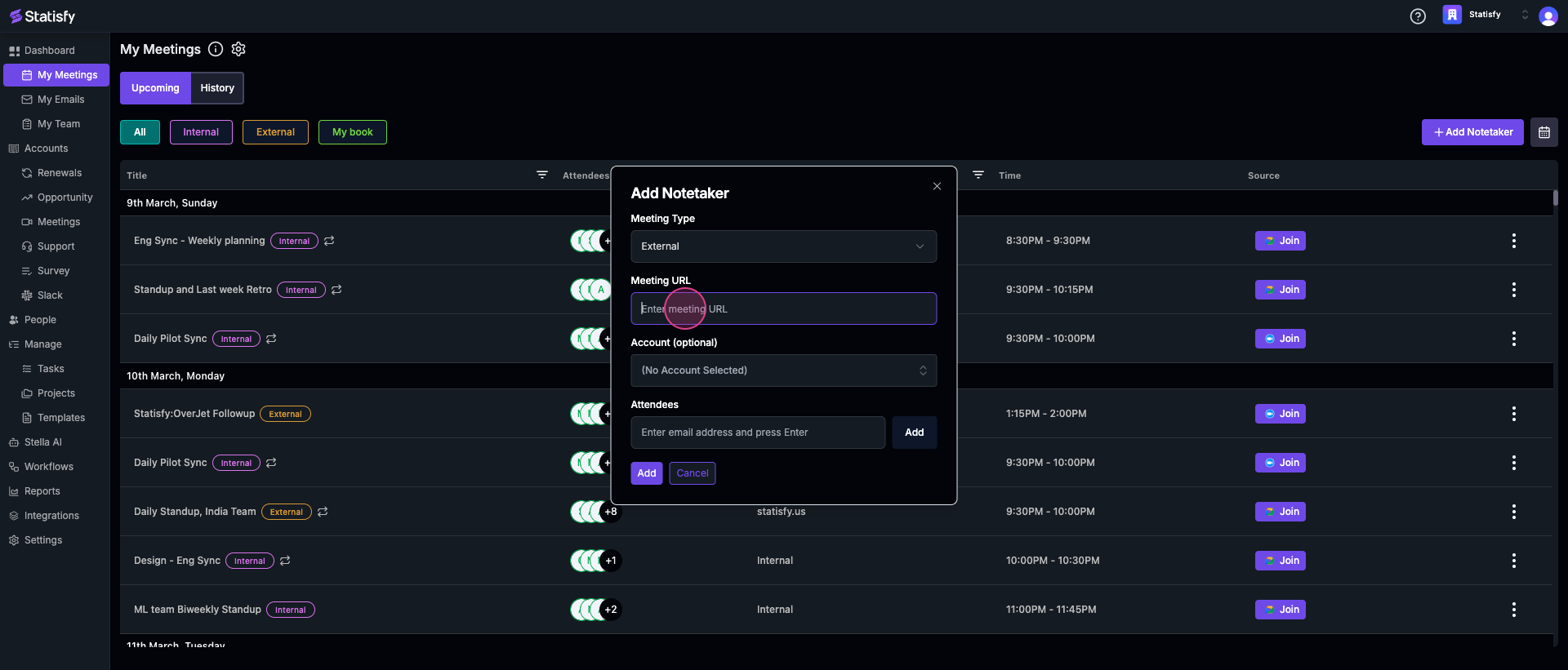
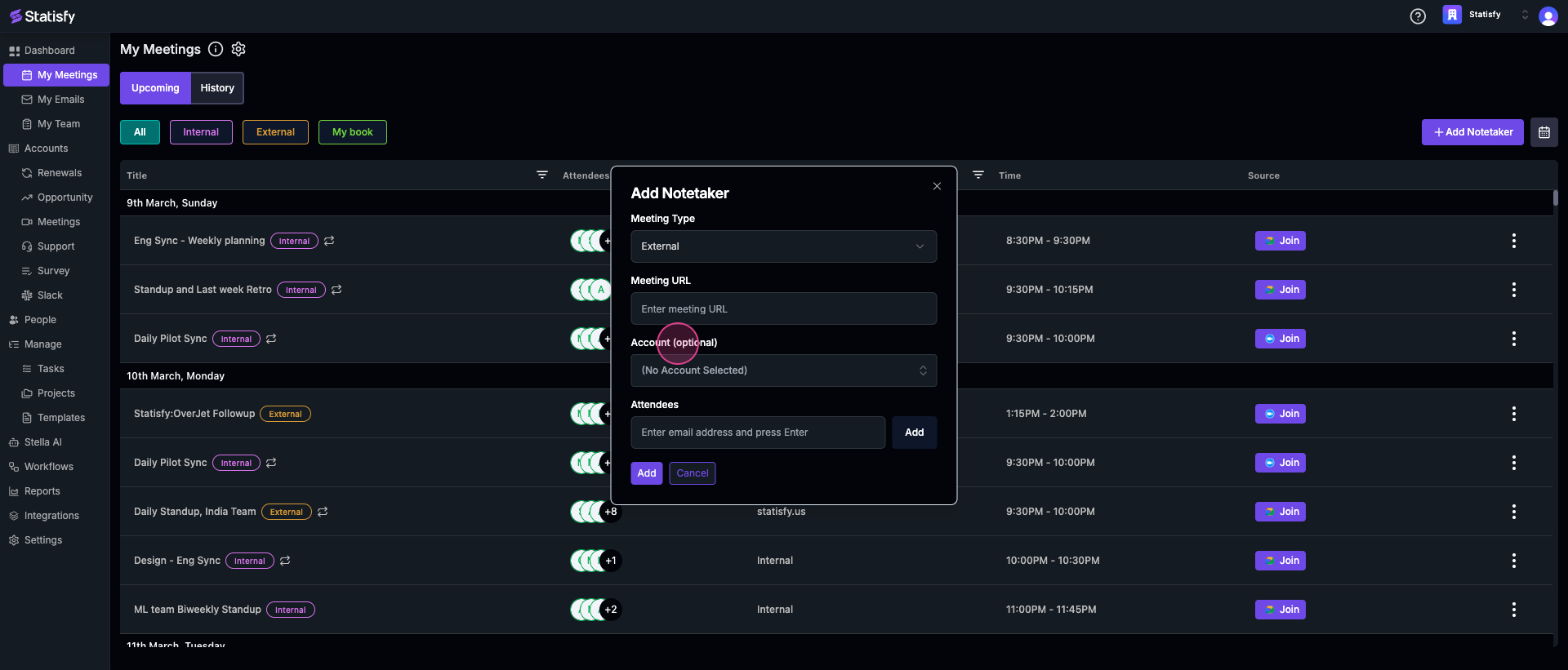 Step 8: Select the account associated with the meeting.
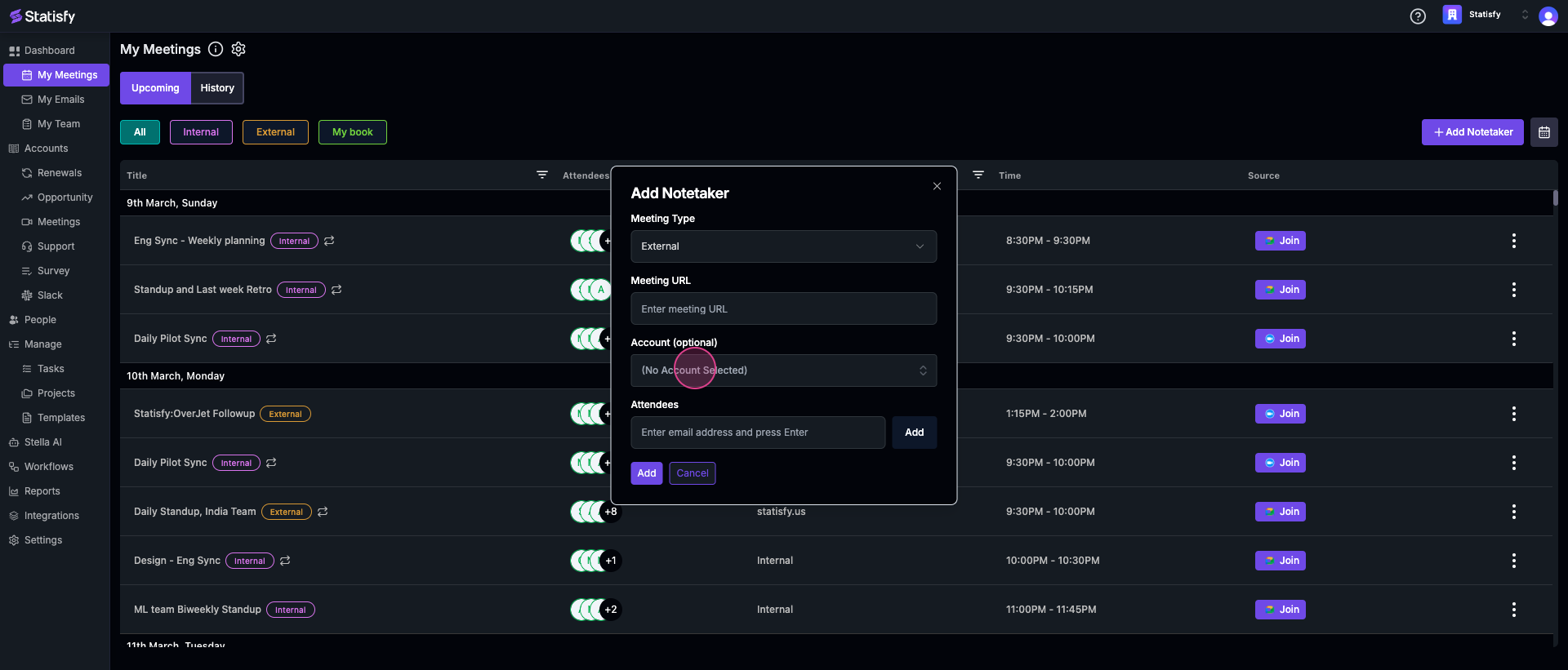 Step 9: Input the email addresses of your external or internal participants.
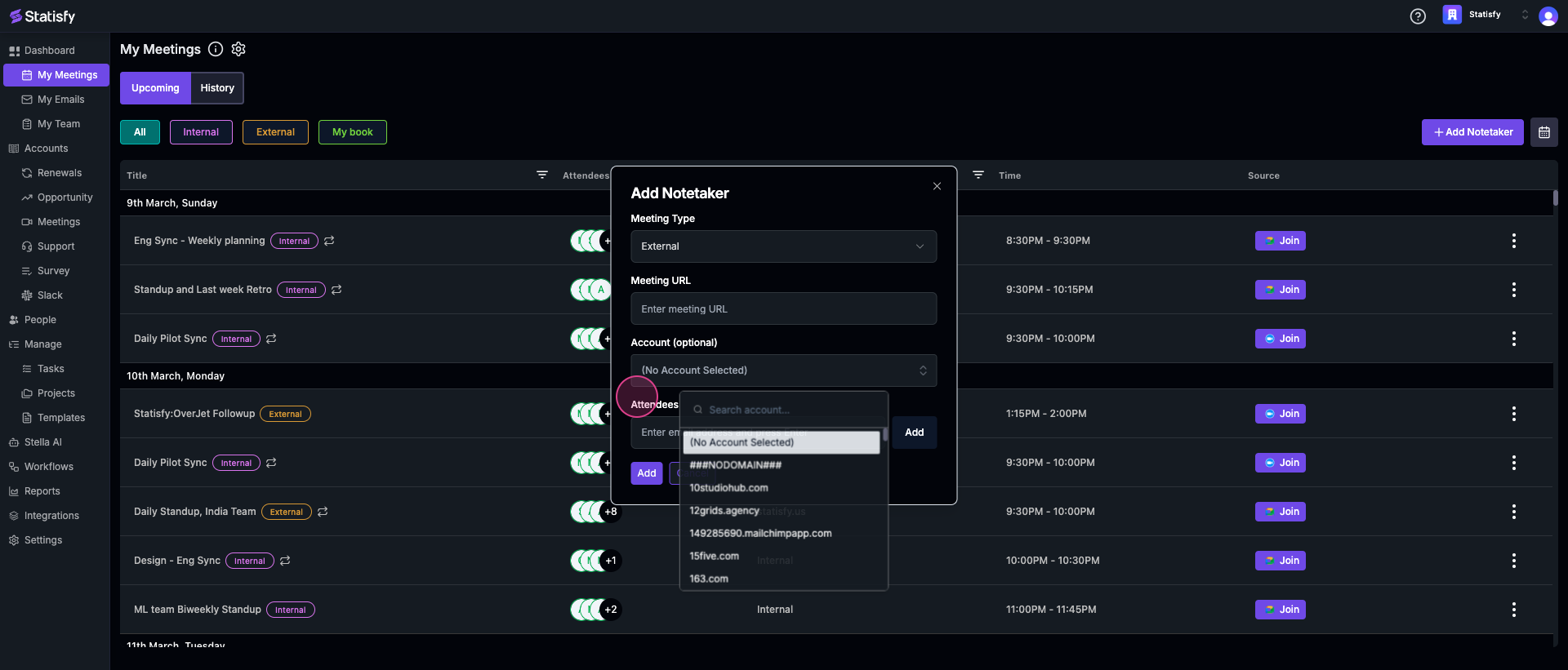 Step 10: Click the Add button to schedule the note taker.
That’s it! You’ve successfully added a note taker to your meeting.
Step 10: Click the Add button to schedule the note taker.
That’s it! You’ve successfully added a note taker to your meeting.