Video Tutorial
This article will guide you on how to manage your meeting settings effectively. Step 1: Begin by understanding the global settings. These settings allow you to configure whether the notetaker should join all your external and internal meetings. By default, the notetaker only joins external meetings, but you have the option to enable it for internal meetings as well.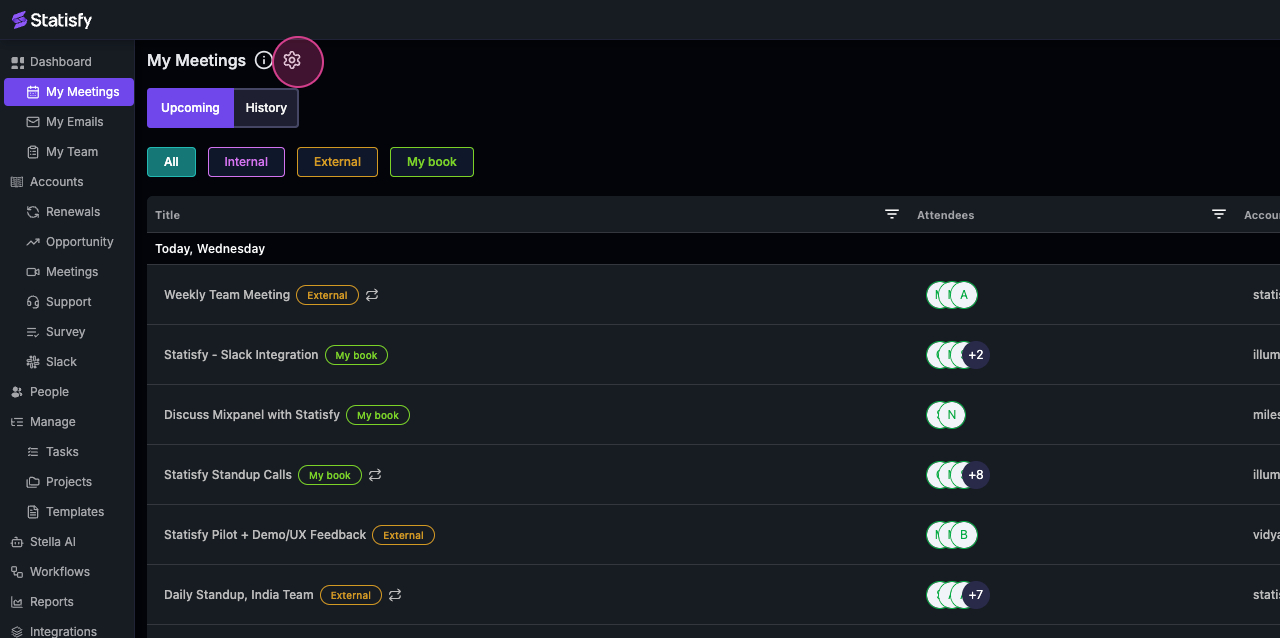 Step 2: If there are customers who prefer not to have their meetings recorded, you have the option to disable their domain. For instance, if you type in “Google.com”, any meetings with someone whose email is Google.com will not be recorded.
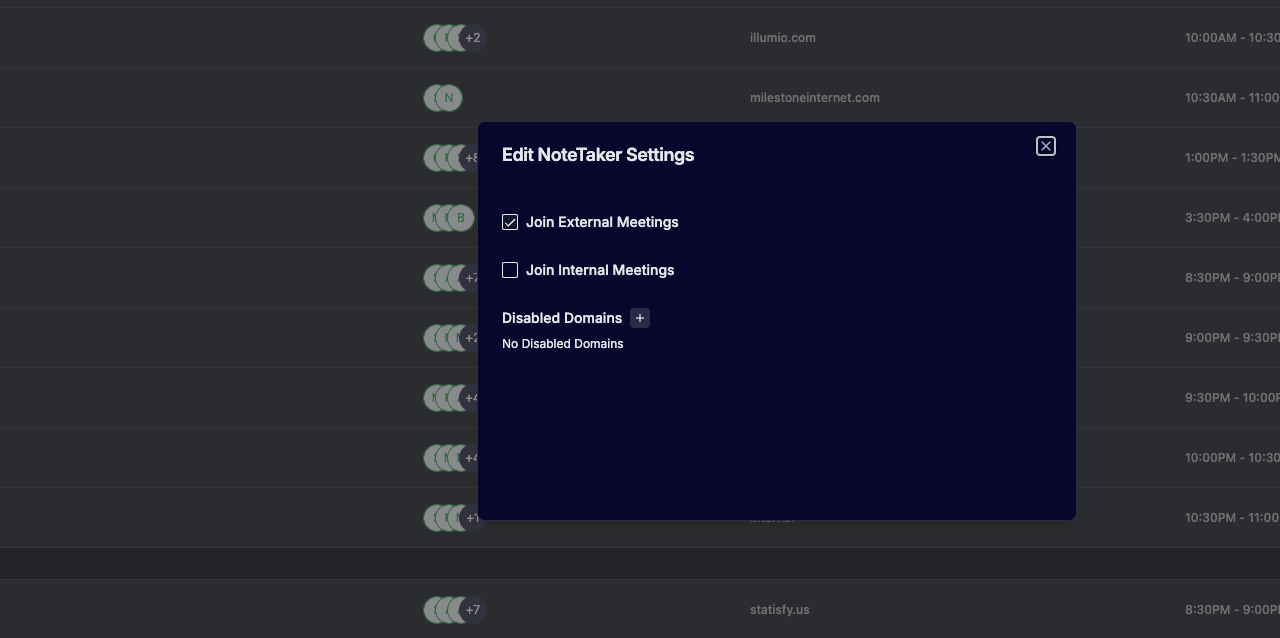
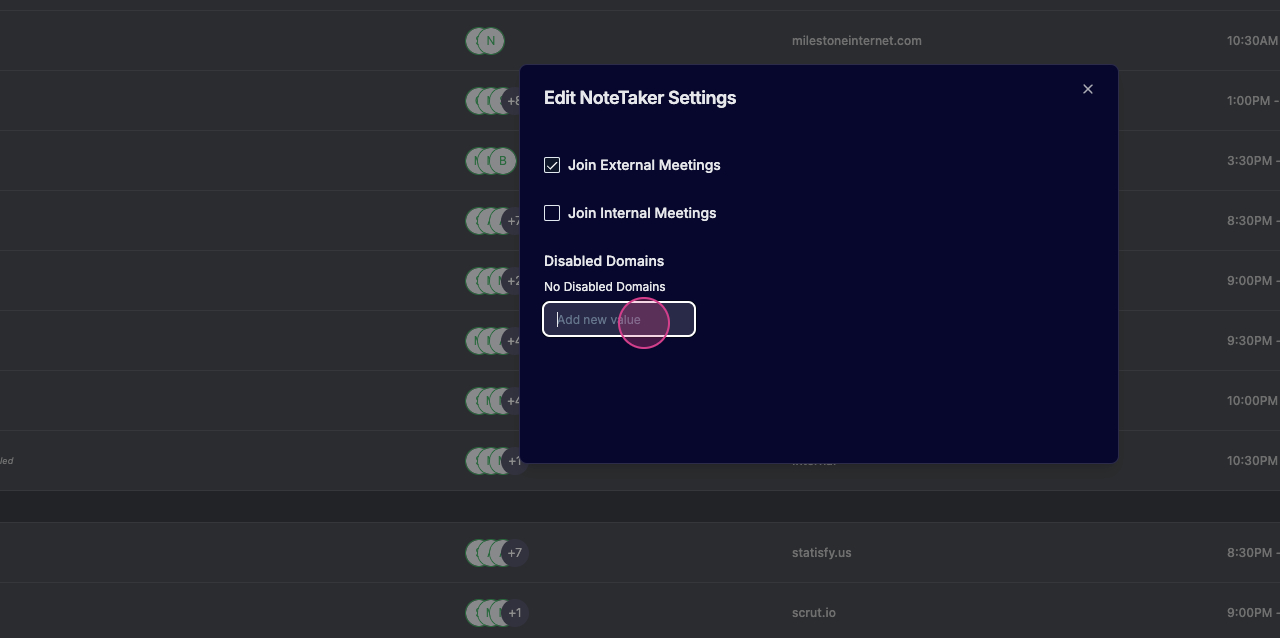
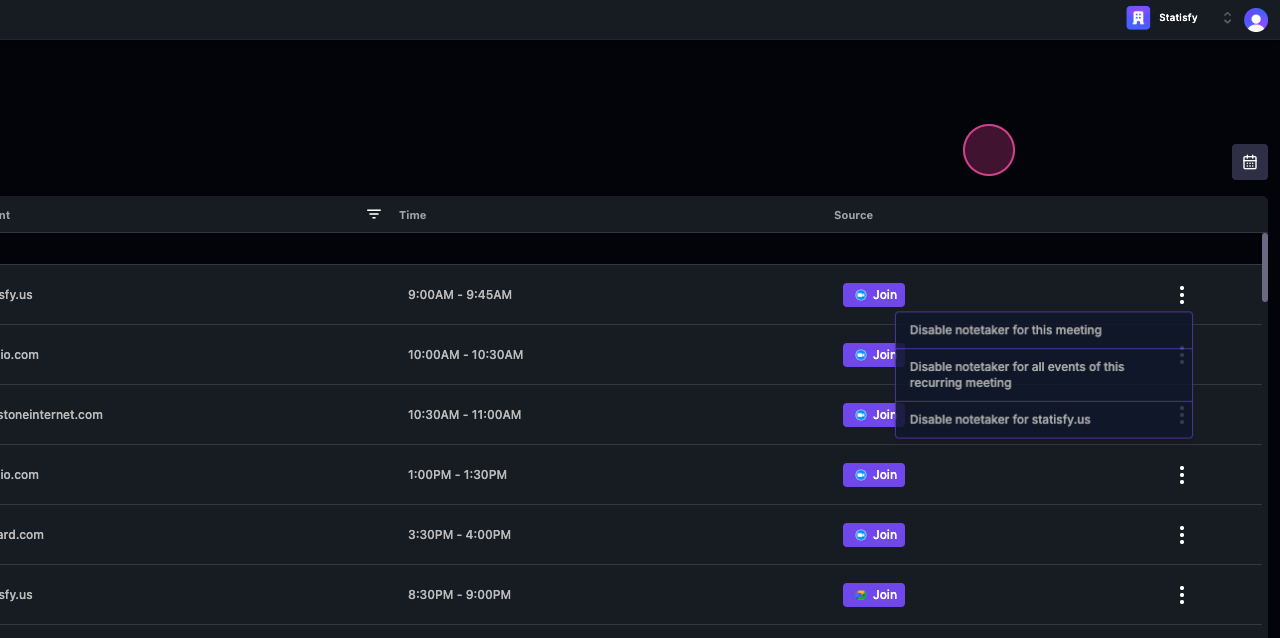
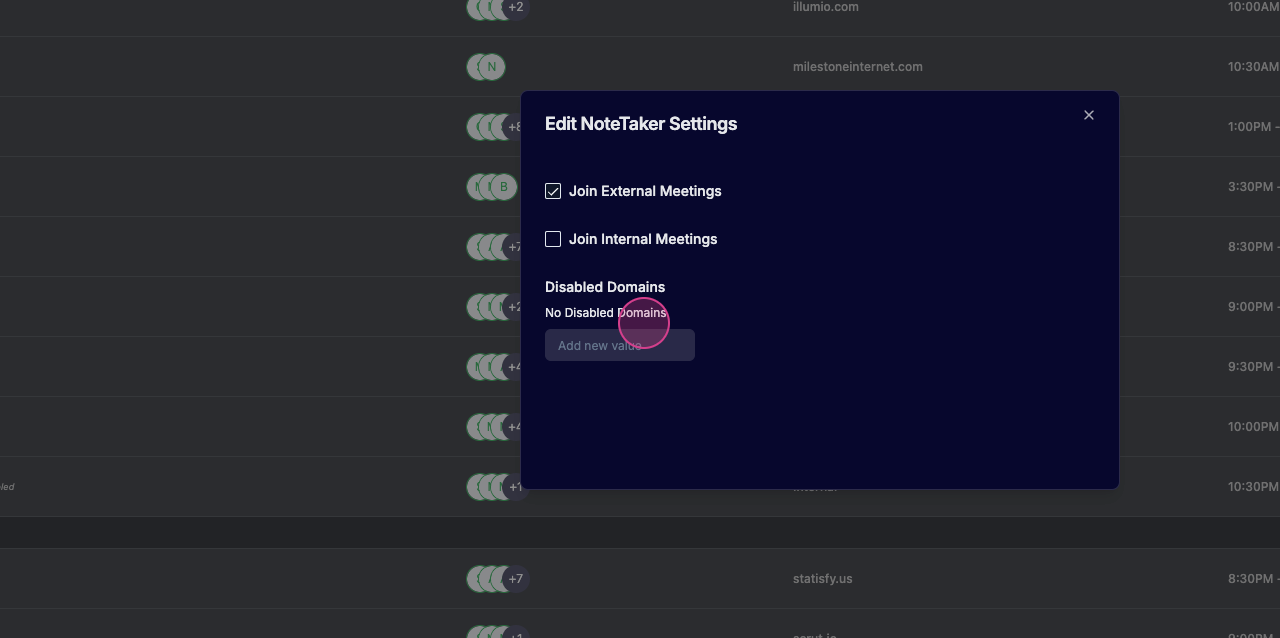 Step 3: You also have control over per meeting settings. For example, in a recurring meeting, you can disable the notetaker for that specific meeting or for all events of that recurring meeting. You also have the option to disable the notetaker for a particular domain.
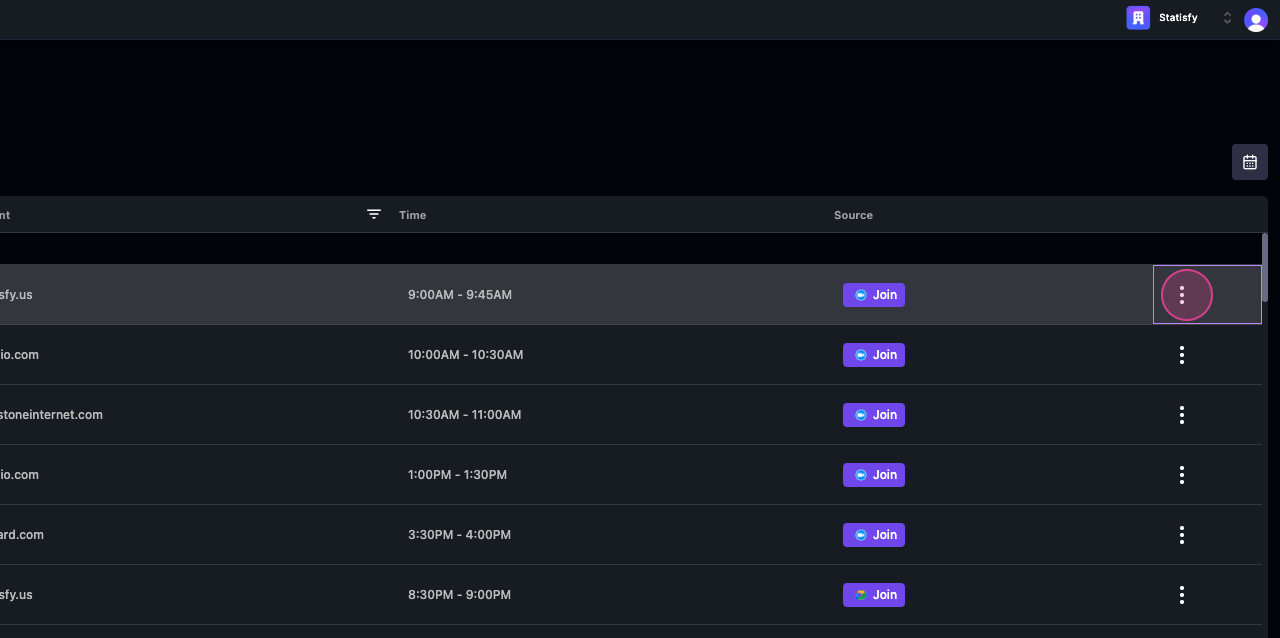
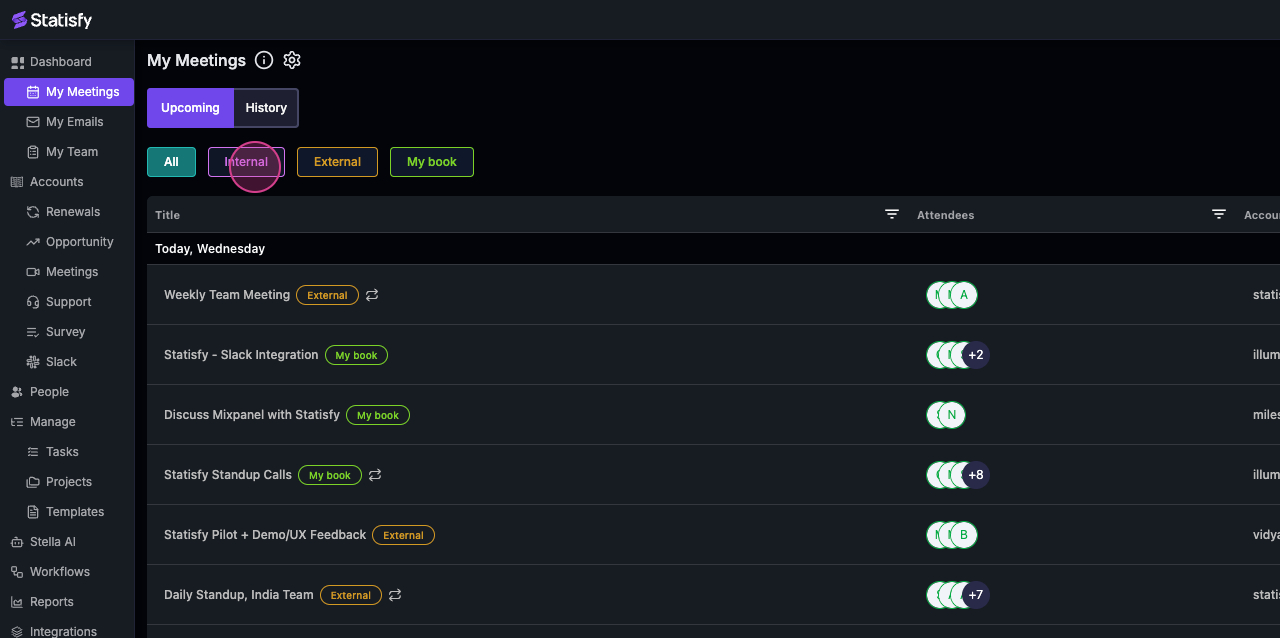
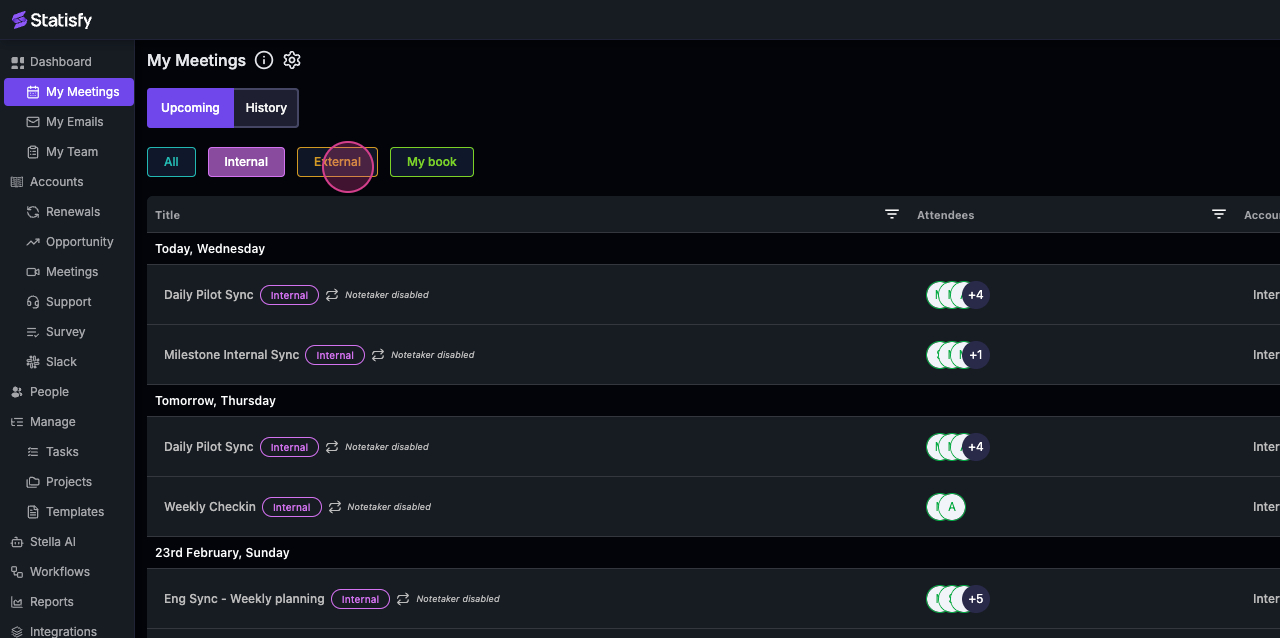
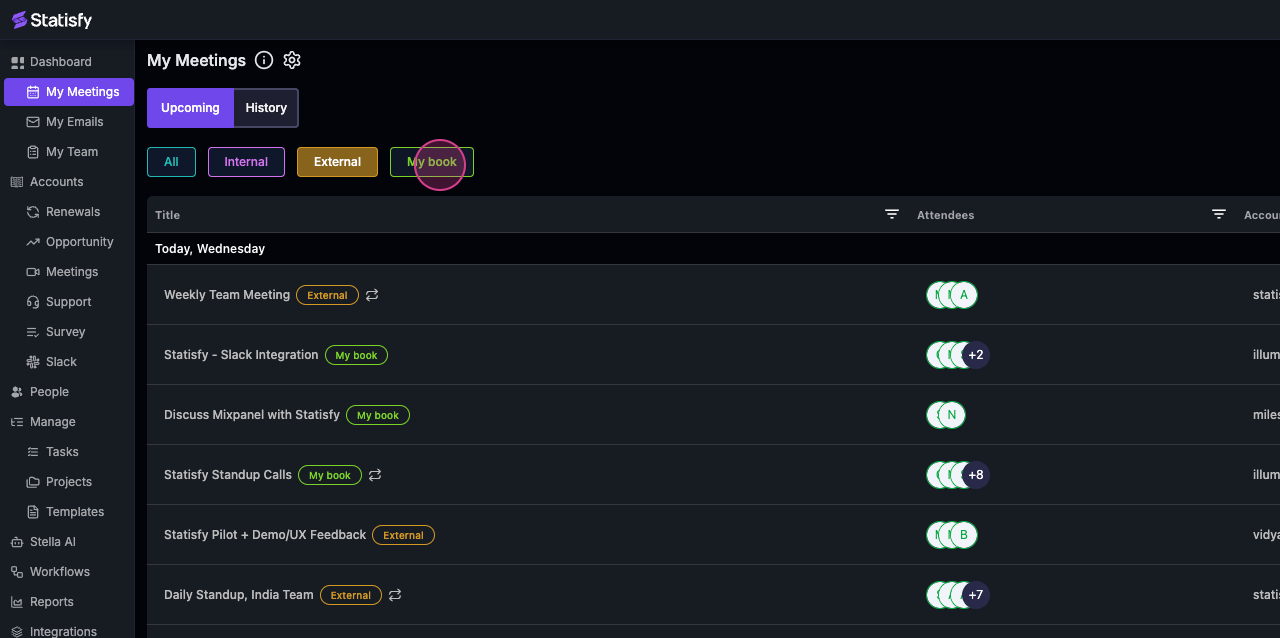
 Step 4: There are predefined filters that allow you to see your internal and external meetings. If you manage a book or business, click on my book to view meetings that are part of your book.