> ## Documentation Index
> Fetch the complete documentation index at: https://help.statisfy.com/llms.txt
> Use this file to discover all available pages before exploring further.

# Task Management UI Navigation

> This article will guide you through the process of navigating the task management interface under the Manage section.

## Video Tutorial

<video controls className="w-full aspect-video rounded-xl" src="https://publicassets.us.prod.clueso.io/2f8a9fc9-c323-4fe7-909f-ec00073876d9/25ca48cc-86de-461b-bd4b-c3a53b1268b5/published_v17/video.mp4" />

This article will guide you through the process of navigating the task management interface under the "Manage" section.

**Step 1:**

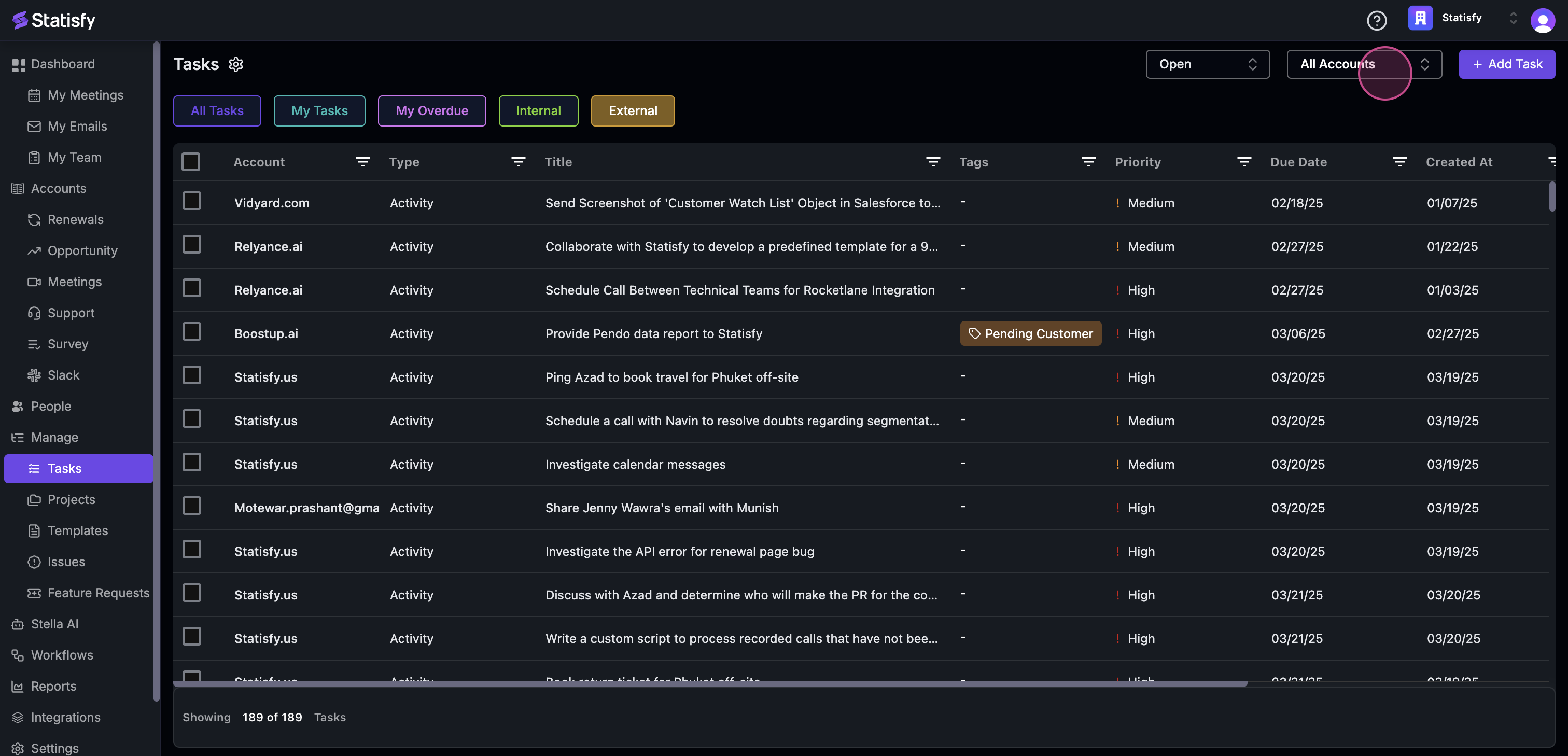
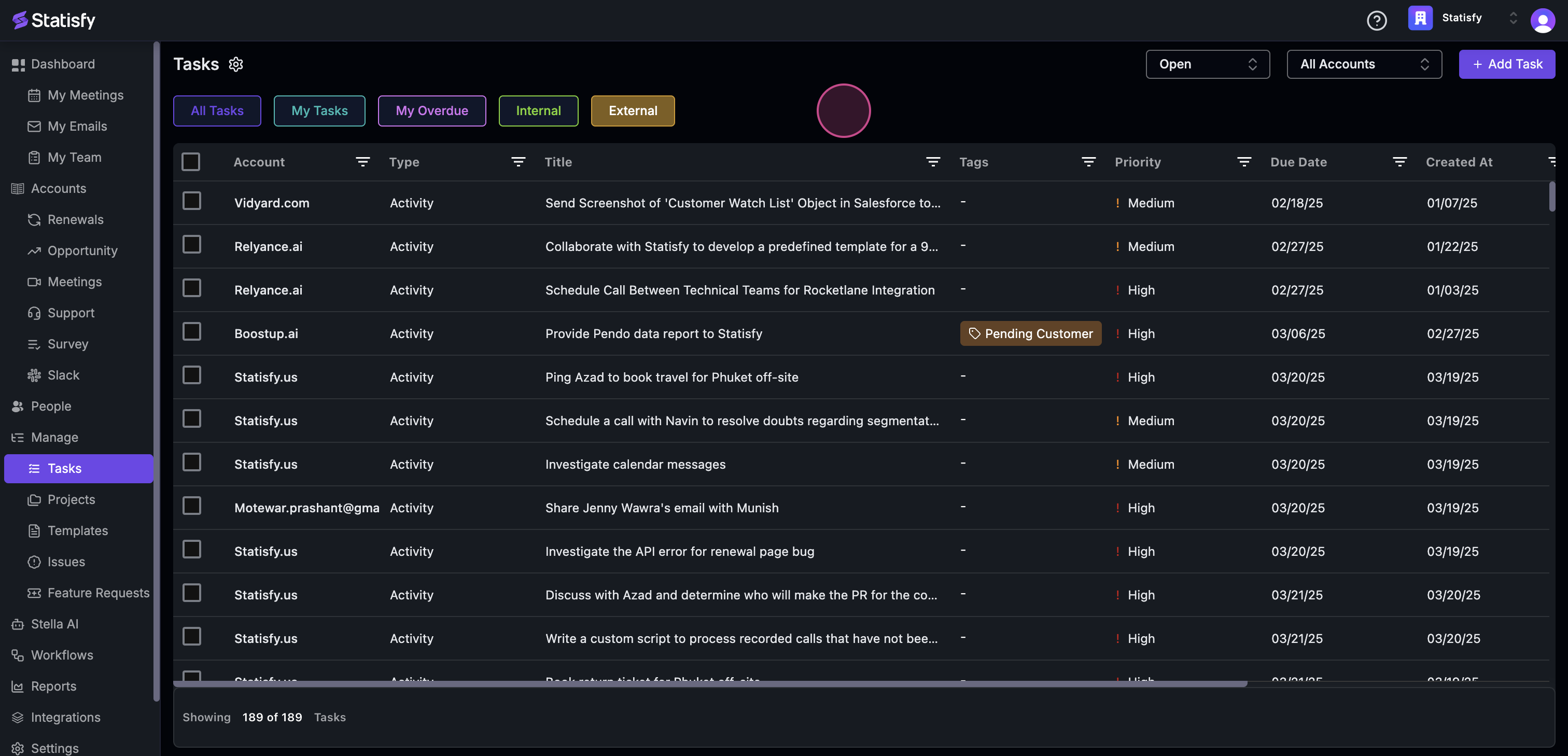
Start by clicking on the "Task" option. This will display a list of tasks, which could be manually created or automatically generated from a note-taking meeting.
![](https://usercontent.us.prod.clueso.io/2f8a9fc9-c323-4fe7-909f-ec00073876d9/25ca48cc-86de-461b-bd4b-c3a53b1268b5/a187b093-f881-4205-808e-7d7ad92d2718/images/3943d16d-59b5-4156-ba6a-6a719441846d.png)

**Step 2:**

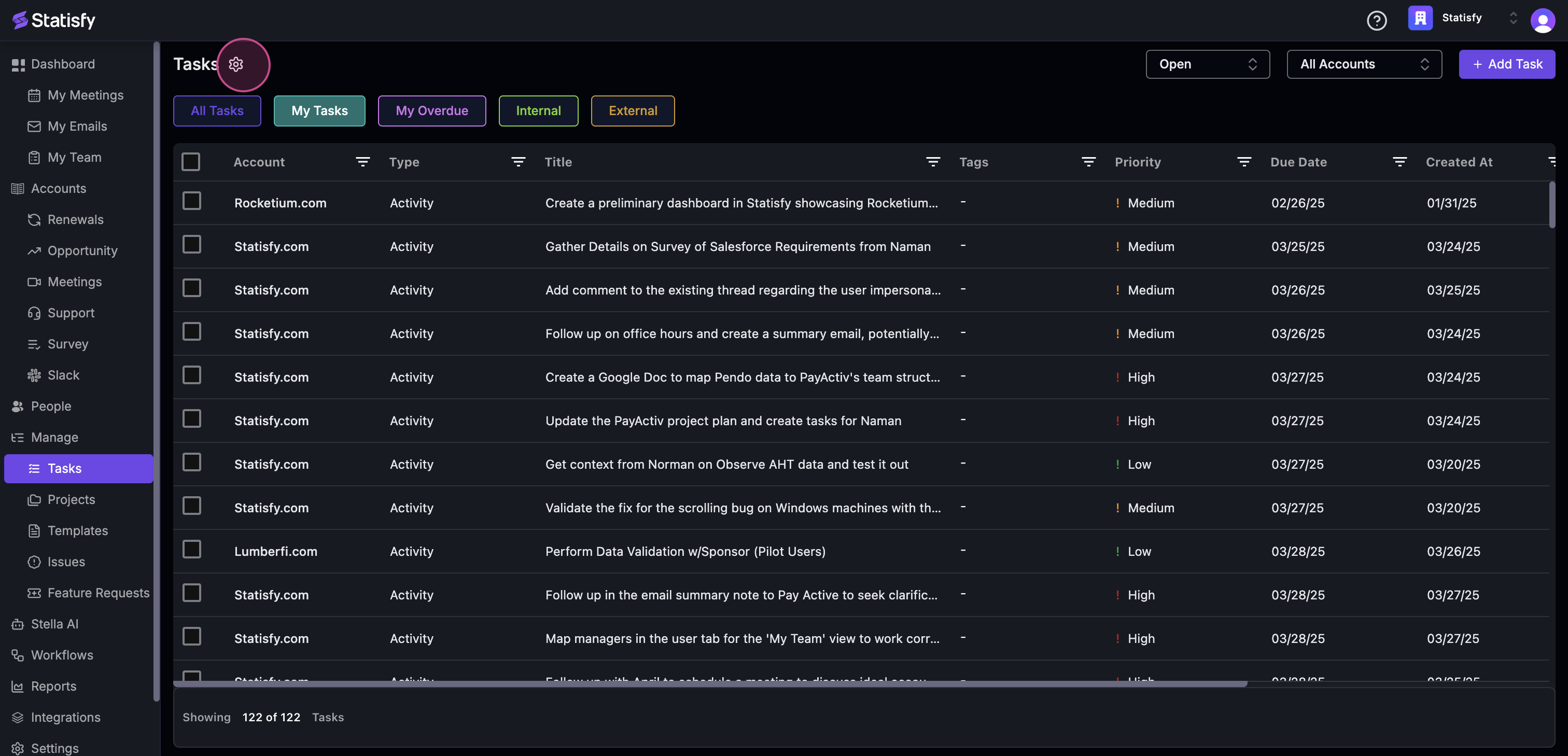
Look for the **gear icon** next to the task. This icon is used to manage status templates.
![](https://usercontent.us.prod.clueso.io/2f8a9fc9-c323-4fe7-909f-ec00073876d9/25ca48cc-86de-461b-bd4b-c3a53b1268b5/a187b093-f881-4205-808e-7d7ad92d2718/images/6070b13a-d3fb-4ca5-b31e-47430787efab.png)

**Step 3:**

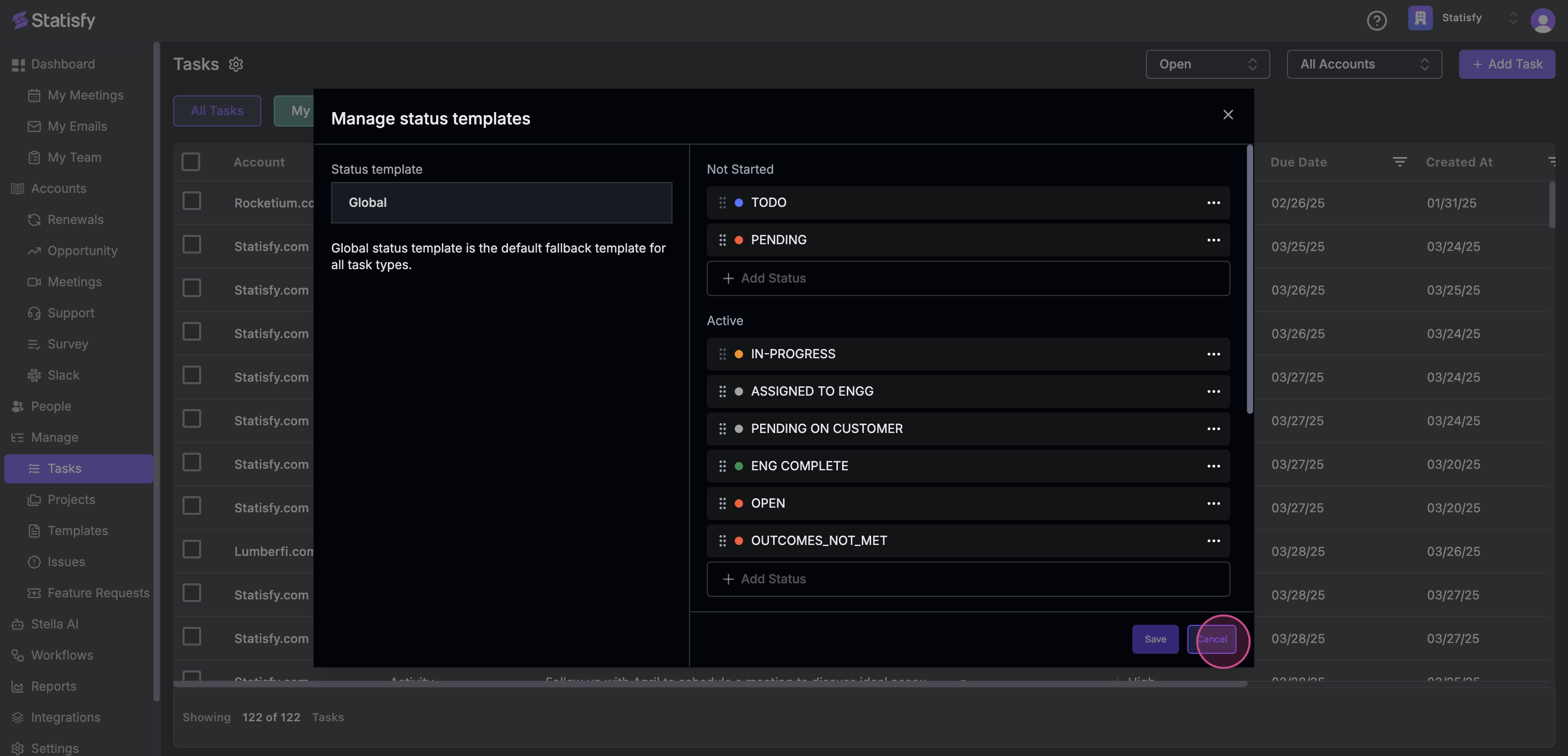
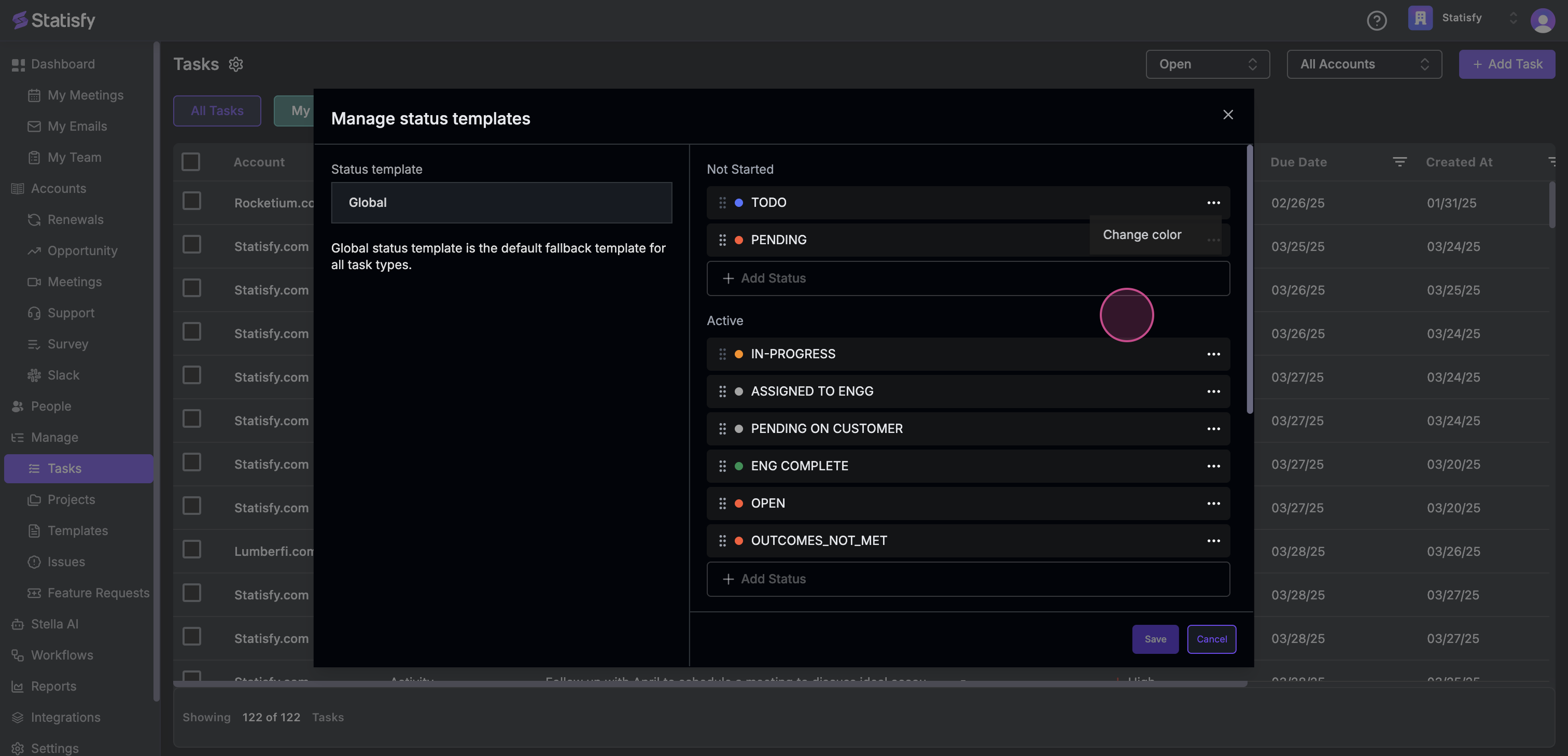
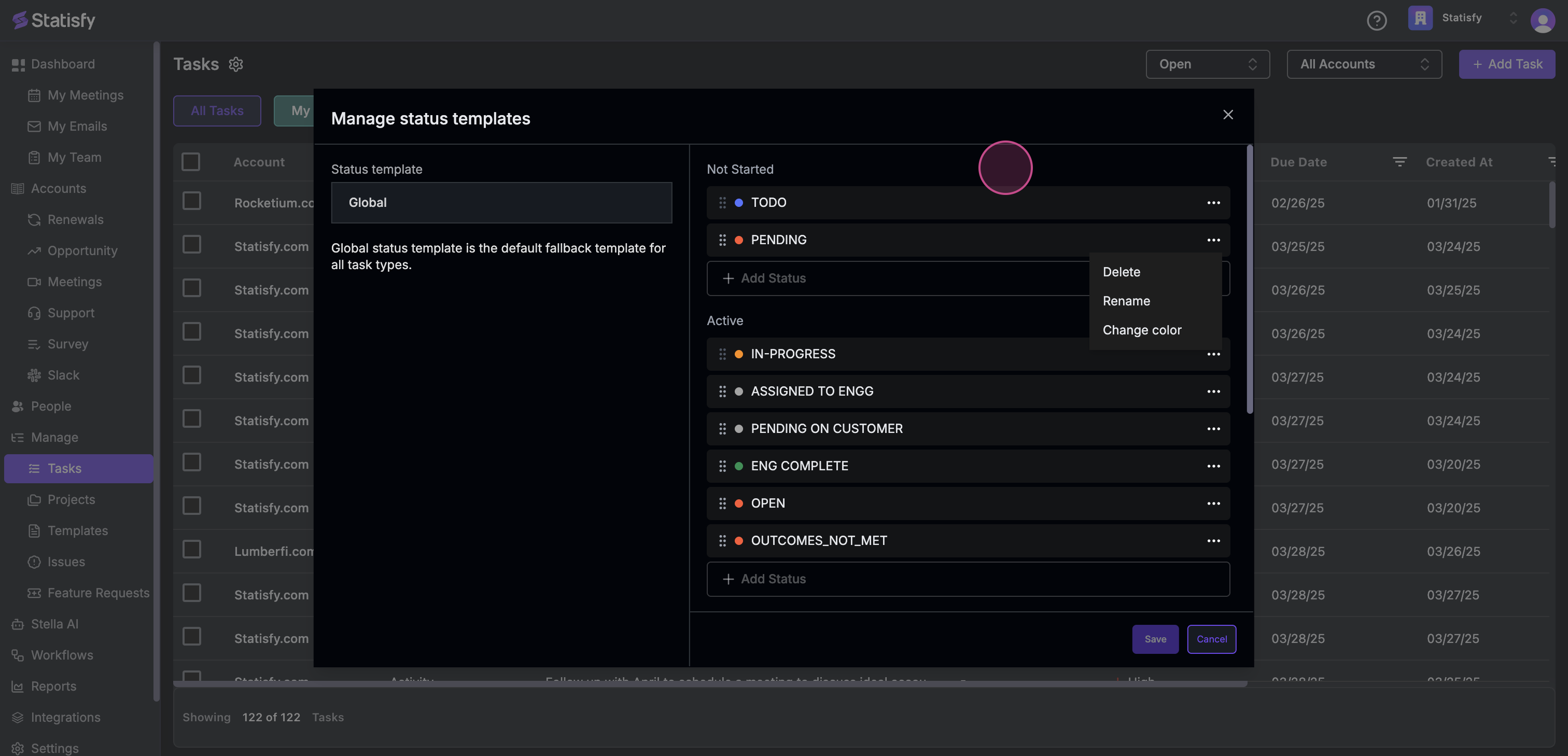
Here, you're able to manage all the statuses. You're free to change the color of the status, delete it, or rename it.
![](https://usercontent.us.prod.clueso.io/2f8a9fc9-c323-4fe7-909f-ec00073876d9/25ca48cc-86de-461b-bd4b-c3a53b1268b5/a187b093-f881-4205-808e-7d7ad92d2718/images/a49922f6-824a-4ea0-bbe6-ca63a36d2d45.png)

![](https://usercontent.us.prod.clueso.io/2f8a9fc9-c323-4fe7-909f-ec00073876d9/25ca48cc-86de-461b-bd4b-c3a53b1268b5/a187b093-f881-4205-808e-7d7ad92d2718/images/b9d2c0c0-4a43-48f9-a497-eb201df56bc8.png)

**Step 4:**

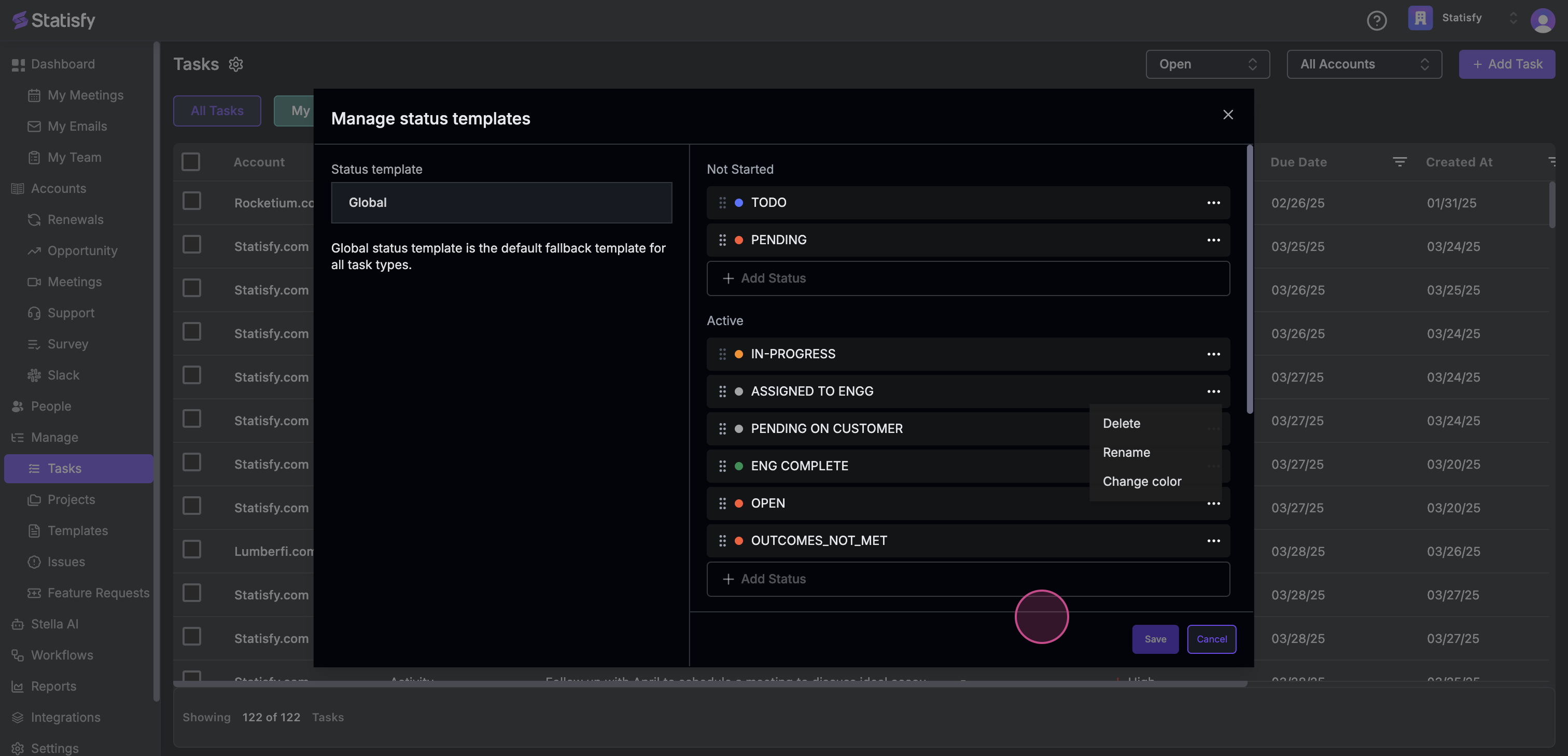
After making changes, remember to hit the **save** button.
![](https://usercontent.us.prod.clueso.io/2f8a9fc9-c323-4fe7-909f-ec00073876d9/25ca48cc-86de-461b-bd4b-c3a53b1268b5/a187b093-f881-4205-808e-7d7ad92d2718/images/341f1bcc-d3b5-4334-83c7-38f7a642da0c.png)

![](https://usercontent.us.prod.clueso.io/2f8a9fc9-c323-4fe7-909f-ec00073876d9/25ca48cc-86de-461b-bd4b-c3a53b1268b5/a187b093-f881-4205-808e-7d7ad92d2718/images/e43aa6b5-1935-49ca-b01d-4902746286cb.png)

**Step 5:**

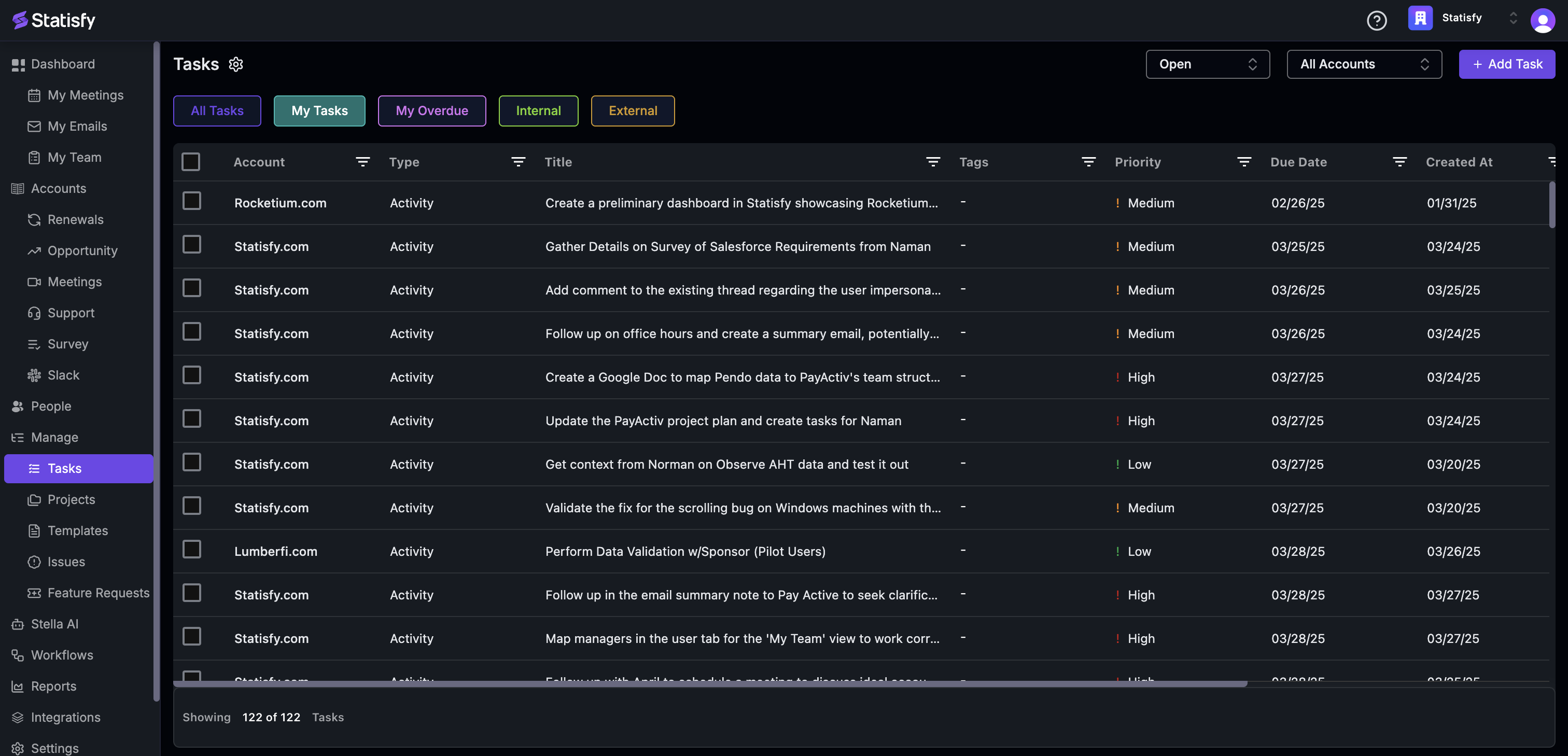
Click on **All Tasks** to view all tasks, regardless of their assignment.
![](https://usercontent.us.prod.clueso.io/2f8a9fc9-c323-4fe7-909f-ec00073876d9/25ca48cc-86de-461b-bd4b-c3a53b1268b5/a187b093-f881-4205-808e-7d7ad92d2718/images/a9109b42-a5fa-47f8-96f2-24f1a545e21e.png)

**Step 6:**

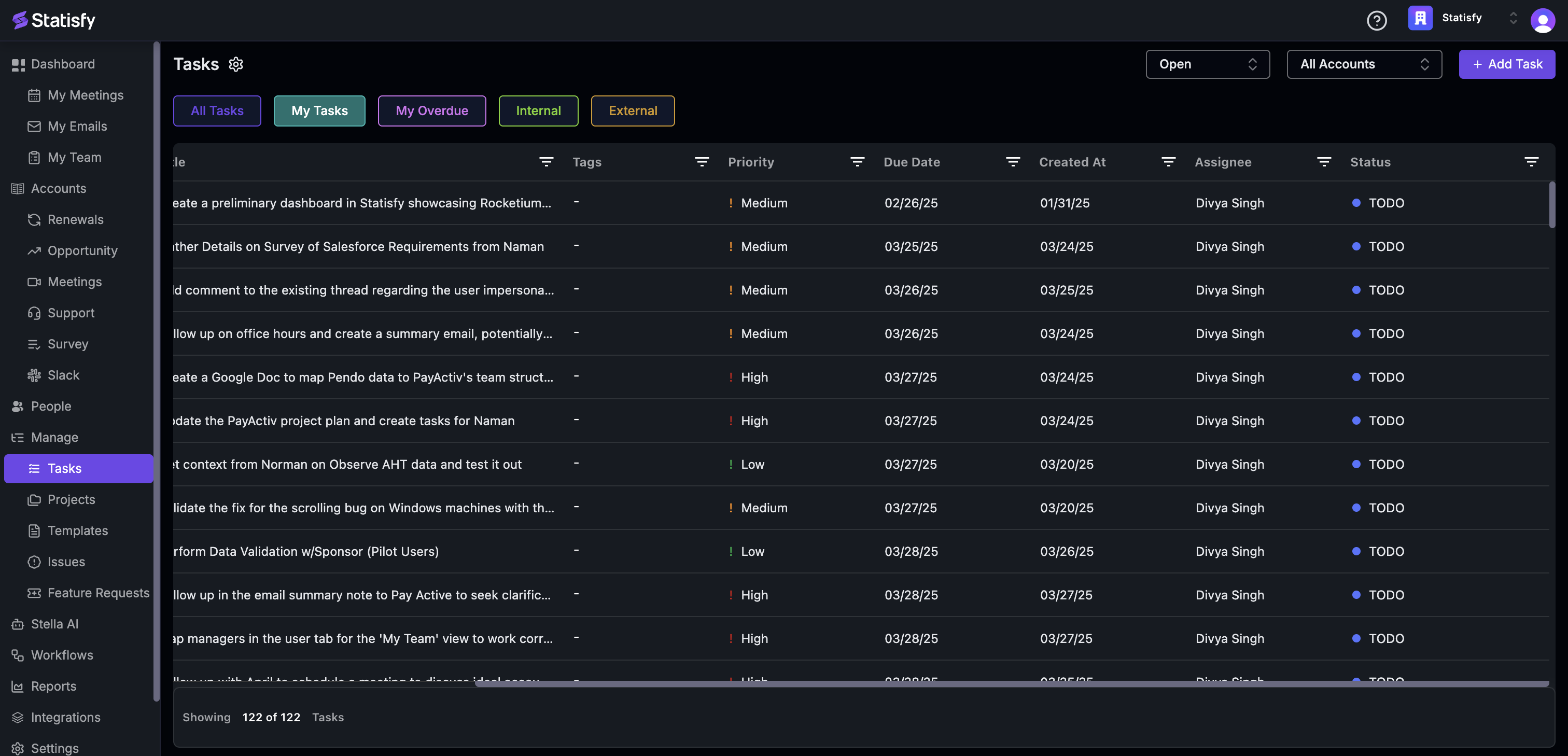
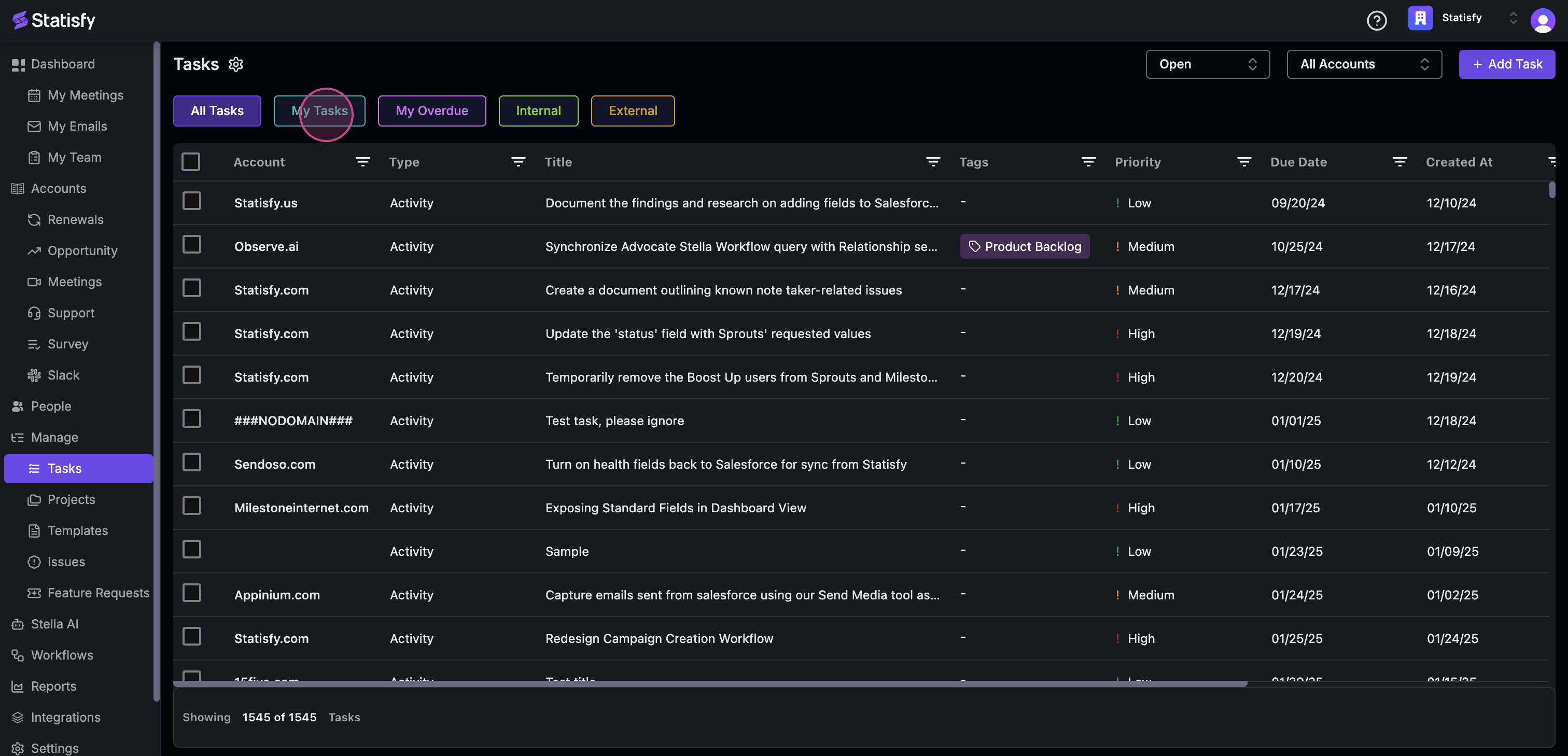
To view tasks assigned to you, click on **My Task**.
![](https://usercontent.us.prod.clueso.io/2f8a9fc9-c323-4fe7-909f-ec00073876d9/25ca48cc-86de-461b-bd4b-c3a53b1268b5/a187b093-f881-4205-808e-7d7ad92d2718/images/3a44b4f4-c647-4699-b22b-a21f49c6f2ec.png)

**Step 7:**

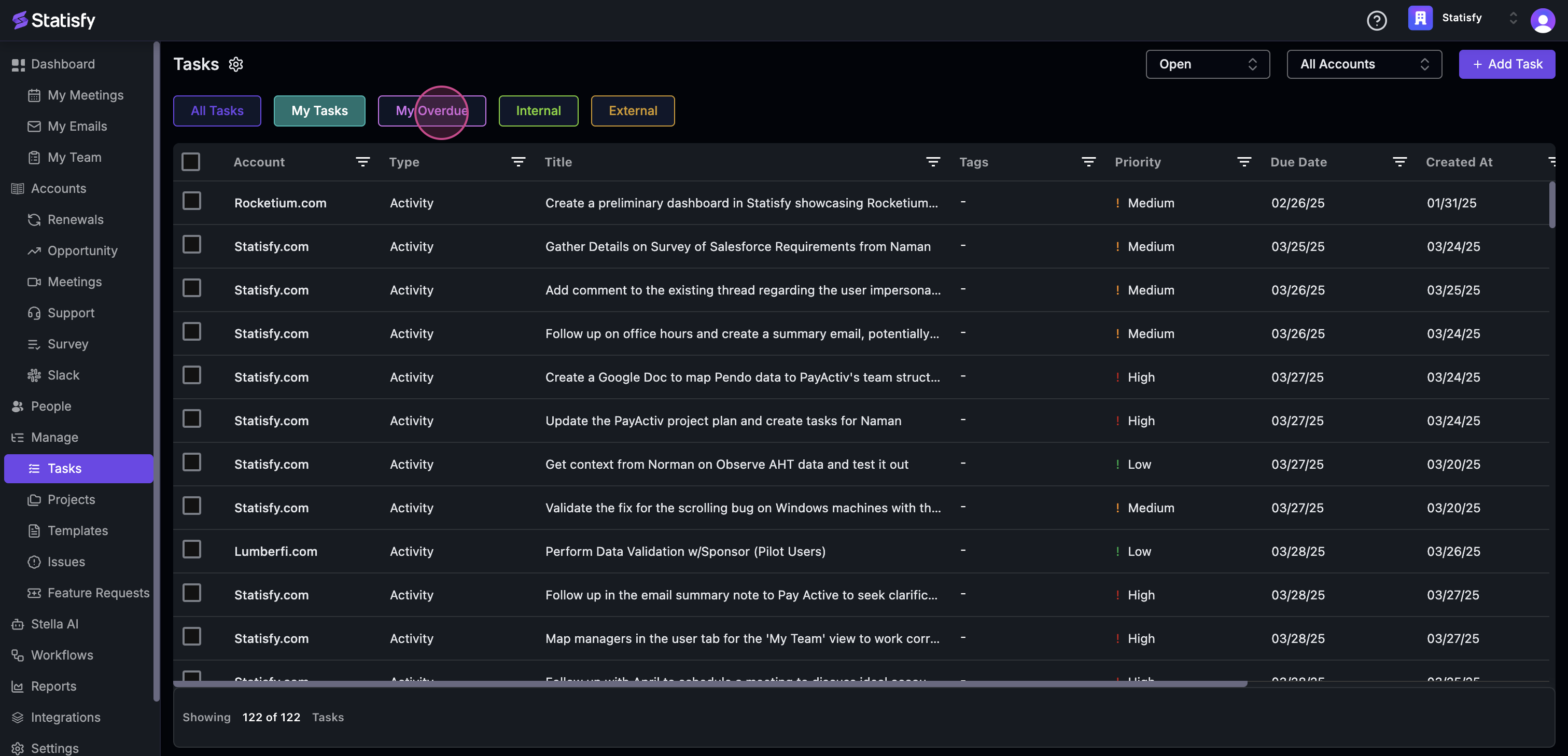
Tasks that have passed their due date will be found under **My Overdue Tasks**.
![](https://usercontent.us.prod.clueso.io/2f8a9fc9-c323-4fe7-909f-ec00073876d9/25ca48cc-86de-461b-bd4b-c3a53b1268b5/a187b093-f881-4205-808e-7d7ad92d2718/images/faa74082-c337-4c72-a2d8-9a8217d74f7c.png)

**Step 8:**

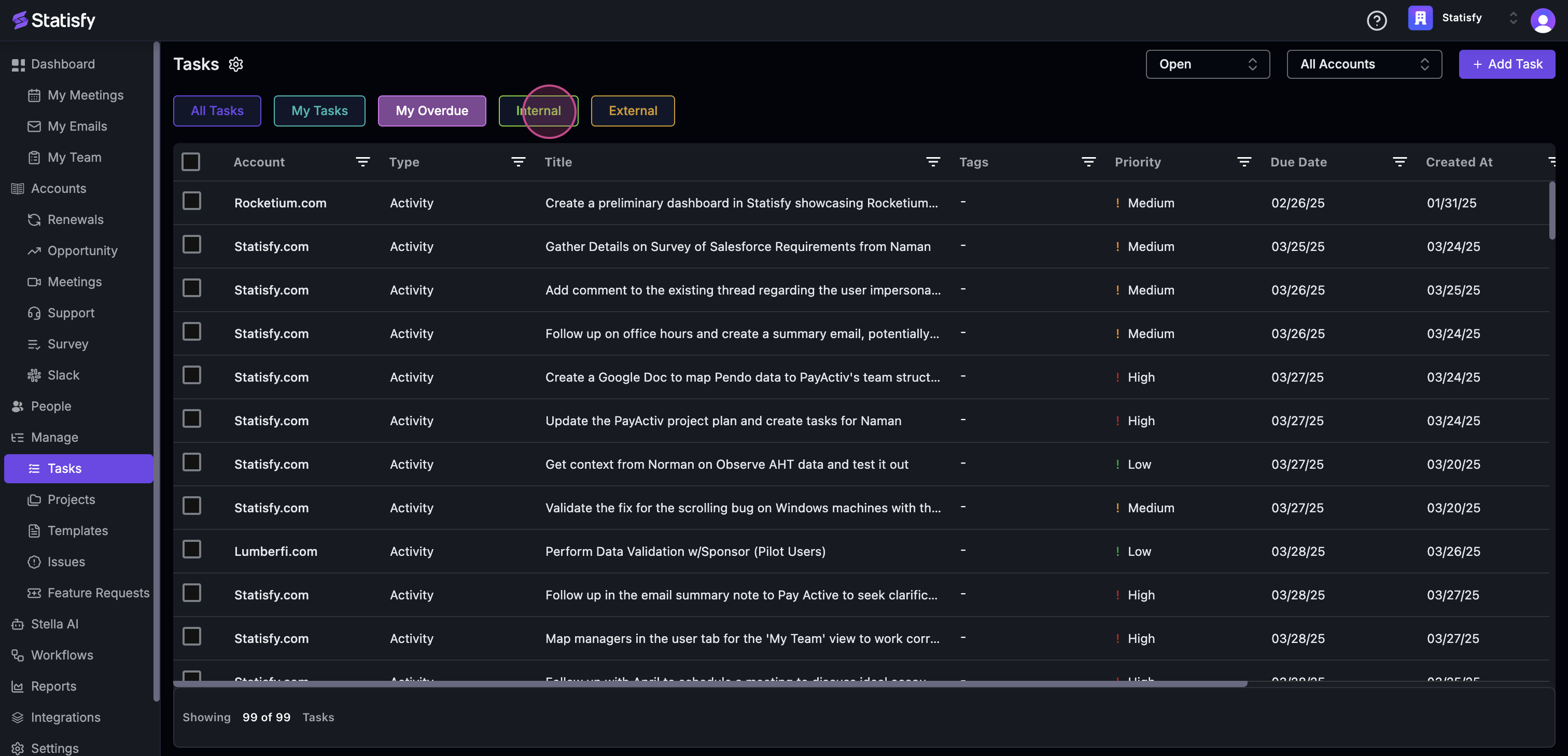
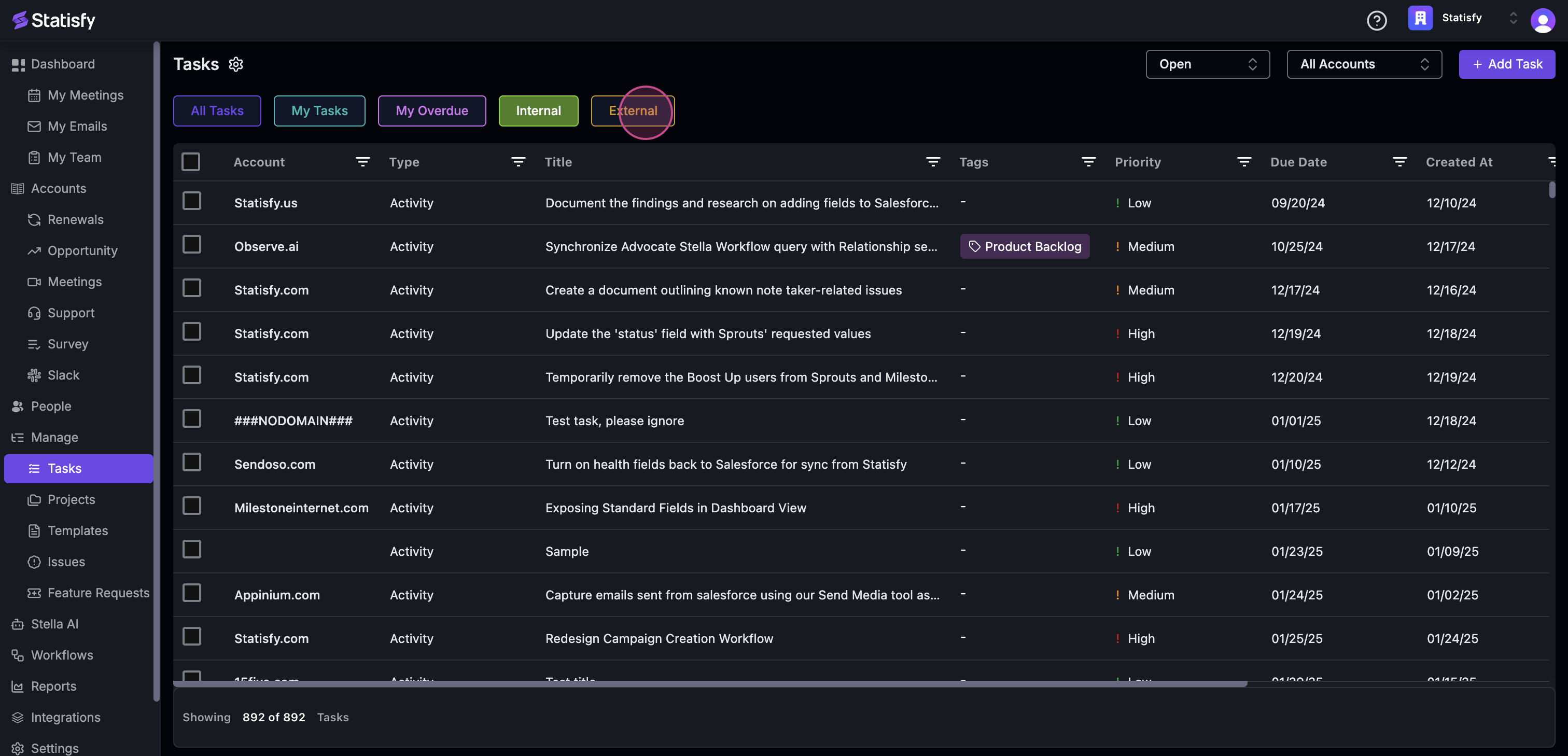
Tasks within the organization are located under **Internal Task**, while tasks outside the organization are under **External Task**.
![](https://usercontent.us.prod.clueso.io/2f8a9fc9-c323-4fe7-909f-ec00073876d9/25ca48cc-86de-461b-bd4b-c3a53b1268b5/a187b093-f881-4205-808e-7d7ad92d2718/images/7c46c3fb-2981-4aa8-94f0-a02aaac8f3b5.png)

![](https://usercontent.us.prod.clueso.io/2f8a9fc9-c323-4fe7-909f-ec00073876d9/25ca48cc-86de-461b-bd4b-c3a53b1268b5/a187b093-f881-4205-808e-7d7ad92d2718/images/93d0e219-183f-4d56-af06-4ca45242cbb9.png)

**Step 9:**

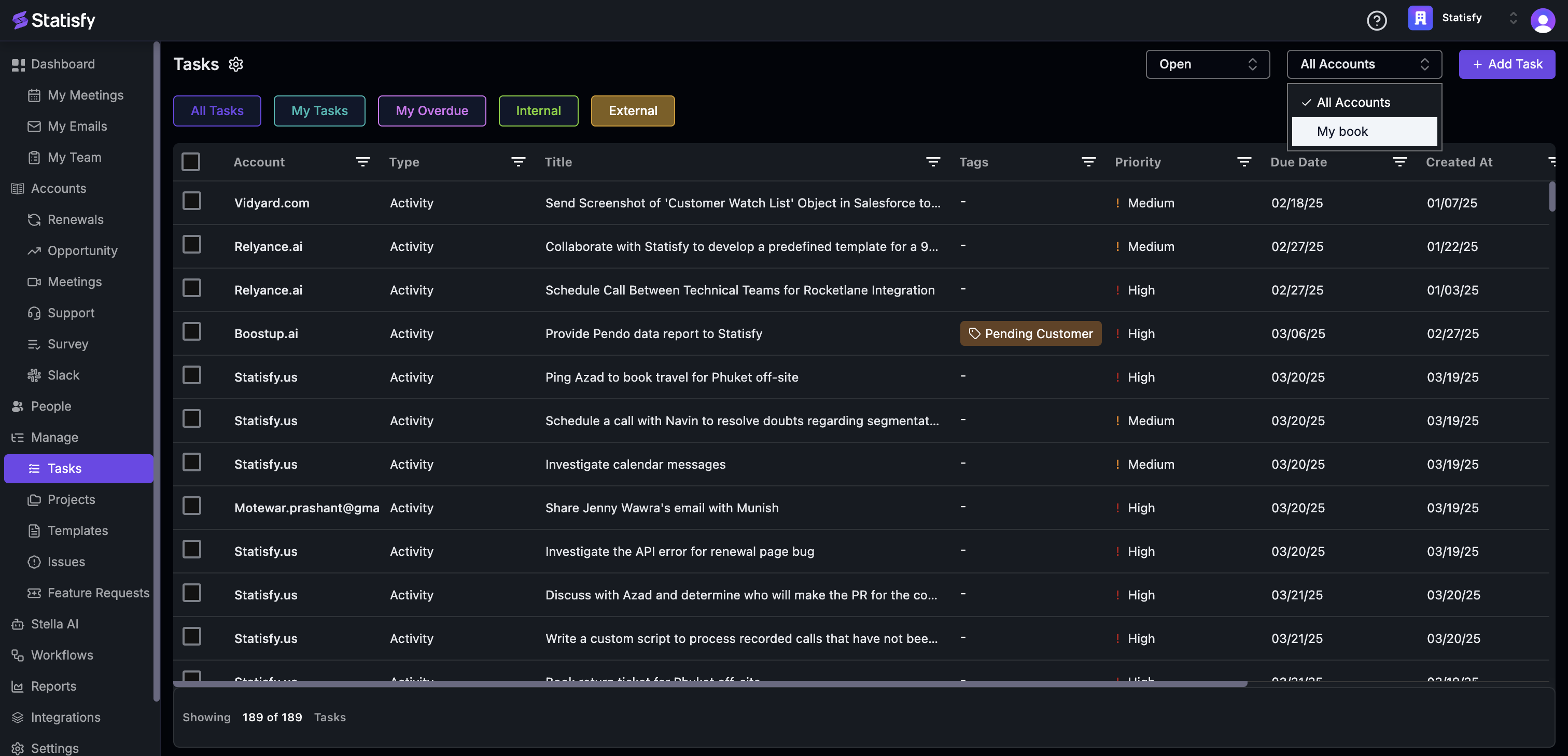
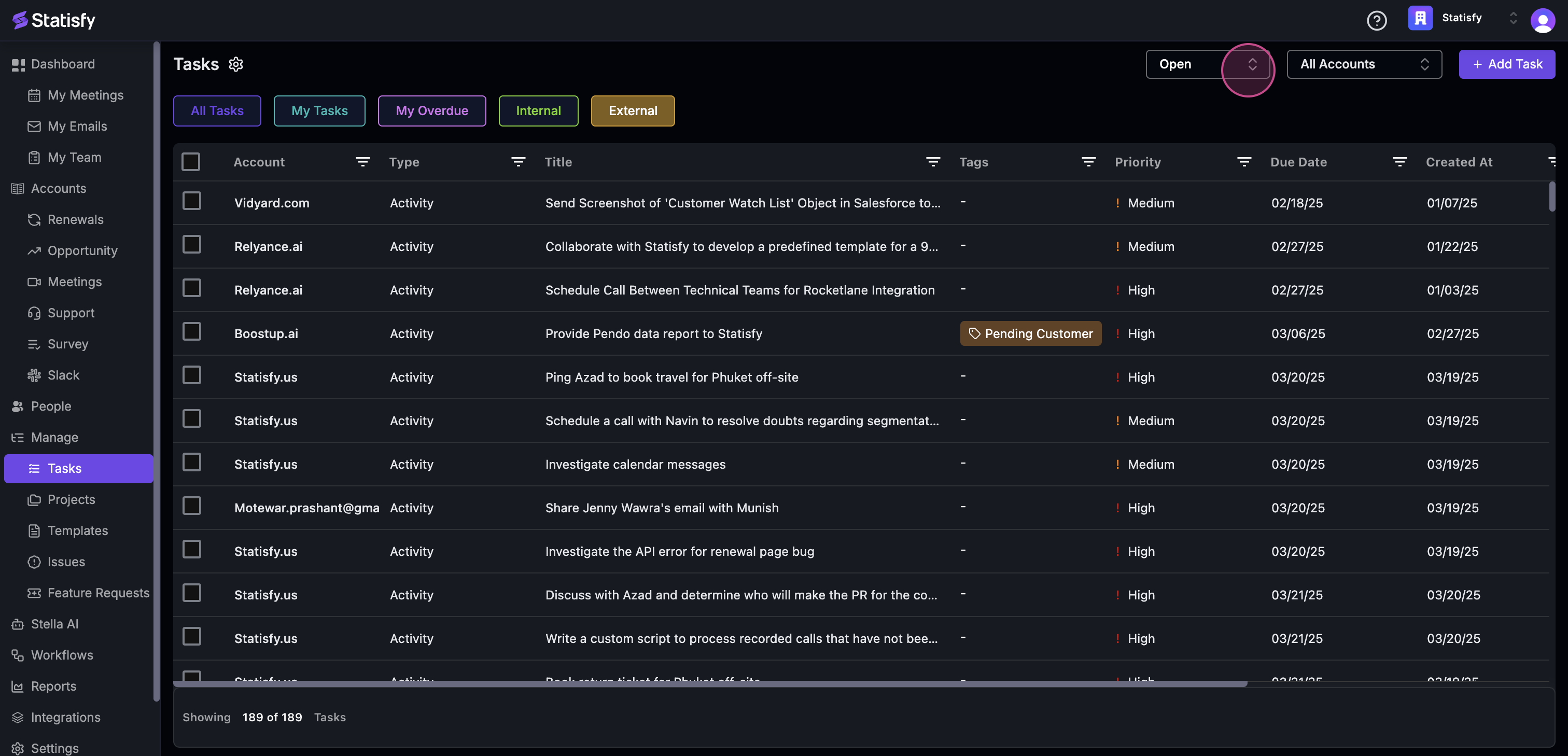
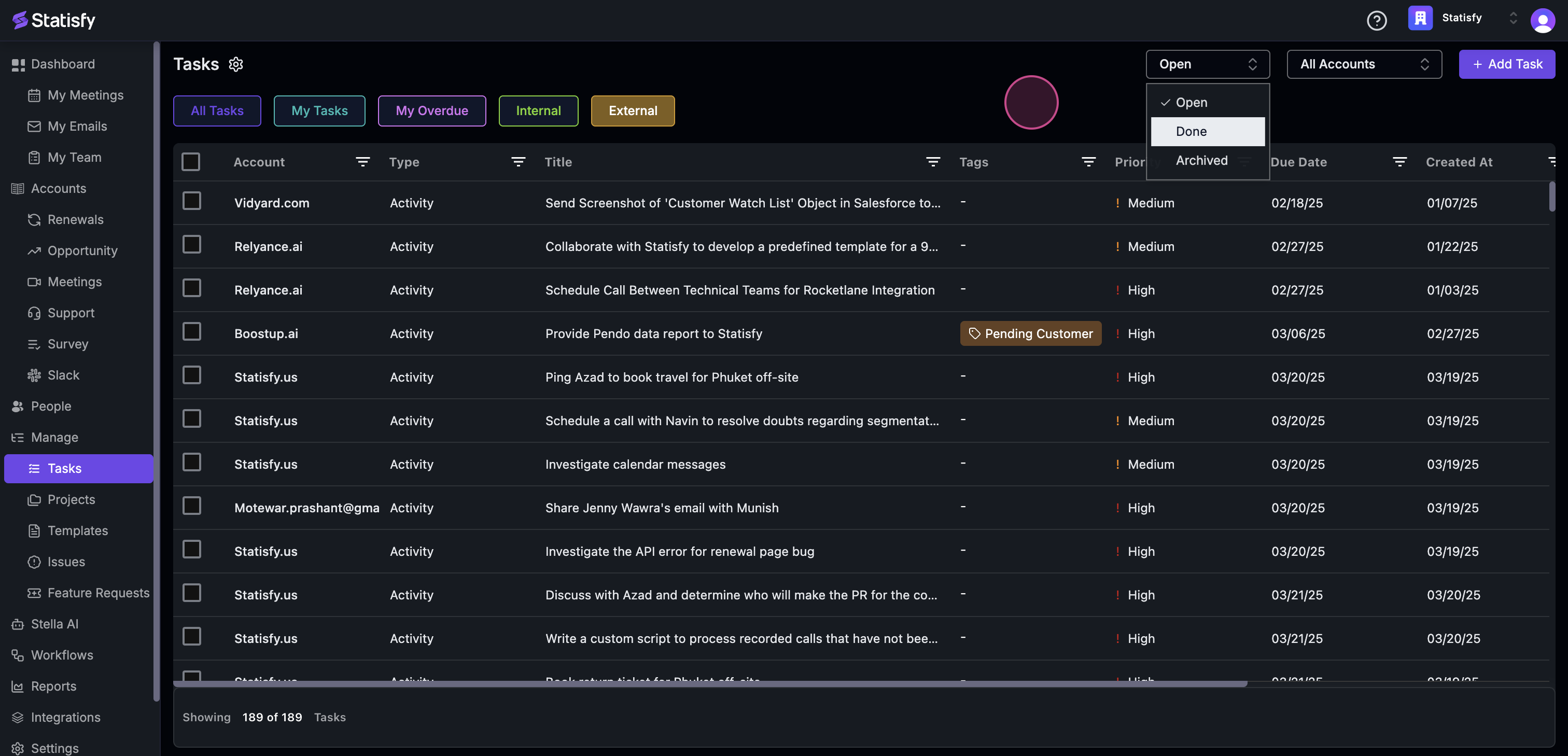
Tasks can also be displayed based on their status: open, done, or archived. They can also be displayed based on all accounts or just your book.
![](https://usercontent.us.prod.clueso.io/2f8a9fc9-c323-4fe7-909f-ec00073876d9/25ca48cc-86de-461b-bd4b-c3a53b1268b5/a187b093-f881-4205-808e-7d7ad92d2718/images/41e28da7-40e7-4c10-87ae-fe2ed28dc71f.png)

![](https://usercontent.us.prod.clueso.io/2f8a9fc9-c323-4fe7-909f-ec00073876d9/25ca48cc-86de-461b-bd4b-c3a53b1268b5/a187b093-f881-4205-808e-7d7ad92d2718/images/206a545c-5777-4a24-a561-245440e32b3b.png)

![](https://usercontent.us.prod.clueso.io/2f8a9fc9-c323-4fe7-909f-ec00073876d9/25ca48cc-86de-461b-bd4b-c3a53b1268b5/a187b093-f881-4205-808e-7d7ad92d2718/images/f26d6856-f06f-46b8-977d-4b869ce69a10.png)

![](https://usercontent.us.prod.clueso.io/2f8a9fc9-c323-4fe7-909f-ec00073876d9/25ca48cc-86de-461b-bd4b-c3a53b1268b5/a187b093-f881-4205-808e-7d7ad92d2718/images/00a332f9-246b-4031-8caf-08ca116f6d9b.png)

**Step 10:**

To manually add a new task, use the **Add Task** icon.
![](https://usercontent.us.prod.clueso.io/2f8a9fc9-c323-4fe7-909f-ec00073876d9/25ca48cc-86de-461b-bd4b-c3a53b1268b5/a187b093-f881-4205-808e-7d7ad92d2718/images/60dd1b95-1c92-4cc7-aaee-212a6d8ac7f2.png)

**Step 11:**

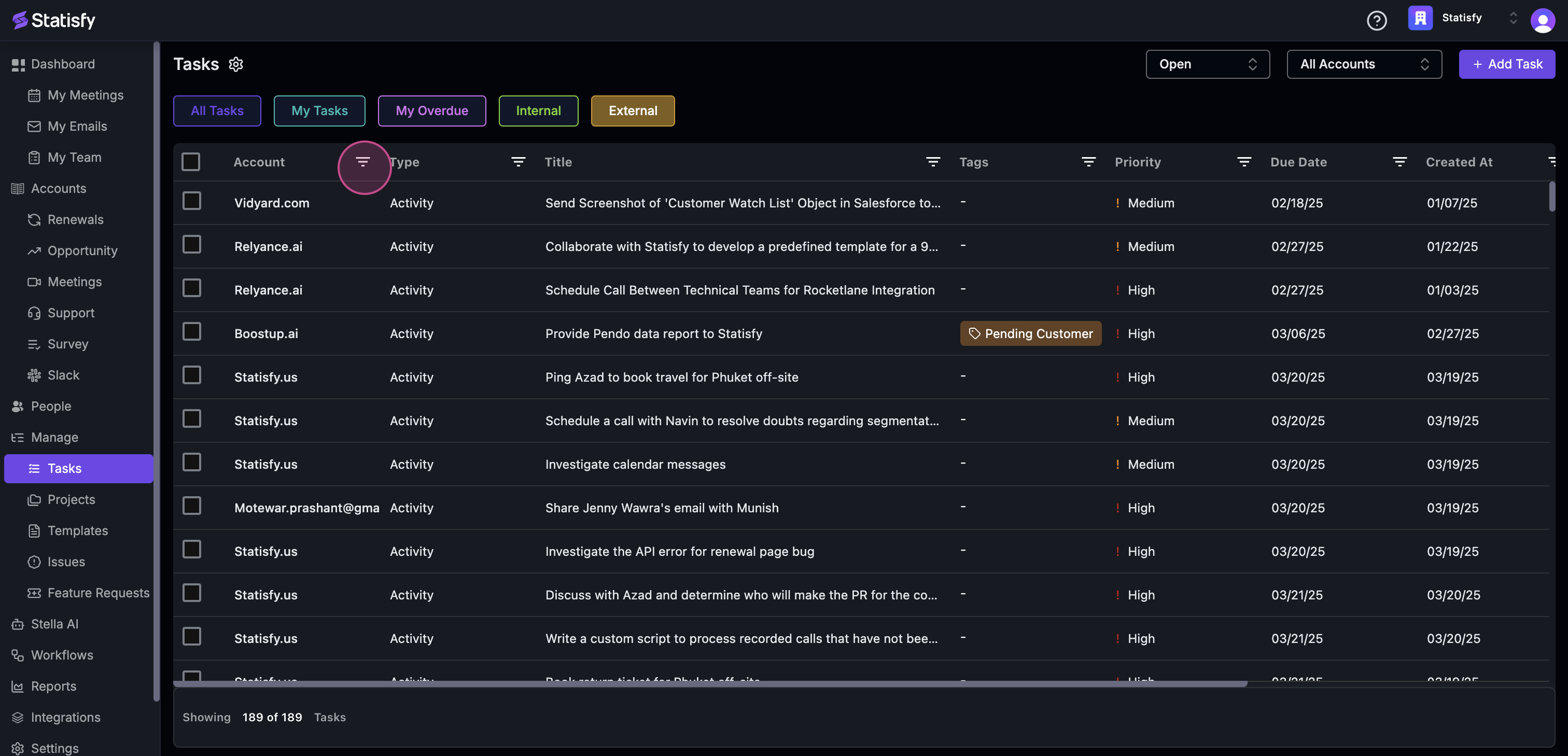
Use the filters to sort through the account type, title tags, etc.
![](https://usercontent.us.prod.clueso.io/2f8a9fc9-c323-4fe7-909f-ec00073876d9/25ca48cc-86de-461b-bd4b-c3a53b1268b5/a187b093-f881-4205-808e-7d7ad92d2718/images/089ddc45-c0ba-469e-9dd6-4556613266f2.png)

**Step 12:**

To edit multiple tasks at once, click the checkboxes next to the tasks you want to update. A bar appears showing how many tasks are selected (for example, **3 selected**) — click the **X** on the bar at any time to clear your selection.

1. In the bar, open the **Select field to edit...** dropdown. You can type in the search box to quickly find the field you need.
2. Choose the field and enter the new value. You can bulk edit **Title**, **Due Date**, **Priority**, **Assignee**, **Description**, **Status**, and **Tags**, as well as most task custom fields.
3. Click **Apply to Selected** to update every selected task in one go (the button shows **Applying...** while the change saves), or **Cancel** to back out. A "Tasks updated successfully." confirmation appears when the update completes.

<Note>
  A few custom fields are view-only in bulk edit — for example, fields that link a task to an account or an external contact. Edit those on the individual task instead.
</Note>

## Sorting the Task List

Click any column header to sort the list by that column; click again to reverse the order. This works for standard columns (due date, status, account) and for any custom-field columns your admin has added to tasks.

<Tip>
  To show task custom fields as columns, open the **Customize** menu on the Tasks page and use **Select Fields to Display** to pick which fields appear in the table.
</Tip>

## Sharing a Link to a Task

Open a task and click the **share icon** (tooltip: **Copy Link**). A direct link to that exact task is copied to your clipboard — paste it in Slack, an email, or anywhere else. Anyone in your Statisfy organization who opens the link lands directly on that task.

## Saving Task Views

The Tasks page supports saved views, just like Accounts: set up your filters and columns, then save them as a view you can switch back to any time from the view selector. See [Creating a New View](/views/creating_new_view_and_exporting_the_data) — the same steps apply here.