> ## Documentation Index
> Fetch the complete documentation index at: https://help.statisfy.com/llms.txt
> Use this file to discover all available pages before exploring further.
# Manage Task Status Tutorial
> In this article, you'll learn how to manage the status of Tasks.
## Video Tutorial
In this article, you'll learn how to manage the status of Tasks.
The steps below edit your organization's **global** status list — the default set of statuses used everywhere. Individual projects and project templates can also use their own status lists instead. See [Use a different status list for a project](#use-a-different-status-list-for-a-project) below.
**Step 1:** Start by clicking on the **Gear icon** next to Tasks. This will display a list of all currently available statuses.
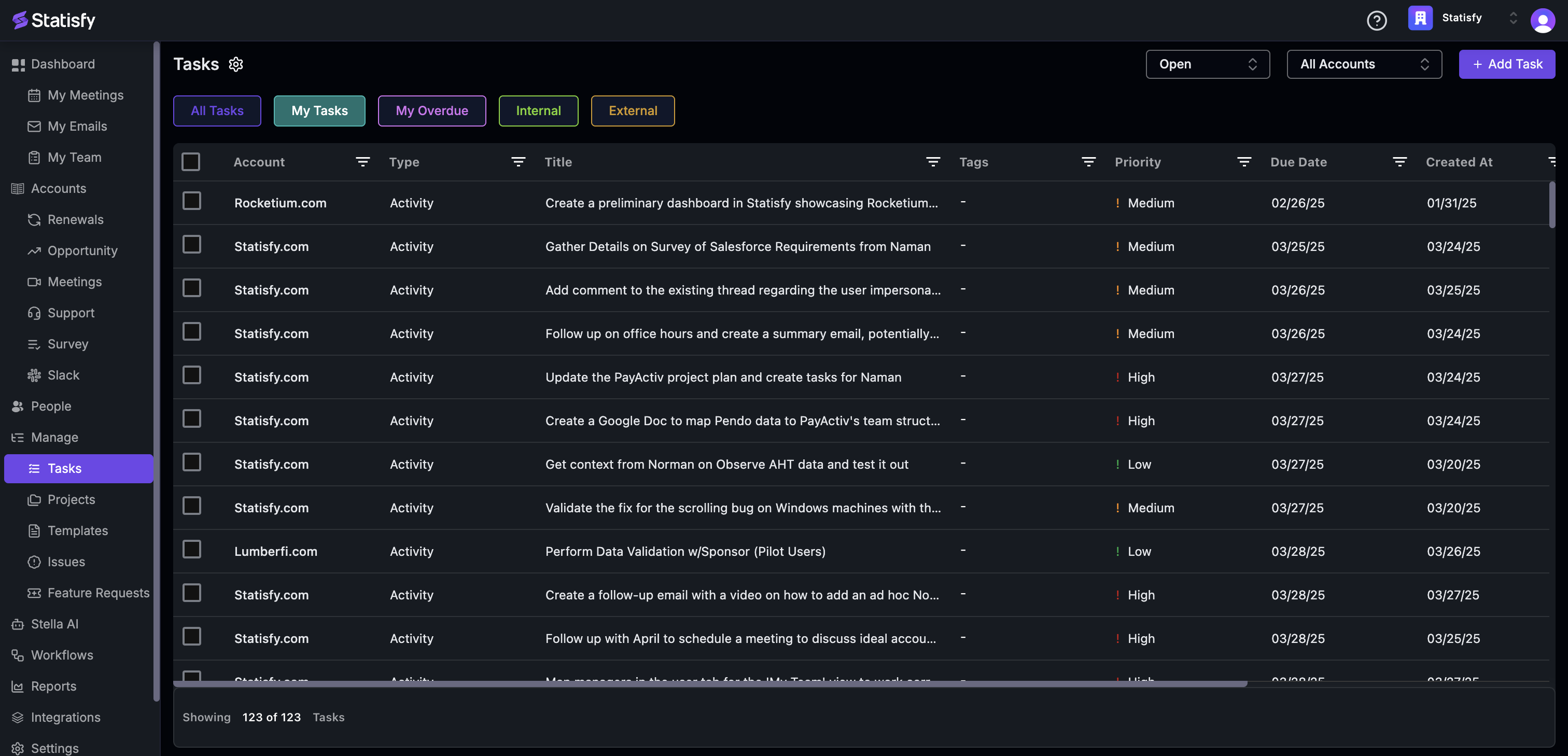
**Step 2:** Next, you have the option to create a new status.
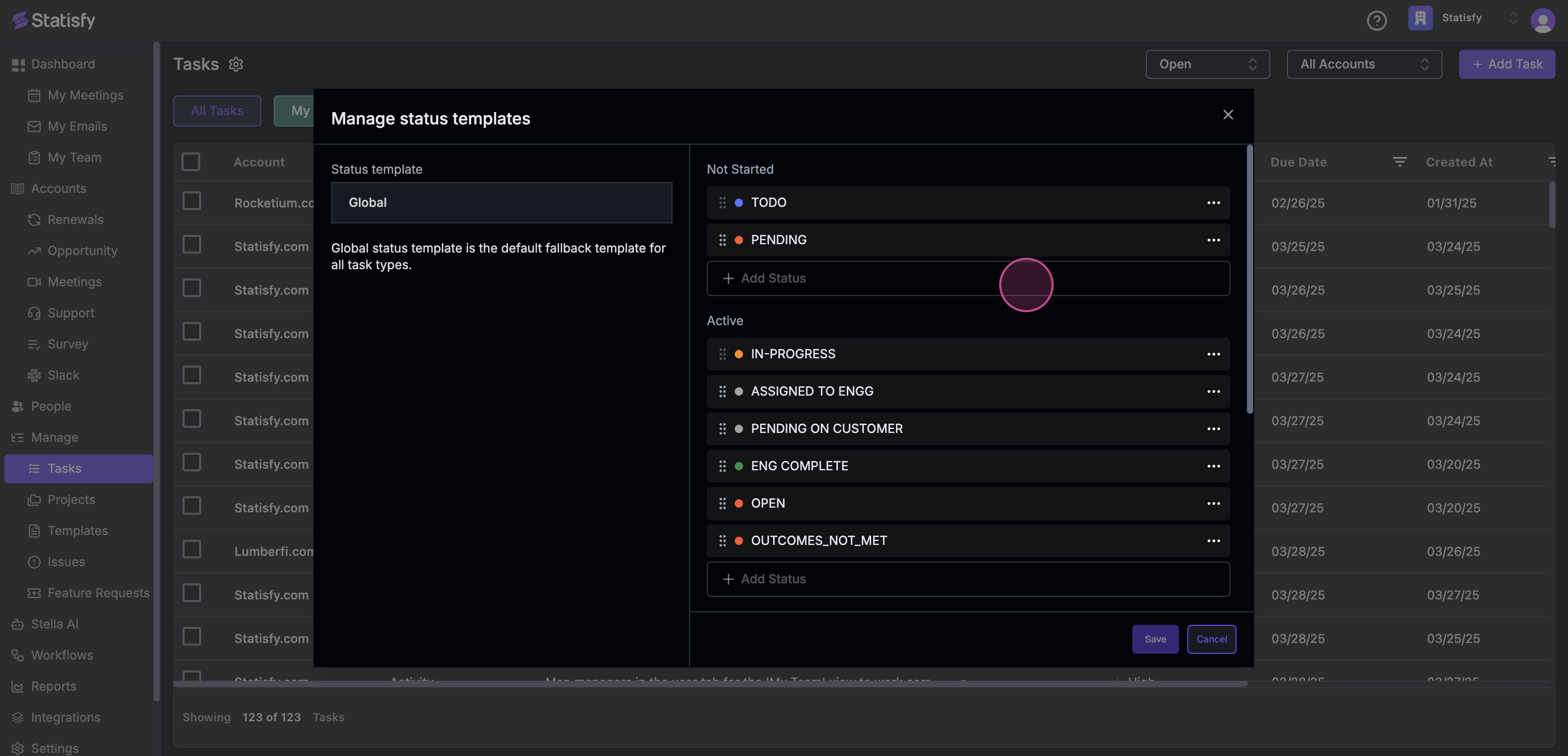
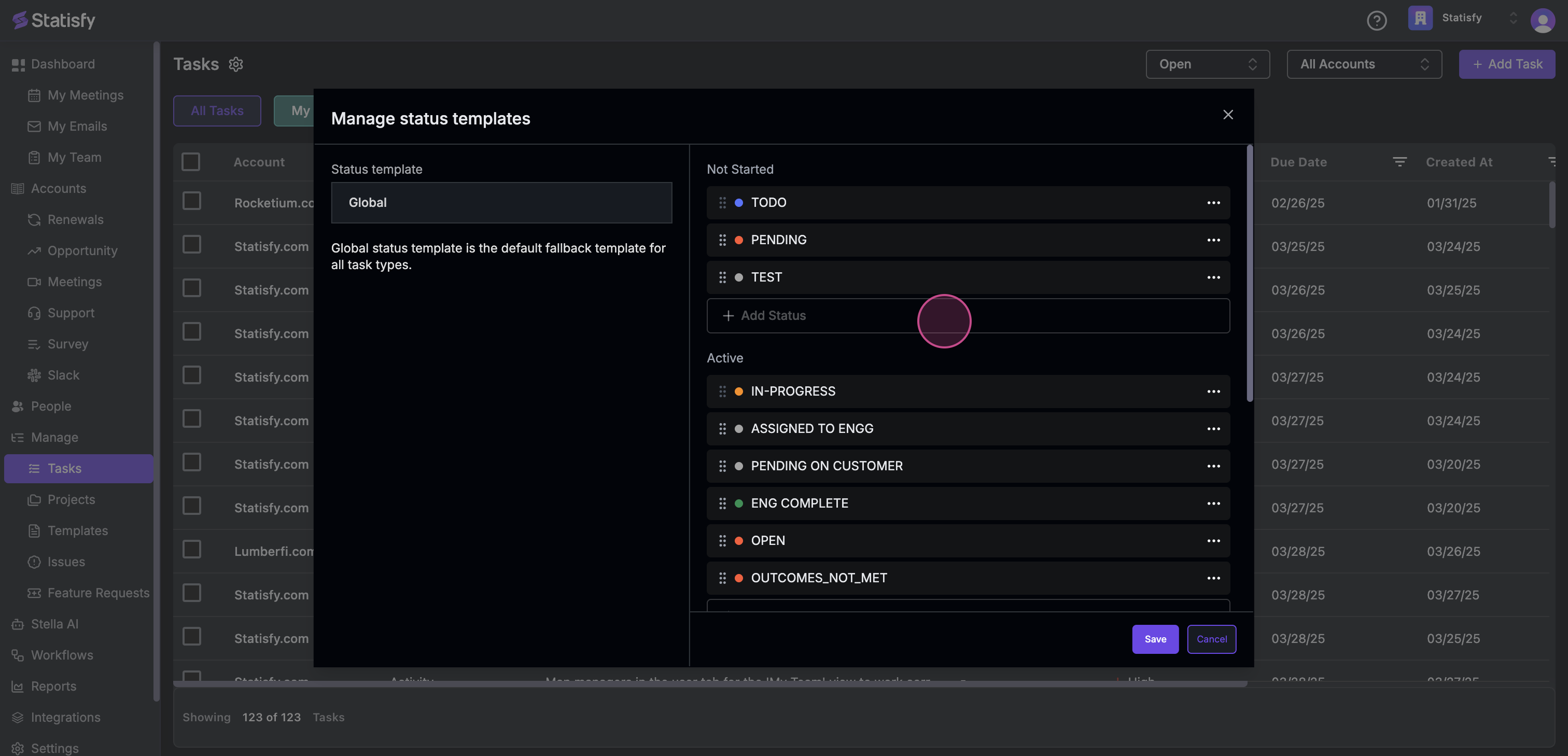
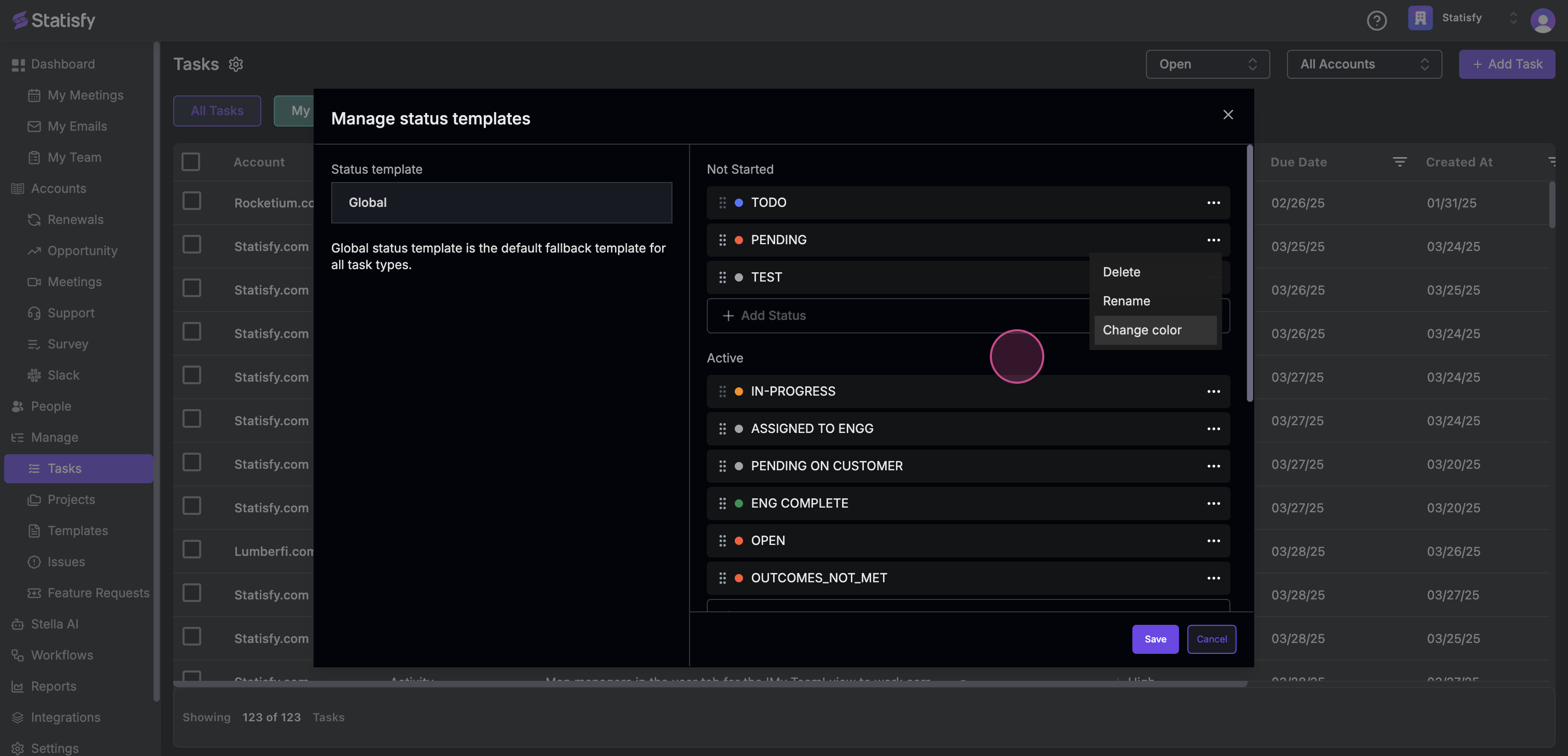
**Step 3:** Alternatively, you're free to delete or rename the existing statuses.
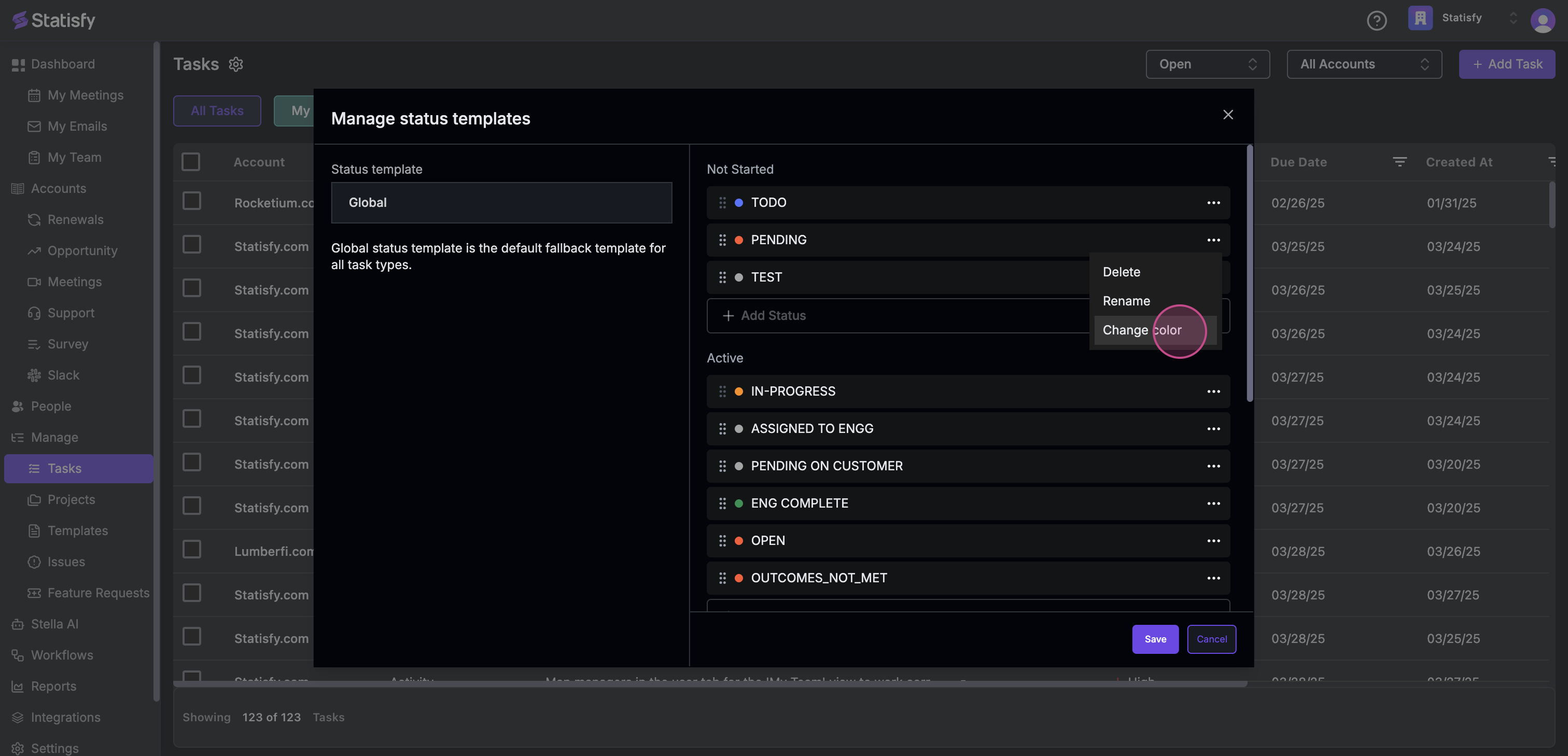
**Step 4:** You're also able to change the color of the status to any of the existing colors.
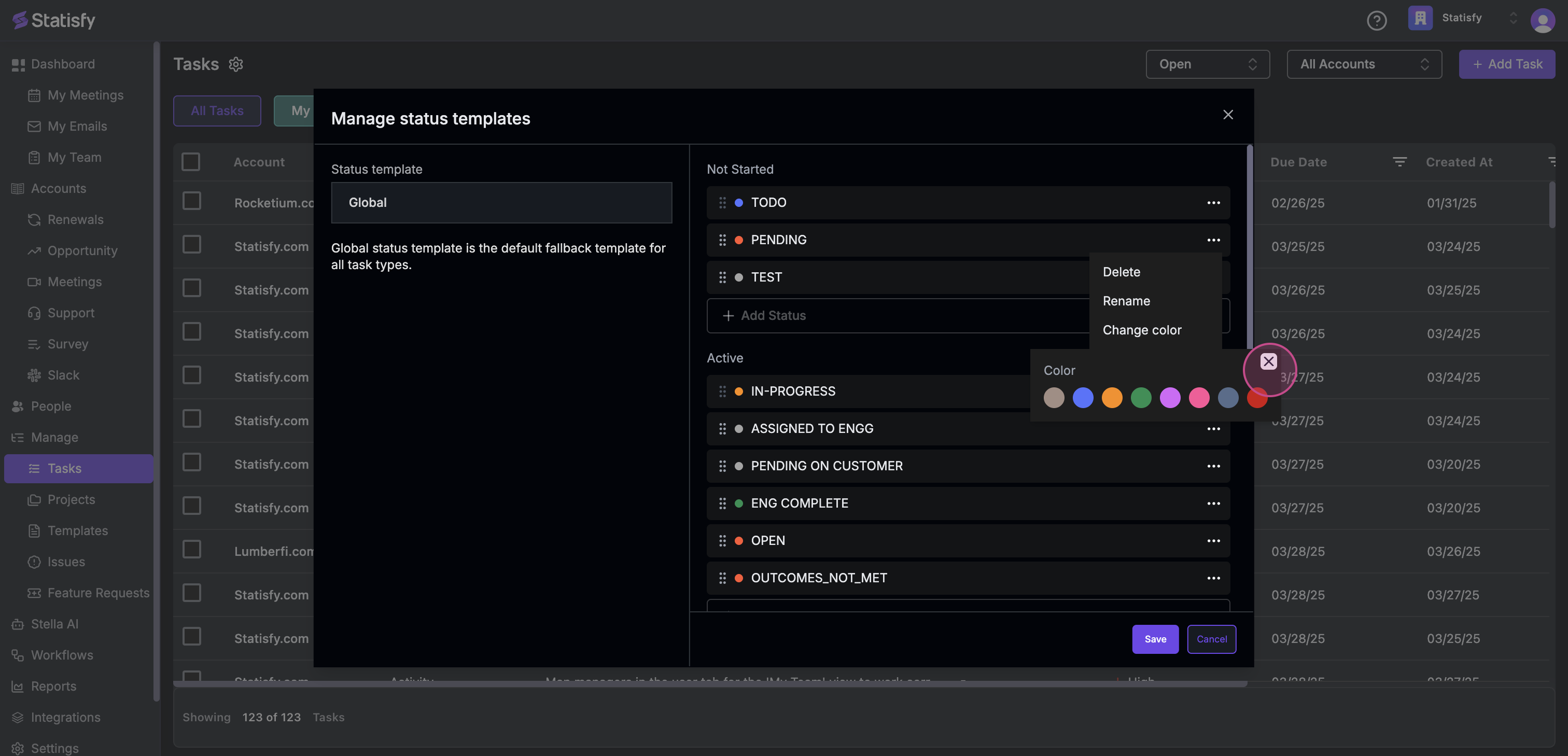
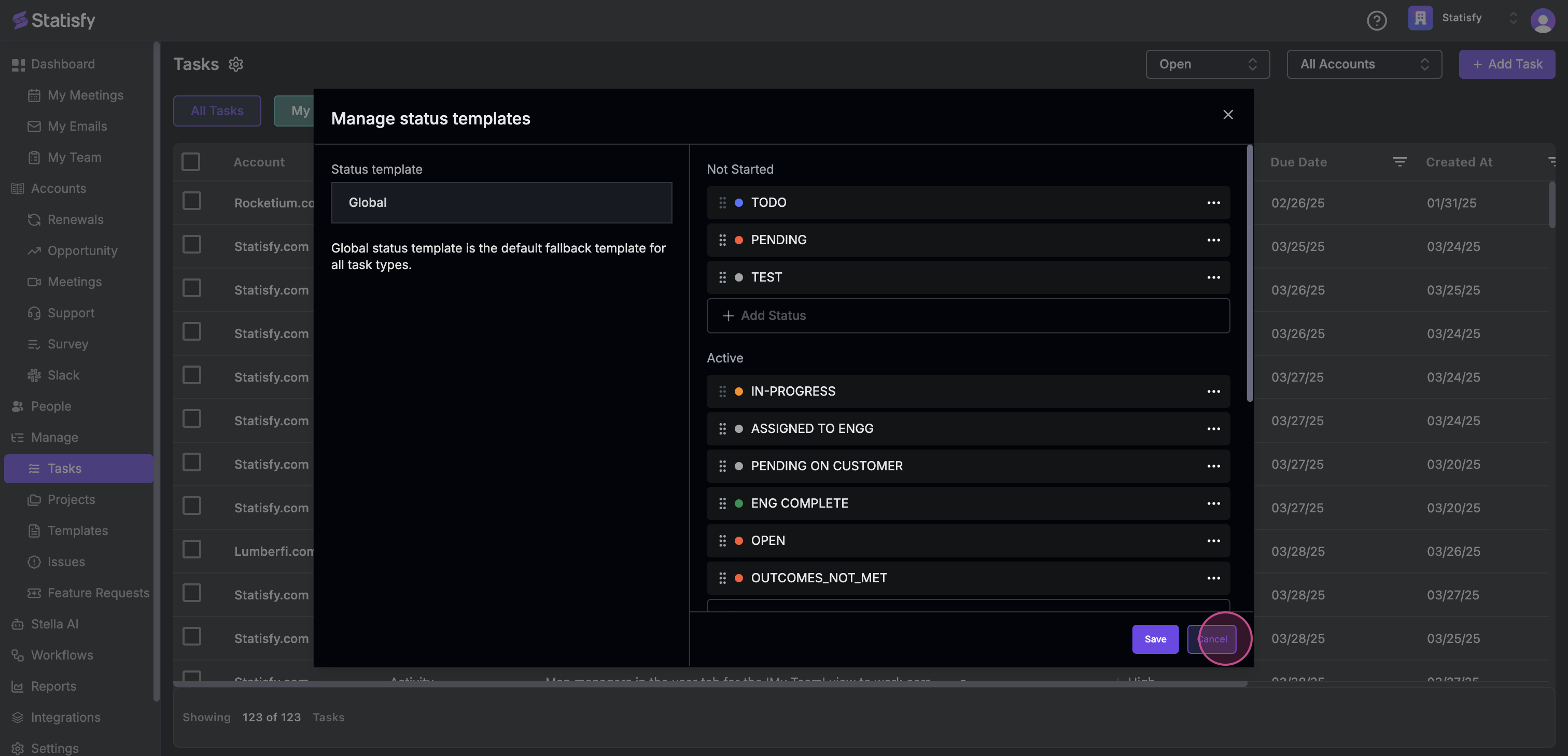
**Step 5:** Finally, don't forget to hit **Save** to ensure your changes are stored.
## Use a different status list for a project
Sometimes a single global status list isn't enough — for example, an onboarding project may need stages like "Kickoff scheduled" that don't make sense elsewhere. **Status templates** let a project or project template use its own set of statuses instead of the global list.
**Step 1:** Open a project (or project template) and click **Customize** in the top-right, then select **Manage Status Templates**. You'll need edit access to the project and settings permission to see this option.
**Step 2:** In the **Manage Status Templates** window, switch between the two tabs to choose which statuses you're customizing:
* **Project** (or **Project Template**) — the statuses of the project itself.
* **Project Tasks** (or **Project Template Tasks**) — the statuses available to tasks inside the project.
**Step 3:** Pick a status template and click **+ Associate** (for example, *+ Associate with this project*) to apply it. The active template shows a checkmark with **Currently using this template**, and the **Currently using** line at the top tells you which template is in effect and where it comes from.
When several status templates could apply, Statisfy uses the most specific one. "Resolution order" simply means the order in which it checks for a template, stopping at the first match:
* **For the project itself:** project → project template → global list
* **For tasks in the project:** project task → project template task → task type → global list
The **Template Resolution Order** info box in the window shows this same order, and the **Currently using** line names the source (for example, *via project template*) so you always know why a particular status list is in effect.
When you create a project from a project template, the template's status template associations carry over automatically — no need to set them up again on each new project.