> ## Documentation Index
> Fetch the complete documentation index at: https://help.statisfy.com/llms.txt
> Use this file to discover all available pages before exploring further.
# External sharing
> Share projects and documents with people outside your organization by email or domain, and understand what recipients experience.
External sharing lets you give people **outside your organization** read access to a specific project or document — without adding them to your workspace. You share by **email address** or by **email domain**, and recipients open a private link to view.
## How to share
**Prerequisites**
* You're an **admin** of the workspace — only admins can grant or revoke external access.
* The item is a **project** or a **document** — both expose a **Share** button in the header.
**Steps**
1. Open the project or document you want to share.
2. Open the **Share** dialog. For a project, turn on **Share externally** — this enables customer access and unlocks the sharing controls. (Turning it off later cuts customer access even if grants remain.)
3. Enter either an **email address** (e.g. `jordan@acme.com`) or a **domain** (e.g. `acme.com`).
4. Click **Share**. The recipient can now open the share link and view the item.
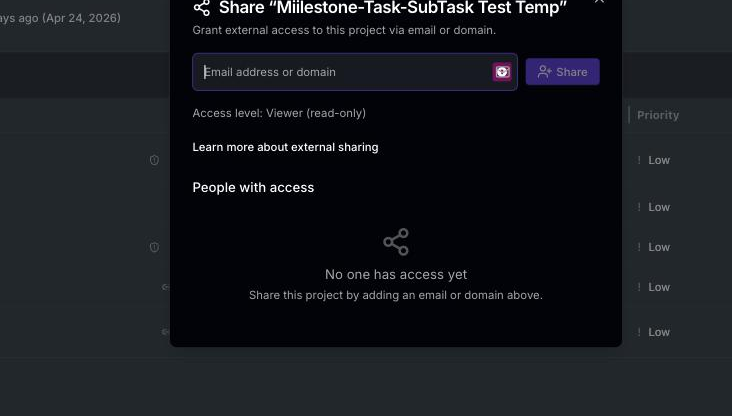
Recipients you add by **email** are notified automatically. For **domain** shares, copy the link from the share dialog and send it to them yourself.
Only admins can grant or revoke external access. Shared links are not anonymous — every recipient signs in before they can view anything.
Adding the first email or domain grant turns **Share externally** on automatically, so the toggle always reflects whether anyone currently has customer access.
## What recipients experience
The first-time experience depends on how you shared:
| You shared by | First-time recipient experience |
| ----------------- | ------------------------------------------------------------------------------------- |
| **Email address** | They just **sign in** — with an emailed code or with Google. No account to create. |
| **Email domain** | They **create an account** the first time. Anyone with an address at that domain can. |
Why the difference? When you share with a specific **email**, we provision that person's access ahead of time, so they only ever need to **sign in**. A **domain** share can't be provisioned for one person — any address at the domain may use it — so each new recipient **creates an account** on first use.
Sharing with a specific email gives the smoothest experience. Prefer it when you know exactly who should have access.
## What's visible on a shared project
You control what a recipient sees, per project (or project template):
* **Fields** — in **Customize → Edit field visibility**, each field has two independent switches: **Visible** (shown in your internal project view and task table) and **Share** (shown to the recipient on the shared link). See [Choosing what's visible and shared](#choosing-whats-visible-and-shared) below.
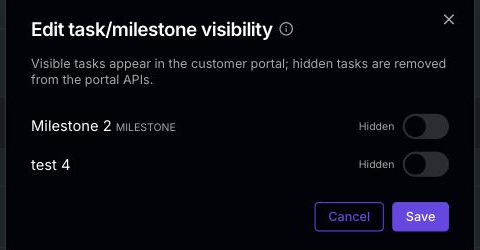
* **Tasks & milestones** — in **Customize → Edit task/milestone visibility**, hide individual tasks or milestones. Hiding a milestone also hides its child tasks; making a hidden task visible again re-shows its milestone.
* **Comments** — post each comment as a **Reply** (visible to the recipient) or an **Internal note** (kept in the app).
Custom fields with **no value** may not appear on the shared link — only fields that actually have a value on the task (or project) are shown.
## Access level
Each external grant is scoped to the shared item only — it doesn't give access to your workspace. External shares currently grant **Viewer** access:
Can view the shared item. This is the only access level available for external grants today.
## Choosing what's visible and shared
Open the project's **Customize** (gear) menu and choose **Edit field visibility**. Every field — standard and custom — has **two independent checkboxes**:
* **Visible** — the field shows in **your internal** project view and task table. Turn this on for custom fields you want your team to see and edit inline.
* **Share** — the field is **exposed to the customer** on the shared link. Turn it off to keep a field internal-only.

Because they're independent, a field can be visible internally but not shared, shared but hidden from your own view, both, or neither.
* Fields are grouped into **Project** and **Task** sections and configured independently — changing the task **Status** does not affect the project **Status**. Use the **search** box to find a field quickly.
* **Standard fields** (Status, Due date, …) are always visible in your app, so only their **Share** switch is editable. **Title** and any **mandatory** custom field are always on and can't be switched off.
* **Custom fields are visible by default but not shared** — each custom field starts with **Visible** on (so your team sees it in the project view / task table) and **Share** off (so it is not exposed to the customer). Turn **Share** on to include the field on the shared link.
* The same dialog is available on **project templates** (the tabs read **Project Template** / **Task**).
The **Share** switch only affects external viewers; the **Visible** switch controls whether *you* see the field in the internal app. There's no separate "add field" step anymore — every field is listed with both toggles.
## Choosing which tasks the customer sees
To hide specific tasks or milestones from the customer, open **Customize → Edit task/milestone visibility**. Toggle any task to **Hidden** and it is dropped from the customer portal; everything else stays **Visible**. The list is ordered to match your project view, so it's easy to find the right row.
## Sharing comments
On a shared project, comments can be kept internal or shared with the customer:
* Each comment has a **Share externally** toggle. Off (the default) keeps it internal to your team; on shares it with the customer through the portal.
* The toggle only appears once the project is shared externally — on an unshared project every comment is internal.
* Comments the customer posts from the portal are always shared.
* Whoever **writes** a comment, and anyone **@mentioned** in it, is automatically added as a follower so they're notified of future activity. They can unfollow at any time.
External viewers only ever see comments that were shared with the customer — internal comments are filtered out of the portal.
## Managing and revoking access
Open the **Share** dialog again to see everyone who currently has access. From there you can **revoke** access or **copy** a recipient's share link. Revoking takes effect on the recipient's next sign-in; an already-open session may persist briefly until it expires.
## Notes
* **Public email providers** (e.g. `gmail.com`, `outlook.com`) can't be used as a **domain** grant — add those people as **individual email** grants instead.
* Sharing works for both **projects** and **documents**.