> ## Documentation Index
> Fetch the complete documentation index at: https://help.statisfy.com/llms.txt
> Use this file to discover all available pages before exploring further.
# Creating a Portal
> Start a new customer-facing portal from a template.
Every portal starts from a template — a ready-made starting point you then customize in **Portal Studio**. This guide walks through creating one.
### Prerequisites
* Permission to manage portals in your workspace
* An active **developer key** for your workspace — Statisfy uses it to wire up your portal's live data. If you don't have one yet, you can generate it right from the create dialog (see the note below).
* A name for your portal (the content is all editable later)
### Create a Portal
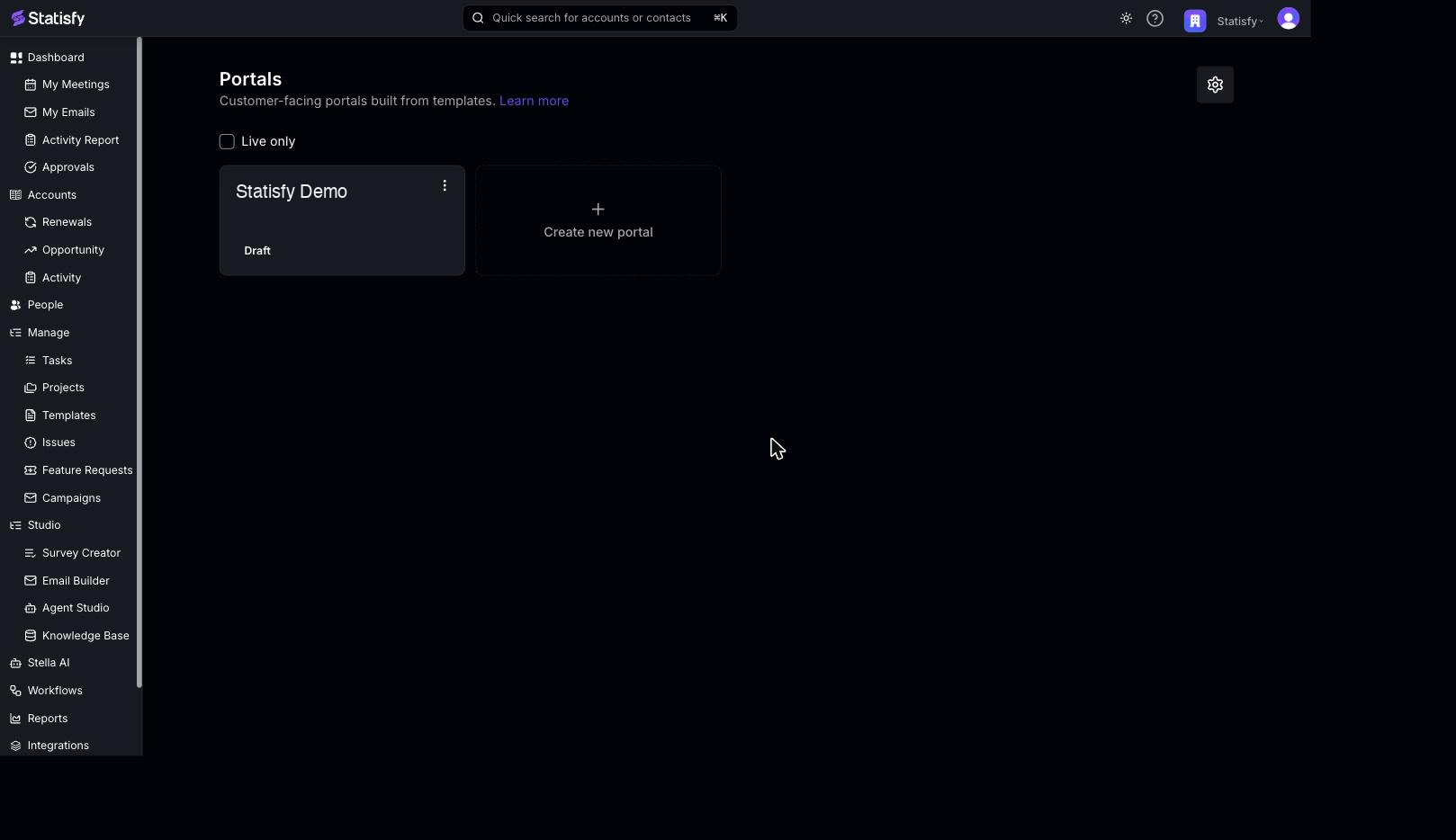
1. Open the **Portals** page.
2. Select **Create new portal**. (If you don't have any portals yet, select **Create portal** in the empty state.)
3. In the **Create a portal** dialog, **choose a template**. Each template is a different starting layout for your portal. Select **Live preview** on a template card to open it in a new tab and see what it looks like before you commit.
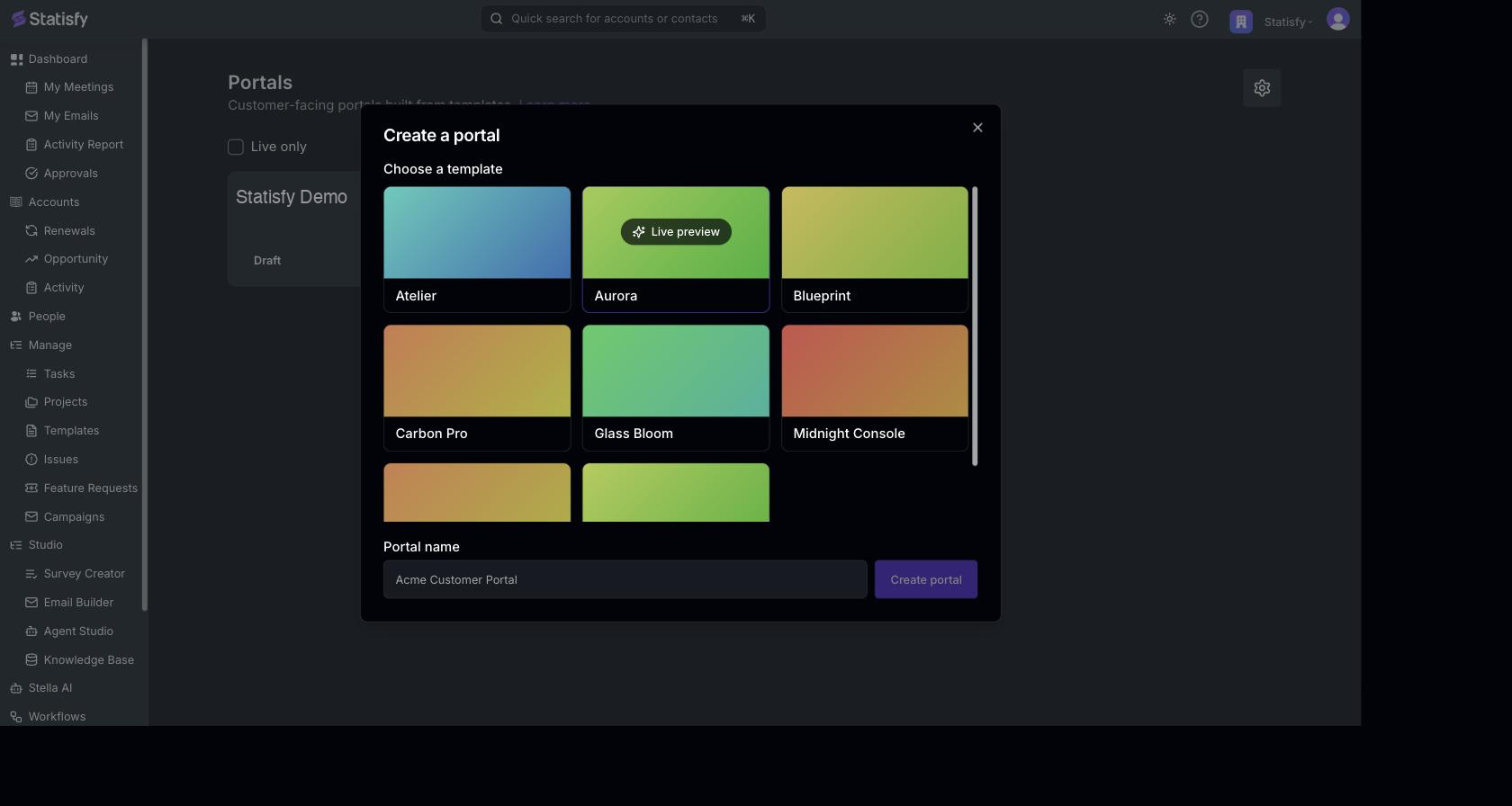
4. Enter a **Portal name** — for example, `Acme Customer Portal`. Names can be up to 255 characters.
5. Select **Create portal**.
Statisfy creates the portal and opens it in **Portal Studio** so you can start customizing right away.
Your workspace needs a **developer key** to create a portal. If you don't have one, **Create portal** stays disabled and a **Generate key** button appears next to it — select it, generate a key, and you can then create the portal. You only do this once; later portals reuse the same key. See [Publishable Keys & Secrets](/admin/publishable_keys).
A new portal starts in **Draft** status — it isn't visible to your customers until you take it live for the first time. See [Building & Publishing](/portals/building_and_publishing).
### Next Steps
* [Building & Publishing](/portals/building_and_publishing) — Customize your portal and publish it live
* [Portals Overview](/portals/overview) — How portals fit together