> ## Documentation Index
> Fetch the complete documentation index at: https://help.statisfy.com/llms.txt
> Use this file to discover all available pages before exploring further.
# Email And Calendar Integration
> In this article, you'll learn how to integrate your email and calendar.
In this article, you'll learn how to integrate your email and calendar.
Statisfy no longer shows separate **Gmail** and **Google Calendar** cards on the Integrations page. Google users now connect both email and calendar in one step through the single **Google Workspace** card. If you connected Gmail or Google Calendar before this change, see [Moving to Google Workspace](/integrations/google_workspace_migration) — your data is still syncing, and that guide explains how to move over.
**Step 1:** Accept the invitation you received from your admin.
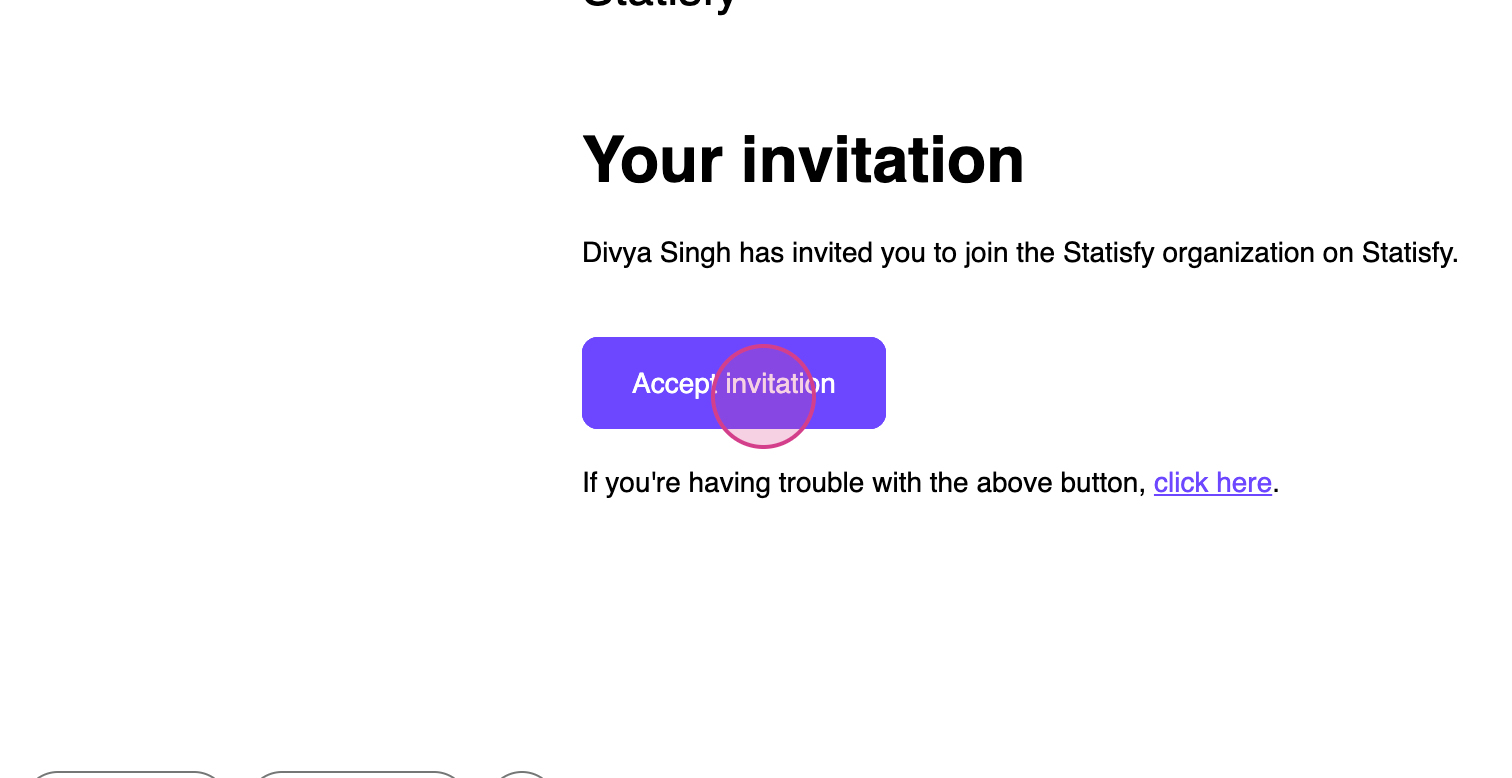
**Step 2:** Click on **Accept Invitation**. This initiates the account provisioning process.
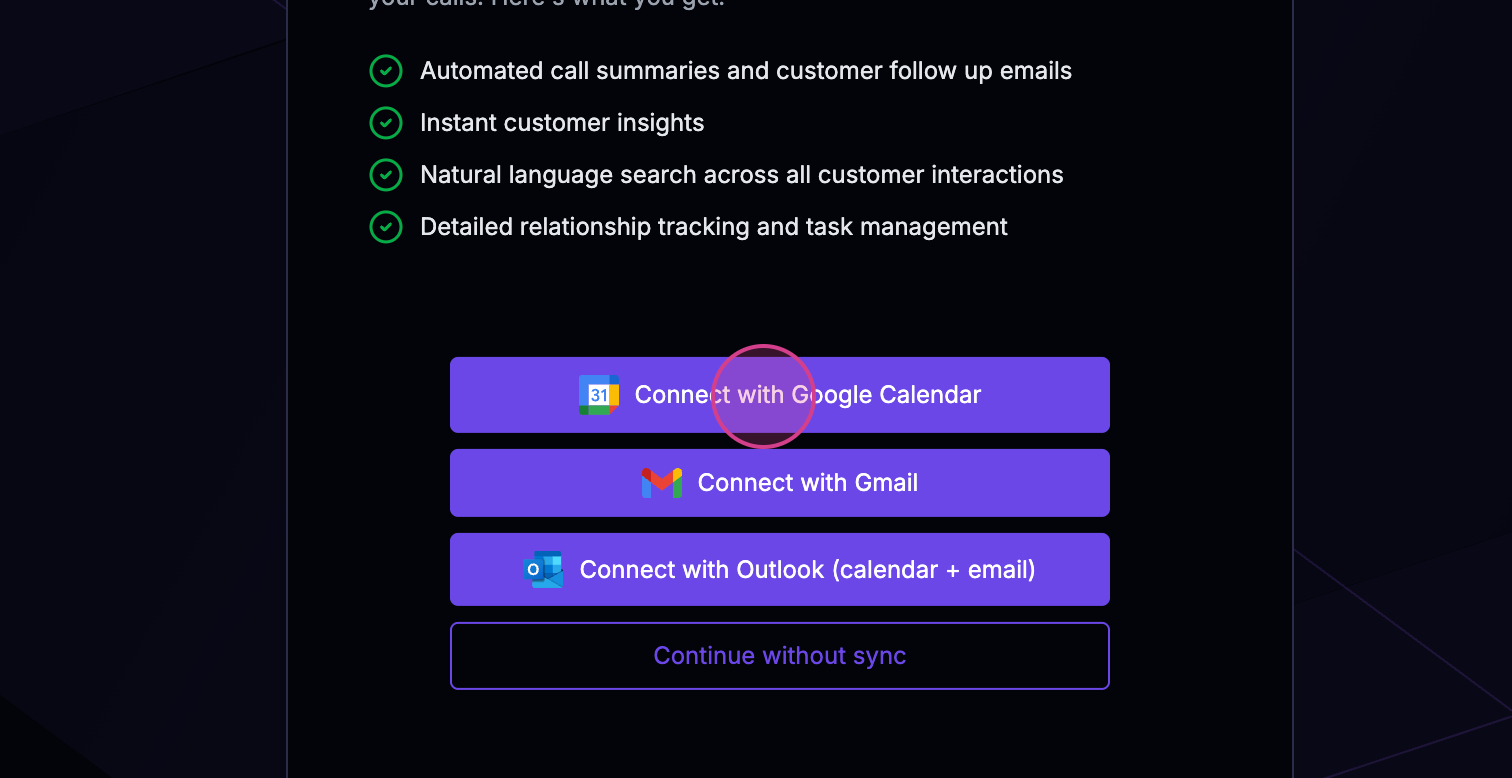
**Step 3:** Once you're signed in, go to **Integrations** and look under **User Apps**.
**Step 4:** Click the **Google Workspace** card. A connect dialog opens with three permission checkboxes — **Read email**, **Read calendar**, and **Send email on your behalf**. Tick the ones you want Statisfy to use; all three are selected by default.
**Step 5:** Click **Connect your account**. A Google sign-in window opens — sign in, review the requested permissions (they match exactly what you checked), and click **Continue → Allow**. This uses OAuth, the standard way of authorizing an app without sharing your password.
**Step 6:** The pop-up closes automatically, and the Google Workspace card shows **Connected** within a few seconds. Statisfy backfills your last 30 days of email and calendar activity, then stays in sync in near real-time.
For permission details, managing your connection, and troubleshooting, see the [Google Workspace Integration guide](/integrations/google_workspace_integration).
If your team uses Microsoft Outlook instead, connect through the **Microsoft Outlook** card under **User Apps** on the same Integrations page.
You're now all set! Thank you for following along.