> ## Documentation Index
> Fetch the complete documentation index at: https://help.statisfy.com/llms.txt
> Use this file to discover all available pages before exploring further.
# Calendar And Email Integration Guide
> In this article, you'll learn how to integrate your calendar and email with Google Calendar, Gmail, and Microsoft Outlook.
## Video Tutorial
This video shows the older Integrations page, where **Gmail** and **Google Calendar** appeared as two separate cards. Those cards have been replaced by a single **Google Workspace** card — see the updated Google steps below. The Microsoft Outlook steps are unchanged.
In this article, you'll learn how to connect your calendar and email to Statisfy — through **Google Workspace** if you use Google, or **Microsoft Outlook** if you use Microsoft.
**Step 1:** Navigate to the **Integrations** section found on the left-hand navigation menu.
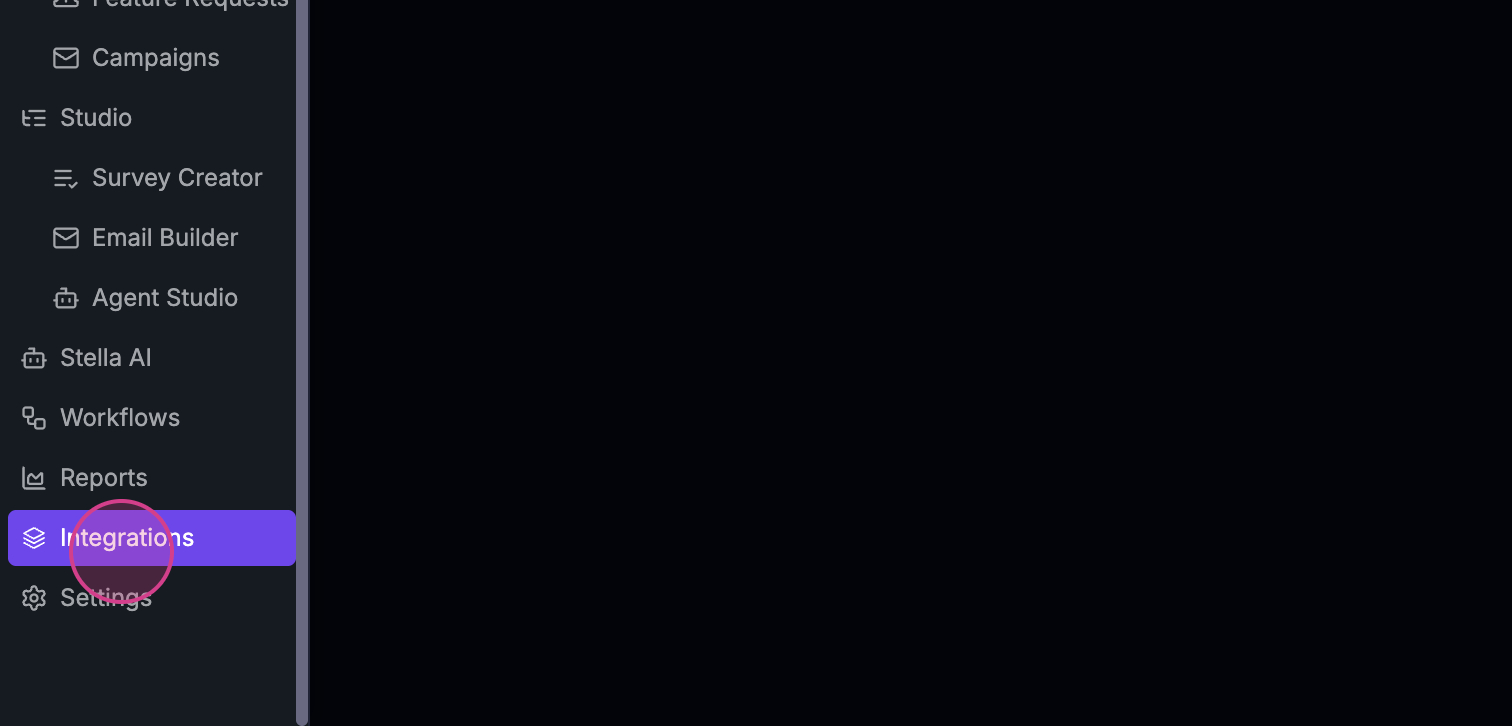
**Step 2:** Under **User Apps**, locate **Google Workspace** (for Gmail and Google Calendar) or **Microsoft Outlook**.
## Connecting Gmail and Google Calendar (Google Workspace)
Gmail and Google Calendar are now connected together in a single step through the **Google Workspace** card — one Google sign-in covers both your email and your calendar.
1. On the Integrations page, click the **Google Workspace** card.
2. Choose the permissions you want to grant (Read email, Read calendar, Send email on your behalf).
3. Click **Connect your account** and complete the Google sign-in.
For full setup details and permissions, see the [Google Workspace Integration guide](/integrations/google_workspace_integration).
If you previously connected through the separate Gmail or Google Calendar cards, your data is still syncing — see [Moving to Google Workspace](/integrations/google_workspace_migration) for what changed and why reconnecting is recommended.
## Connecting Microsoft Outlook
To connect your Microsoft Outlook calendar and email, click **Connect** on the **Microsoft Outlook** card and complete the Microsoft sign-in.
That's it! You've successfully integrated your calendar and email. Thank you for following along.