> ## Documentation Index
> Fetch the complete documentation index at: https://help.statisfy.com/llms.txt
> Use this file to discover all available pages before exploring further.
# Trying Out Digital Workers
> End-to-end guide to test a Statisfy Digital Worker across Slack, email, and the customer portal in a sandbox workspace.
A **Digital Worker** is an AI teammate (for example, a Digital CSM) that reads a customer's context and responds to that customer on the channels you enable — Slack, email, and the customer portal. This guide walks through setting one up in your sandbox workspace and testing it on each surface.
This is a hands-on trial guide. Run it in your dedicated **sandbox workspace** so it stays isolated from your production **Statisfy** records. A sandbox isolates Statisfy data only — the Slack workspace, email domain, and mailbox you connect are **real external systems**. Use **dedicated test identities** (a throwaway Slack workspace, a test mailbox/domain, and test contacts you control), and note that **Auto-send delivers real messages and emails**. You'll need admin access to the sandbox workspace.
## How it fits together
Before the per-surface steps, three ideas make everything else click:
* **The worker.** One configurable Digital Worker owns the persona, knowledge, autonomy, and which surfaces are on. You set it up once (Step 0), then test each surface against it.
* **Routing to an account.** Every inbound (a Slack message, an email) has to map to a **customer account** so the worker knows whose context to use. Slack maps by **channel → account** link; email maps by **sender → contact → account**. That's why you'll create a **contact** (a person under an account) for the address/identity you'll test from.
* **Where results show.** The worker's replies and conversations appear in the **Digital Workers board**. If the worker is set to *require approval*, its drafted replies wait for a human there (in the *On Hold* / *Needs Response* columns) instead of sending automatically — you open the card to review and send.
**Where the test contact is used:** for **email**, routing is by sender → contact → account, so the contact is how the inbound reaches the right account. For **Slack**, routing is by the **channel → account** link; a matching contact is *optional* and only helps attribute the sender. For the **portal**, the contact matters too: after a user logs in, they're mapped to their customer account via the contact, which is what grants access to that account's data.
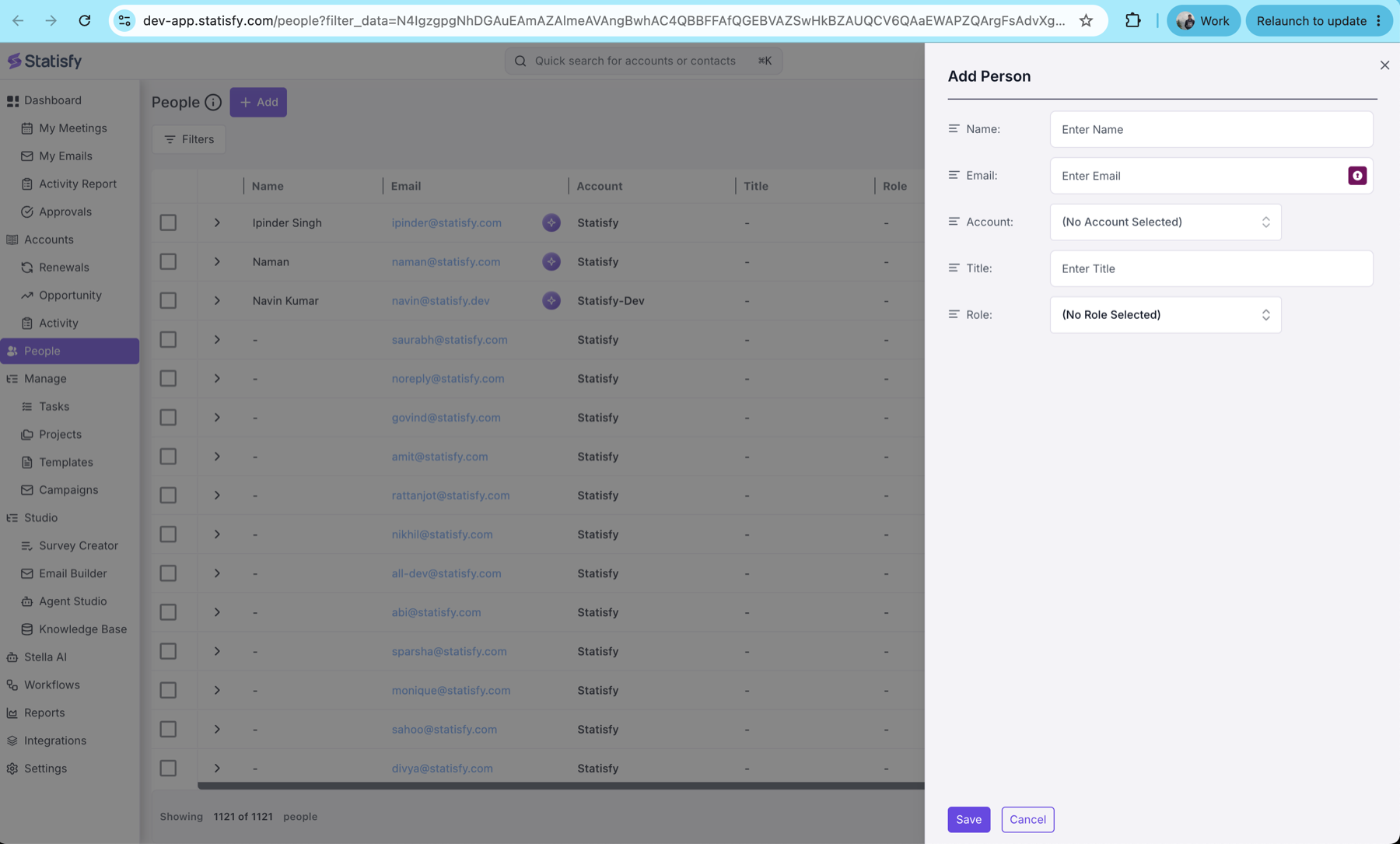
**Create the test contact.** In **People**, pick (or create) a customer account, then add a person to that account using your **personal email** — or any address that is *not* on your primary company domain — so you can send test email/Slack (and log into the portal) as a realistic customer and have it route to that account.
## Prerequisites
| For | You need |
| ----------------------- | ------------------------------------------------------------------------------------------------------------------------------ |
| Any surface | Admin access to your Statisfy sandbox workspace |
| Slack | Admin of the Slack workspace you'll test with |
| Email (forwarding) | A verified sending domain in the sandbox (**Settings → DNS**), plus access to a mailbox/Google Group you can auto-forward from |
| Email (mailbox connect) | A Google Workspace user whose mailbox you can OAuth-connect |
| Portal | Permission to manage portals |
## Where to find each page
| Page | What it's for | URL |
| --------------------- | ------------------------------------------------------- | --------------------------------------------------------------------------------------------------------------------------------- |
| Configure workers | Set persona, surfaces, autonomy, and account assignment | [app.statisfy.com/polaris/digital-workers?digital\_workers=1](https://app.statisfy.com/polaris/digital-workers?digital_workers=1) |
| Digital Workers board | See conversations + review/send held drafts | [app.statisfy.com/pooled-workbench?pooled\_preview=1](https://app.statisfy.com/pooled-workbench?pooled_preview=1) |
| People | Create the test contact | [app.statisfy.com/people](https://app.statisfy.com/people) |
| Slack settings | Install the bot and link channels | [app.statisfy.com/settings/slack](https://app.statisfy.com/settings/slack) |
| DNS | Verify a sending domain (forwarding) | [app.statisfy.com/settings/dns](https://app.statisfy.com/settings/dns) |
| Portals | Build and publish a portal | [app.statisfy.com/portals](https://app.statisfy.com/portals) |
| Knowledge Base | Add product knowledge for grounding | [app.statisfy.com/knowledge-base](https://app.statisfy.com/knowledge-base) |
***
## Step 0 — Set up a Digital Worker
Do this once; every surface test builds on it.
1. Open **[Configure workers](https://app.statisfy.com/polaris/digital-workers?digital_workers=1)** and open (or create) a worker — the default **Digital CSM** is a good starting point.
2. **Persona & knowledge.** Give it a name, voice, and greeting. Attach a **Knowledge Base** with content about your product so replies are grounded and specific — without any KB, answers will be generic. (See [Knowledge Base](/knowledge-base/overview).)
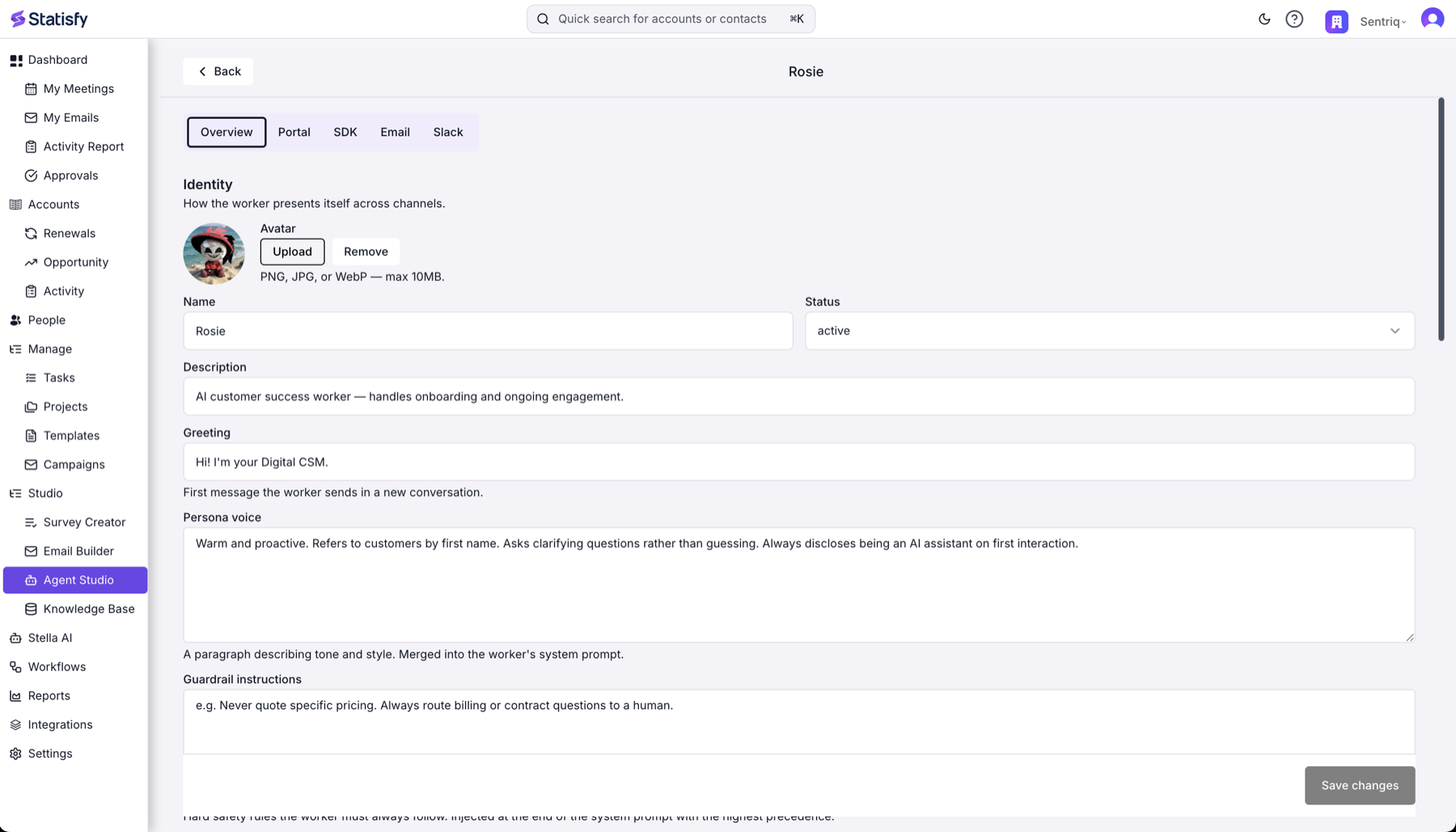
3. **Enable the surface(s)** you want to test in the **Surfaces** section (Slack, Email, Portal). Each surface has its own toggle and settings — the per-surface steps below cover them.
4. **Set autonomy.** Per surface, choose how the worker behaves when it has a reply:
| Mode | What happens | Best for |
| ---------------------------------------------- | -------------------------------------------------------------------------------------------------------------------------------------------------------------------- | ------------------------------------------- |
| **Auto-send** (smart) | The worker sends its reply directly in the thread/email. | Seeing the full round-trip fast. |
| **Require approval** (hold for approval / HIL) | The worker **drafts** a reply and holds it in the **Digital Workers board** (*On Hold*) for a human to review and send. Nothing goes to the customer until approved. | A safe trial; also demos the approval flow. |
With **Require approval**, you can also turn on **Auto-reply on hold** for the email/Slack surface, so the customer immediately gets a short acknowledgment ("Thanks, we're looking into it") in the same thread while the real drafted reply waits for a human. This is off by default.
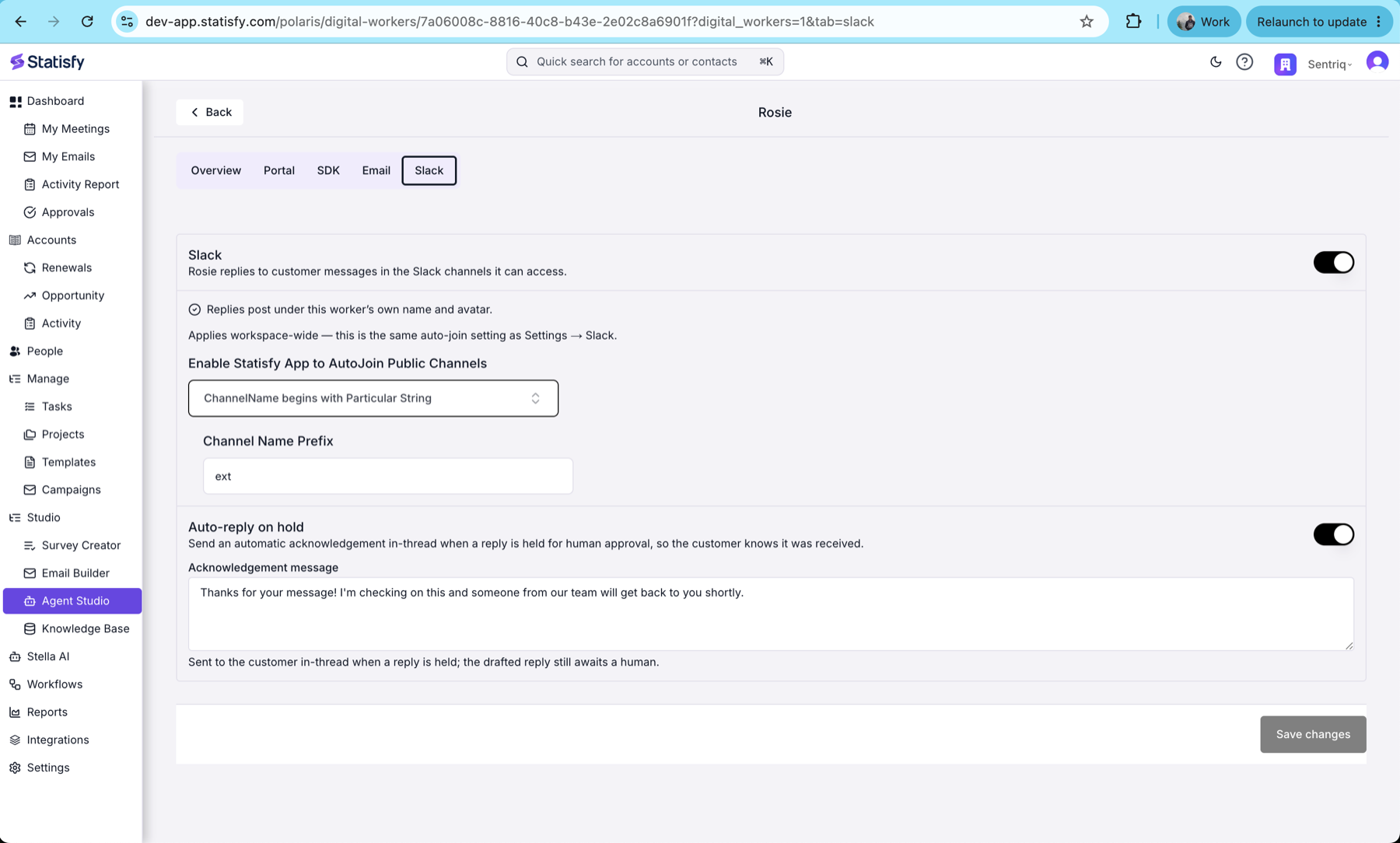
5. **Assign the worker to the customer account(s)** you'll test with, so it acts on their conversations.
6. Save. The worker is now live for the enabled surfaces.
We recommend running your first pass in **Require approval** so you can inspect every drafted reply in the Digital Workers board before anything sends, then switch to **Auto-send** to see the end-to-end experience.
***
## Test on Slack
**Goal:** a message in a Slack channel that's linked to a sandbox account gets a response from the worker.
1. **Create a test Slack workspace** (or use an existing non-production one) where you're an admin.
2. **Install the Statisfy bot.** In Statisfy, go to **[Settings → Slack](https://app.statisfy.com/settings/slack)** and select **Add to Slack**, then approve the permissions and pick that workspace.
3. **Add the bot to a channel.** In Slack, open the test channel and `/invite` → **Add apps to this channel** → **Statisfy**.
4. **Link the channel to a customer account.** In **Settings → Slack → Channel Management**, find the channel, open the **Account** dropdown in its row, and select the sandbox customer account. (This is what tells the worker whose context to use.)
5. **Make sure the worker's Slack surface is enabled** and its Slack autonomy is set (Step 0).
6. **Create a test contact** (optional but recommended): under the same account, add a person whose email matches the Slack user you'll post as, so the sender resolves cleanly to the account.
7. **Send a message** in the channel (for example, a product question). Watch for the worker to respond in-thread (Auto-send) or a held card to appear in the **Digital Workers board** (Require approval).
**Slack surface — full setup & options** (bot permissions, channel management, auto-join, troubleshooting): a dedicated article is forthcoming and will be linked here.
***
## Test on Email
There are two ways to give the worker an email address to answer on. Pick whichever is easier for your team.
### Option A — Forwarding address (Google Group or auto-forward)
Best when you want the worker to answer a *shared* support-style address.
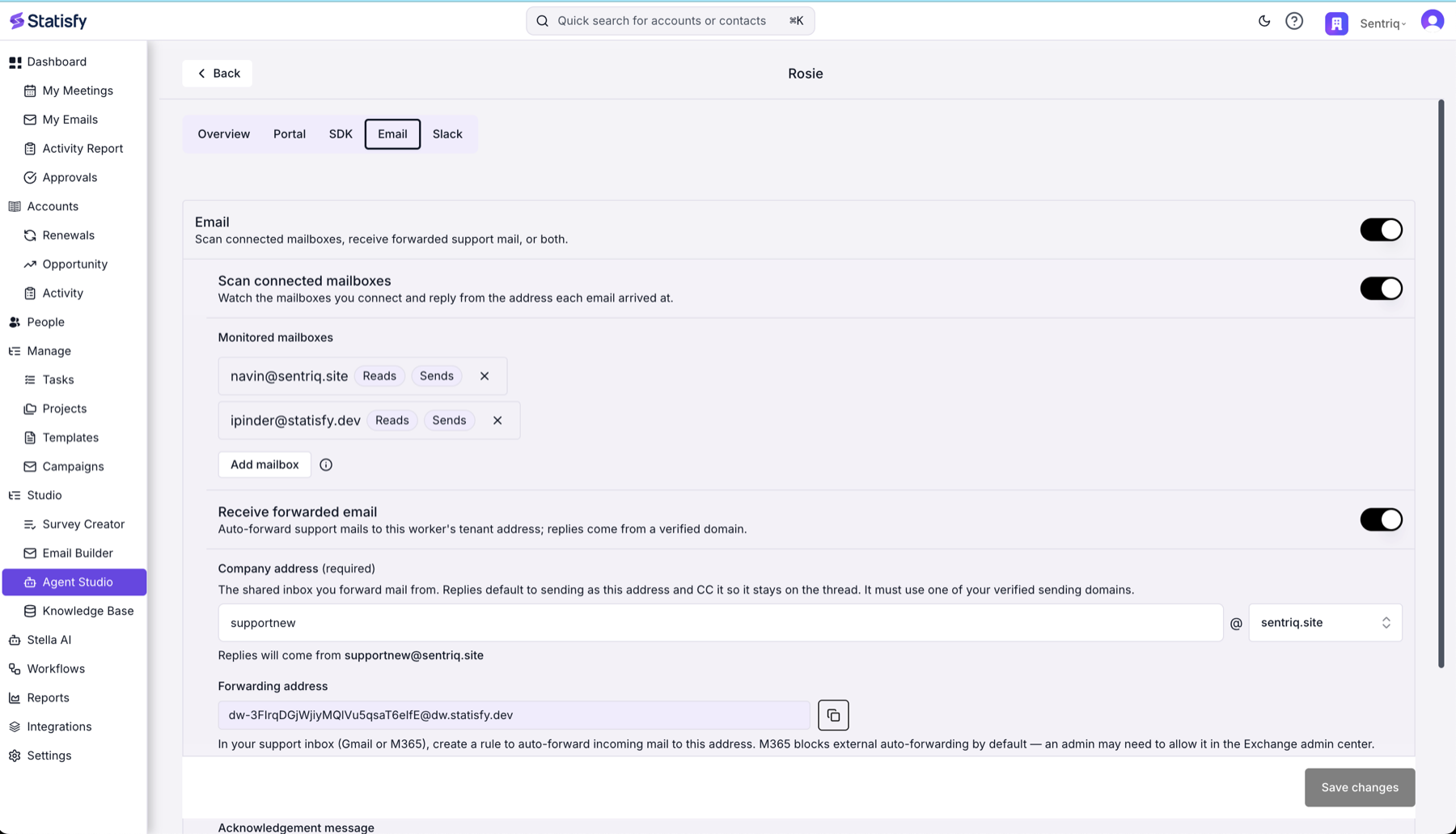
1. In the worker's **Email** surface, enable **Receive forwarded email**. Statisfy gives you a dedicated tenant **forwarding address** (like `dw-…@yourdomain`).
Forwarding requires a **verified sending domain** in **Settings → DNS** — set that up first, or the option stays disabled.
2. Set up forwarding **to** that address from the mailbox or **Google Group** you want to test (in Gmail/Workspace admin, add the Statisfy forwarding address as an auto-forward target or group member).
3. Confirm the worker's Email autonomy (Step 0).
4. **Create a test contact** under the sandbox account using the address you'll send **from** (e.g. a personal Gmail), so the inbound routes to that account.
5. **Send an email** into the forwarded address. The worker replies from your verified domain (Auto-send) or holds a draft in the **Digital Workers board** (Require approval).
### Option B — Connect a dedicated mailbox (OAuth)
Best when you want the worker to answer on a *real, individual* mailbox.
1. Create (or pick) a dedicated **Google Workspace user** to act as the worker's mailbox.
2. **Connect that mailbox** directly from the worker's **Email** surface — select **Add mailbox** and complete the OAuth flow (grant *Read email* and *Send email on your behalf*). No separate Integrations setup is needed.
3. In the worker's **Email** surface, add that address under **Scan connected mailboxes** and confirm autonomy (Step 0).
4. **Create a test contact** under the sandbox account with the address you'll send **from**.
5. **Send an email** to the connected mailbox. The worker scans it and replies **from that same mailbox** (Auto-send) or holds a draft in the **Digital Workers board** (Require approval).
**Email surface — forwarding, mailboxes & domains** (verified domains, forwarding setup, mailbox connect, reply identity): a dedicated article is forthcoming and will be linked here.
***
## Test on the Portal
The customer portal embeds the Digital Worker (and, optionally, the customer's onboarding project) in a branded, customer-facing page. Setup and SDK details already have full guides:
Build, customize, and publish customer-facing portals from templates.
Start a new portal from a template.
Customize in Portal Studio, preview, take it live, and manage it.
Read and update a customer's onboarding project via REST + React SDK.
To test: create a portal from a template, embed the Digital Worker module (see [Digital Worker Chat SDK](/sdk/digital_worker_chat) and [SDK: Getting Started](/sdk/getting_started)), publish it, and open it as a customer to chat with the worker.
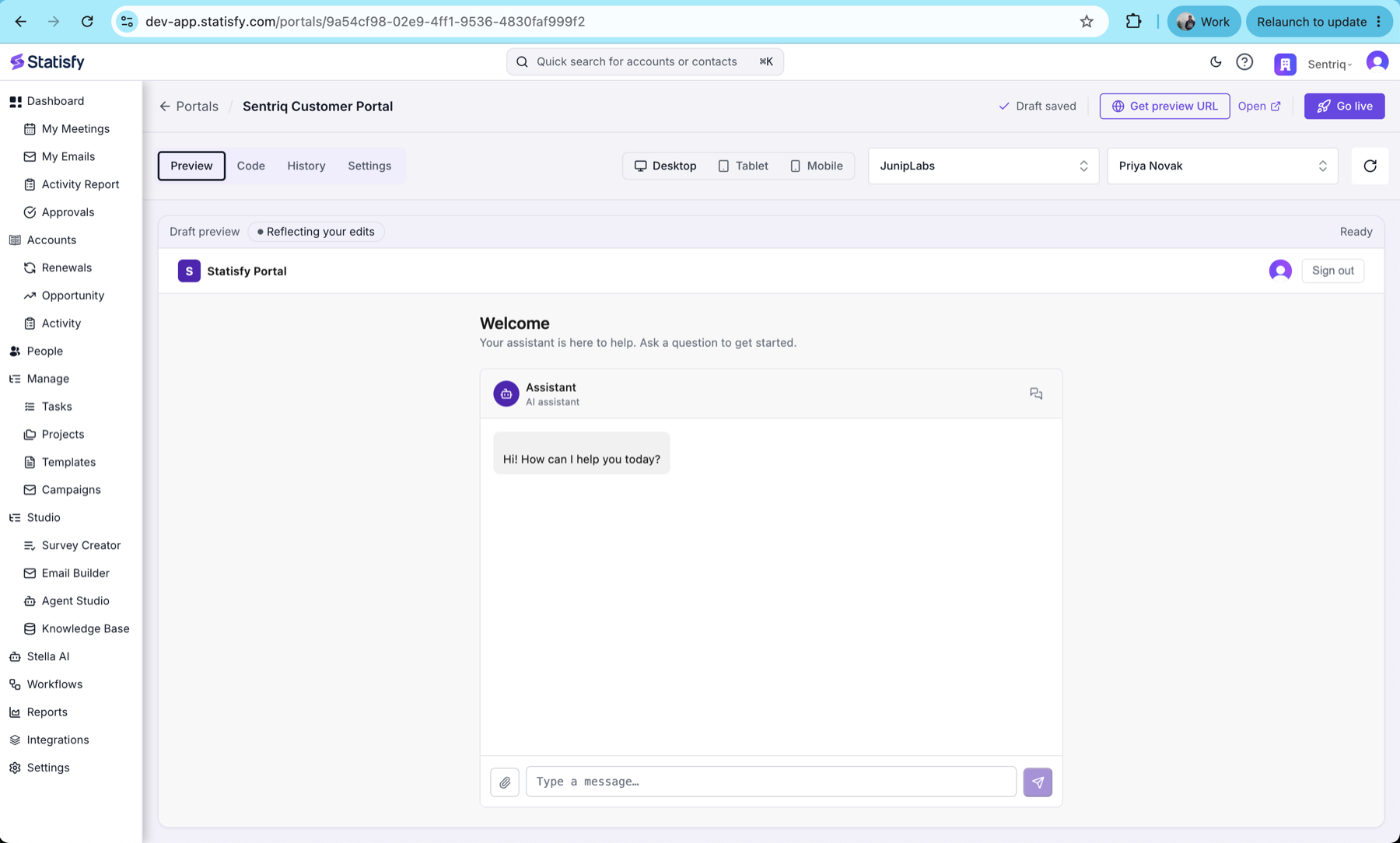
Portal users sign in through the portal's own login, and are then mapped to their **customer account via the Step 0 contact** — that mapping is what grants access to the right account's data. So make sure the person you log in as exists as a contact under the account you're testing.
***
## What to expect
| Autonomy | Customer sees | You see |
| -------------------- | ------------------------------------------------------------------------------------ | ------------------------------------------------------------------------------------------------ |
| **Auto-send** | The worker's reply arrives in the Slack thread / email / portal chat. | The full conversation under **Digital Workers**. |
| **Require approval** | Nothing until approved (or a short acknowledgment, if **Auto-reply on hold** is on). | A **drafted reply** held in the **Digital Workers board** (*On Hold*) to review, edit, and send. |
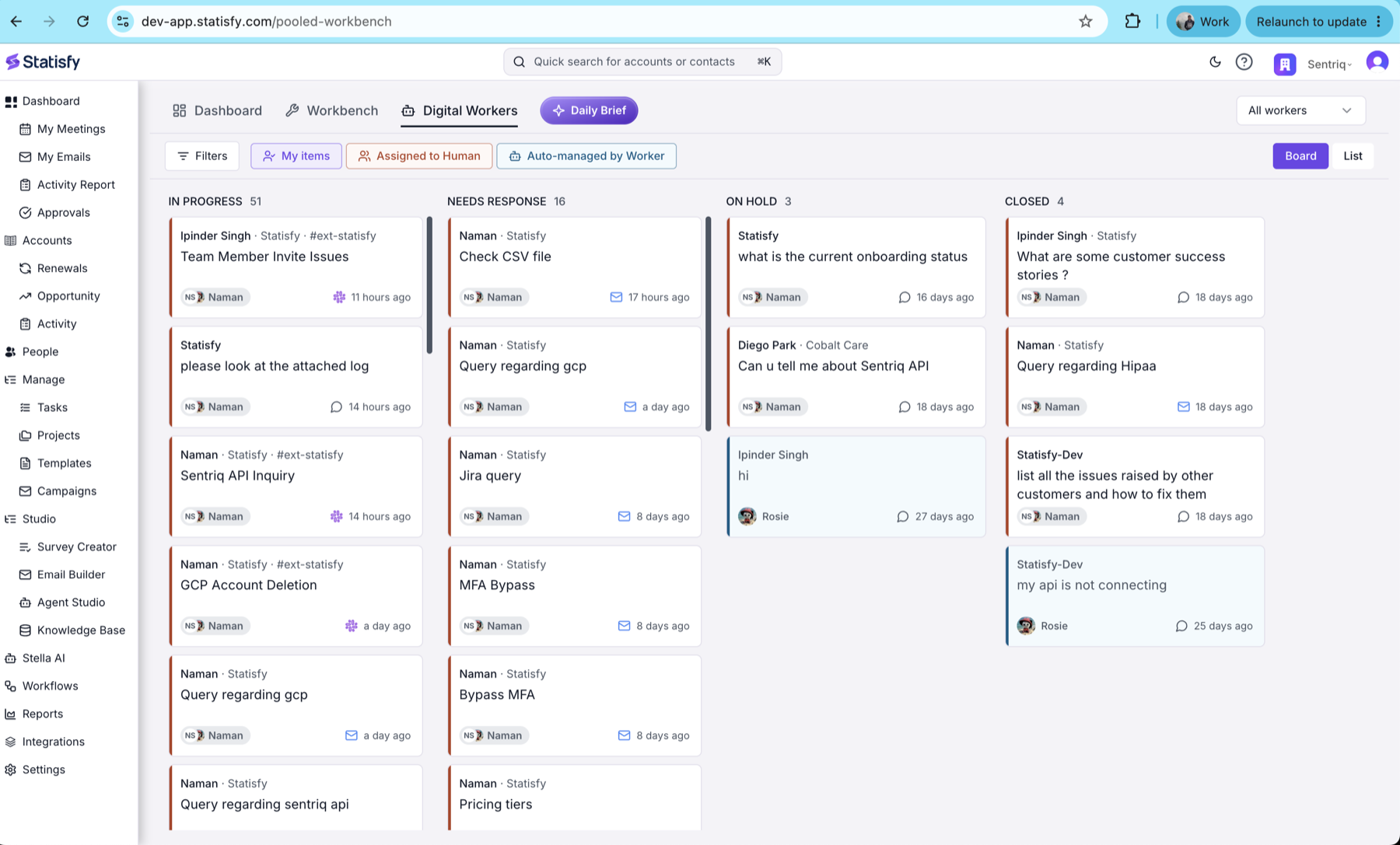
In **Auto-send**, replies are real messages/emails delivered to the test contact. Use addresses and channels you control so nothing goes to a real customer.
## Troubleshooting
* **No response at all?** Check the surface is enabled on the worker, the worker is assigned to the account, and the inbound routed to an account (Slack: channel is linked; email: a contact exists for the sender).
* **Slack message ignored?** Confirm the Statisfy bot is still in the channel and the channel is linked to an account.
* **Email not picked up?** For forwarding, confirm the auto-forward is active and the sending domain is verified; for a connected mailbox, confirm the mailbox connection is healthy.
* **Expected a reply but see only a draft?** The surface's autonomy is set to **Require approval** — check the **Digital Workers board** (*On Hold*) and send the drafted reply from there.
* **Portal chat blank or unauthorized?** Confirm the portal is published, the Digital Worker module is embedded with a valid publishable key, and the session resolves a `customer_id`.
## Related articles
* [Slack Integration](/integrations/slack)
* [Email & Calendar Integration](/integrations/email_and_calendar_integration)
* [Knowledge Base](/knowledge-base/overview)
* Digital Worker email surface — *(forthcoming)*
* Digital Worker Slack surface — *(forthcoming)*