> ## Documentation Index
> Fetch the complete documentation index at: https://help.statisfy.com/llms.txt
> Use this file to discover all available pages before exploring further.
# Digital Worker Email
> Set up a Digital Worker to handle customer email — by connecting an email account or by forwarding support mail — and reply from the right address.
**Preview feature.** Digital Workers are available to a limited set of workspaces while we refine them. If you don't see **Digital Workers** in your navigation, it isn't turned on for your account yet — contact your administrator or [Statisfy support](mailto:support@statisfy.com) to request access.
A Digital Worker can handle customer email two ways — by **connecting an email account** over OAuth, or by **forwarding** support mail to it (or both at once). This guide covers when to use each, how the options appear on the worker, how to set them up, how to reply from a different address, and what the full flow looks like.
### The two modes
| Mode | What it does | Replies are sent from | Setup |
| ---------------------------------------------------------------------- | ---------------------------------------------------------------------- | --------------------------------------------- | ----------------------------------------------- |
| **Connect an email account** *(Email tab: "Scan connected mailboxes")* | The worker works a real Gmail / Outlook mailbox you connect over OAuth | The mailbox the email arrived at | Connect the mailbox (OAuth) |
| **Forwarding** *(Email tab: "Receive forwarded email")* | You forward a shared support inbox to a unique Statisfy address | Your **company address** on a verified domain | Verify a sending domain + add a forwarding rule |
### Which should you use?
* **Connect an email account** when the worker should work a specific, real mailbox and reply from *that exact address* — a named or shared mailbox you can authorize over OAuth (read + send). No DNS setup is required; replies come from the connected mailbox itself.
* **Use forwarding** when you have a shared support inbox (like `support@acme.com`) that you'd rather forward than connect directly, and you want replies to go out from your own **verified domain**. This needs a verified sending domain (DNS) and a forwarding rule in your mail system.
* **If your support address is a group or distribution list** (for example, a Google Group), use **forwarding** — a group has no mailbox to connect over OAuth.
* You can run **both** — for example, connect one mailbox directly and forward another.
## How the email options appear on the worker
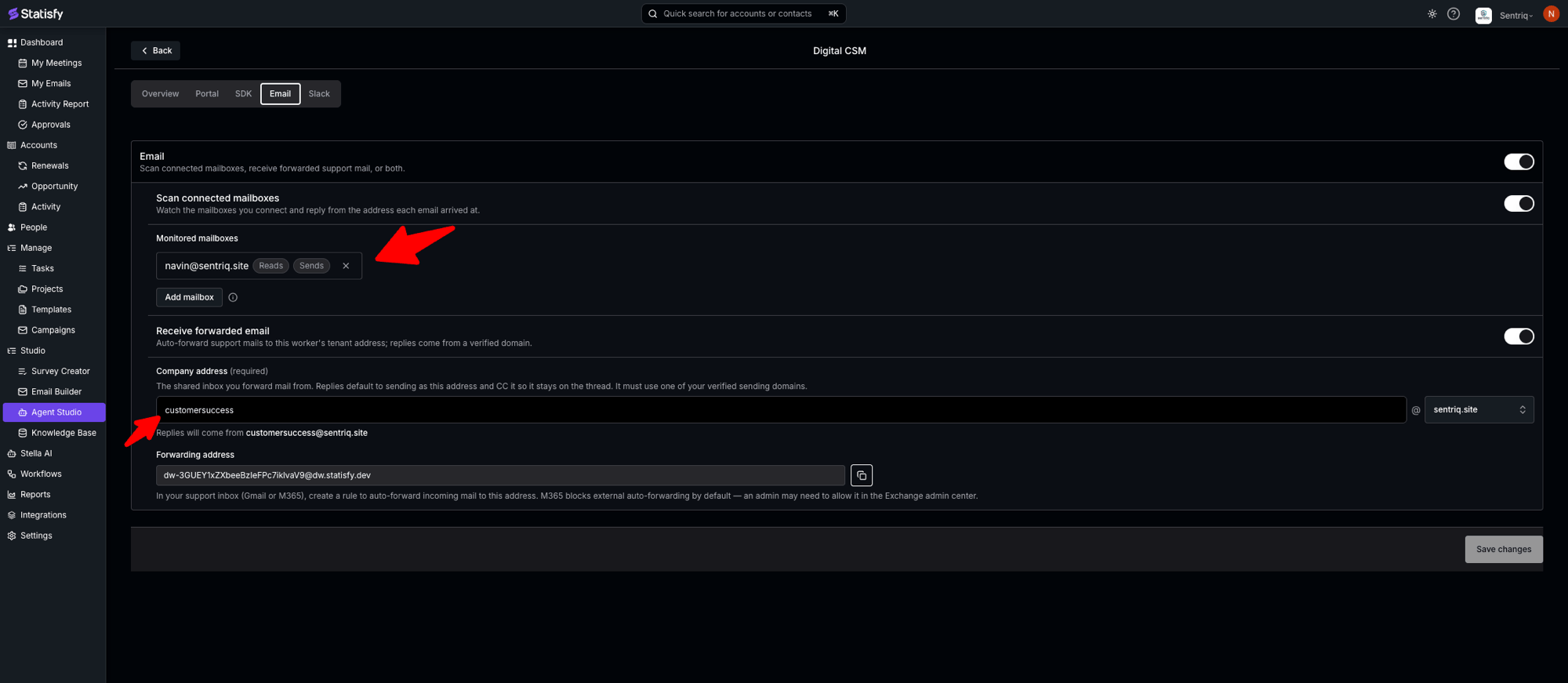
Open **Digital Workers**, select your worker, and go to the **Email** tab. Turn on the master **Email** toggle to reveal three sections: **Scan connected mailboxes**, **Receive forwarded email**, and **Auto-reply on hold** (an optional acknowledgement sent in-thread when a reply is held for a human).
 ### Prerequisites
| Role | What you need |
| ------------------ | ------------------------------------------------------------------------------------------------------------------------------------------------------------------------------------------------------------------------------------------------------------------- |
| **Admin** | For a connected account: the ability to connect Gmail / Microsoft 365 mailboxes over OAuth. For forwarding: a verified sending domain in **Settings → DNS** and access to create a forwarding rule in your mail system. Digital Workers turned on for your account. |
| **CSM / operator** | A Digital Worker assigned to the accounts it should cover, so email resolves to the right customer. |
## Option 1 — Connect an email account
The worker watches a mailbox you connect and replies from the address each email arrived at.
1. On the **Email** tab, turn on **Email**, then turn on **Scan connected mailboxes**.
2. Under **Monitored mailboxes**, click **Add mailbox**.
3. In the picker, choose an already-connected mailbox, or use **Connect a new Gmail mailbox** / **Connect a new Microsoft 365 mailbox** to authorize one (a Google or Microsoft sign-in opens; this OAuth step happens in Statisfy). Only mailboxes connected with **both read and send permission** appear here — each is shown with **Reads** / **Sends** tags (see the Email tab above).
4. If a mailbox shows **"Missing read and/or send permission — reconnect to update,"** reconnect it with both permissions.
**How replies work.** When mail arrives at a monitored mailbox and resolves to a customer, the worker replies **from that same mailbox** — the address the email arrived at. If that mailbox can't send, the reply is held in the [worker pool](#watch-conversations-in-the-worker-pool) for a teammate instead.
## Option 2 — Forwarding
You forward your shared support inbox (for example, `support@acme.com`) to a unique Statisfy address, and the worker replies from your own domain.
You do **not** add any MX or other DNS record for the receiving/forwarding address — Statisfy hosts `dw.statisfy.dev`. The only DNS you configure is your **sending** (reply) domain, in the first step below.
### Step 1 — Verify your sending domain (DNS)
Replies go out from your own domain, so Statisfy only sends from a **verified** domain. Until you have at least one, the **Receive forwarded email** toggle stays locked.
1. Go to **Settings → DNS**.
2. Add your domain (for example, `acme.com`) and copy the generated **Type / Host / Value** records into your DNS provider.
3. Click **Verify**. Verification can take up to \~24 hours; the domain shows **Verified** when it completes.
For the full walkthrough, see [DNS Setup](/admin/dns_setup).
### Step 2 — Set the company address
On the **Email** tab, turn on **Receive forwarded email**, then set the **company address** — your shared support inbox, the address you forward mail *from*.
1. In **Company address (required)**, type the local part (for example, `support`).
2. Pick one of your **verified** domains from the dropdown.
3. Confirm the summary line — for example, **"Replies will come from `customersuccess@sentriq.site`."**
When the worker replies on its own, it sends **as** this address. (When a teammate sends a reply from a different mailbox, your company address is added to CC so it stays on the thread — see [Replying from a different address](#replying-from-a-different-address).)
### Step 3 — Copy your forwarding address
In the **Forwarding address** box, click copy. The address is unique to your workspace and looks like `dw-@dw.statisfy.dev`.
### Step 4 — Set up the forwarding route
Create a forwarding rule so mail that arrives at your support inbox is also delivered to the forwarding address, **keeping delivery to the original inbox** so your team still sees it.
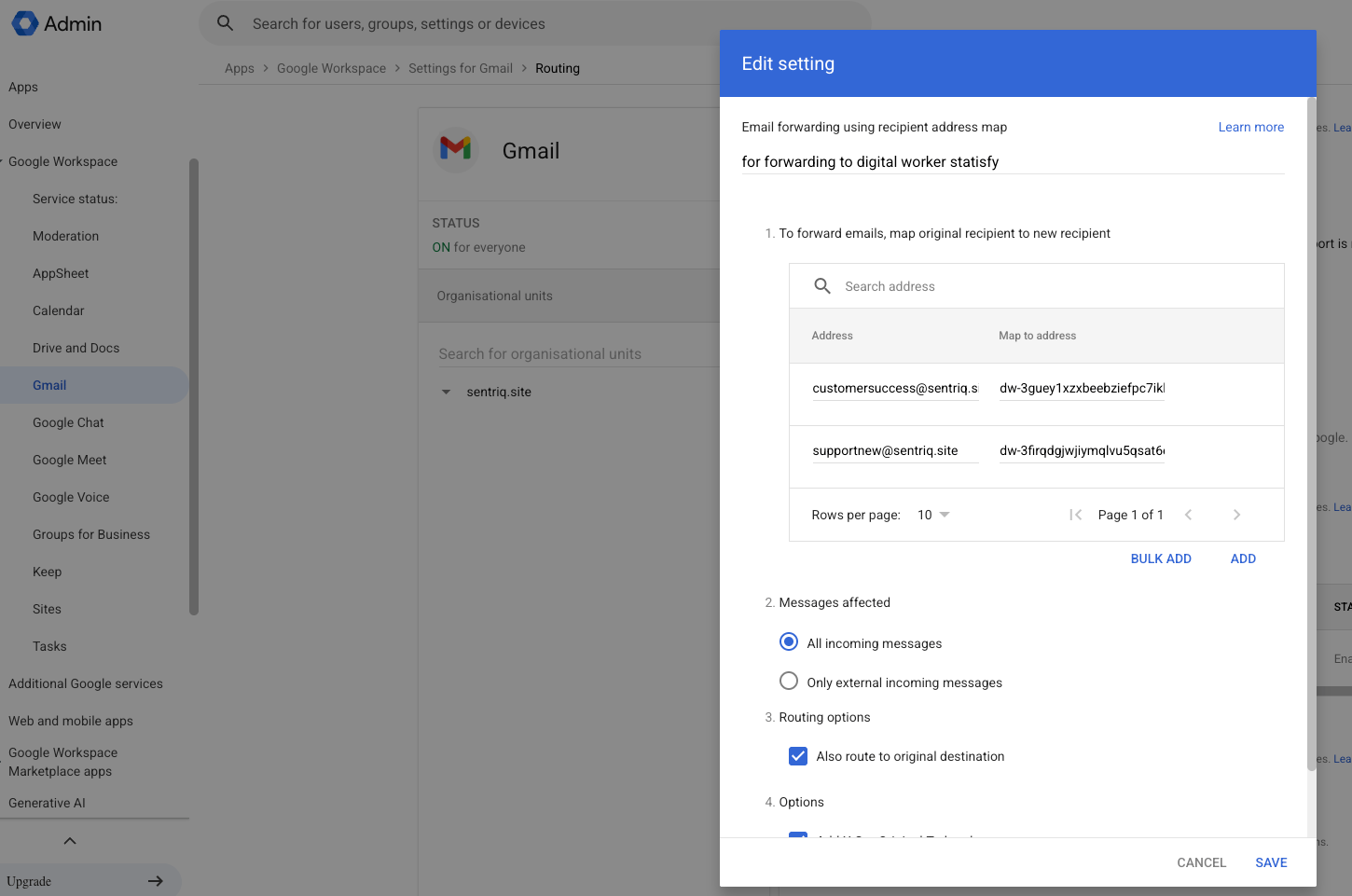
Set the route up in the Google Admin console:
1. Go to **Apps → Google Workspace → Gmail → Routing** (`admin.google.com/ac/apps/gmail/routing`).
2. Under **Email forwarding using recipient address map**, click **Add** and map your support address (`customersuccess@sentriq.site`) → the Statisfy **forwarding address** (`dw-…@dw.statisfy.dev`).
3. Set **Messages affected** to **All incoming messages**, and keep **Also route to original destination** checked.
4. Click **Save**.
### Prerequisites
| Role | What you need |
| ------------------ | ------------------------------------------------------------------------------------------------------------------------------------------------------------------------------------------------------------------------------------------------------------------- |
| **Admin** | For a connected account: the ability to connect Gmail / Microsoft 365 mailboxes over OAuth. For forwarding: a verified sending domain in **Settings → DNS** and access to create a forwarding rule in your mail system. Digital Workers turned on for your account. |
| **CSM / operator** | A Digital Worker assigned to the accounts it should cover, so email resolves to the right customer. |
## Option 1 — Connect an email account
The worker watches a mailbox you connect and replies from the address each email arrived at.
1. On the **Email** tab, turn on **Email**, then turn on **Scan connected mailboxes**.
2. Under **Monitored mailboxes**, click **Add mailbox**.
3. In the picker, choose an already-connected mailbox, or use **Connect a new Gmail mailbox** / **Connect a new Microsoft 365 mailbox** to authorize one (a Google or Microsoft sign-in opens; this OAuth step happens in Statisfy). Only mailboxes connected with **both read and send permission** appear here — each is shown with **Reads** / **Sends** tags (see the Email tab above).
4. If a mailbox shows **"Missing read and/or send permission — reconnect to update,"** reconnect it with both permissions.
**How replies work.** When mail arrives at a monitored mailbox and resolves to a customer, the worker replies **from that same mailbox** — the address the email arrived at. If that mailbox can't send, the reply is held in the [worker pool](#watch-conversations-in-the-worker-pool) for a teammate instead.
## Option 2 — Forwarding
You forward your shared support inbox (for example, `support@acme.com`) to a unique Statisfy address, and the worker replies from your own domain.
You do **not** add any MX or other DNS record for the receiving/forwarding address — Statisfy hosts `dw.statisfy.dev`. The only DNS you configure is your **sending** (reply) domain, in the first step below.
### Step 1 — Verify your sending domain (DNS)
Replies go out from your own domain, so Statisfy only sends from a **verified** domain. Until you have at least one, the **Receive forwarded email** toggle stays locked.
1. Go to **Settings → DNS**.
2. Add your domain (for example, `acme.com`) and copy the generated **Type / Host / Value** records into your DNS provider.
3. Click **Verify**. Verification can take up to \~24 hours; the domain shows **Verified** when it completes.
For the full walkthrough, see [DNS Setup](/admin/dns_setup).
### Step 2 — Set the company address
On the **Email** tab, turn on **Receive forwarded email**, then set the **company address** — your shared support inbox, the address you forward mail *from*.
1. In **Company address (required)**, type the local part (for example, `support`).
2. Pick one of your **verified** domains from the dropdown.
3. Confirm the summary line — for example, **"Replies will come from `customersuccess@sentriq.site`."**
When the worker replies on its own, it sends **as** this address. (When a teammate sends a reply from a different mailbox, your company address is added to CC so it stays on the thread — see [Replying from a different address](#replying-from-a-different-address).)
### Step 3 — Copy your forwarding address
In the **Forwarding address** box, click copy. The address is unique to your workspace and looks like `dw-@dw.statisfy.dev`.
### Step 4 — Set up the forwarding route
Create a forwarding rule so mail that arrives at your support inbox is also delivered to the forwarding address, **keeping delivery to the original inbox** so your team still sees it.
Set the route up in the Google Admin console:
1. Go to **Apps → Google Workspace → Gmail → Routing** (`admin.google.com/ac/apps/gmail/routing`).
2. Under **Email forwarding using recipient address map**, click **Add** and map your support address (`customersuccess@sentriq.site`) → the Statisfy **forwarding address** (`dw-…@dw.statisfy.dev`).
3. Set **Messages affected** to **All incoming messages**, and keep **Also route to original destination** checked.
4. Click **Save**.
 Set up a mail flow rule in the Exchange admin center:
1. Go to the **Exchange admin center → Mail flow → Rules**.
2. Add a new rule (**Create a new rule**).
3. Condition — **The recipient is** your support address.
4. Action — **Bcc the message to** (or add a copy to) the Statisfy **forwarding address**. Using Bcc/copy rather than a plain redirect keeps the mail flowing to your team as well.
5. Save and enable the rule.
Microsoft 365 blocks automatic external forwarding by default. An admin may need to allow it for the forwarding address (in the outbound spam / remote-domain settings) before mail will leave your tenant.
**Support address is a group or distribution list?** A group (for example, a Google Group) has no mailbox to connect over OAuth, so use **forwarding**. The routing methods above work for a group address the same way as for a single mailbox — point the route at your forwarding address and keep delivery to the group so your team still receives the mail.
**How replies work.** The worker replies as your company address over a verified domain. If the company address is unset or its domain isn't verified, the reply is held for a human rather than sent.
## Replying from a different address
Autonomous replies always use the mode's default sender (the arrival mailbox for a connected account; the company address for forwarding). To send from a different address, a teammate opens the held conversation in the [worker pool](#watch-conversations-in-the-worker-pool), where a **From** picker appears:
Set up a mail flow rule in the Exchange admin center:
1. Go to the **Exchange admin center → Mail flow → Rules**.
2. Add a new rule (**Create a new rule**).
3. Condition — **The recipient is** your support address.
4. Action — **Bcc the message to** (or add a copy to) the Statisfy **forwarding address**. Using Bcc/copy rather than a plain redirect keeps the mail flowing to your team as well.
5. Save and enable the rule.
Microsoft 365 blocks automatic external forwarding by default. An admin may need to allow it for the forwarding address (in the outbound spam / remote-domain settings) before mail will leave your tenant.
**Support address is a group or distribution list?** A group (for example, a Google Group) has no mailbox to connect over OAuth, so use **forwarding**. The routing methods above work for a group address the same way as for a single mailbox — point the route at your forwarding address and keep delivery to the group so your team still receives the mail.
**How replies work.** The worker replies as your company address over a verified domain. If the company address is unset or its domain isn't verified, the reply is held for a human rather than sent.
## Replying from a different address
Autonomous replies always use the mode's default sender (the arrival mailbox for a connected account; the company address for forwarding). To send from a different address, a teammate opens the held conversation in the [worker pool](#watch-conversations-in-the-worker-pool), where a **From** picker appears:
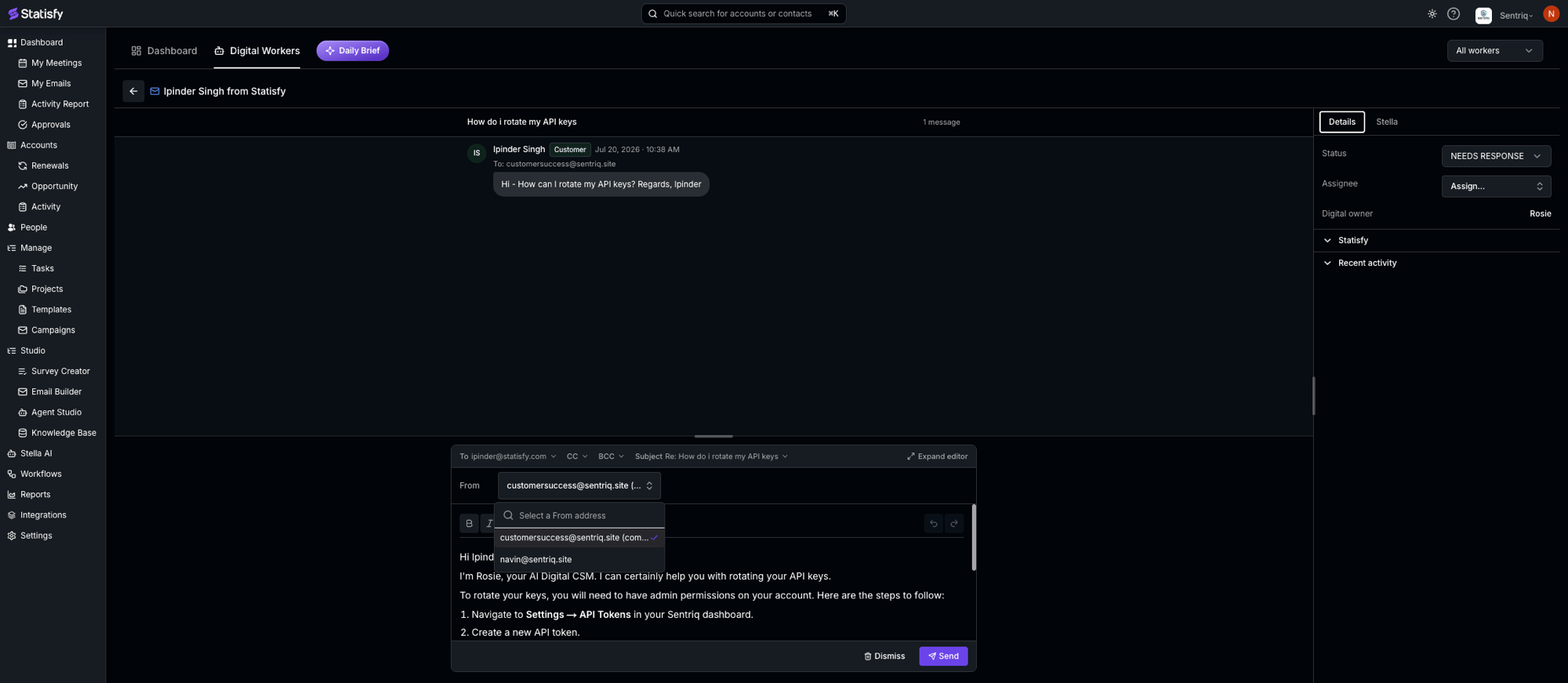 * The **From** dropdown ("Select a From address") chooses the sending address.
* For forwarded mail, the default is your **company address** (labeled **"(company address)"**).
* You can switch to any connected send-capable mailbox — a Gmail address, or an Outlook one (labeled **"(Outlook)"**).
* The Send button reflects the choice: **Send via Gmail**, **Send via Outlook**, or **Send**. Pick a From address first, or you'll see **"Choose a From address before sending."**
* For forwarded mail, if you send from a mailbox other than the company address, the company address is added to CC so the thread stays on your shared inbox.
## Watch conversations in the worker pool
To see every conversation your Digital Workers are managing, open the **Digital Workers** tab in the top navigation (next to **Dashboard**) — this is your **worker pool**.
"Digital Workers" names two places: the **builder** where you configure a worker, and the **Digital Workers** tab in the top navigation — the **worker pool** described here.
Open a conversation to read the thread and see its **Status** (for example, **NEEDS RESPONSE** when a reply is waiting on a human, or **IN PROGRESS**), **Assignee**, and **Digital owner** (the worker). This is also where held replies are reviewed and sent.
## See it end to end
Here's what each mode looks like in practice, using a worker named **Rosie**. This is also how you test the setup — send a message from an external address (ideally a synced customer domain) and follow it through.
### Forwarding
A customer emails your shared support inbox (`customersuccess@sentriq.site`):
* The **From** dropdown ("Select a From address") chooses the sending address.
* For forwarded mail, the default is your **company address** (labeled **"(company address)"**).
* You can switch to any connected send-capable mailbox — a Gmail address, or an Outlook one (labeled **"(Outlook)"**).
* The Send button reflects the choice: **Send via Gmail**, **Send via Outlook**, or **Send**. Pick a From address first, or you'll see **"Choose a From address before sending."**
* For forwarded mail, if you send from a mailbox other than the company address, the company address is added to CC so the thread stays on your shared inbox.
## Watch conversations in the worker pool
To see every conversation your Digital Workers are managing, open the **Digital Workers** tab in the top navigation (next to **Dashboard**) — this is your **worker pool**.
"Digital Workers" names two places: the **builder** where you configure a worker, and the **Digital Workers** tab in the top navigation — the **worker pool** described here.
Open a conversation to read the thread and see its **Status** (for example, **NEEDS RESPONSE** when a reply is waiting on a human, or **IN PROGRESS**), **Assignee**, and **Digital owner** (the worker). This is also where held replies are reviewed and sent.
## See it end to end
Here's what each mode looks like in practice, using a worker named **Rosie**. This is also how you test the setup — send a message from an external address (ideally a synced customer domain) and follow it through.
### Forwarding
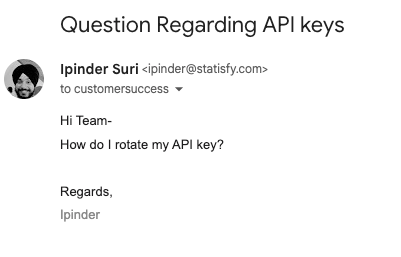
A customer emails your shared support inbox (`customersuccess@sentriq.site`):
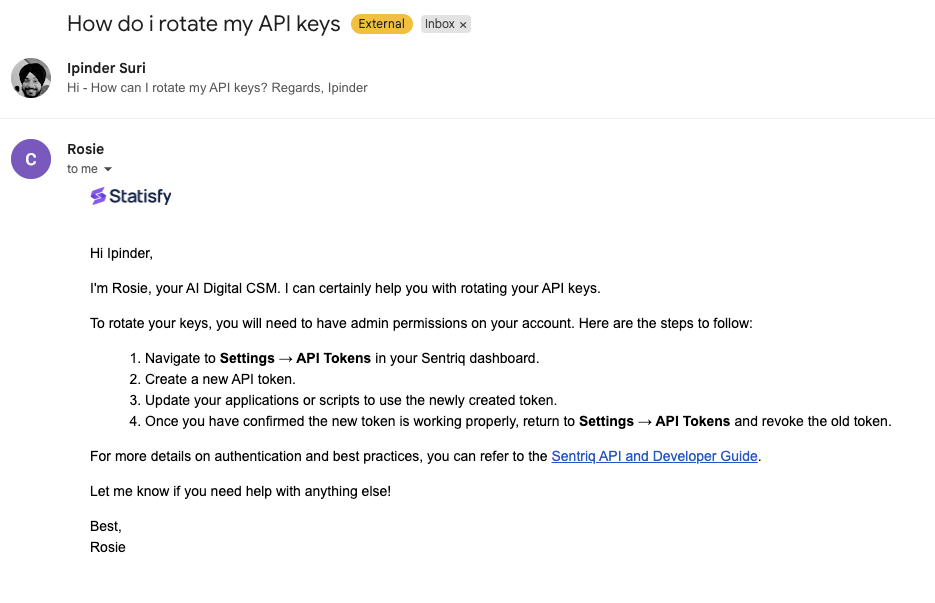
 The message shows up in the worker pool. If it's held for review, a teammate opens it, picks the **From** address, and sends (see [Replying from a different address](#replying-from-a-different-address)). The reply is delivered from your **company address**:
 ### Connected mailbox
A customer emails a **monitored mailbox** (`navin@sentriq.site`):
### Connected mailbox
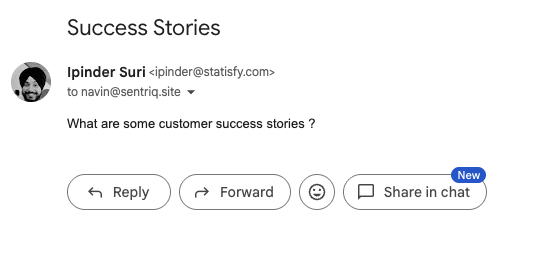
A customer emails a **monitored mailbox** (`navin@sentriq.site`):
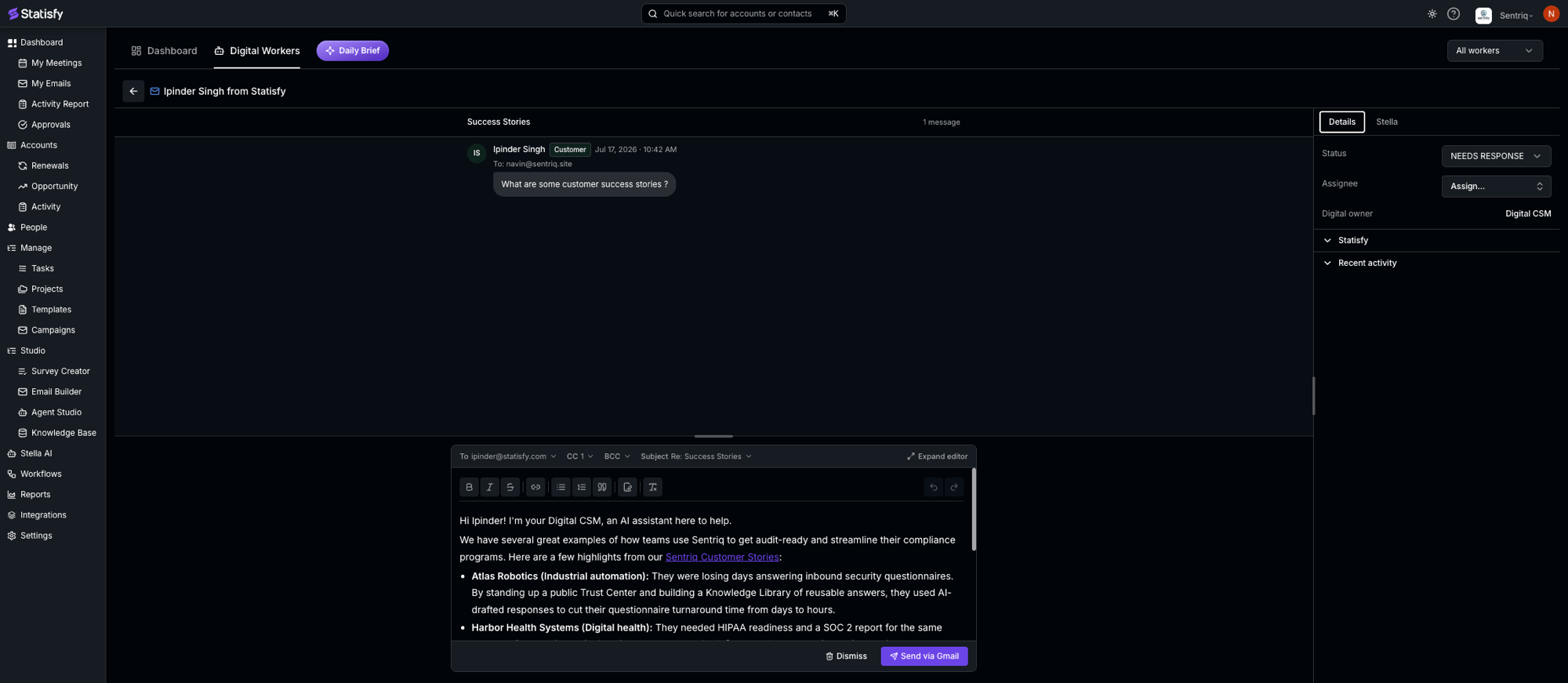
 The worker drafts a reply in the worker pool. A teammate reviews it and clicks **Send via Gmail** (the button matches the mailbox's provider):
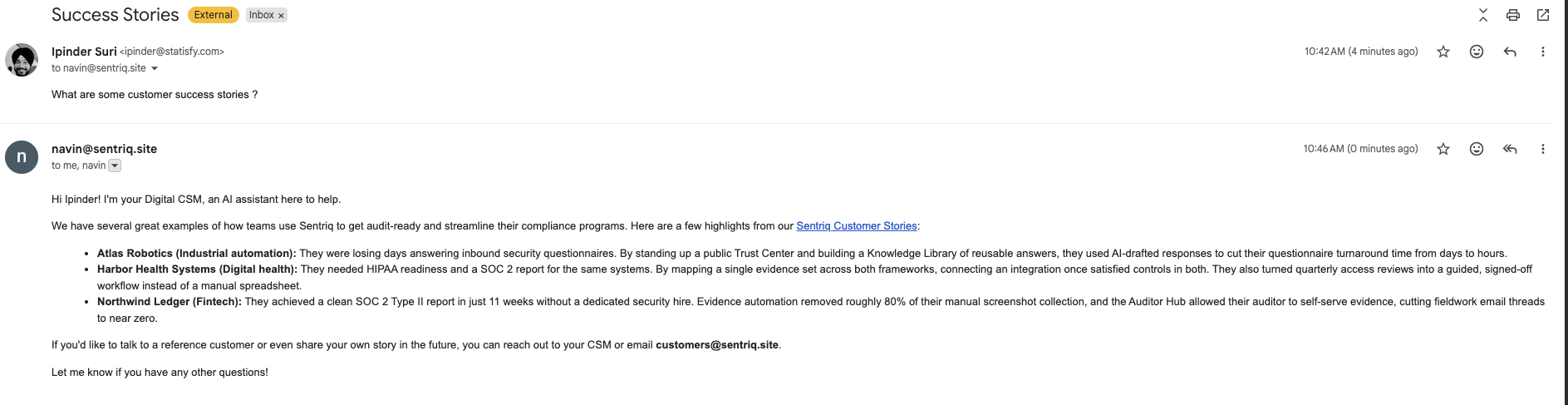
 The reply is sent as a real email **from that mailbox** — it lands in the customer's inbox and in the mailbox's Sent items:
 ## Troubleshooting
You don't have a verified sending domain yet. Go to **Settings → DNS**, add and verify your domain ([DNS Setup](/admin/dns_setup)), then return to the Email tab.
The worker needs both read and send access to work a connected account. Reconnect that mailbox (Gmail or Microsoft 365) with **both** permissions, then re-add it under **Monitored mailboxes**.
* Send a test message and confirm your forwarding rule actually fires.
* Check that you forwarded to the exact `dw-…@dw.statisfy.dev` address (copy it again from the Forwarding address box).
* Confirm the sender resolves to a **synced customer account** — mail from a domain that isn't a known customer may not attach to an account.
* Is the worker **active** and assigned to that customer's accounts?
* Is its autonomy set to send? Otherwise the reply is held for review in the worker pool.
* Forwarding: is the company-address domain still **verified**? Statisfy holds a reply rather than sending it from an unverified domain.
* Connected account: can the monitored mailbox still **send**? A mailbox missing send permission causes replies to be held.
No. Statisfy stamps its own outbound mail and drops it if your forwarding rule sends it back in, so a worker's reply won't loop back through the pipeline.
## Related
Connect the Gmail or Outlook mailboxes a worker works and sends from.
Add and verify the sending domain forwarded-mail replies go out from.
Let a worker reply to customers in shared Slack channels.
## Troubleshooting
You don't have a verified sending domain yet. Go to **Settings → DNS**, add and verify your domain ([DNS Setup](/admin/dns_setup)), then return to the Email tab.
The worker needs both read and send access to work a connected account. Reconnect that mailbox (Gmail or Microsoft 365) with **both** permissions, then re-add it under **Monitored mailboxes**.
* Send a test message and confirm your forwarding rule actually fires.
* Check that you forwarded to the exact `dw-…@dw.statisfy.dev` address (copy it again from the Forwarding address box).
* Confirm the sender resolves to a **synced customer account** — mail from a domain that isn't a known customer may not attach to an account.
* Is the worker **active** and assigned to that customer's accounts?
* Is its autonomy set to send? Otherwise the reply is held for review in the worker pool.
* Forwarding: is the company-address domain still **verified**? Statisfy holds a reply rather than sending it from an unverified domain.
* Connected account: can the monitored mailbox still **send**? A mailbox missing send permission causes replies to be held.
No. Statisfy stamps its own outbound mail and drops it if your forwarding rule sends it back in, so a worker's reply won't loop back through the pipeline.
## Related
Connect the Gmail or Outlook mailboxes a worker works and sends from.
Add and verify the sending domain forwarded-mail replies go out from.
Let a worker reply to customers in shared Slack channels.