> ## Documentation Index
> Fetch the complete documentation index at: https://help.statisfy.com/llms.txt
> Use this file to discover all available pages before exploring further.
# Email Templates
> Design reusable, personalized email templates for campaigns, surveys, and automations.
Email templates are reusable email designs you build once and reuse across [campaigns](/campaigns/creating_campaigns), [survey](/campaigns/surveys) invitations, and [Agent Studio automations](/agent-studio/automations/actions). Each template stores its content, sender details, and personalization so you can send consistent, on-brand email at scale.
Open templates from **Email Builder** in the sidebar, or directly at **[app.statisfy.com/emailer-templates](https://app.statisfy.com/emailer-templates)**. The **Emailer Templates** list shows each template's name, type, and status.
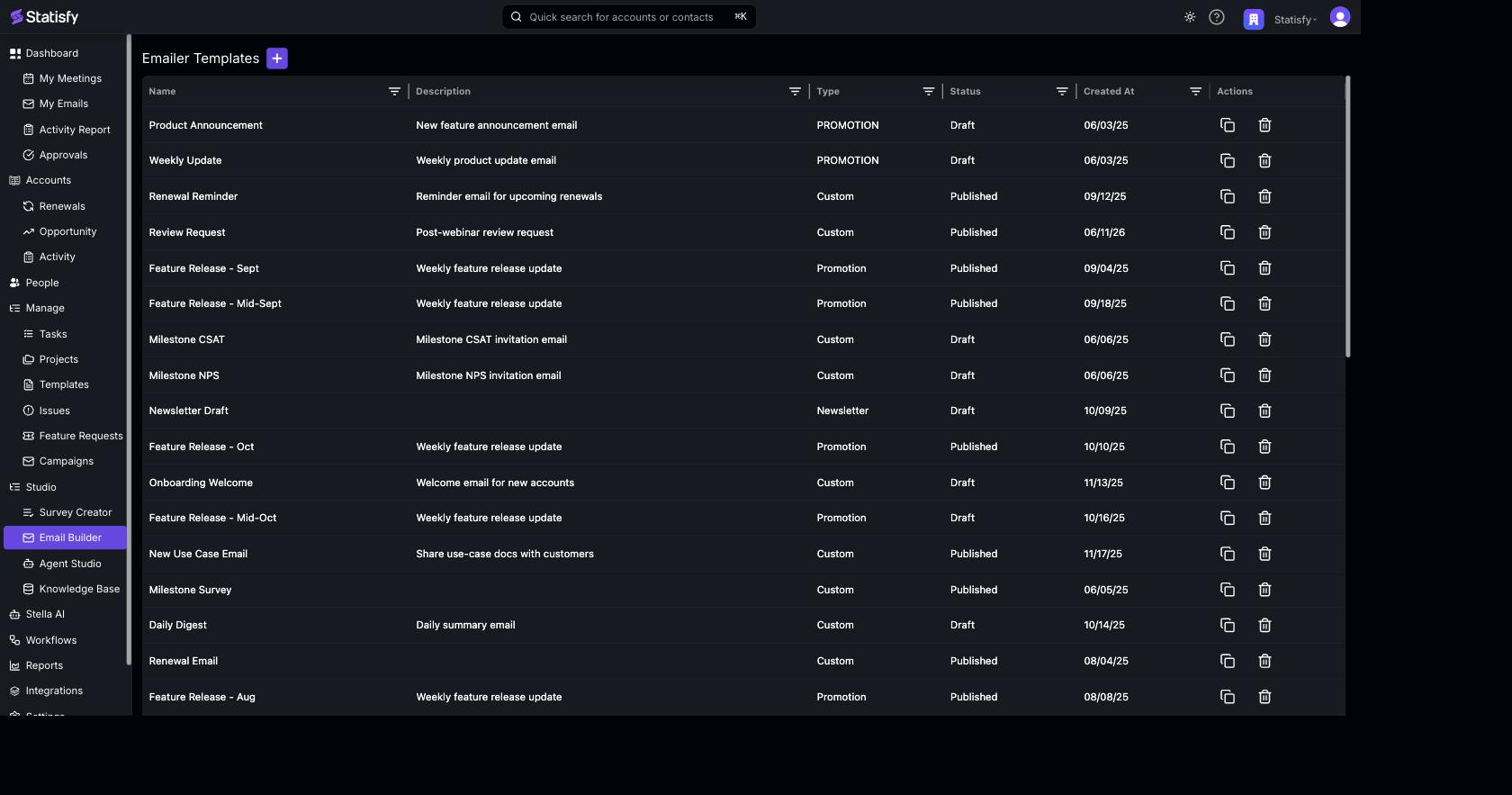
### Template Types
When you create a template you choose a type. The type controls one important rule: whether an [unsubscribe link](/campaigns/campaign_unsubscribe) is required.
| Type | Use it for | Unsubscribe link |
| -------------- | --------------------------------------- | ---------------- |
| **Promotion** | Marketing and promotional outreach | Required |
| **Newsletter** | Recurring newsletters and roundups | Required |
| **Updates** | Transactional and product-update emails | Not required |
| **Custom** | Anything else | Required |
Only **Updates** emails are exempt from the unsubscribe requirement. For every other type, your template must include an unsubscribe link before it can be published.
### Template States
| State | Description |
| ------------- | ---------------------------------------------------------------------- |
| **Draft** | Work in progress. Can be freely edited. |
| **Published** | Finalized and available to use in campaigns, surveys, and automations. |
### Creating a Template
Creating a template is a two-step flow — **Template Info**, then **Editor**.
#### Step 1 — Template Info
1. Click the **+** (Add Emailer Template) button next to the page title.
2. Fill in the details:
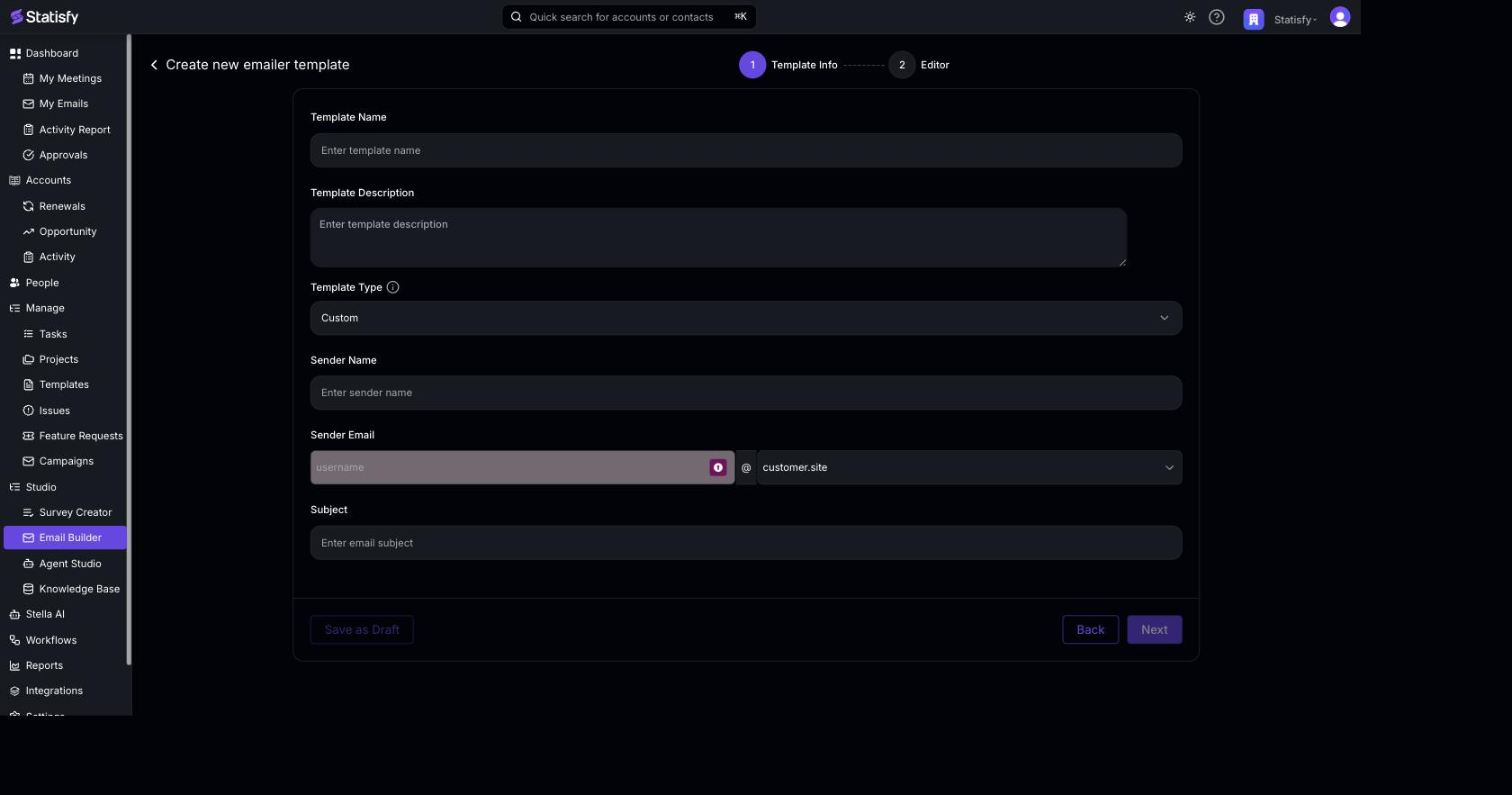
* **Template Name** — a descriptive name you'll recognize later.
* **Template Description** — optional notes about the template's purpose.
* **Template Type** — Promotion, Newsletter, Updates, or Custom (defaults to Custom).
* **Sender Name** — the "From" name recipients see.
* **Sender Email** — the "From" address. Must belong to a [verified sender domain](/integrations/email_and_calendar_integration) configured by your admin.
* **Subject** — the email subject. You can include [merge tags](/campaigns/personalization) here too.
3. Click **Next** to continue, or **Save as Draft** to return later.
#### Step 2 — Editor
Statisfy provides a drag-and-drop visual editor for building the email body.
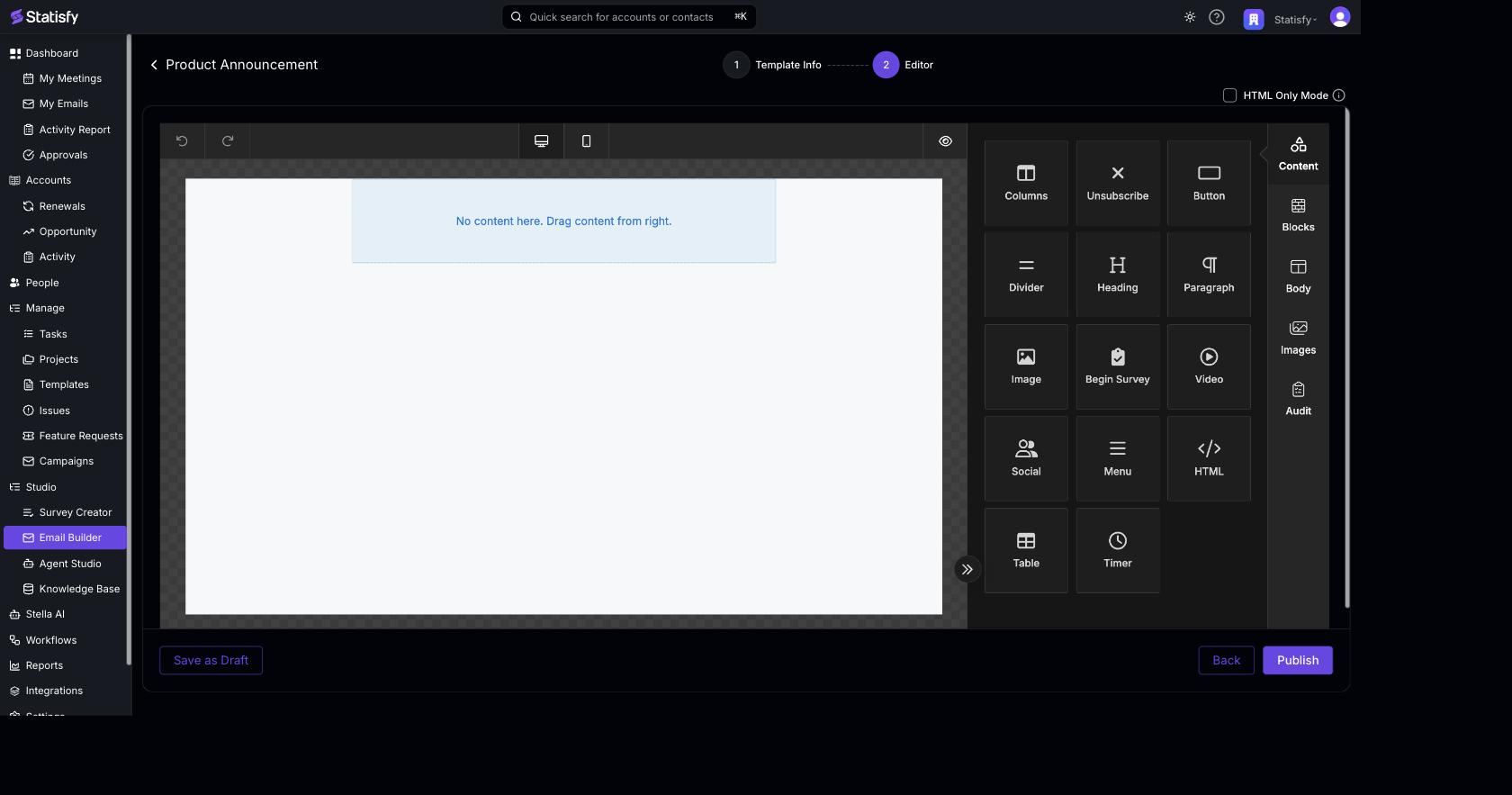
The default editor is a WYSIWYG, block-based builder. Drag content blocks (columns, buttons, headings, paragraphs, images, dividers, and more) onto the canvas and style them visually. Your design is saved as both a reusable layout and rendered HTML.
The editor includes two Statisfy-specific blocks:
* **Unsubscribe** — inserts an unsubscribe link. Drag it in to satisfy the unsubscribe requirement for Promotion, Newsletter, and Custom templates. You can style the link text, font, color, and alignment.
* **Begin Survey** — inserts a survey call-to-action button that links to the recipient's survey. Use this in templates that distribute [surveys](/campaigns/surveys). You can style the button label, colors, padding, border, and alignment. Limit one per template.
If you'd rather hand-author the email, tick **HTML Only Mode** to paste or write your own HTML directly instead of using the visual builder. The HTML you provide is used as-is.
### Personalization
Templates support **Jinja merge tags** so each recipient receives a personalized email — for example `{{ contact.name }}` or `{{ account.name }}`. Use the **Insert Merge Tag** picker in the editor to browse and insert the tags available for your workspace.
See the dedicated [Personalization & Merge Tags](/campaigns/personalization) reference for the full syntax, the special `{{ unsubscribe_this }}` and `{{ survey_url }}` tags, and the list of entity groups.
### Publishing
Once your content, sender, and subject are set:
1. Make sure required elements are present (e.g. an unsubscribe link for non-Updates types).
2. Click **Publish**.
Published templates become selectable in campaigns, survey distribution, and Agent Studio email actions.
Keep a **Draft** copy if you plan to iterate. Changes to a published template's content are republished — so duplicate first if you want to preserve the original.
### Where Templates Are Used
Select a published template when building an email campaign.
Use a template (with the Begin Survey block) to invite recipients to a survey.
The Email Template V2 and Consolidated Email actions send saved templates from automations.
Learn the merge-tag syntax used across all of the above.