> ## Documentation Index
> Fetch the complete documentation index at: https://help.statisfy.com/llms.txt
> Use this file to discover all available pages before exploring further.
# Managing Activities
> Reassign meetings to the right customer, edit activity fields, share recordings publicly, and create clips from meeting videos.
This page covers the four most common ways to work with an individual activity from its detail page or timeline card:
* **Reassign** the activity to a different customer account
* **Edit fields** (standard, Statisfy, and CRM-synced)
* **Share** a public link to the activity
* **Create a clip** (trim a portion of the meeting recording)
### Opening the Activity Detail Page
Click any activity card in a timeline to open its detail page. The detail page lives at:
```
/book/{customer_id}/activity/{activity_id}
```
The page is organized into sections you switch between using the buttons at the top of the page — a details button (labeled for the activity type, e.g. **Meeting Details** or **Video Details**), **Summary**, **Email Follow Up**, **Recap**, **Clips**, and **Fields**. The current section is reflected in the URL's `show=` parameter, so you can deep-link or bookmark a specific view (e.g., `?show=fields` lands directly on the field editor).

For meeting and call activities that have a recording or transcript, the detail page also includes an **Email Follow Up** section with an AI-drafted follow-up email you can open or copy. See [Email Follow-up](/activities/viewing_activities#email-follow-up). Which sections appear depends on the activity: **Clips** shows only for meetings with a video recording.
The activity header carries the **Copy Link**, **Create Clip**, and **Reassign** controls (for meetings), plus the AI sentiment badge.

## Reassign an Activity to a Different Customer
### Who Can Reassign
* **Admins** in your Statisfy organization, or
* **Participants** on the activity (e.g., on the meeting invite, copied on the email)
If neither applies, the controls below are not visible to you.
### From the Activity Detail Page or Timeline
1. Open the meeting activity (or hover over its title in a timeline)
2. Click the **Reassign** (pencil) icon next to the activity title
3. In the **Reassign customer** dialog, remove the current mapping if needed, then use **Search your customers** to add the right account. Your book of business is listed first; type to search the rest of the org
4. Click **Save**
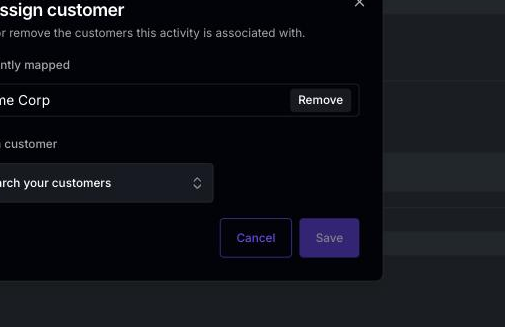
The change is immediate — the activity moves to the new customer's timeline. Other team members see the updated customer on their next page refresh.
Reassigning only moves *that one* activity. Domain-based attribution rules going forward are unchanged — if the same kind of meeting keeps landing on the wrong customer, ask an admin to review the domain configuration in the Object Manager.
### Applying a Person's Customer Change to Past Meetings
When you edit a person on the **People** page and change their customer association, Statisfy shows an **Apply changes to past meetings?** prompt with these options:
* **Last 15 days** — recent re-attribution (a good default for most cases)
* **Last 90 days** — broader cleanup
* **Custom** — enter your own number of days to look back (up to 365)
* **Skip** — apply nothing to past meetings; only the person's record changes
If you choose a lookback window, the backfill runs in the background and affected meetings update within a few minutes.
### Admin: The Meetings Sub-Tab
Admins have an additional view on the **Activity** page (**Activity → Meetings** in the left navigation) that lists every meeting in the organization, including ones with no customer attached (e.g., new attendee domains). The **Meetings** tab is split into three sub-tabs:
| Sub-tab | What it shows |
| ------------------------------ | -------------------------------------------------------------------------------------------------------------- |
| **Customer Meetings** | Meetings already attributed to a customer account |
| **Unmapped External Meetings** | Meetings with outside attendees whose company isn't linked to any customer yet — the most common cleanup queue |
| **Unmapped Internal Meetings** | Internal-only meetings that aren't attached to a customer |

In any sub-tab you can:
* Use **Filters** to narrow by date range, owner, or attendance
* Reassign individual meetings to the correct customer account using the pencil icon on each row
The **Unmapped External Meetings** sub-tab surfaces meetings on domains that aren't yet linked to a customer, so you don't need a separate toggle to find them.
Work through the **Unmapped External Meetings** tab periodically — assigning those meetings to the right accounts keeps timelines, health scores, and reports complete.
## Edit Activity Fields
The **Fields** section of the activity detail page lets you edit metadata directly on the activity, grouped by source.
To open it, either click **Fields** in the section bar at the top of the activity, or load the page with `?show=fields` in the URL.
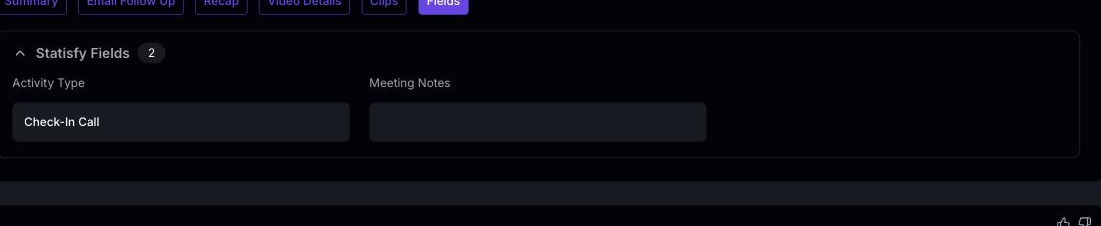
Fields are organized into collapsible groups by source:
| Group | What it contains | Editable? |
| ------------------- | ----------------------------------------------------------------------------------------- | ------------------------------------- |
| **Standard Fields** | Built-in fields that ship with every activity (title, date, type, owner, etc.) | Where supported |
| **Statisfy Fields** | Custom fields your admin defined under [Object Manager → Activity](/admin/object_manager) | Yes (if not read-only) |
| **{CRM} Fields** | Fields synced from Salesforce, HubSpot, or another connected CRM, grouped per source | Read-only — edit in the source system |
Click into a field to change its value. Saves are immediate; there is no separate Save button.
Read-only fields appear with a lock indicator. Statisfy fields that the admin has marked non-editable in Object Manager fall into this category, as do all fields synced from a CRM.
For AI-generated fields (sentiment, one-liner, key takeaways), see [Activity AI Fields](/activities/activity_ai_fields) — those have their own override flow with a reason prompt.
## Share an Activity Publicly
For **meetings**, the activity detail page header shows a **Copy Link** icon next to the title. Clicking it generates a secure public link and copies it to your clipboard. Recipients do not need a Statisfy account.
Shared links include the meeting title, date, summary, key takeaways, and sentiment. They do **not** include internal comments, tags, or account health. Links expire after a period set by your admin.
See [Activity Sharing](/activities/activity_sharing) for the full sharing flow, including link expiry, extension, and what recipients see.
## Create a Clip (Trim a Meeting Recording)
For **meetings with a video recording**, the activity detail page header shows a **scissors icon** next to the Share button. This lets you create a clip — a trimmed portion of the recording you can save and share separately from the full meeting.
### Creating a Clip
1. Open the meeting's activity detail page
2. Click the **scissors icon** (tooltip: "Create Clip") next to the title
3. You'll be taken to the clip editor at `/clip/{activity_id}`
4. Drag the start and end markers on the video timeline to select the portion you want
5. Add a title and an optional description
6. Save the clip
The clip is processed in the background. Once it's ready, it appears in the **Clips** section of the meeting (also accessible at `?show=clips` on the activity URL).
### Viewing and Sharing Clips
Open **Clips** on the meeting's detail page to see every clip created from that recording. Click a clip to play it in the in-app player. Each clip has its own public share link, so you can send a specific moment from a meeting without sharing the full recording.
Clips are ideal for sharing customer quotes with internal teams (e.g., "here's exactly what the customer said about the new pricing") without the recipient sitting through a 45-minute call.
## What Gets Updated When You Reassign
When an activity is reassigned to a different customer:
* The activity moves to the new customer's timeline and is removed from the previous one
* Reports, dashboards, and health calculations pick up the change on their next refresh
* Sentiment, summary, and AI fields on the activity itself are **not** recomputed — only the customer attribution changes
If you need the AI-generated content to reflect the new customer context, contact your admin or [support@statisfy.com](mailto:support@statisfy.com).
## Troubleshooting
Either (1) you are not an admin and not a participant on this activity, or (2) the activity type does not support reassignment (for example, system-generated activities).
Refresh the page. The change is immediate on the backend, but timeline views cache the previous result for a few seconds.
Customers in your book of business appear first. Type more of the name to trigger the full-organization search. If the customer truly doesn't exist yet, an admin will need to create it via the Accounts page or your CRM integration.
Both controls are scoped to meetings. **Copy Link** appears on every meeting; the scissors (Create Clip) only appears on meetings that have an attached video recording. Emails, tickets, surveys, and manual activities do not have either control.
CRM-synced fields can only be changed in the source system (e.g., Salesforce, HubSpot) — they sync back to Statisfy on the next pull. For Statisfy fields, ask your admin to update the field's editability in **Object Manager → Activity**.